Mac Bluetooth Keeps Disconnecting? How to Find the Cause
TL;DR
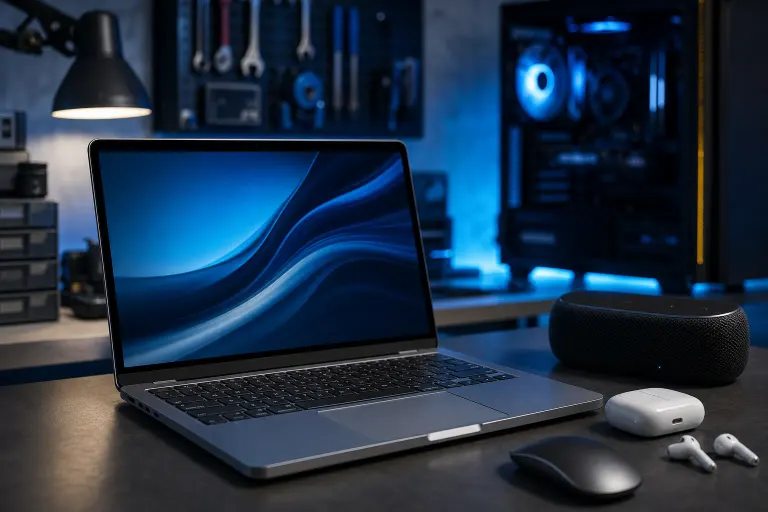
Most Mac Bluetooth disconnects come from three culprits: RF interference (USB 3.0 hubs and WiFi routers are the usual suspects), a device battery that's lying to you about its charge, or a corrupted Bluetooth preference file. Work through them in that order. If the connection still drops after a full reset, you're probably looking at a hardware issue that needs a bench diagnosis, not another software tweak.
What you need
- A Mac running any recent macOS version (the fix steps are similar back several versions)
- The Bluetooth accessory that's dropping (mouse, keyboard, headphones, whatever's misbehaving)
- 15-20 minutes, because you're going to isolate variables one at a time (don't skip steps, that's how people end up guessing forever)
- Terminal access, for one optional advanced step
- A second known-good Bluetooth device if you have one, to rule out the accessory itself
Computer acting up? Get a real diagnosis. Book a diagnostic
Step 1: Rule out physical interference first
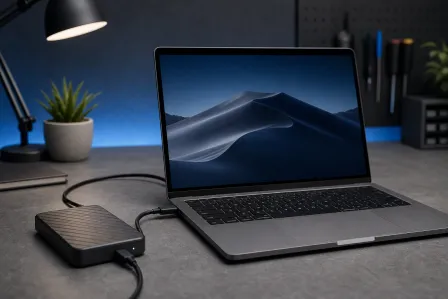
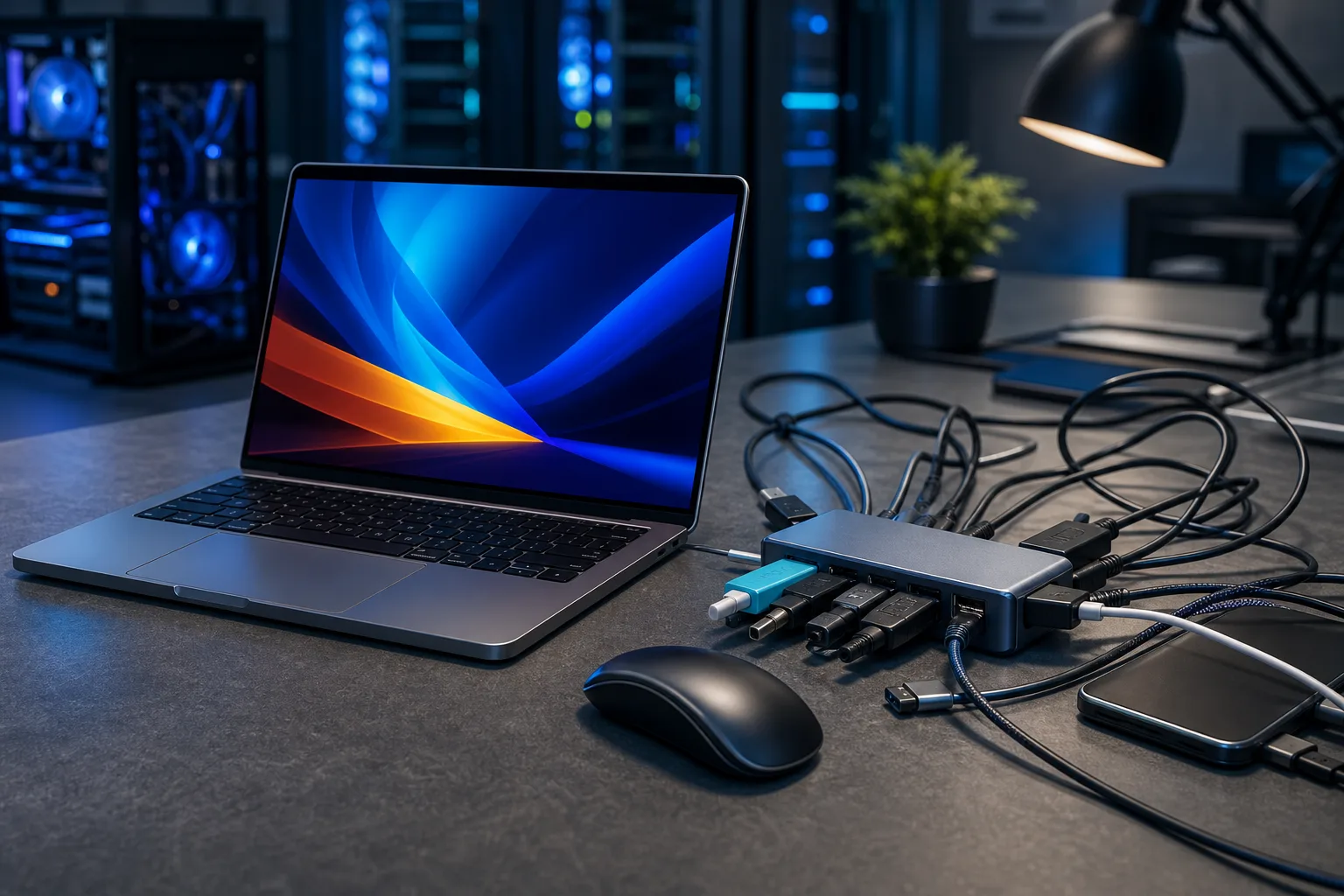
Bluetooth runs on the 2.4GHz band. So does most WiFi, plus USB 3.0 ports, which are notorious for spewing RF noise right in that range (Apple's own support documents admit this, it's not a conspiracy theory). If your mouse or headphones are sitting within a foot of a USB 3.0 hub, external drive, or hub-powered dock, that's your first suspect.
Move the accessory (or the Mac) at least a foot away from any USB 3.0 device and see if the drops stop. If you're on a laptop docked to a hub, try undocking temporarily. Also check what's on your WiFi channel: routers set to auto-channel select on 2.4GHz can occasionally collide with Bluetooth traffic, especially in apartment buildings with a dozen networks stacked on top of each other.
It's worth understanding why USB 3.0 interference is such a persistent problem. The USB 3.0 specification operates data transfer at 5Gbps, and the harmonics produced by the high-speed signaling land squarely in the 2.4GHz band that Bluetooth uses. The closer your USB 3.0 device is to your Mac's antenna, which on a MacBook is typically routed along the display hinge, the worse the interference. Dongles, thumb drives, and bus-powered hard drives plugged directly into the Mac are often bigger offenders than a hub sitting a few feet away on your desk, because they're physically attached to the machine. If you can, use a powered USB hub placed as far from the Mac as your cable allows, and prefer USB-C or Thunderbolt accessories where the underlying protocol doesn't cause the same 2.4GHz noise problem.
WiFi interference is worth a few extra minutes of attention too. Most modern routers default to automatic channel selection, but in a dense urban environment, that auto-selected channel is almost certainly shared with several neighbors. Free tools like WiFi Explorer (Mac App Store) or the built-in Wireless Diagnostics utility (hold Option and click the WiFi menu bar icon, then choose Open Wireless Diagnostics) let you see which 2.4GHz channels are congested near you. Manually setting your router to channels 1, 6, or 11, the only non-overlapping channels in the 2.4GHz band, and keeping neighbors off your channel reduces the chance of Bluetooth collisions. If your router supports it, pushing your devices to 5GHz or 6GHz entirely frees up the 2.4GHz band almost exclusively for Bluetooth.
Step 2: Check the battery, not just the charge indicator
Mac's battery percentage display for Bluetooth accessories is optimistic at best. A mouse or trackpad showing 20% can still behave fine for days, or it can start dropping connection intermittently as voltage sags under load, particularly in cold rooms or right before it dies completely.
Swap in fresh batteries (or fully charge a rechargeable device) even if the indicator says it's not urgent. If the drops disappear, you found it. Cheap alkalines in Magic Mice are a classic offender here, they don't fail gracefully.
The voltage sag issue is more nuanced than most people realize. Alkaline batteries deliver a relatively stable 1.5V when new, but as they discharge, that voltage curve drops gradually and then falls off a cliff at the end. Bluetooth radio circuits need consistent voltage to maintain a stable connection; when the voltage dips under load, even briefly, the radio can lose sync with the host. That's why you see intermittent drops long before the battery is truly dead, rather than a clean cutoff. Cold temperatures accelerate this: a battery that reads 30% in a warm room may effectively behave like it's nearly dead at 60°F or below. If you work in a cold office or your Mac setup is near an air conditioning vent, battery-related drops become even more likely.
For rechargeable accessories like Apple's Magic Mouse 2, Magic Trackpad, or AirPods, the failure mode is a little different. Lithium-ion cells report their state of charge through a fuel gauge circuit, and those circuits can develop calibration drift over time, especially if the device has gone through many partial charge cycles without ever being fully discharged. If you've had the accessory for more than a year or two and the battery percentage seems to jump around unpredictably, the fuel gauge itself may be giving bad data. A full discharge and slow recharge sometimes recalibrates it. If the problem persists, battery health has likely degraded to the point where replacement is the real fix.
Step 3: Reset the Bluetooth module
The method for resetting Bluetooth depends on your macOS version. On macOS Monterey (12) and later, the Shift+Option-click shortcut on the Bluetooth menu bar icon no longer reveals a hidden debug menu. Instead, use one of these current approaches:
Via System Settings (macOS Ventura and later): Go to System Settings > Bluetooth, turn Bluetooth off, wait 10 seconds, then turn it back on. For a deeper reset, remove the problematic device from your paired devices list, then re-pair it from scratch.
Via Terminal (all recent macOS versions): Open Terminal and run the following command to restart the Bluetooth daemon:
sudo pkill bluetoothd
Your Mac will automatically restart the Bluetooth process. You may be prompted for your administrator password. After it restarts, check whether your accessory reconnects cleanly and the drops have stopped.
Step 4: Delete the Bluetooth preference file
If resetting the module doesn't fix things, the next suspect is a corrupted Bluetooth preference file. macOS stores pairing data and module configuration in a plist file that can become corrupted after a system update, a crash, or sometimes just over time. Deleting it forces macOS to rebuild it from scratch on the next restart.
To do this, open Finder, press Cmd+Shift+G to open the Go to Folder dialog, and type:
/Library/Preferences
Look for a file named com.apple.Bluetooth.plist. Move it to the Trash (don't empty the Trash yet, keep it as a backup), then restart your Mac. macOS will generate a fresh copy. Re-pair your Bluetooth accessories from scratch and test for drops over the next hour or two before deciding whether the fix held.
If the drops return, the original plist probably wasn't the cause, you can restore it from the Trash if needed, though in most cases the fresh file is fine to keep.
Step 5: Rule out the accessory itself
Before concluding you have a Mac hardware problem, borrow or dig out a second Bluetooth device, a friend's wireless mouse, a spare keyboard, a pair of Bluetooth headphones, and pair it with your Mac. Use it in the same environment, at the same desk, for 20-30 minutes doing the same kind of work that normally triggers the drops.
If the second device stays connected without interruption, the problem is the original accessory, not your Mac. Wireless mice and keyboards develop radio issues as they age, and the symptoms (intermittent drops that seem software-related) are easy to misread. A device that drops connection only when the Mac is involved in a specific task, audio playback, heavy disk I/O, video calls, is worth testing under those specific conditions.
If the second device drops too, you've confirmed the problem lives in the Mac's Bluetooth hardware or system software, not the accessory. At that point you're either looking at a deeper software issue (a misbehaving kernel extension, a third-party app interfering with the Bluetooth stack) or physical hardware failure, antenna damage, a failing Bluetooth/WiFi combo chip, or a logic board issue.
When it's time to get a bench diagnosis
Software fixes have a ceiling. If you've worked through interference isolation, battery replacement, module resets, and preference file deletion, and the drops are still happening reliably, you've exhausted the things you can reasonably fix yourself. A bench technician can run hardware diagnostics that aren't available to end users, inspect the antenna cables (a common failure point on MacBooks that have been dropped or had liquid exposure), and determine whether the Bluetooth/WiFi chip itself needs service.
Intermittent Bluetooth failures that can't be tied to software are worth getting diagnosed sooner rather than later. They can be a sign of broader logic board instability that will surface in other ways down the road.
Computer acting up? Get a real diagnosis.
Fix My PC Store has repaired thousands of machines across West Palm Beach. Honest pricing, no upsell games, and a free diagnostic for new customers with our email coupon.