Mac Suddenly Asks for Password on Every App Open: What It Means
TL;DR
A Mac that starts nagging you for your password on every single app is almost always a broken login keychain, a permissions mismatch after an update, or a new security profile getting installed (sometimes without you asking for it). It's annoying, not usually dangerous, but ignore it long enough and you'll start clicking "allow" on things you shouldn't. Work through the checks below before you assume the worst.
What You Need
- Your Mac's admin password (the one you use to log in)
- Ten to fifteen minutes uninterrupted
- Access to System Settings (or System Preferences on older macOS)
- Know your macOS version (Apple menu > About This Mac)
- Patience. Keychain problems are tedious, not complicated.
Step 1: Figure Out Which Kind of Prompt You're Getting
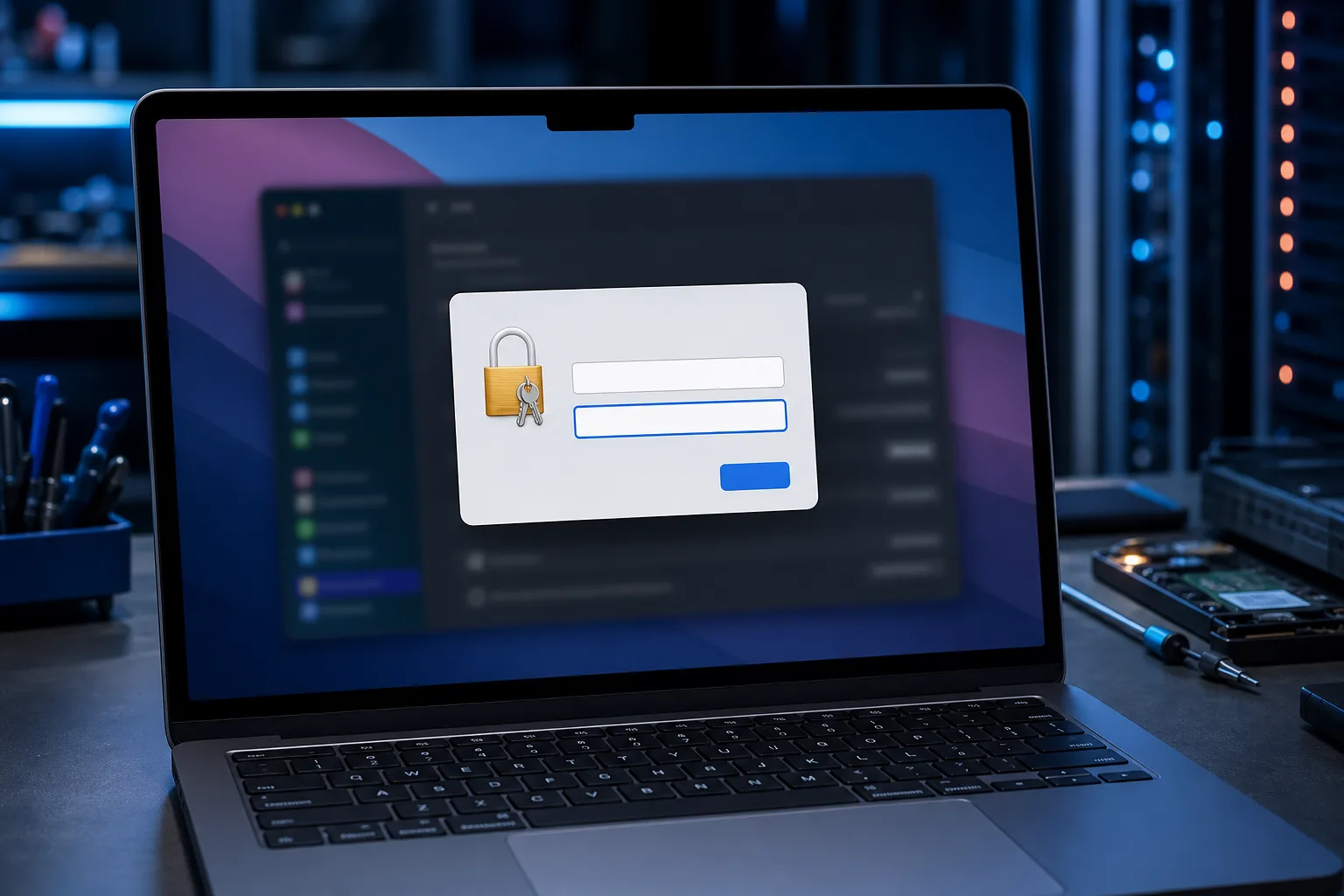
Not all password prompts are the same animal, and mixing them up wastes time. There are three flavors:
- Keychain Access prompt ('"App" wants to use your confidential information stored in "login" keychain') - this is your Mac's password manager acting up.
- System Settings/Privacy prompt asking to unlock a preference pane or approve an extension.
- A login window prompt that looks like your actual Mac login screen, appearing inside another app.
Read the dialog box word for word before you click anything (I know, revolutionary advice, but half of you skim these things like a EULA). The wording tells you which keychain or system component is asking, which matters for step 3.
Step 2: Rule Out an Update Gone Sideways
This is the boring, common answer, and it's right more often than the dramatic one. A recent macOS update can desync the login keychain password from your account password, especially if you changed your Apple ID password recently, reset your Mac password, or migrated data from an old machine.
Check: Apple menu > About This Mac > see if there's a pending update or one that installed recently. If the prompts started right after an update, that's your prime suspect, not malware.
Step 3: Check Keychain Access Directly
Open Keychain Access (Spotlight search for it, it's buried in Utilities where Apple hides half the useful tools). Look at the login keychain in the left sidebar. If it shows as grayed out, locked, or won't unlock with your normal password, the keychain itself has drifted out of sync with your account.
Fix:
- Try unlocking it manually with your current login password.
- If that fails, you may need to reset the login keychain (Keychain Access > Preferences, or right-click the login keychain > "Change Password of Keychain").
- Resetting the keychain wipes saved Wi-Fi passwords and stored app credentials, so only do this if you're prepared to re-enter those elsewhere. Write down anything critical first.
Computer acting up? Get a real diagnosis. Book a diagnostic
Step 4: Check for New Profiles or MDM Enrollment
Go to System Settings > Privacy & Security > Profiles (or Profiles & Device Management). If you see a profile you don't recognize, someone or something installed a configuration profile on your Mac. This is common on work machines under managed IT, but on a personal Mac it's a red flag worth taking seriously.
If you don't manage a business fleet and see an unfamiliar profile, remove it and change your Apple ID password right after, from a device you trust. If this is a work laptop and IT put it there for MFA or device management, that's expected behavior, not a compromise, so check with your IT contact before ripping it out.
Step 5: Check Login Items and Background Processes
System Settings > General > Login Items. Look for anything unfamiliar in the "Allow in Background" section. Adware and sketchy "cleaner" utilities (you know the ones, they promise to speed up your Mac and instead speed up your blood pressure) love to install background helpers that trigger repeated permission prompts as they try to access your keychain, contacts, or files.
Remove anything you don't recognize or didn't install yourself. If you're not sure what an entry is, don't just delete blind, look it up first.
Step 6: Check Third-Party Password Managers and Browser Extensions
If you run 1Password, Dashlane, or similar, an outdated or corrupted extension can trigger repeated system keychain prompts instead of its own. Update the app and browser extension to current versions. Old extensions clashing with a new macOS security model is a known, recurring headache, not a conspiracy.
Common Mistakes
- Clicking "Always Allow" on everything just to make it stop. That's how you end up giving a shady background process permanent keychain access. Read the prompt first.
- Resetting the keychain as the first move. It's a last resort, not step one, because you'll lose saved credentials you didn't back up anywhere else.
- Assuming it's a virus and reinstalling macOS from scratch. Nine times out of ten this is a sync or permissions issue, not an infection. Save the nuclear option for when you've actually confirmed something malicious.
- Ignoring an unrecognized profile because "it's probably fine." It's either fine because you forgot installing it, or it's not fine at all. Find out which.
- Changing your Apple ID password without checking where the prompts are actually coming from. Sometimes it helps, sometimes it does nothing because the real problem is local, not cloud-side.
Bottom Line
A Mac that suddenly wants your password for everything is usually telling you something broke in the keychain, a system update, or a login item, not that you've been hacked. Walk through the steps in order instead of jumping straight to a factory reset. If you've checked the keychain, profiles, and login items and the prompts keep coming, or you're just not comfortable poking around system security settings on your own machine, bring it in. Fix My PC Store handles Mac repair for exactly this kind of stubborn, not-quite-obvious problem, and if it turns out to be something deeper, remote support can often get eyes on it without you leaving the house.
Computer acting up? Get a real diagnosis.
Fix My PC Store has repaired thousands of machines across West Palm Beach. Honest pricing, no upsell games, and a free diagnostic for new customers with our email coupon.