Mac App Store Won't Open or Keeps Crashing: What to Check
TL;DR: Mac App Store crashes or refuses to launch most often because of a corrupt local cache, an expired Apple ID session, or a macOS update that broke a background service. Clear the cache, sign out and back into your Apple ID, and check for pending system updates. If those three steps do not fix it, the article below shows what else to look at.
What Happened
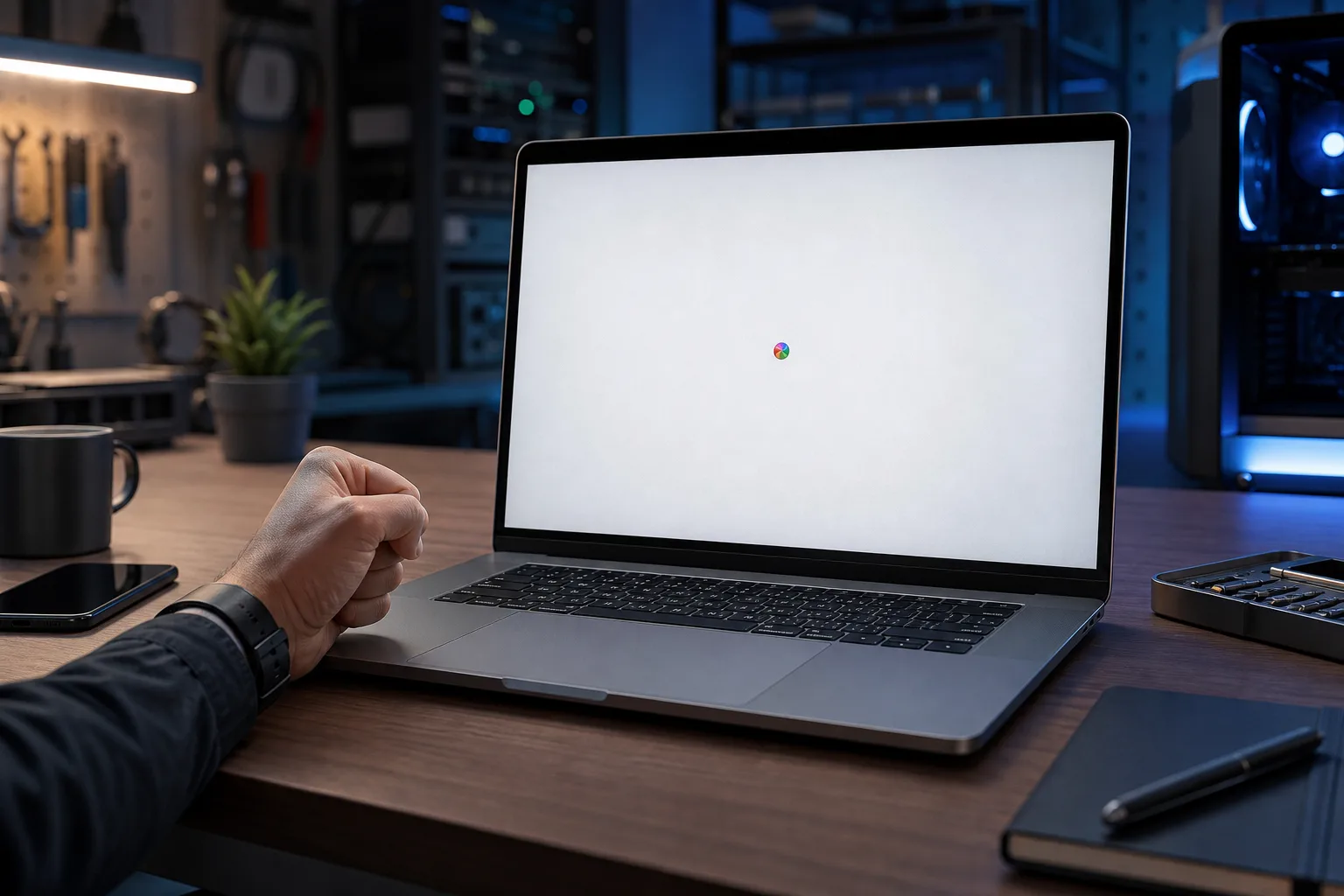
The Mac App Store is a system app, which means it depends on several Apple services running correctly in the background. When any one of those services stalls, the App Store can freeze on a white screen, bounce in the Dock once and quit, or simply refuse to open at all.
The most common triggers:
- Corrupted cache files. The App Store stores temporary data in your user Library. If those files get corrupted, the app chokes on launch.
- Stale Apple ID session. A signed-out or expired Apple ID token causes the App Store to hang while trying to verify your account.
- macOS or App Store version mismatch. A partial system update can leave the App Store binary out of sync with the OS.
- Date and time set incorrectly. Apple's servers use time-based authentication. Even a few minutes of clock drift can cause handshake failures.
- VPN or firewall blocking Apple CDN addresses. Third-party security tools sometimes block the domains the App Store contacts on launch.
Why It Matters
The App Store is also how macOS delivers security patches for system apps. If it cannot open, your system apps stop receiving updates, which can create real security exposure over time. It is worth fixing quickly, not just for convenience.
Computer acting up? Get a real diagnosis. Book a diagnostic
What We Don't Know Yet
Apple has not published a single definitive list of what can break the App Store in each macOS version. Behavior differs between macOS Ventura, Sonoma, and Sequoia, and some crashes are tied to Apple-side server issues that resolve on their own within hours. Checking Apple's System Status page first rules out a service outage before you spend time troubleshooting your own machine.
What to Do About It
Work through these steps in order. Stop when the App Store opens normally.
Step 1: Check Apple's system status
Go to apple.com/support/systemstatus. If the App Store shows a yellow or red indicator, the problem is on Apple's end. Wait and try again in an hour.
Step 2: Verify your date and time settings
- Open System Settings (or System Preferences on older macOS).
- Go to General > Date and Time.
- Make sure Set time and date automatically is turned on.
Incorrect time is a surprisingly common culprit that takes 30 seconds to rule out.
Step 3: Clear the App Store cache
The App Store cache lives in a hidden folder. Here is how to reach it:
- Open Finder.
- Click the Go menu, then hold Option to reveal the Library option. Click it.
- Navigate to Caches > com.apple.appstore.
- Move everything inside that folder to the Trash. Do not delete the folder itself.
- Restart your Mac and try the App Store again.
Step 4: Sign out of the App Store, then sign back in
- Open the App Store (or try to).
- If it opens, go to Store > Sign Out.
- Restart your Mac.
- Open the App Store and sign in again with your Apple ID.
If the App Store will not open at all, sign out through System Settings > Apple ID > Sign Out, restart, then sign back in.
Step 5: Install pending macOS updates
A partial or interrupted system update can leave mismatched files. Go to System Settings > General > Software Update and install anything available. After updating, restart and test.
Step 6: Check for VPN or firewall interference
Temporarily disable any third-party VPN or firewall software, then try the App Store. If it opens, your security tool is blocking an Apple domain. Check the software's exclusion list and add Apple's CDN addresses, or contact the software vendor for guidance.
Decision table: which step fits your situation?
| Symptom | Most likely cause | Start at step |
|---|---|---|
| White screen, then quits | Corrupted cache | 3 |
| Spins forever on launch | Apple ID token expired | 4 |
| Works on cellular hotspot, not Wi-Fi | VPN or firewall blocking | 6 |
| Crashes after a recent macOS update | Version mismatch | 5 |
| Crashes for everyone on the network | Apple service outage | 1 |
When to get professional help
If the App Store still will not open after all six steps, the issue may be a deeper macOS system file problem, a failing disk with read errors on the OS partition, or a permissions corruption that requires Terminal commands to repair. Those situations are worth handing to a technician.
Fix My PC Store handles Mac repairs from the shop at 10140 Okeechobee Blvd, West Palm Beach, and also offers remote support if you would rather not make the drive. Initial checks are free for most standard in-store repairs. Call 561-819-9999 or book online to set up a time.
Computer acting up? Get a real diagnosis.
Fix My PC Store has repaired thousands of machines across West Palm Beach. Honest pricing, no upsell games, and a free diagnostic for new customers with our email coupon.