Why Does My Mac Keep Dropping AirDrop Transfers Halfway Through?
TL;DR: AirDrop uses both Bluetooth and Wi-Fi simultaneously. If either signal gets interrupted, the transfer fails. Distance, interference, and software bugs on either device are the most common culprits. Most drops are fixed by toggling the radios off and back on, moving devices closer, and making sure both Macs or Apple devices are on the same Wi-Fi network.
What Happened
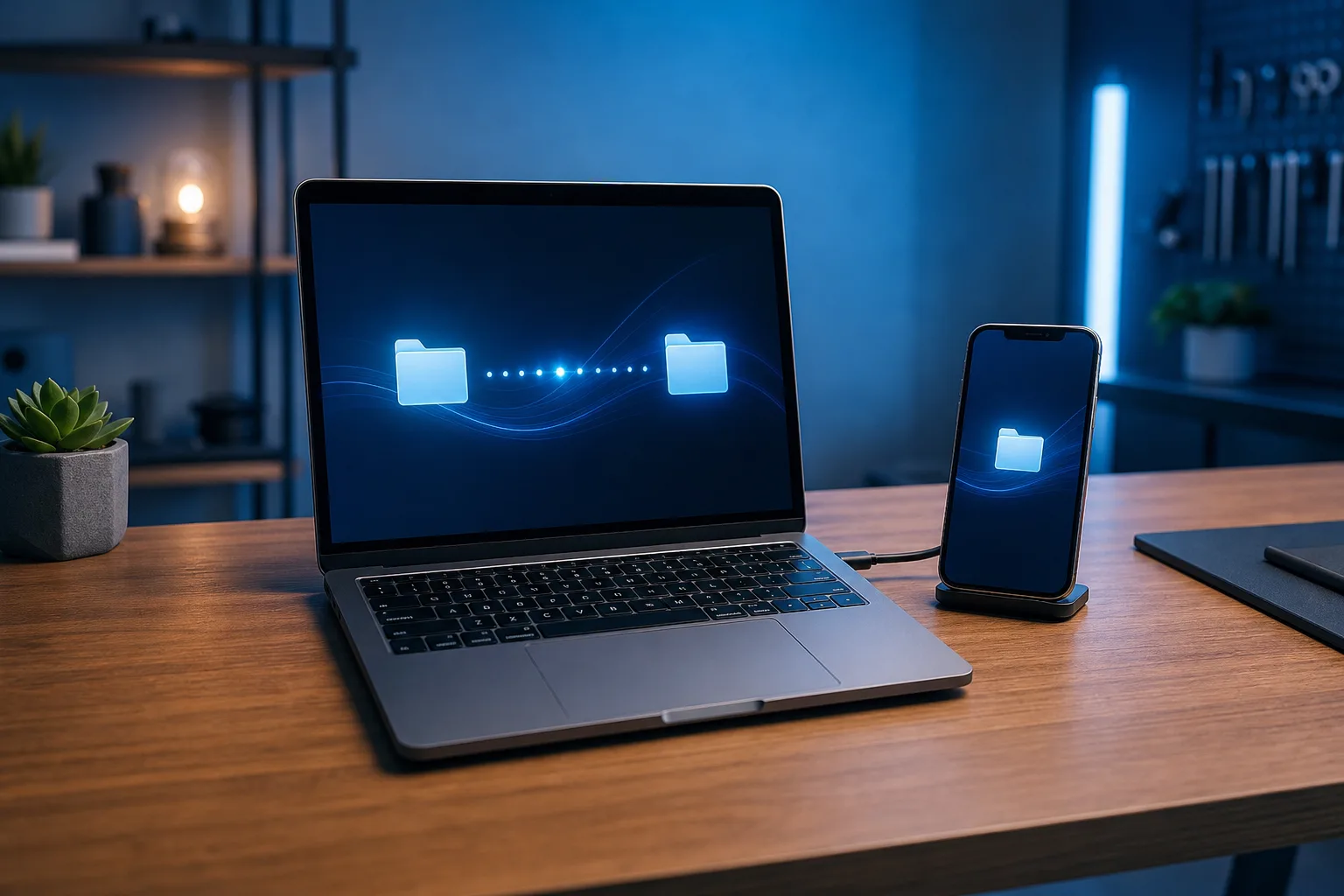
AirDrop is not a simple Bluetooth file send. It uses Bluetooth Low Energy to discover the other device, then switches to a peer-to-peer Wi-Fi connection to actually move the data. That two-step handshake is elegant when everything cooperates, but it creates two separate points of failure.
If the Wi-Fi link breaks mid-transfer, the whole session collapses. The file does not resume from where it left off. It just stops.
Common reasons the link breaks:
- Distance creep. One device moved to another room, or someone walked away. Wi-Fi peer-to-peer range is shorter than you might expect, often under 30 feet in a typical home with walls.
- Radio interference. Microwave ovens, crowded 2.4 GHz networks, and even some USB 3 devices can disrupt the Wi-Fi signal AirDrop relies on.
- Both devices not on the same Wi-Fi network. AirDrop's peer-to-peer link works better when both devices share the same network. If one is on a hotspot and the other is on home Wi-Fi, the discovery and handshake get unreliable.
- Bluetooth or Wi-Fi driver hiccup. macOS occasionally gets a software glitch where the radio stack stops responding correctly. This is more common after waking from sleep.
- Firewall or VPN on either device. A VPN redirecting traffic, or a firewall rule blocking local network connections, can silently kill the peer-to-peer session.
- Receiver dismissed the transfer. The person on the other end may have tapped Decline by accident, or their screen locked before they accepted.
Why It Matters
Dropped AirDrop transfers are annoying for personal use, but they become a real problem when you are moving large video files for work, sending documents between a Mac and iPhone on a job site, or trying to share files quickly in a meeting.
Unlike cloud-based transfers, AirDrop does not automatically retry or resume. Every failed transfer means starting completely over. For a 4 GB video, that is a significant time cost.
There is also a subtler issue. Repeated AirDrop failures sometimes get blamed on hardware, when the actual cause is a software state that a simple restart would clear. That distinction matters before you spend time troubleshooting further.
Computer acting up? Get a real diagnosis. Book a diagnostic
What We Don't Know Yet
Apple has not published detailed technical documentation on exactly how AirDrop handles mid-transfer interruptions or whether future macOS versions will add any retry mechanism. So the behavior described here reflects how AirDrop currently works, but could change in a future update.
It is also worth noting that AirDrop reliability can vary between macOS versions. If you recently updated and started seeing more drops, that is a known pattern worth watching. Check Apple's release notes for your macOS version to see if Bluetooth or Wi-Fi fixes were included.
What to Do About It
Work through this sequence in order. Stop as soon as transfers succeed.
Step 1: Move devices closer together. Get both devices within 10 to 15 feet of each other with no walls between them. This rules out range as the cause immediately.
Step 2: Toggle Wi-Fi and Bluetooth off, then back on, on both devices. On a Mac: click the Wi-Fi icon in the menu bar, turn it off, wait five seconds, turn it back on. Do the same for Bluetooth. This clears any stale radio state.
Step 3: Confirm both devices are on the same Wi-Fi network. Check System Settings > Wi-Fi on the Mac and Settings > Wi-Fi on iPhone or iPad. They should show the same network name.
Step 4: Disconnect from any VPN on both devices. Turn off the VPN app, attempt the transfer, then reconnect the VPN afterward.
Step 5: Check the Mac's firewall settings. Go to System Settings > Network > Firewall. If it is on, make sure "Block all incoming connections" is not checked. AirDrop needs local incoming connections to function.
Step 6: Restart both devices. This clears Bluetooth and Wi-Fi driver state fully. It solves the majority of persistent AirDrop drops that survive the steps above.
Step 7: Try a different transfer method temporarily. If the file is urgent, use iCloud Drive, Messages, or a USB cable while you troubleshoot. This keeps you moving without waiting on AirDrop.
Step 8: Reset network settings on iPhone or iPad (if that device is involved). On iOS, go to Settings > General > Transfer or Reset iPhone > Reset > Reset Network Settings. Note: this removes saved Wi-Fi passwords, so have those ready.
If AirDrop still fails consistently after all of the above, the issue may be a deeper hardware or software problem with the Mac's Wi-Fi or Bluetooth module. That is worth having checked. You can book a Mac diagnostic at Fix My PC Store or reach out through remote support if you want a quick look without coming in.
Quick Reference: AirDrop Failure Causes and Fixes
| Cause | Quick Fix |
|---|---|
| Devices too far apart | Move within 15 feet, no walls |
| Stale radio state | Toggle Wi-Fi and Bluetooth off and on |
| Different Wi-Fi networks | Connect both to the same network |
| VPN active | Disconnect VPN before transferring |
| Firewall blocking local connections | Check firewall settings in System Settings |
| Software glitch | Restart both devices |
| Hardware or driver issue | Professional diagnostic |
Computer acting up? Get a real diagnosis.
Fix My PC Store has repaired thousands of machines across West Palm Beach. Honest pricing, no upsell games, and a free diagnostic for new customers with our email coupon.