Laptop Won’t Connect to Wi-Fi? Fix It Step by Step
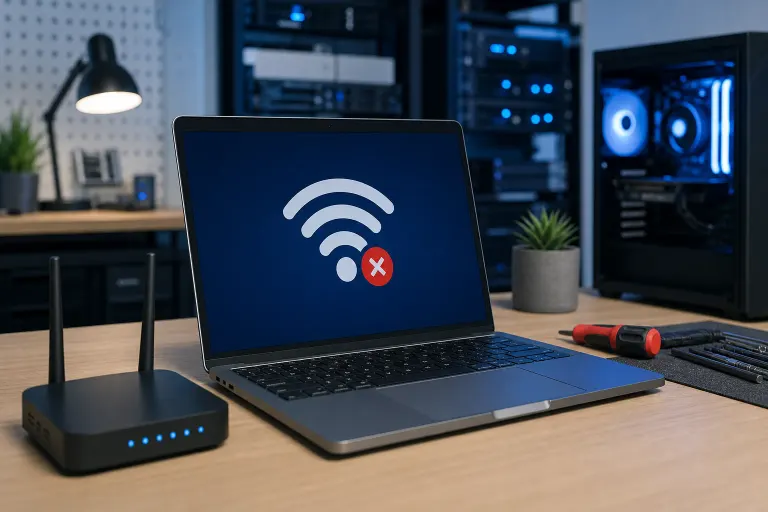
Your other devices are happily online, but your laptop is stuck buffering in the lobby. Good news: if phones, tablets, and smart TVs can join the same Wi-Fi, your internet service and router are probably working. The issue is usually isolated to the laptop’s settings, wireless adapter, driver, or saved network profile.
Start with the quick checks, then move deeper only if needed. Do not randomly reinstall everything at once. That is the troubleshooting equivalent of swapping every PC part because one RGB fan stopped spinning.
What you need
- Your laptop and its charger
- The Wi-Fi network name and password
- Access to the router, if you manage it
- A phone or another connected device for looking up drivers or contacting support
- An Ethernet cable and USB-to-Ethernet adapter, if your laptop supports one. This is optional but extremely useful for downloading drivers when Wi-Fi is down.
Before changing anything, confirm that at least one other device can browse a few websites on the same Wi-Fi network. If every device is connected but nothing loads, that is a router or internet-provider issue, not a laptop-only issue.
1. Check the simple stuff first
It sounds basic because it is basic. It also fixes a surprising number of “my Wi-Fi is broken” cases in under a minute.
Make sure Airplane mode is off. In Windows 11, select the network, sound, or battery icon on the taskbar, then verify Airplane mode is not enabled. On a Mac, click Control Center in the menu bar and make sure Wi-Fi is turned on.
Next, make sure Wi-Fi itself is enabled. Some laptops have a physical wireless switch, while others use an Fn keyboard shortcut. Look for a key with an antenna, radio waves, or airplane icon. On certain models, toggling that key can disable the wireless card even though Windows looks normal at first glance.
Restart the laptop. Not sleep. Not closing the lid. Use Restart. This clears temporary network-service hiccups and can bring a dormant adapter back online.
If your laptop cannot see any Wi-Fi networks, move to Step 5. If it sees your network but will not connect, keep rolling.
2. Forget the Wi-Fi network and reconnect
A saved network profile can become corrupted or retain an old password after the router was changed. Forgetting the network removes that stale data and forces a clean handshake.
On Windows 11:
- Select the network icon in the taskbar.
- Click the arrow next to the Wi-Fi button to view networks.
- Find your network, right-click it, and choose Forget. You can also go to Settings, Network & internet, Wi-Fi, Manage known networks.
- Select the network again and enter the password carefully.
On a Mac:
- Open Apple menu, System Settings, then Wi-Fi.
- Find the known-network settings or Details button beside the network, depending on your macOS version.
- Choose Forget This Network.
- Join again and enter the password.
Watch for password gotchas. Wi-Fi passwords are case-sensitive. A capital I can resemble a lowercase l, and a zero can resemble the letter O. If the router sticker is hard to read, use a connected phone to check the password in the router’s management app or settings.
If the laptop says “Can’t connect to this network” immediately after entering the right password, restart both the laptop and router once. Unplug the router’s power cable for about 30 seconds, reconnect it, and wait until it fully returns online. Do not repeatedly power-cycle it. Give it time to boot.
3. Check whether the laptop gets an IP address
Your router assigns each connected device a local address called an IP address. If that assignment fails, your laptop may show as connected but have no internet, or it may refuse to complete the connection.
On Windows, open Command Prompt and run:
ipconfig
Under the Wi-Fi adapter, look for an IPv4 Address and Default Gateway. A normal home network commonly uses a private address such as 192.168.x.x or 10.x.x.x. If you see an address beginning with 169.254, Windows did not receive an address from the router.
Try renewing the address:
ipconfig /release
ipconfig /renew
Then test whether the connection is actually working:
ping 8.8.8.8
ping google.com
If the first command works but the second fails, the likely issue is DNS. DNS translates names like google.com into the numeric addresses computers use. Set DNS back to automatic first. If it is already automatic and the problem persists, you can temporarily test with a public resolver such as Google Public DNS.
On a Mac, open System Settings, Wi-Fi, Details beside your network, then TCP/IP. Click Renew DHCP Lease. If that restores the connection, the laptop was likely stuck with an expired or conflicting address.
For a business laptop, do not casually hard-code IP addresses or DNS servers unless your IT team tells you to. Office networks may use internal systems, VPN requirements, security filtering, or reserved addresses. A properly managed business network should make this stuff invisible to users, which is exactly the point.
4. Turn off VPNs, proxies, and captive portal blockers
A VPN can block traffic if it fails to connect cleanly, especially if it has a kill switch enabled. Disconnect any VPN temporarily and try the Wi-Fi again. If the laptop connects normally once the VPN is off, update or reinstall the VPN client, then check its connection settings.
Also check for a proxy setting that does not belong there.
On Windows, go to Settings, Network & internet, Proxy. Unless you use a company-provided proxy, Use a proxy server should typically be off. On a Mac, go to System Settings, Network, Wi-Fi, Details, Proxies, and disable any proxy you do not recognize.
If you are connecting at a hotel, airport, medical office, or coffee shop, open a browser and visit a plain HTTP page such as http://neverssl.com. Public Wi-Fi often requires a sign-in page called a captive portal. VPNs, aggressive ad blockers, custom DNS, and browser security extensions can interfere with that page.
Do not use a public Wi-Fi network for banking, admin logins, or sensitive work without proper protection. If you use a work laptop, follow your company’s VPN policy and ask IT before bypassing its security controls. For South Florida businesses handling client records, email, or payment-related data, managed IT services can help enforce secure remote access without turning every coffee-shop connection into a boss fight.
5. Inspect the wireless adapter
If the Wi-Fi button is missing, greyed out, or your laptop cannot see any networks while nearby devices can, inspect the wireless adapter.
On Windows:
- Right-click Start and select Device Manager.
- Expand Network adapters.
- Look for an adapter with names such as Intel, Realtek, MediaTek, Qualcomm, Broadcom, or Wireless.
- If it has a down-arrow icon, right-click and choose Enable device.
- If it has a yellow warning triangle, right-click it and choose Properties to read the error message.
If the adapter is present but acting weird, right-click it and select Disable device. Wait a few seconds, then enable it again. This resets the adapter without deleting its driver.
If the adapter does not appear at all, click View, Show hidden devices. Still missing? Check the BIOS or UEFI only if you are comfortable there. Some laptops allow wireless hardware to be disabled at firmware level. If you did not intentionally change it, a missing adapter can also point to driver corruption or a hardware failure.
On a Mac, hold Option and click the Wi-Fi icon in the menu bar to view connection details. If Wi-Fi hardware appears unavailable, restart first. Persistent hardware-unavailable messages may require service, especially after a drop, liquid exposure, or prior repair.
Computer acting up? Get a real diagnosis. Book a diagnostic
6. Update or reinstall the Wi-Fi driver
Wi-Fi drivers are the translator between Windows and the wireless hardware. A bad update, corrupted driver, or outdated driver can create the classic “every device works except this laptop” headache.
First, download the correct driver from the laptop manufacturer’s official support page. Use the exact laptop model or service tag. If Wi-Fi is unavailable, use Ethernet, a phone USB tether, or another computer to download it to a USB drive.
Avoid random driver-download websites. They can bundle unwanted software or provide the wrong driver. The same goes for “driver updater” utilities. Your laptop does not need mystery software farming your system for clicks.
To reinstall on Windows:
- Open Device Manager.
- Expand Network adapters.
- Right-click the wireless adapter and select Uninstall device.
- If Windows offers “Attempt to remove the driver,” leave that box unchecked for the first attempt.
- Restart the laptop.
- Windows may reinstall the driver automatically. If not, install the driver you downloaded from the laptop maker.
If the trouble began immediately after a driver update, open the adapter’s Properties, select the Driver tab, and try Roll Back Driver if it is available.
Windows Update can also provide drivers, but the manufacturer version is often the better first choice when a specific laptop adapter is malfunctioning. Microsoft’s wireless networking troubleshooting guidance is useful if you need to compare symptoms or run built-in diagnostics.
7. Reset Windows network settings as a last software move
If the adapter is visible, drivers look normal, and reconnecting did not work, reset the Windows network stack. This removes and reinstalls network adapters and returns networking settings to defaults.
Go to Settings, Network & internet, Advanced network settings, Network reset. Choose Reset now, then restart when prompted.
Heads up: this removes saved Wi-Fi networks, VPN adapters, and custom network settings. Have Wi-Fi passwords ready. If you rely on a business VPN, take note of its setup details before doing this.
You can also reset core network components from an elevated Command Prompt:
netsh winsock reset
netsh int ip reset
ipconfig /flushdns
Restart after running those commands. This is not an FPS boost button, but it can clear a damaged network stack that is preventing normal connections.
On a Mac, try creating a new network location before more drastic steps. In System Settings, open Network, then use the More/actions menu to find Locations and add a new location before connecting to Wi-Fi again. If that helps, the original location likely held a bad configuration.
8. Rule out band, security, and router compatibility issues
Modern routers may broadcast separate 2.4 GHz, 5 GHz, and 6 GHz networks, or they may combine them under one name. Older laptops may not support newer bands, newer security modes, or certain channel settings.
A few clues:
- If the laptop sees a 2.4 GHz network but not the 5 GHz or 6 GHz option, its wireless card may not support those bands.
- If it sees the network but cannot connect after a router upgrade, check whether the router is using a security setting the laptop cannot handle.
- If the laptop connects at home but not at the office, the office Wi-Fi may require a certificate, sign-in method, device registration, or security policy.
Do not weaken router security just to make one aging laptop connect. Avoid falling back to obsolete encryption settings. Update the laptop’s wireless driver first, then consider a compatible USB Wi-Fi adapter or an internal card replacement where practical.
If the issue started after changing router settings, undo only the recent change if possible. Check whether MAC address filtering, access controls, device limits, parental controls, or a paused-device list is blocking the laptop. Some routers randomize device addresses for privacy, which can confuse a filter configured for the old address.
For a work environment, get the network configuration checked rather than experimenting during business hours. A bad Wi-Fi setting can knock a whole office out of the match. Our West Palm Beach business IT team can diagnose laptop-specific access problems without compromising the rest of the network.
9. Test for a hardware problem
When software checks out but Wi-Fi drops, disappears, or works only when the laptop is held at a particular angle, hardware moves to the top of the suspect list.
Common hardware clues include:
- Wi-Fi networks vanish intermittently.
- Bluetooth also fails, since Wi-Fi and Bluetooth often share a module.
- The adapter disappears from Device Manager after sleep or movement.
- The laptop recently fell, overheated, or had liquid exposure.
- An external USB Wi-Fi adapter works perfectly while the internal adapter does not.
Try a known-good USB Wi-Fi adapter if you have one. If it connects reliably, the router and Windows installation are probably fine. The laptop’s internal Wi-Fi card, antenna leads, or motherboard connection may need attention.
At that stage, do not keep hammering the reset button. A professional laptop repair service can test the card, antenna path, and related hardware, then tell you whether a repair or external adapter makes more sense. Mac users can also get targeted help through our Mac repair service.
Common mistakes
Restarting only the router. If other devices are online, the router is not your first suspect. Restart the laptop and inspect its Wi-Fi adapter before changing router settings.
Resetting the entire PC too early. A Windows reset is huge overkill for a single Wi-Fi issue. Start with forgetting the network, renewing the IP address, checking drivers, and using Network Reset.
Downloading drivers from random sites. Get drivers from the laptop manufacturer, Windows Update, or the wireless-chip maker when appropriate. Sketchy driver tools can add more problems than they fix.
Turning off security to force a connection. Do not downgrade router encryption or disable firewalls permanently. If an old laptop cannot join a securely configured network, update its driver or hardware instead.
Changing business-network settings without approval. Static IPs, custom DNS, proxy changes, and deleted VPN profiles can break access to shared drives, cloud apps, or internal systems. Get the configuration from your IT provider.
Ignoring physical damage. A driver reinstall cannot repair a loose antenna cable or liquid-damaged wireless card. If the issue is intermittent after a drop or spill, hardware testing is the smart play.
Bottom line
When every other device connects but your laptop will not, isolate the laptop. Check Airplane mode and the saved network first, renew its IP address, disable VPN or proxy interference, inspect the wireless adapter, and reinstall the correct driver. Save network resets and router compatibility changes for later.
If the adapter keeps vanishing, Bluetooth fails too, or a USB Wi-Fi adapter works while the built-in card does not, you are likely looking at hardware. Bring it in or book a repair with Fix My PC Store in West Palm Beach. We will diagnose the actual weak link, not toss parts at it and hope for a lucky crit.
Computer acting up? Get a real diagnosis.
Fix My PC Store repairs machines across West Palm Beach. Honest pricing, no upsell games, and a free diagnostic for new customers with our email coupon.