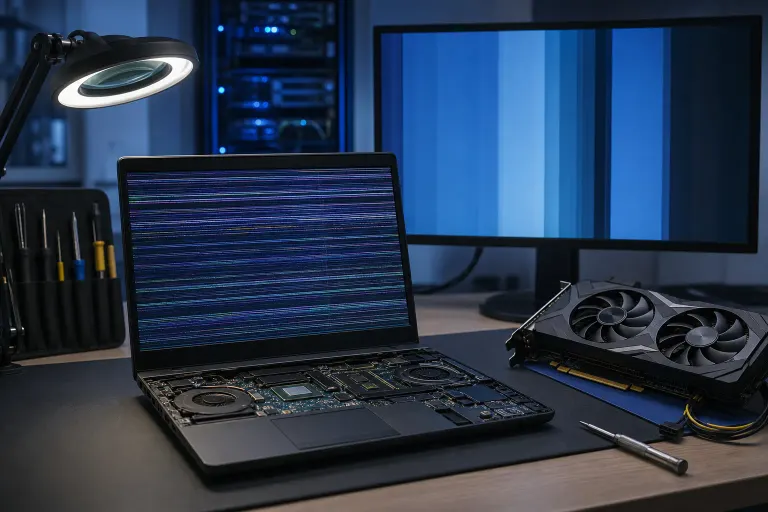
Screen or GPU? How to Diagnose Laptop Display Issues
TL;DR: Plug your laptop into an external monitor. If the picture is clean and stable on that monitor but still messed up on the laptop screen, it's the display (or the cable feeding it). If the external monitor shows the same glitches, artifacts, or crashes, you're looking at a graphics chip problem, and that's a whole different repair.
What you need
You don't need a lab coat for this one. Grab:
- An external monitor or TV with an HDMI or DisplayPort cable
- Your laptop's charger (fully juiced battery can mask power-related weirdness)
- A flashlight (yes, really, keep reading)
- Ten to fifteen minutes of patience
That's it. No screwdrivers needed for the diagnosis. Save the teardown for after you know what you're actually fixing. If you own a USB-C hub that supports video output, that works too, just make sure the cable and adapter are known-good before you trust the results. A flaky cable can send you down the wrong diagnostic rabbit hole entirely.
1. Look for the tell-tale symptom patterns first
Before you plug anything in, just watch how the problem behaves. Certain symptoms point hard in one direction. Spend two or three minutes actively using the laptop, open a browser, drag windows around, watch a short video clip, and observe whether the problem is constant, triggered by movement, or only shows up under load.
Leaning toward a display panel issue:
- A single crack, spiderweb pattern, or dead zone that stays in the exact same spot no matter what's on screen. A shattered LCD will typically show ink-bleed patterns radiating outward from the impact point, and those stay completely static regardless of what the GPU is rendering.
- Image is dim, or you can only see it clearly at a weird angle with a flashlight (more on that below). This is a classic sign that the backlight, either the LED strip itself or the inverter board on older CCFL screens, has died while the panel logic is still functioning normally.
- Colors look fine but the picture is squished, stretched, or shows horizontal bands that shift when you flex the lid. That last part is the key tell: if the image changes when you physically move the screen, the lvds or eDP ribbon cable connecting the panel to the motherboard is likely pinched, frayed, or partially disconnected at the hinge.
- Backlight is completely dark but you can faintly see a desktop image if you shine a light on the screen. This rules out a GPU failure almost entirely, the card is clearly outputting a signal, the panel logic is reading it, only the lighting has failed.
Leaning toward a graphics chip (GPU) issue:
- Colorful static, garbled textures, or geometric artifacts that appear randomly and move around. If you see triangles of scrambled color stretching across a 3D game but your desktop wallpaper looks fine, that points toward the GPU's shader cores or VRAM struggling under load.
- Screen freezes or crashes specifically during gaming, video editing, or anything graphics-heavy, but is fine on a basic desktop. This thermal or load-dependent pattern is a strong GPU indicator. Tools like GPU-Z or HWiNFO can log temperatures in the background so you can check afterward whether the crash correlated with a temperature spike past 90–95 °C.
- Vertical or horizontal lines that flicker, change, or multiply, especially when the laptop heats up. The important distinction here is change, lines caused by a bad panel or cable tend to be consistent, while lines driven by a failing GPU shift, split, or spread as thermals climb.
- Random full-screen color flashes (pink, green, garbled blocks) right before a crash or reboot. This is often the GPU driver losing control of the framebuffer, and on Windows you'll frequently find a corresponding TDR (Timeout Detection and Recovery) event in Event Viewer under Windows Logs > System.
Neither list is gospel. Cracked panels can produce lines too, and a dying GPU can sometimes look eerily like a bad cable. That's why you run the actual test.
2. Do the flashlight test for a dead backlight
This takes thirty seconds and can save you hours of confusion. Set the laptop to full brightness. Find a dark corner of the room. Hold a flashlight or your phone torch at a sharp angle right up against the screen surface.
If you can make out a faint, ghostly image, your desktop, a cursor, open windows, the panel itself and the GPU are both doing their jobs. The backlight is the only thing that has failed. On modern IPS and OLED laptops, this almost always means replacing the display assembly, since the LED strips are laminated into the panel. On older machines with CCFL backlights, a technician can sometimes replace just the inverter board for under $20 in parts.
If you shine the flashlight and see absolutely nothing, pure black, no hint of an image, the GPU may not be sending a signal at all, or the panel logic has failed more completely. Move on to the external monitor test before drawing conclusions.
Computer acting up? Get a real diagnosis. Book a diagnostic
3. Run the external monitor test
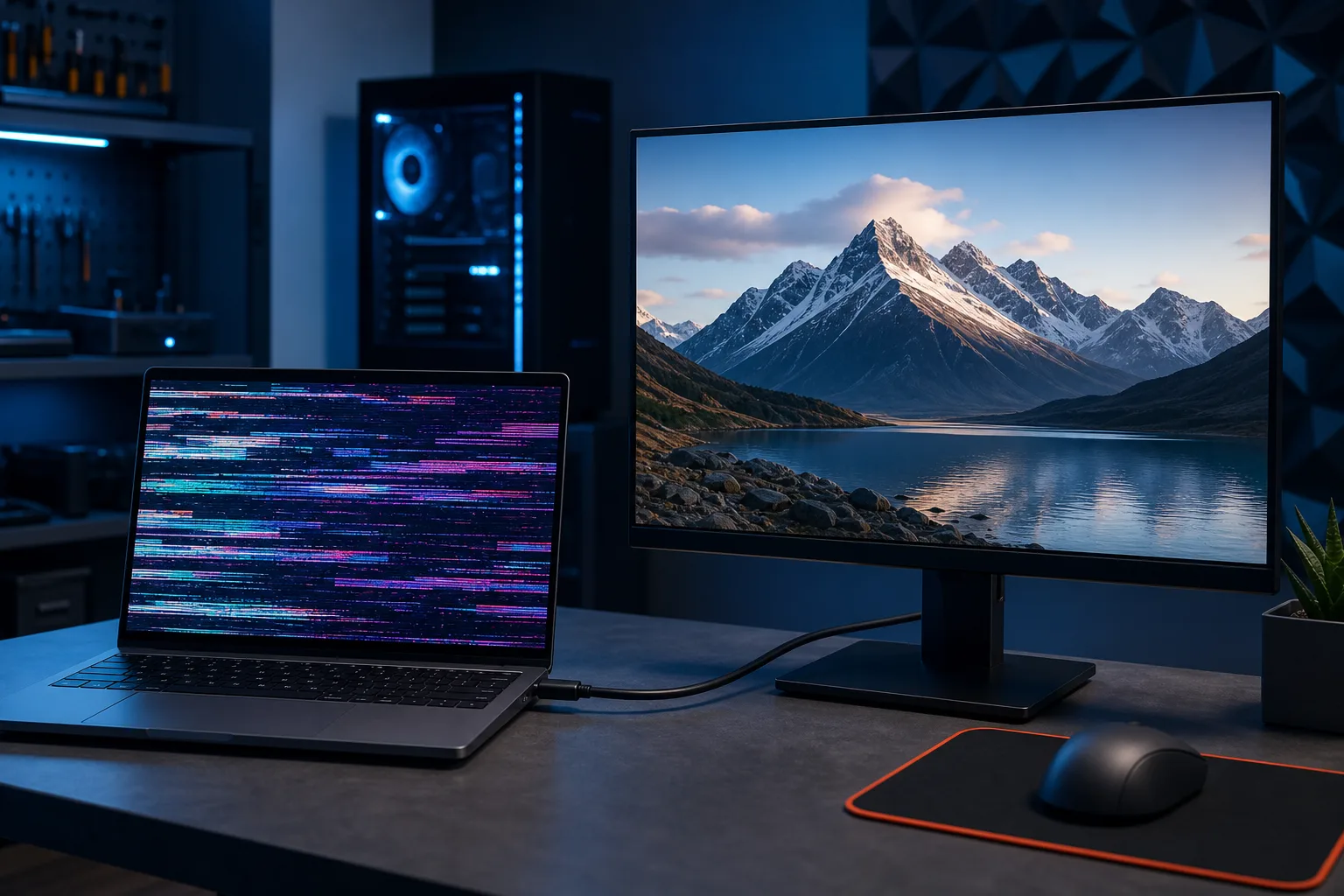
This is the definitive step. Plug your external monitor into your laptop's HDMI or DisplayPort output, then power everything on. Most laptops default to mirroring or extending automatically; if nothing appears, press the display-switch shortcut (usually Fn + F4, F5, or F8 depending on your brand, look for a monitor icon on the function keys) and cycle through the output modes.
Once the external display is active, switch it to mirror mode so both screens are showing identical content. Now stress-test deliberately:
- Open a YouTube video at 1080p and let it run for five minutes
- If you have a game installed, run it for at least ten minutes
- Drag windows rapidly around the desktop
- Open a GPU benchmark like Unigine Heaven (free) or 3DMark's demo mode
Interpreting the results:
External monitor is clean, laptop screen is glitchy: The GPU is outputting a good signal. Your problem lives between the GPU output and the pixels on your laptop's screen, that means the eDP cable, the panel's controller board, or the panel itself. A replacement screen assembly for most mainstream laptops runs $40–$120 on iFixit or eBay, and the repair is often a one-hour job with a spudger and a Phillips screwdriver.
Both screens show the same artifacts, freezes, or crashes: The bad signal is coming from the GPU before it ever reaches either display. This is a harder and more expensive problem. On laptops with discrete NVIDIA or AMD chips, you may be looking at a reflow (unreliable long-term), a reballing job at a microsoldering shop ($150–$300), or a full motherboard replacement. Before assuming the worst, update or cleanly reinstall your GPU drivers, a corrupted driver can produce artifact symptoms that mimic hardware failure.
External monitor is also dim or flickering but in a different way: This unusual result can indicate a power-delivery problem, the GPU isn't getting clean voltage, or a failing power brick. Try a different charger if you have one available.
4. Check the cable connection at the hinge
If the external monitor test pointed toward the panel or cable, you can do one more non-destructive check before ordering parts. Open and close the lid slowly while watching the screen. Do the glitches get worse, better, or change character at specific angles? If there's a sweet spot where the image stabilizes, say, exactly 90 degrees open, that's very strong evidence the ribbon cable is being pinched or stressed at the hinge rather than the panel itself being defective.
On some laptops (many ThinkPads, older Dell Latitudes, and certain HP ProBooks), the display cable is routed externally along the hinge and can be replaced without a full screen swap, dropping your parts cost to $10–$30. On ultra-thin machines where the cable is glued inside a sealed lid assembly, you'll likely still need the full assembly.
5. Know when to stop and call a professional
The external monitor test gives you a clear fork in the road, and that alone is worth knowing before you call a repair shop, you'll sound informed, you'll be harder to overcharge, and you'll know whether to ask for a screen replacement quote or a motherboard/GPU evaluation.
Stop the DIY investigation and hand it to a professional if:
- The external monitor test confirmed a GPU problem and your laptop is out of warranty
- You can smell burning or see discoloration around the GPU area of the board
- The machine blue-screens or hard-crashes during the external monitor stress test, especially with memory-related stop codes alongside the GPU artifacts
For screen-side problems, confident DIYers can handle the replacement themselves on most non-glued laptops using a guide on iFixit. For GPU-side problems, get at least two quotes from shops with microsoldering capability before agreeing to anything, and ask specifically whether they reball or simply reflow, reballing has a dramatically better long-term success rate.
Quick reference: symptom cheat sheet
| Symptom | Likely culprit |
|---|---|
| Cracked or ink-bleed pattern, fixed position | Panel (physical damage) |
| Dim image visible only with flashlight | Backlight / inverter |
| Image changes when lid is flexed | eDP / LVDS ribbon cable |
| Artifacts only under GPU load, fine on desktop | GPU (thermal or silicon issue) |
| Both screens glitch identically | GPU or driver |
| Lines shift and multiply as laptop heats up | GPU (thermal) |
| One screen glitchy, other clean | Display side (panel or cable) |
Ten minutes of systematic testing beats an hour of guessing. Run the steps in order, and you'll know exactly what you're dealing with before you spend a dollar.
Computer acting up? Get a real diagnosis.
Fix My PC Store has repaired thousands of machines across West Palm Beach. Honest pricing, no upsell games, and a free diagnostic for new customers with our email coupon.