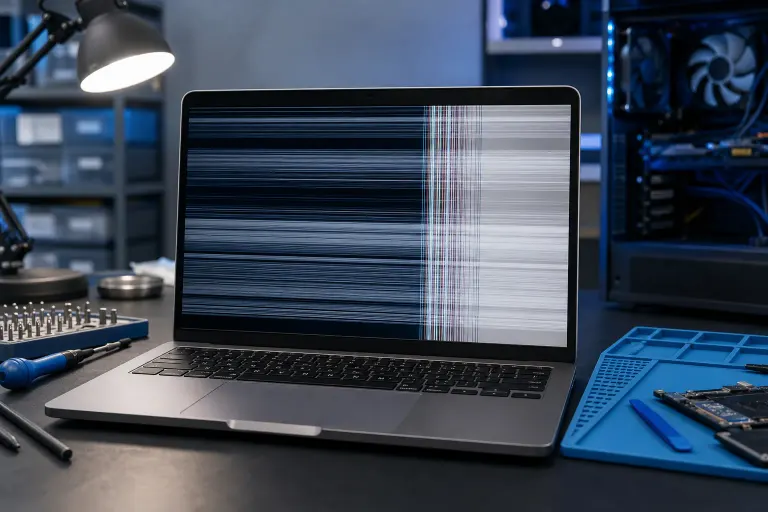
Laptop Screen Has Lines Running Through It: What Caused It?
TL;DR: Lines on a laptop screen are usually caused by a loose display cable, a failing LCD panel, or a graphics driver problem. A few quick tests can tell you which one you are dealing with, so you do not pay to fix the wrong thing.
What You Need
- Your laptop (obviously)
- An external monitor or TV with an HDMI or VGA port
- A small Phillips screwdriver (optional, for cable checks)
- About 15 minutes
- Basic comfort with right-clicking in Windows or macOS
You do not need to be a technician to run these tests. You just need to work through them in order.
Step 1: Look at the Lines Closely
Before you do anything else, describe the lines to yourself. This matters more than you might think.
Horizontal lines run left to right across the screen. Vertical lines run top to bottom. Are they always in the same spot, or do they shift when you move the lid? Are they one solid color, or do they flicker? Are there just a few, or does half the screen look like a broken TV?
Lines that move or change when you flex the lid almost always point to a physical connection issue, specifically the display cable or a hinge-related cable pinch. Lines that stay perfectly fixed in one spot, no matter what you do, are more likely a panel defect or a dead row of pixels.
Write down what you see. It will help you, or a repair tech, narrow things down fast.
Step 2: Test With an External Monitor
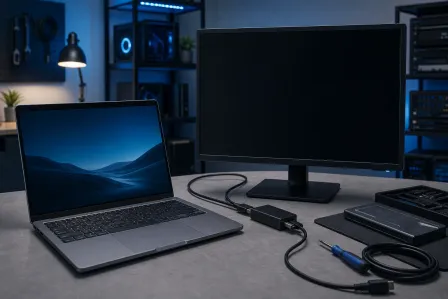
This is the single most important diagnostic step. Plug your laptop into an external monitor or TV using HDMI. If you have a newer laptop, you may need a USB-C to HDMI adapter.
Once it is connected, look at the external display.
- Lines appear on the external screen too. The problem is in your graphics hardware or drivers, not the panel itself.
- External screen looks perfect. The problem is isolated to your laptop display, meaning the LCD panel, the display cable, or the connector.
This one test splits the problem into two very different categories. Do not skip it.
If you are not sure how to connect an external display, or the laptop is not detecting one, our team can run this check quickly through remote support without you leaving your home or office.
Step 3: Check Your Graphics Drivers
If the external monitor also showed lines, your graphics driver is the first thing to look at. A corrupted or outdated driver can cause all kinds of display weirdness, including horizontal banding, color distortion, and flickering lines.
On Windows:
- Right-click the Start button and choose Device Manager.
- Expand Display Adapters.
- Right-click your graphics card and choose Update Driver, then Search automatically.
- If that finds nothing, go to the manufacturer's website (Intel, NVIDIA, or AMD) and download the latest driver manually.
- Restart and check.
On Mac: MacOS handles driver updates through system updates. Go to System Settings, General, Software Update, and install anything pending. If you are on an older Intel Mac and seeing lines, it may be worth a deeper look at the GPU itself.
If updating the driver fixes the lines, great. If not, and lines still appear on the external monitor, your graphics chip may be failing. That is a hardware problem and worth getting a professional opinion on. You can book a diagnostic with us if you are in the West Palm Beach area.
Computer acting up? Get a real diagnosis. Book a diagnostic
Step 4: Check the Display Cable
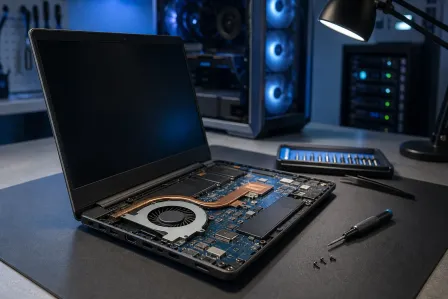
If the external monitor looked fine, the issue is between the graphics chip and your screen. The most common culprit is the display cable, also called the LVDS cable or eDP cable depending on the laptop.
This cable runs from the motherboard through the hinge and up to the back of the screen. Every time you open and close your laptop, that cable flexes. Over time, it can fray, develop a loose connection, or get pinched by the hinge.
Here is a simple test you can do without opening anything:
- Open your laptop to a normal working angle.
- Slowly move the lid back and forth between about 45 and 135 degrees.
- Watch the lines carefully as you do this.
If the lines change, flicker, or disappear at certain angles, the cable is almost certainly the problem. This is actually good news. A display cable replacement is one of the more affordable laptop screen repairs, and it is much cheaper than replacing the full panel.
If the lines stay exactly the same no matter what angle you hold the lid, the cable is probably fine and the panel itself may be the issue.
For a proper cable check and replacement, our laptop repair team handles this regularly. We serve West Palm Beach and the surrounding South Florida area.
Step 5: Look for Physical Damage
Pressure damage is more common than most people realize. If your laptop bag was overpacked, someone set something heavy on the lid, or the laptop took a bump, the LCD panel can develop pressure points that show up as lines, blotches, or spreading discoloration.
Look at the screen from an angle. If you see any dark spreading blobs, spiderweb cracks behind the image, or areas that look like oil on water, the panel itself is damaged. No software fix will help with this.
Also check the corners and edges of the screen for any impact marks. Even a small drop on a corner can crack the internal layer of the LCD without breaking the outer glass.
If you are on a Mac, this kind of damage is still repairable. Our Mac repair team handles screen replacements on MacBooks as well.
Step 6: Run a Display Stress Test
If nothing obvious has shown up yet, try pushing the display a little harder. Open a few browser tabs, play a video at full screen, and watch whether the lines get worse under load. Some GPU issues only appear when the chip heats up or gets busy.
You can also try changing your display resolution and refresh rate. On Windows, right-click the desktop, choose Display Settings, then scroll to Advanced Display Settings. Try a slightly different resolution or drop the refresh rate one step. Sometimes a mismatch between what the GPU is outputting and what the panel expects causes banding.
On Mac, go to System Settings, Displays, and try a different resolution option.
If lines get worse when the laptop runs hot, that points toward a thermal issue affecting the GPU or a solder joint. That is a more involved repair but still fixable. Check out our full computer repair services if you want a technician to take a look.
Common Mistakes
Assuming it is always the screen. A lot of people jump straight to buying a replacement panel when the real problem is a driver or a cable. Run the external monitor test first, every time.
Ignoring the problem. Lines that start small can spread. A failing cable can eventually stop sending a signal entirely. A cracked panel can spread. Address it sooner rather than later.
Trying to reseat the display cable yourself without experience. It is technically possible on some laptops, but the connectors are fragile and easy to damage. If you are not comfortable with small electronics, leave the internal work to someone who does this daily.
Using random driver downloads from sketchy sites. Stick to the manufacturer's official site (Intel.com, nvidia.com, amd.com) or Windows Update. Third-party driver tools are often more trouble than they are worth.
Assuming the laptop is dead. Screens with lines are almost always fixable. It is rarely the end of the road for a laptop.
Bottom Line
Lines on a laptop screen have a handful of causes, and the good news is that most of them are diagnosable in under 20 minutes with the steps above. Plug in an external monitor first. If the lines follow to the external display, look at your drivers and GPU. If the external screen looks fine, suspect the display cable or the panel.
If you have worked through these steps and still cannot pin it down, or you just want someone to take a look and give you a straight answer, we are here. Book a repair or stop by our West Palm Beach location. We will tell you exactly what is wrong and what it will cost before we touch anything.
Computer acting up? Get a real diagnosis.
Fix My PC Store has repaired thousands of machines across West Palm Beach. Honest pricing, no upsell games, and a free diagnostic for new customers with our email coupon.