Why Is My Laptop Battery Not Holding a Charge Anymore?
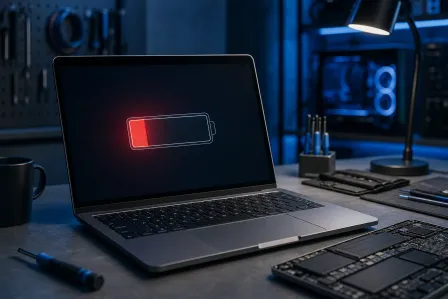
TL;DR: Laptop batteries wear out over time, but fast drain is not always a dead battery. Check your cycle count and health report first. If the battery is genuinely worn, replacement is usually affordable and worth it.
What You Need
- Your laptop (obviously)
- The original charger, plus a spare if you have one
- About 10 minutes for diagnostics
- Admin access to run a battery report (Windows) or view system info (Mac)
Step 1: Run a Battery Health Report
On Windows: Open Command Prompt as administrator and run powercfg /batteryreport. Windows saves an HTML report to your user folder. Open it and look for two things: Design Capacity vs. Full Charge Capacity. If full charge capacity is less than 60-70% of the design capacity, the battery is genuinely worn.
On Mac: Hold Option and click the Apple menu, then select System Information. Under Hardware, click Power. Look at Cycle Count and Condition. Apple publishes maximum cycle counts by model, typically 300-1000 cycles. A condition of "Replace Soon" or "Replace Now" is not a suggestion.
This single step tells you whether the problem is the battery itself or something else entirely.
Step 2: Rule Out the Charger
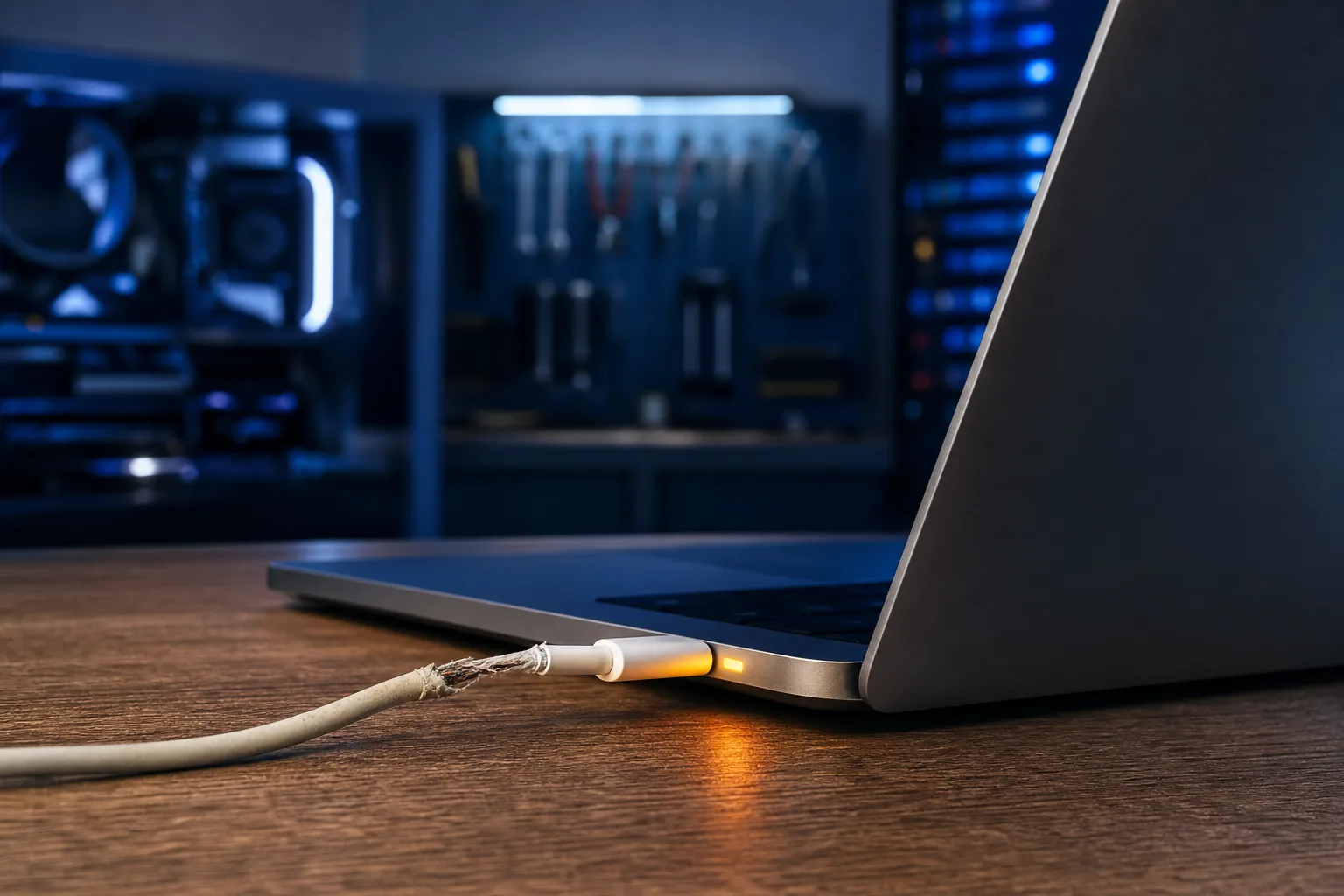
A bad charger mimics a dying battery almost perfectly. The laptop runs fine plugged in but the charge percentage barely moves, or it drains even while plugged in.
Test with a different charger if you can borrow one. Check the cable for fraying near the connector. Look at the charging port on the laptop for bent pins, debris, or discoloration. A port that wiggles when you plug in is a separate problem worth addressing.
If swapping the charger fixes it, you are done. Buy a quality replacement, not the cheapest no-name unit you find online.
Step 3: Check Software and Background Processes
Here is where a lot of people get tricked. The battery report shows decent health, the charger is fine, but the laptop still dies in two hours. Software is usually the culprit.
On Windows: Open Task Manager (Ctrl + Shift + Esc), click the CPU column to sort by usage. Anything sitting at 30% or higher when the laptop is idle is eating your battery alive. Chrome renderer processes, Windows Update running in the background, and antivirus scans are common offenders.
On Mac: Open Activity Monitor and sort by Energy Impact. Safari tabs with auto-playing video and poorly optimized apps show up quickly here.
Also check display brightness. Running at 100% brightness will cut battery life roughly in half compared to 50% on most laptops. It sounds obvious, but it is often overlooked.
Computer acting up? Get a real diagnosis. Book a diagnostic
Step 4: Check Battery Mode and Power Settings
Windows has a power slider in the system tray (battery icon). If it is set to Best Performance, the battery drains much faster. Switch to Balanced or Battery Saver when unplugged.
On Mac, go to System Settings, then Battery. Enable "Optimized Battery Charging" if it is off. This feature slows charging slightly to reduce long-term wear, and it is worth keeping on.
One more thing: if your laptop runs hot regularly, heat degrades battery cells faster than almost anything else. Make sure vents are clear and the fan is actually spinning under load.
Step 5: Decide, Replace or Repair
Once you have worked through the steps above, you should know which category you are in.
| Situation | Recommended Action |
|---|---|
| Full charge capacity below 60-70% of design | Battery replacement |
| Charger not delivering proper voltage | Replace charger |
| Background processes spiking CPU | Kill or uninstall the app |
| Port is damaged or loose | Professional port repair |
| Condition reads "Replace Now" on Mac | Battery replacement |
| All of the above look fine | Deeper diagnostics needed |
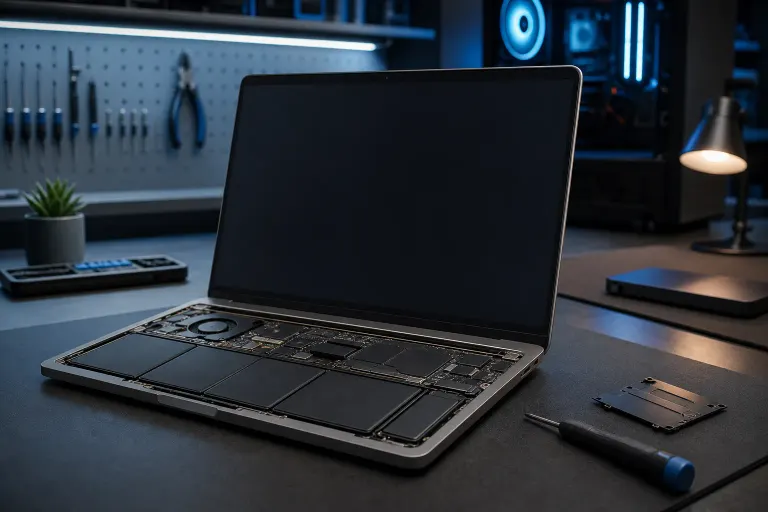
Battery replacement on most laptops is a straightforward repair. Some ultrabooks and MacBooks have batteries glued in, which raises the difficulty and cost, but it is still usually worth doing if the rest of the machine is in good shape.
Common Mistakes
Assuming the battery is always the problem. A bad charger or a rogue process causes the exact same symptoms. Diagnose before you buy parts.
Buying cheap third-party batteries. Off-brand cells can swell, fail faster, or in rare cases pose a safety risk. Stick to reputable suppliers or have a shop source the part.
Letting the battery drain to zero every day. Lithium-ion batteries prefer to stay between 20% and 80%. Regularly draining to 0% and charging to 100% shortens the lifespan. This is a myth worth busting: you do not need to fully drain lithium batteries to keep them healthy. That was true of old nickel-cadmium batteries, not modern ones.
Ignoring heat. A laptop that runs hot on a bed or couch (blocking the vents) degrades its battery faster than heavy use alone.
Bottom Line
Most laptops see significant battery degradation after 2-4 years of regular use. That is normal. Run the battery report, rule out the charger, check for software hogs, then make a call. If the capacity has dropped well below the original spec, replacement is the fix and it usually gives the laptop several more good years.
If the port is damaged, the battery is glued in, or you are not comfortable opening the machine yourself, Fix My PC Store's laptop repair service can diagnose and replace it. Initial checks are free for most standard in-store repairs. The shop is at 10140 Okeechobee Blvd, Suite B, West Palm Beach, and reachable at 561-819-9999. You can also schedule a repair online or start with remote support if you want a second opinion on the software side first.
Computer acting up? Get a real diagnosis.
Fix My PC Store has repaired thousands of machines across West Palm Beach. Honest pricing, no upsell games, and a free diagnostic for new customers with our email coupon.