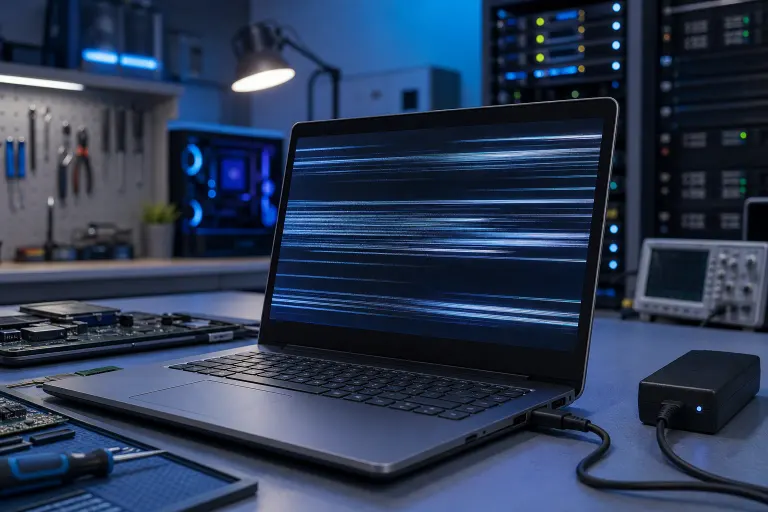
Why Does My Laptop Screen Flicker Only on Battery Power?
TL;DR: Screen flickering only on battery is almost always caused by aggressive power-saving settings, a failing battery, outdated display or chipset drivers, or a loose display cable being stressed by flex. Work through the steps below in order. Most people fix this without touching a screwdriver.
What You Need
- Your laptop (obviously)
- A Windows or Mac with admin access
- About 20-30 minutes
- Optionally: a small Phillips screwdriver if you reach the cable-check stage
- A backup of your important files before you touch any drivers (backups matter more than most people think)
Step 1: Confirm the Pattern Is Really Battery-Only
Plug the charger in. Does the flicker stop within a few seconds? If yes, you have confirmed the battery-power trigger. Write that down.
Now unplug again and watch carefully. Does the flicker happen at all brightness levels, or only when brightness drops automatically? Does it flicker constantly or only when the screen dims? The answers will save you a lot of time in later steps.
One more check: open Task Manager (Ctrl + Shift + Esc on Windows) and watch the CPU and GPU usage. If something is spiking and causing the flicker, that is a different problem entirely, closer to a thermal or driver issue.
Step 2: Disable Adaptive Brightness and Battery Saver Display Tricks
This is the fix for probably 40 percent of cases. Windows and macOS both try to be clever with display brightness and refresh rates when unplugged, and sometimes they are too clever.
On Windows 11 or 10:
- Go to Settings, then System, then Display.
- Scroll down to Brightness and look for "Change brightness automatically when lighting changes." Turn it off.
- Go to Settings, then System, then Power and Sleep (or Power and Battery on Windows 11).
- Click your battery plan and choose "Change plan settings," then "Change advanced power settings."
- Expand "Display" and look for "Enable adaptive brightness." Set both On Battery and Plugged In to Off.
On macOS:
- Go to System Settings (or System Preferences), then Displays.
- Uncheck "Automatically adjust brightness."
- Also check System Settings, then Battery, and look for anything labeled "Low Power Mode." Set it to "Never" temporarily to test.
Reboot and test on battery. If the flicker is gone, you are done. Congrats, it was a software quirk the whole time.
Step 3: Check and Update Your Display and Chipset Drivers
Outdated or partially corrupted drivers are a classic cause of screen flicker, and the problem often shows up on battery because the system switches to a different power state that exposes the bug.
On Windows:
- Right-click the Start button and open Device Manager.
- Expand "Display adapters." You may see Intel UHD Graphics, AMD Radeon, or NVIDIA listed.
- Right-click each one and choose "Update driver," then "Search automatically."
- After that, go directly to Intel, AMD, or NVIDIA's website and download the latest driver manually. Windows Update often lags behind.
- While you are in Device Manager, also expand "System devices" and update the Intel Management Engine Interface or AMD equivalent if you see it.
On macOS:
Mac display drivers are bundled with macOS updates. Go to System Settings, General, Software Update and make sure you are current. Apple does not let you update GPU drivers independently, which is either reassuring or frustrating depending on your mood.
After updating, restart and test on battery again.
Computer acting up? Get a real diagnosis. Book a diagnostic
Step 4: Test the Battery Health
A battery that is degraded or swollen can cause voltage irregularities. That uneven power delivery can make the display controller act erratic, especially when the screen is trying to run at full brightness.
On Windows:
- Open Command Prompt as administrator.
- Type
powercfg /batteryreportand press Enter. - Open the HTML report it generates (usually in C:\Users\YourName\battery-report.html).
- Look at "Design Capacity" vs "Full Charge Capacity." If Full Charge Capacity is less than 60-70 percent of Design Capacity, the battery is significantly worn.
On macOS:
- Hold Option and click the battery icon in the menu bar.
- Or go to System Information (Apple menu, About This Mac, System Report, Power) and check the cycle count and condition.
- A condition listed as "Service Recommended" or "Replace Soon" is telling you something.
A worn battery is a very fixable problem. If that is the culprit, a laptop repair appointment will have you sorted quickly. Battery replacement is usually a straightforward job.
Step 5: Adjust the Display Refresh Rate Setting
Some laptops with variable refresh rate displays (common on newer gaming and productivity laptops) can flicker when the system drops the refresh rate to save power on battery.
On Windows:
- Go to Settings, then System, then Display, then Advanced Display.
- Look for "Choose a refresh rate." If it says "Dynamic" or a low value like 48Hz, try locking it to 60Hz or the native max and test on battery.
This will use slightly more battery but should stop the flicker immediately if this is the cause.
On macOS (for ProMotion displays like M-series MacBook Pros):
Apple controls refresh rate switching automatically and does not expose a manual lock in System Settings. If you suspect this is the issue on a Mac, try setting Low Power Mode to Never (Step 2) first, since that is what triggers the rate drop.
Step 6: Inspect the Display Cable (Last Resort Before Professional Help)
If all of the above steps failed, the flicker is likely physical. On battery, the laptop is typically lighter and flexes differently than when it is sitting flat with a charger attached. A display cable that is slightly loose or has micro-damage may only show symptoms under certain flex conditions.
This is where it gets more involved. If you are comfortable disassembling laptops, the display cable runs from the motherboard up through the hinge into the screen. It can loosen over time, especially on laptops that are opened and closed hundreds of times.
If you are not comfortable doing this yourself, stop here. Pushing on connectors you are not sure about can turn a flickering screen into a non-functional one. Bring it in for a proper look. Our team at Fix My PC Store handles laptop repairs in West Palm Beach and can diagnose a cable issue without guessing.
Common Mistakes
Replacing the screen first. A lot of people assume flicker means a bad screen panel and buy a replacement. In the majority of battery-only flicker cases, the panel is fine. Do not spend money on a new display until you have ruled out software, drivers, battery, and cable.
Only updating drivers through Windows Update. Windows Update does not always have the latest GPU or chipset drivers. Always go directly to the manufacturer's website.
Ignoring the battery report. If your battery is at 55 percent of original capacity, it is struggling to deliver stable voltage under load. Fixing anything else without addressing a degraded battery is just putting a bandage over the real issue.
Assuming it is the same issue on Mac and PC. It often is not. Mac flickering is more commonly tied to macOS updates or the ProMotion refresh rate system. Windows flickering tends to skew more toward driver and power plan issues. Treat them differently.
Not backing up before touching drivers. Driver installs occasionally go sideways. Before you start messing with display adapters, make sure your files are backed up. Seriously.
Waiting too long. A flickering screen that is left alone tends to get worse, not better. If it is a cable issue, that cable is degrading with every open and close.
Bottom Line
Battery-only screen flicker is annoying but it is rarely a death sentence for your laptop. In most cases, turning off adaptive brightness and battery saver display settings, or updating your drivers, will solve it in under 30 minutes. If the battery health report shows significant degradation, a battery replacement is likely the fix and it is one of the more affordable laptop repairs out there.
If you have worked through all these steps and the flicker is still happening, the display cable is the next most likely culprit and that is a job best handled in person. Book a time with us and bring it in. We are in West Palm Beach and we have seen this exact problem more times than we can count.
Need something sorted remotely first? We also offer remote support if you want someone to walk through the software and driver side with you before making a trip.
Computer acting up? Get a real diagnosis.
Fix My PC Store has repaired thousands of machines across West Palm Beach. Honest pricing, no upsell games, and a free diagnostic for new customers with our email coupon.