Why Is My Laptop Screen Dim Even at Full Brightness?
TL;DR: A dim screen at full brightness is usually caused by power-saving settings, an outdated graphics driver, or a failing backlight or inverter. Walk through the software fixes first since they take minutes, then check hardware if nothing changes.
You crank the brightness slider all the way to the right and the screen still looks washed out, gray, or just plain dark. That's frustrating, especially if you're trying to work or game and can barely see what's on screen. Good news: this is one of the more diagnosable laptop problems. Let's figure out what's actually happening.
What you need
- Your laptop, plugged into power (not running on battery)
- A few minutes to check settings
- A flashlight (yes, really, we'll explain why)
- Admin access to install or update drivers if needed
1. Check if it's actually a backlight problem, not brightness
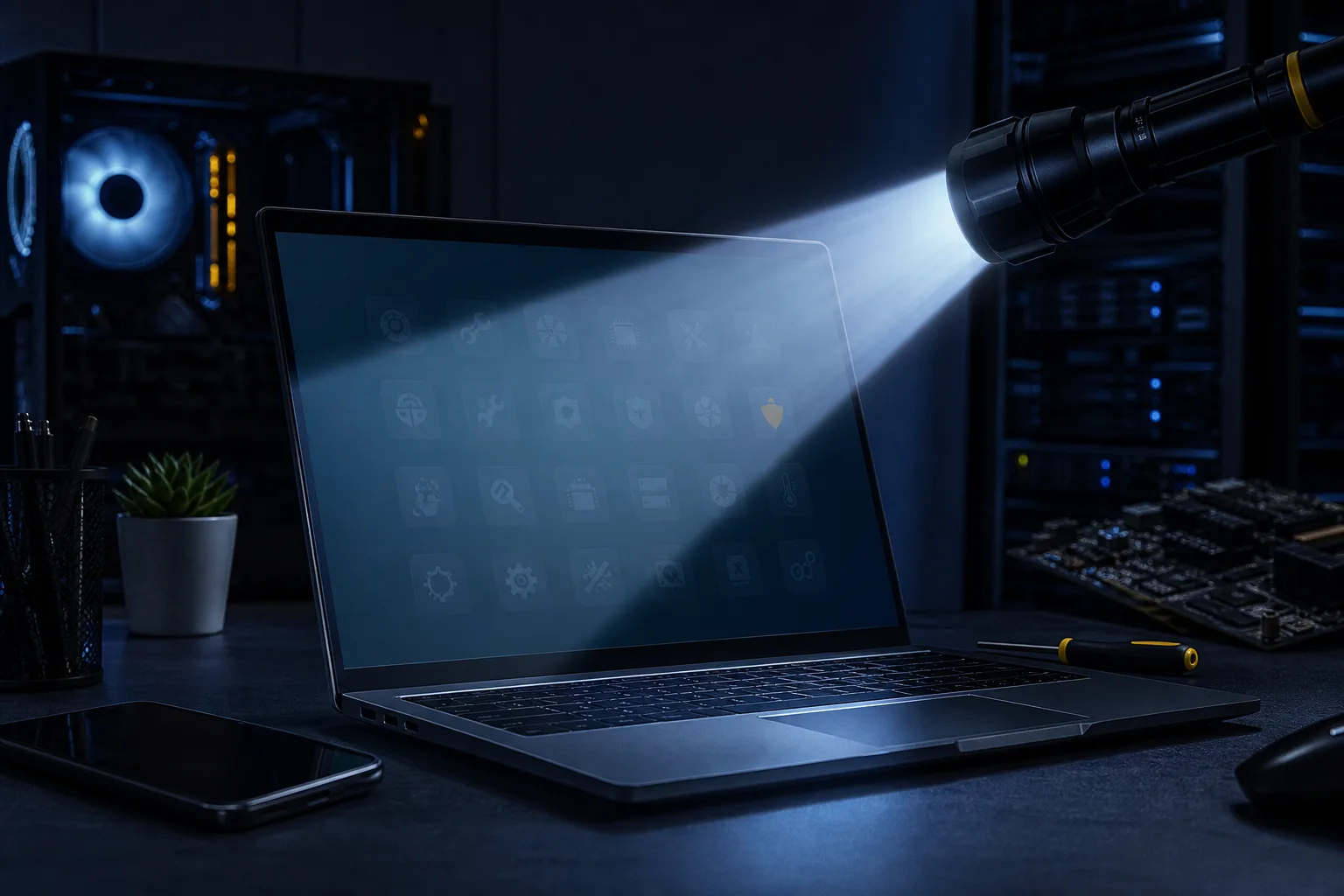
Before touching any settings, grab a flashlight. In a dark room, shine it at an angle across your screen while the laptop is on. If you can faintly see the image, icons, or a login screen, your backlight is likely failing. The screen itself is working, it's just not being lit properly.
This matters because if it's a backlight issue, no software fix will help. You're looking at a hardware repair. If you don't see anything even with the flashlight trick, keep going, this is probably a settings issue.
To take this a step further, try connecting your laptop to an external monitor using an HDMI or USB-C cable. If the external display looks perfectly bright and normal, your GPU and operating system are functioning fine. The problem is isolated to the laptop's own display hardware. If the external monitor also looks dim or washed out, you're likely dealing with a driver or settings issue rather than a dying panel.
It's also worth knowing that backlights don't always fail all at once. Sometimes they dim gradually over months or years, which is easy to miss until one day you realize the screen looks nothing like it used to. Older laptops with CCFL (cold cathode fluorescent lamp) backlights are especially prone to this. Newer laptops use LED backlights, which are more durable but can still fail, particularly after physical impacts or prolonged heavy use.
2. Turn off battery saver and power-saving modes
Most laptops automatically dim the screen when battery saver kicks in, even if you've manually set brightness to 100%. Windows and macOS both do this to stretch battery life, and it can override your manual setting without much warning.
On Windows: go to Settings, then System, then Power & Battery. Turn off Battery Saver, or set it to only activate at a lower battery percentage, say 10% or 15%, instead of the default 20%. Also check Screen and Sleep settings to make sure there isn't a scheduled dimming behavior tucked in there. While you're in Power & Battery, click on Power Mode and switch it from Power Saver or Balanced to Best Performance. This single change fixes the dim screen problem for a surprising number of people.
On a MacBook: go to System Settings, then Battery, then Options. Look for anything related to automatic brightness adjustments and turn it off temporarily to test. On older macOS versions, this setting lives under System Preferences, then Battery, then the Battery tab on the left sidebar. It's labeled "Slightly dim the display while on battery power" and it's checked by default, which catches a lot of people off guard.
Plug the laptop into the wall while you test all of this. Some power-saving modes only fully release when the system detects AC power. If the screen brightens up as soon as you plug in and dims again on battery, you've found your answer. It's not a hardware fault, it's just power management doing its job, and you can tune it however you like.
3. Disable adaptive brightness and True Tone features
Here's one that trips up a lot of people. Adaptive brightness uses the laptop's ambient light sensor to automatically adjust screen brightness based on your environment. In theory, this is helpful. In a bright office it turns the screen up; in a dim room it pulls the brightness down. In practice, it can make your screen feel stuck in a perpetual dim state, especially if the sensor is covered, dirty, or just not calibrated well for your environment.
On Windows, adaptive brightness is called "Change brightness automatically when lighting changes" and lives under Settings, then System, then Display. There's also a related feature inside the Intel or AMD graphics control panel depending on your hardware. Intel calls it "Display Power Saving Technology" and it can independently lower brightness and contrast to save power, even when Windows' own adaptive setting is turned off. Open the Intel Graphics Command Center or Intel HD Graphics Control Panel, go to Power settings, and disable it there.
On macOS, the equivalent setting is "Automatically adjust brightness" found under System Settings, then Displays. Apple's True Tone feature, available on newer MacBooks, adjusts both brightness and color temperature to match ambient lighting. True Tone is generally excellent, but if your screen looks dim or oddly warm-tinted, disabling it temporarily is a good diagnostic step. You'll find the True Tone toggle in the same Displays menu.
For a quick real-world test: cover the ambient light sensor (usually located near the webcam) with your finger and watch if the screen brightness changes. If it does, adaptive brightness is active and influencing your display.
Computer acting up? Get a real diagnosis. Book a diagnostic
4. Update or reinstall your graphics driver
A buggy or outdated graphics driver can cause all sorts of display weirdness, including a screen that appears permanently dim regardless of your brightness slider. This happens more often than you'd expect, especially after a major Windows update that quietly rolls back your GPU driver to a generic Microsoft version.
On Windows, open Device Manager, expand Display Adapters, and right-click your GPU to check for updates. Better yet, go directly to the manufacturer's website. If you have an NVIDIA GPU, use GeForce Experience or download the driver directly from nvidia.com. For AMD, use the AMD Software: Adrenalin Edition app or grab the driver from amd.com. Intel integrated graphics drivers can be updated through the Intel Driver & Support Assistant tool.
If updating doesn't help, try a clean uninstall instead. Use a tool like Display Driver Uninstaller (DDU) in Safe Mode to completely remove the existing driver, then install a fresh copy. Leftover driver fragments from previous installs can cause persistent display issues that a simple update won't fix.
On macOS, graphics drivers are bundled with system updates, so the fix here is making sure you're running the latest version of macOS under System Settings, then General, then Software Update.
5. Check your display settings and refresh rate
It sounds minor, but an incorrect refresh rate or resolution can sometimes cause display issues that look like dimness. Go to Settings, then System, then Display, then Advanced Display on Windows. Make sure the refresh rate matches your screen's native specification. A 60Hz panel running at an unusual rate can behave unpredictably.
Also check whether Night Light (Windows) or Night Shift (macOS) is turned on. These features shift your display toward warmer, orange tones in the evening to reduce eye strain, but they also make the screen look dimmer and washed out, particularly on white backgrounds. Many people enable them once and forget, then wonder why the screen never looks crisp. Turning them off completely during your diagnostic testing eliminates them as a variable.
6. When it's a hardware problem
If you've worked through every software fix and the screen is still dim, the issue is almost certainly hardware. On older laptops with CCFL backlights, the inverter board is often the culprit. The inverter converts DC power from the laptop into the AC power the CCFL tube needs. When it starts failing, the backlight flickers, dims, or goes out entirely. Replacement inverters are inexpensive, usually under twenty dollars, but the repair requires opening the display assembly, which isn't beginner territory.
On newer laptops with LED backlights, a failing LED strip or a damaged display cable is more likely. The cable runs from the motherboard through the hinge and into the display panel. Repeated opening and closing of the lid over years can cause the cable to fray or develop a short. If your screen flickers when you adjust the lid angle, a damaged hinge cable is a strong suspect.
In both cases, getting the laptop to a repair shop for a proper diagnosis is the practical move unless you're comfortable disassembling displays. Screen replacements on modern laptops typically run between $80 and $250 depending on the panel and the labor involved, which is often worth it on an otherwise healthy machine.
Quick checklist before you call it hardware
- Flashlight test confirms backlight failure → hardware repair needed
- Screen bright on external monitor but dim on built-in display → display hardware issue
- Battery saver or power mode was limiting brightness → fixed in power settings
- Adaptive brightness or True Tone was overriding your slider → fixed in display settings
- Driver update or clean reinstall resolved the dimness → software was the culprit
- Night Light or Night Shift was making everything look warm and dark → disabled and resolved
Most of the time this problem is software, and you'll solve it in under ten minutes. When it isn't, at least you'll know exactly what you're dealing with before talking to a repair shop.
Computer acting up? Get a real diagnosis.
Fix My PC Store has repaired thousands of machines across West Palm Beach. Honest pricing, no upsell games, and a free diagnostic for new customers with our email coupon.