Dead Pixels on Your Laptop Screen: Causes and Fixes
TL;DR: Dead pixels are permanently damaged display cells that show up as black or colored dots on your screen. Some stuck pixels can be fixed with software tools, but true dead pixels almost always need a screen replacement. If the damage is spreading or affecting your workflow, it is time to get the panel swapped.
What You Need
- A solid-color test image or a free pixel-checking tool (JScreenFix or similar)
- A clean, lint-free microfiber cloth
- Good lighting to inspect the screen properly
- About 20-30 minutes of patience
- Access to a repair shop if the software fix does not work, like laptop repair at Fix My PC Store
Step 1: Understand the Difference Between Dead and Stuck Pixels
Before you do anything, you need to know what you are actually dealing with. These two things look similar but behave very differently.
Dead pixels are display cells that have completely lost power to them. They show up as pure black dots on the screen no matter what color you display. The liquid crystal inside is no longer receiving a signal, and in most cases, no amount of software trickery will bring them back.
Stuck pixels are still receiving power, but they are locked on a single color, usually red, green, blue, or white. They glow constantly even when the screen should show black. The good news: stuck pixels have a reasonable chance of being fixed without replacing the panel.
Knowing which one you have determines your whole repair path. Do not skip this step.
Step 2: Run a Proper Pixel Test
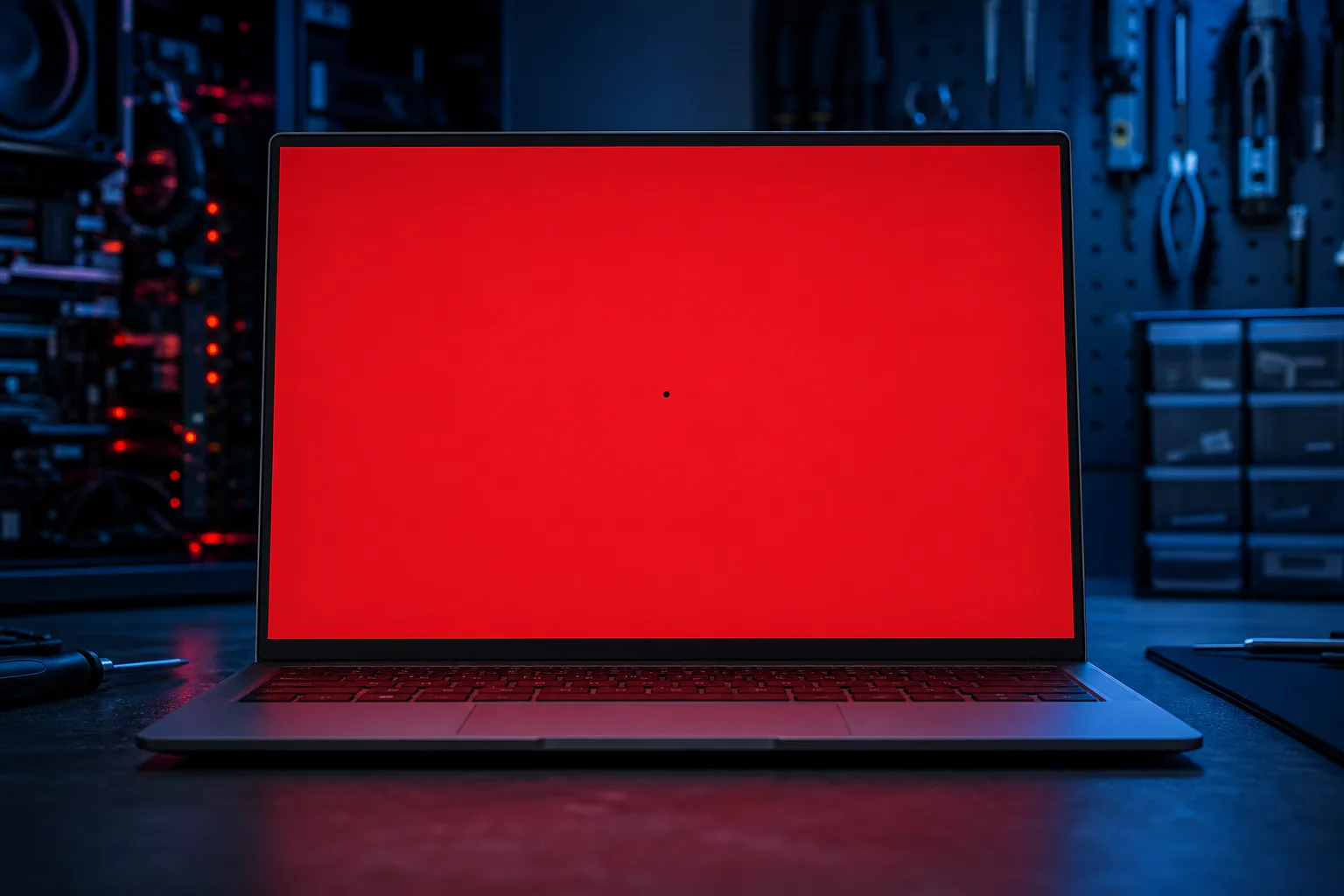
You cannot accurately spot pixel problems in normal use because your desktop background and app windows mask them. You need to flood the screen with solid colors.
How to do it:
- Open a full-screen browser window and use a free tool like JScreenFix or search for an online LCD dead pixel test. These tools cycle your display through pure red, green, blue, white, and black backgrounds.
- Dim the room lights slightly so you can see the screen clearly without glare.
- Inspect every quadrant of the display slowly. Move your eyes across the screen in rows, like you are reading.
- Mark the location of any anomalies. You can use a small sticky note on the bezel to note which area of the screen is affected.
If you see a dot that stays black through every color, that is almost certainly a dead pixel. If it glows a consistent color on some screens but not others, you are likely dealing with a stuck pixel.
Step 3: Try the Software Fix for Stuck Pixels
This only applies to stuck pixels, not dead ones. But it is free and takes almost no effort, so it is worth trying before spending any money.
What to do:
- Go to JScreenFix in your browser. It is free and runs directly in the browser.
- Drag the flashing repair square directly over the stuck pixel location on your screen.
- Let it run for at least 20-30 minutes. Some people leave it overnight.
The tool rapidly cycles colors at the pixel level to try to jolt the crystal back into normal movement. It works somewhere around 60% of the time based on general repair community experience, though your results will vary depending on how long the pixel has been stuck and the specific panel type.
If that does not work, try a pressure method as a secondary option. Power off the screen, wrap a blunt object like a pen cap in the microfiber cloth, and gently apply pressure to the stuck pixel area while powering the display back on. Do not press hard. You are trying to encourage the crystal to move, not crack the panel. This method is hit or miss and carries real risk if you are too aggressive, so go very light.
Computer acting up? Get a real diagnosis. Book a diagnostic
Step 4: Assess Whether the Problem Is Getting Worse
Here is the part most people skip, and they regret it later.
Single dead pixels can stay stable for years without spreading. But sometimes pixel death is a symptom of a larger problem, like impact damage to the panel, a failing display driver board, or pressure damage from carrying the laptop in a bag without a proper sleeve.
Check again after 48 hours. Are there more dots than before? Is there any color bleeding, lines appearing, or sections of the screen going dark? If the damage is growing, you are not dealing with a simple isolated pixel failure. The panel is degrading and it will get worse.
Also consider where the dead pixel is sitting. One tiny dot in the far corner? Most people adapt to that. One dot sitting dead center of your screen while you are trying to edit photos or do detailed work in spreadsheets? That is a productivity killer and worth fixing sooner rather than later.
If you are unsure what you are seeing, bring it in or reach out via remote support and we can help you assess it without guessing.
Step 5: Decide Between DIY Screen Replacement or Professional Repair
If the software method did not fix the pixel, and the problem is bothering you enough to act, your options narrow down to two: replace the panel yourself, or have a pro do it.
DIY screen replacement is doable on some laptops, particularly older models with standard display connectors. You will need to find the exact replacement panel for your laptop model, which means matching the resolution, refresh rate, connector type, and panel size precisely. A wrong panel can physically fit but display incorrectly or not at all.
The actual swap involves removing the screen bezel, usually held by plastic clips and a few screws, disconnecting the display cable and webcam connector, and swapping the panel. If you have done this before and you have steady hands, it is manageable. If you have not, you risk cracking the new panel, breaking a cable, or snapping a bezel clip that is already brittle from age.
Professional repair makes more sense when the laptop is newer and under any kind of warranty, when multiple pixels are failing, when you suspect internal damage beyond just the panel, or when your laptop is a Mac with proprietary display components. Our laptop repair service handles screen replacements regularly, and we source panels that match your original display specs.
For Mac users specifically, Apple panels and their connector configurations are not universal. Getting the wrong panel can create issues with display brightness control and color accuracy. Check out our Mac repair page for more on that.
Common Mistakes
Pressing too hard during the pressure fix. Seriously, if you crack the panel trying to fix one pixel, you have turned a minor annoyance into a full screen replacement. Light touch only.
Buying the cheapest replacement panel available. Off-brand panels often have poor color accuracy, dim backlights, or washed-out contrast compared to the original. Pay a few extra dollars for a quality replacement that matches your original panel's specs.
Assuming dead pixels are always covered under warranty. Manufacturer warranty policies on dead pixels vary a lot. Some manufacturers require a minimum number of dead pixels before they will replace the screen under warranty. Check your documentation before assuming you are covered.
Waiting too long when the damage is spreading. If pixels are dying in clusters or lines are appearing, the panel is failing and a full replacement is inevitable. Waiting does not help and may mean you are living with a worsening display for months before you act.
Misidentifying the problem as a GPU issue. Dead pixels are on the panel, not caused by the GPU. But display artifacts like flickering, tearing, or shimmering patterns can be GPU or driver related. If your whole screen is acting strange rather than showing a single dot, get a proper computer repair diagnostic done before throwing money at a screen replacement.
Bottom Line
Stuck pixels are sometimes fixable with a free software tool and a little patience. Dead pixels almost never are, and if they are spreading, the clock is ticking on a full screen replacement.
The decision to DIY or go pro comes down to your comfort level with laptop disassembly, the age and value of the machine, and whether you can source the right panel. Get it wrong on any of those fronts and you spend more money fixing the fix than you would have spent just having it done right the first time.
If you are in West Palm Beach or anywhere across South Florida and the Treasure Coast, book a repair or drop us a message and we will tell you exactly what the screen replacement is going to cost before you commit to anything. No surprises.
Computer acting up? Get a real diagnosis.
Fix My PC Store has repaired thousands of machines across West Palm Beach. Honest pricing, no upsell games, and a free diagnostic for new customers with our email coupon.