Why Is My Laptop Fan Running Loud but the PC Feels Cool?
TL;DR: A roaring fan on a cool-feeling laptop is almost never a hardware failure. It is usually a runaway process, a bad temperature sensor reading, or dried-out thermal paste that tricks the system into panic-cooling. Work through the steps below and you will know exactly what to fix.
What you need
- A free CPU monitoring tool: HWiNFO64 (Windows) or Activity Monitor (Mac)
- Task Manager (Windows) or Activity Monitor (Mac), already on your machine
- A can of compressed air (the real kind, not a USB fan)
- About 20 minutes of patience (I know, I know)
Step 1: Check what the CPU is actually doing
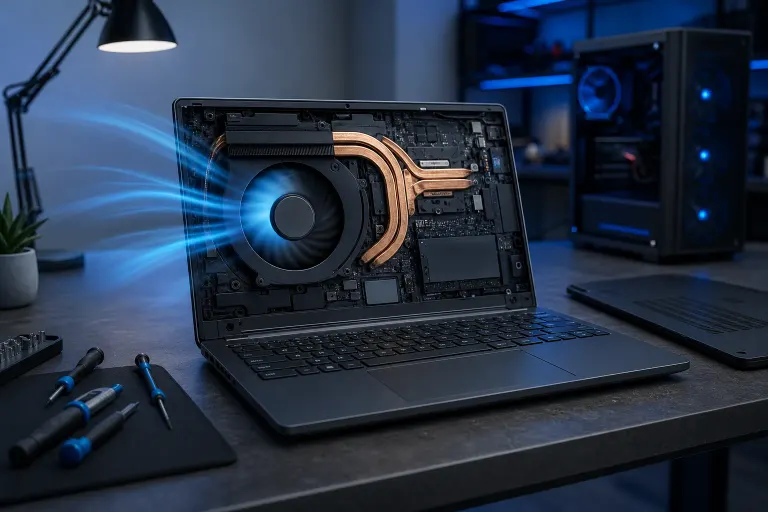
Open Task Manager (Ctrl+Shift+Esc on Windows) and click the CPU column to sort by usage. If one process is sitting at 80-100% CPU, that is your culprit. The fan is loud because the processor is genuinely working hard, even if the outside of the laptop feels fine. Aluminum spreads heat fast and the fan kicks in before the chassis warms up.
Common offenders: Windows Update running silently in the background, antivirus scans, browser tabs with video autoplay, and, yes, cryptomining malware. (If you see a process called something like "svchost" eating 90% CPU and you are not doing anything, that is a red flag worth chasing.)
If nothing looks suspicious in Task Manager, move on.
Step 2: Check reported temperatures, not just how it feels
Download HWiNFO64 or use the built-in tools on Mac. Look at the CPU package temperature and the individual core temps. If they read under 60°C at idle and the fan is still screaming, the fan controller may be receiving a bad signal from a failing temperature sensor.
A dead or flaky sensor can report 90°C when the chip is actually at 45°C. The firmware panics, spins the fan to max, and the laptop feels perfectly cool to the touch because it is not actually hot. This is more common than people think, especially on machines over three or four years old.
Note the highest temp you see and write it down. You will need it for Step 4.
Step 3: Clean the vents
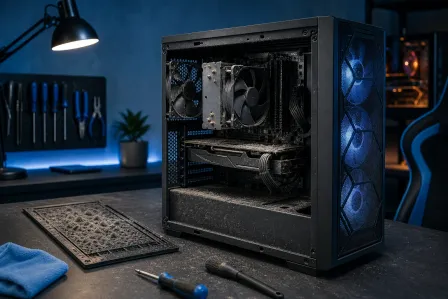
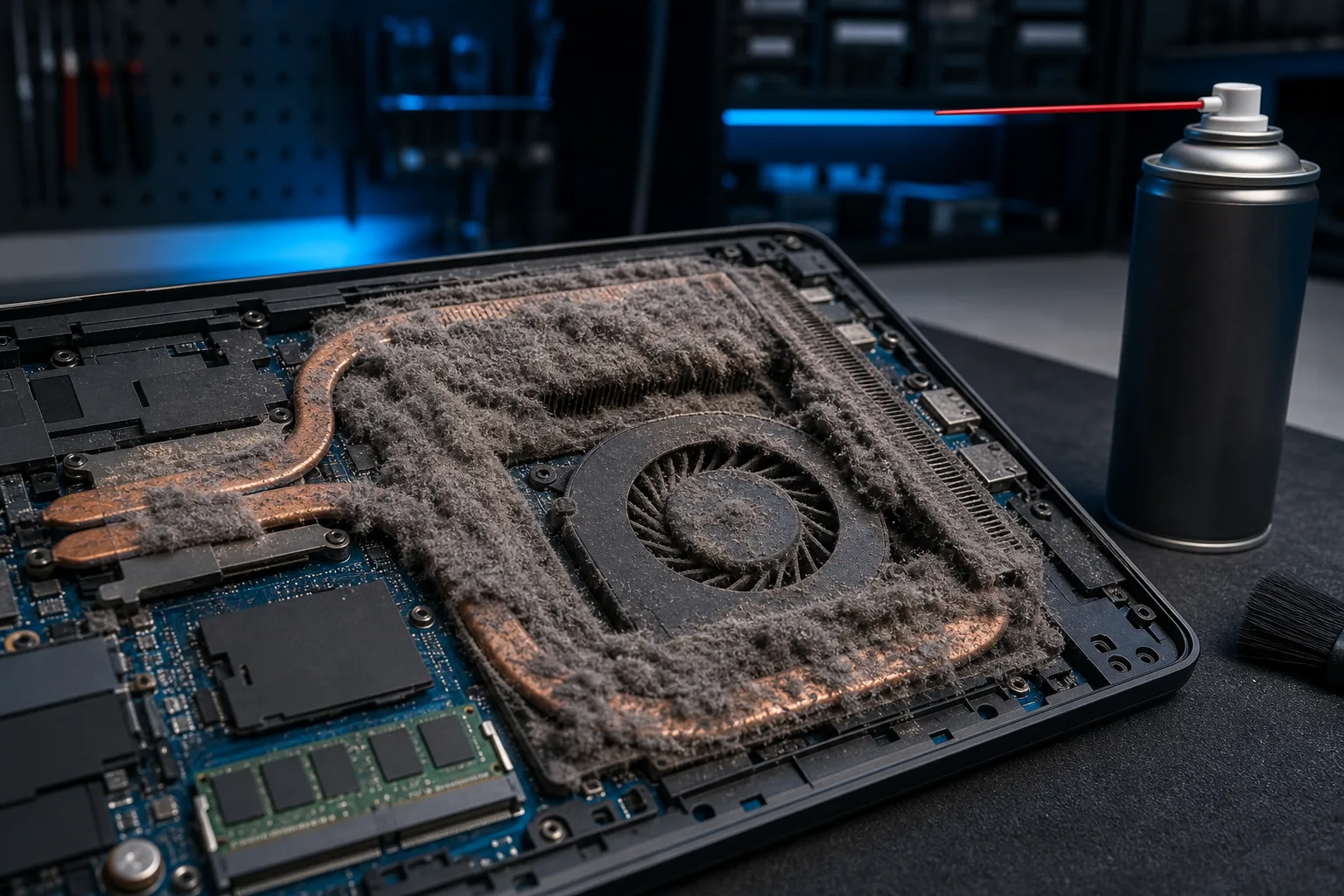
Shut the laptop down completely. Do not just close the lid. Use compressed air in short bursts aimed at the exhaust vents (usually on the sides or rear). Blow in from outside, not into the intake on the bottom. You are pushing accumulated dust out of the heatsink fins, not deeper into the machine.
Do this outdoors or you will be breathing a small Florida dust storm. (You have been warned.)
A laptop that has never been cleaned and lives in a carpeted room or near a pet can build up a felt-like mat inside the heatsink that chokes airflow almost completely. The CPU hits its thermal limit faster, the fan spins harder, and the outside of the case still does not feel hot because the heat is trapped inside.
After cleaning, boot up and recheck temperatures.
Computer acting up? Get a real diagnosis. Book a diagnostic
Step 4: Decide what is actually wrong using what you know
Use this decision table to pick your next move.
| What you found | Most likely cause | What to do |
|---|---|---|
| One process at 80%+ CPU | Software spike or malware | Kill the process, scan for malware, update drivers |
| Temps under 60°C, fan still maxed | Bad temp sensor or firmware bug | Update BIOS/firmware, or have the sensor tested |
| Temps over 80°C at idle after cleaning | Dried thermal paste | Repaste the CPU (see Step 5) |
| Temps high before cleaning, lower after | Dust blockage, now resolved | Monitor for a week, you may be done |
Step 5: Thermal paste, the fix most people skip
If temperatures are elevated even after cleaning the vents, the thermal interface material between the CPU and heatsink has probably dried out. On laptops this happens somewhere between three and six years of regular use. Dried paste conducts heat poorly, so the CPU runs hotter than it should, and the fan chases a temperature it can never quite catch.
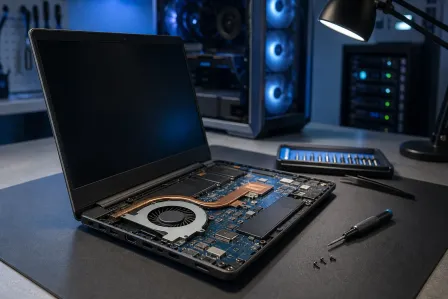
Replacing thermal paste requires disassembling the laptop, lifting the heatsink, cleaning off the old compound, and applying a thin, even layer of fresh paste. Do it wrong and you can bend a heatpipe, strip a screw, or crack a ribbon cable. It is doable as a DIY job if you are comfortable with small electronics, but it is one of those repairs where a mistake costs more than just paying someone to do it right the first time.
If you want a professional to handle it, Fix My PC Store on Okeechobee Blvd does laptop teardowns and repaste jobs. Initial diagnostic checks are free for most standard in-store repairs. Scope and pricing are explained before any work starts.
Common mistakes
Using a laptop on a bed or couch. Soft surfaces block the bottom intake vents completely. The fan has to work twice as hard for the same cooling result. Use a hard, flat surface or a cheap laptop stand.
Blasting compressed air into the intake vents. You push dust into the heatsink fins instead of out. Always aim at the exhaust side.
Assuming "cool to the touch" means the CPU is fine. The chassis is a poor thermometer. Always check software-reported temps.
Ignoring firmware and driver updates. Some fan curve bugs are fixed by a BIOS update. Check your manufacturer's support page before buying anything.
Installing third-party fan control software without knowing your temps. Turning the fan down when you have not diagnosed the root cause is how you cook a motherboard. Know your temperatures first.
Bottom line
A loud fan on a cool-feeling laptop almost always traces back to one of four things: a CPU-hogging process, a flaky temperature sensor, a dust-clogged heatsink, or dried thermal paste. Work through the steps in order and you will find it. If cleaning the vents fixes it, great. If temperatures are still running high or the sensor readings look wrong, that is the point to bring it in.
For hands-on help, you can schedule a repair at Fix My PC Store or reach us at our West Palm Beach shop at 561-819-9999, Monday through Friday 9 a.m. to 6 p.m. and Saturday 9 a.m. to 5 p.m. If you prefer someone to walk you through it remotely first, remote support is also available.
Computer acting up? Get a real diagnosis.
Fix My PC Store has repaired thousands of machines across West Palm Beach. Honest pricing, no upsell games, and a free diagnostic for new customers with our email coupon.