Laptop Fine For An Hour Then Slows Down? Real Fixes
TL;DR: A laptop that runs great for an hour then slows down is almost never "just old." It's usually thermal throttling from dust and dried-out paste, too many background processes eating RAM, or a hard drive/SSD that's quietly failing. Check temps and Task Manager first, then work down the list below before you assume it's time to replace the whole machine.
This is one of the most common complaints we hear at the shop, and it's also one of the easiest to misdiagnose. People assume their laptop is just "old" or "full of viruses." Sometimes. But way more often it's heat. Laptops are tiny sealed boxes trying to cool components that desktops need a full tower and multiple fans for. Give it an hour of real work and those thermal problems show up right on schedule.
Let's walk through how to actually find the cause instead of guessing.
What you need
- 20-30 minutes of uninterrupted time with the laptop
- Task Manager (Windows) or Activity Monitor (Mac), both built in
- A free temperature monitoring tool like HWMonitor or Core Temp (Windows) or iStat Menus / built-in Activity Monitor stats (Mac)
- Compressed air can, if you're comfortable opening vents
- A flat, hard surface to test on, not your bed or couch
You don't need any of this to be fancy. You're just trying to catch the laptop in the act of slowing down.
Step 1: Watch the temperature while it happens
Open your temperature monitoring tool and just leave it running in the background while you use the laptop normally. Note the CPU temperature when things feel fine, then check it again the moment things get sluggish.
If you see the CPU temp climbing into the 90s (Celsius) and performance drops right along with it, that's thermal throttling. The processor is deliberately slowing itself down to avoid cooking itself. This is by far the most common cause of "fine for an hour, then crawls."
Throttling happens because heat builds up gradually. Fans get louder, vents get warmer, and once the internal temperature crosses a threshold, the CPU cuts its own clock speed to cool off. That's not a bug, it's a safety feature. But it feels exactly like your laptop dying in real time.
Step 2: Check what's actually running in the background
Open Task Manager (Ctrl+Shift+Esc on Windows) and sort by CPU, then by Memory. Do this both right after startup and again once things slow down. Compare the two.
What you're looking for:
- Processes that start small and balloon over time (memory leaks in browser tabs, sync clients, or background updaters)
- Multiple instances of the same app stacking up
- Windows Update, antivirus scans, or OneDrive/Dropbox sync kicking off mid-session
A laptop with 8GB of RAM and 40 browser tabs open is going to feel fantastic for ten minutes and miserable an hour later, once everything's loaded into memory and the system starts swapping to disk. That swapping is often the real slowdown culprit, not the CPU at all.
Step 3: Check disk health and activity
If you're on a laptop with a traditional hard drive (spinning disk) instead of an SSD, this step matters even more. Open Task Manager's Performance tab and watch the Disk usage percentage. If it's pegged at 100% while everything else looks normal, your storage is the bottleneck.
A failing drive often shows this pattern exactly: fine at first, then it starts struggling to read/write and everything backs up behind it. Clicking or grinding noises from a hard drive are a hard stop, that's a warning sign of imminent failure, not something to keep pushing through.
For SSDs, check the drive's health status through the manufacturer's tool or a utility like CrystalDiskInfo. SSDs don't click, but they can still degrade and slow down as they fill up or wear out.
If you're not sure whether this is a software problem or the drive itself failing, that's exactly the kind of thing worth having someone look at, especially before you lose data. Our computer repair team runs proper diagnostics rather than guessing.
Step 4: Clean out the vents and check the fan
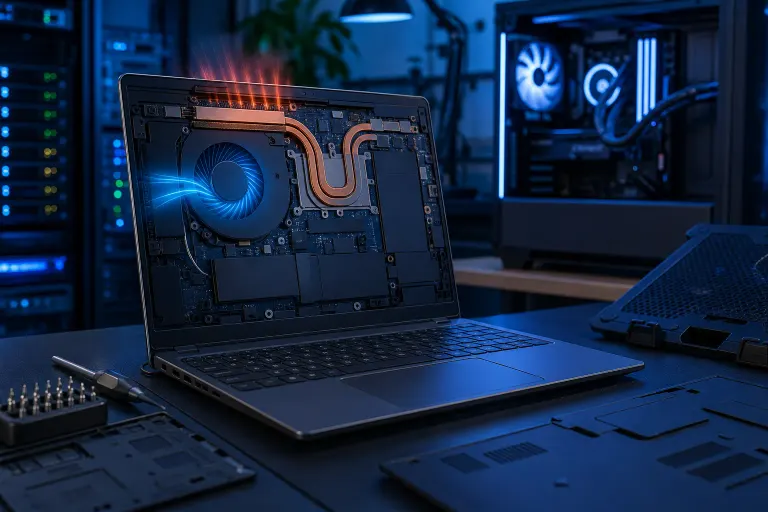
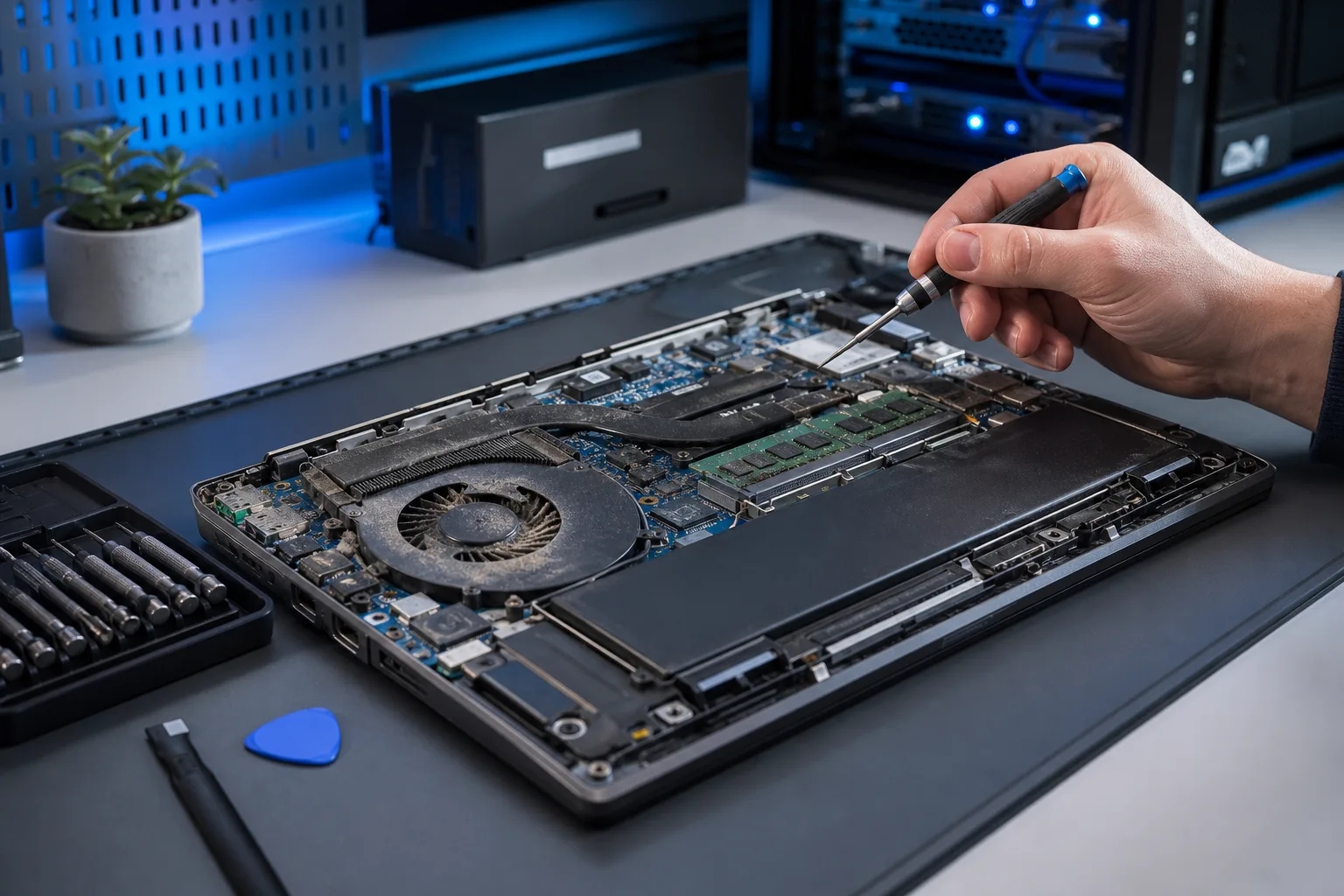
Dust is boring but it's a top-three cause of this exact symptom. Laptops pull air through narrow vents, and after a year or two of normal use, those vents get partially blocked with dust, pet hair, and general grime. Less airflow means heat has nowhere to go, which brings you right back to Step 1's throttling problem.
If you're comfortable doing it yourself, a can of compressed air aimed into the exhaust vents (with the laptop off) can help. Short bursts, don't go crazy. If the fan sounds like it's straining, grinding, or not spinning at all under load, that's a sign it needs actual cleaning or replacement, which usually means opening the case. That's not a DIY job for most people, and forcing it open on the wrong model can crack clips that are a pain to replace. Our laptop repair service handles teardown, cleaning, and thermal paste replacement properly.
Computer acting up? Get a real diagnosis. Book a diagnostic
Step 5: Reapply thermal paste (older laptops especially)
Thermal paste is the material between the CPU and its heatsink that actually transfers heat. It dries out over years of heat cycles, typically somewhere in the 3-5 year range depending on usage. Once it's dried out, heat transfer gets worse even with clean vents and a healthy fan.
This is a real fix, not a placebo. If your laptop is a few years old and Step 1 showed high temps even after cleaning the vents, dried paste is the next likely suspect. This requires opening the laptop and is genuinely something to leave to a repair shop unless you've done it before. Getting the amount wrong or nicking a component costs more than the repair itself would have.
Step 6: Check power settings and background updates
Some laptops have power plans that throttle performance after a certain amount of time to manage heat and battery, even when plugged in. Check your power/battery settings and make sure you're not accidentally running in a power-saver mode during heavy tasks.
Also worth checking: Windows Update, antivirus definition updates, and cloud backup software often schedule themselves to run automatically, sometimes exactly around the one-hour mark if that's when you usually turn the laptop on. If you're a business owner and this is happening across multiple machines in the office, it's often a sign your update and backup schedules need actual management rather than each machine doing its own thing. That's the kind of coordination a managed IT plan handles in the background so nobody notices it happening.
Step 7: Rule out malware, but don't jump there first
We put this last on purpose. Malware absolutely can cause background CPU spikes and slowdowns, but it's less common than heat and RAM pressure, and people jump to "virus" way too fast. Run a scan with your existing antivirus or Windows Defender to rule it out, but don't expect it to be the answer if your temps are already climbing in Step 1.
If you're on a work laptop and you're worried about something more serious than adware, that's a different conversation, one worth having with a cybersecurity provider rather than just running a free scanner and hoping.
Common mistakes
Assuming it's automatically the battery. Battery health affects runtime, not raw performance, unless the laptop is throttling specifically because it detects a failing battery. Don't replace a battery to fix a speed problem without checking temps first.
Running it on a soft surface. Beds, couches, and laps block the bottom vents completely. This alone can cause the exact symptom you're describing. Always test on a hard, flat surface before diagnosing anything else.
Closing the lid to "let it cool down." Closing the lid usually triggers sleep mode, which doesn't actually dissipate heat any better and just masks the problem temporarily.
Buying a cooling pad as the first fix. Cooling pads help marginally but they're a band-aid on dust buildup or dried thermal paste. If the internal cooling system is compromised, a $20 pad underneath won't fix it.
Reinstalling Windows before checking hardware. A fresh OS install can help with software bloat, but if the real problem is heat or a dying drive, you'll be right back here in a week, having wasted a day on a reinstall.
Ignoring it because "it eventually works fine again." A laptop that throttles and recovers is still stressing its components every single cycle. Left alone, that pattern tends to accelerate toward drive failure or a dead motherboard, not resolve itself.
Bottom line
Fine for an hour then crawling is a pattern, and patterns have specific causes. Nine times out of ten it's heat buildup from dust or dried thermal paste, RAM getting overloaded by background processes, or a drive that's starting to fail. Watch your temps, check Task Manager, and look at what's actually running before assuming the whole laptop is done for.
If you've gone through these steps and you're still stuck, or you'd rather skip the troubleshooting and just get an answer, book a repair and we'll run proper diagnostics on temps, drive health, and fan function. Most of the time this is a fixable problem, not a reason to buy a new laptop.
Computer acting up? Get a real diagnosis.
Fix My PC Store has repaired thousands of machines across West Palm Beach. Honest pricing, no upsell games, and a free diagnostic for new customers with our email coupon.