Laptop Powers On but Keyboard Has Dead Keys: What Is Wrong
TL;DR: Dead keys on an otherwise working laptop are most often caused by a driver or OS issue, a physically stuck key, debris under the keycap, or a damaged keyboard ribbon cable. Run through the software checks first. If those pass, the problem is almost certainly hardware and worth a professional look.
What you need
- A can of compressed air (optional but useful)
- A second keyboard (USB or Bluetooth) to test software vs. hardware
- Access to your laptop's Device Manager or System Preferences
- About 10-15 minutes
Step 1: Figure out the pattern
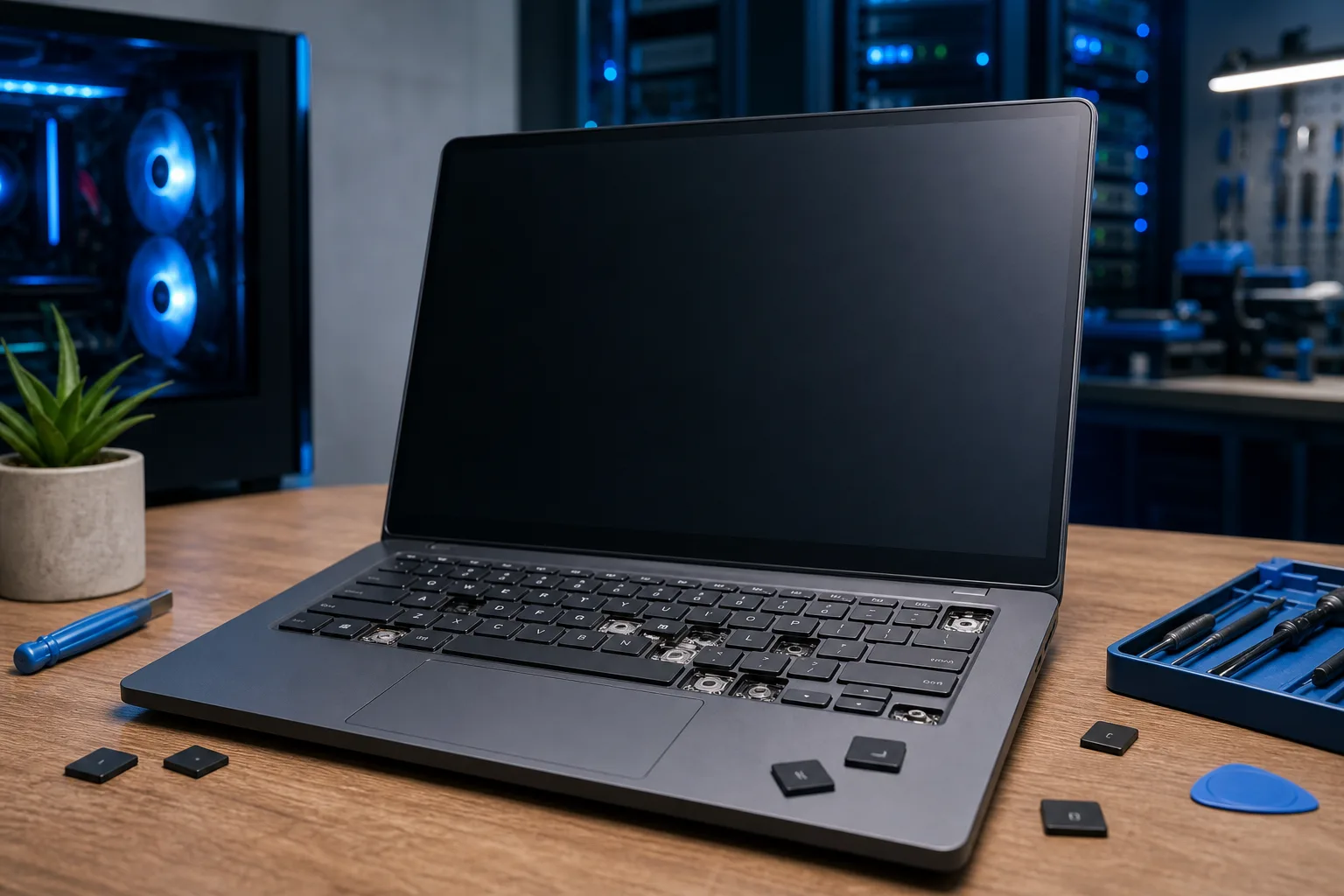
Before touching a single setting, notice which keys are dead. This matters a lot.
- Random scattered keys across the keyboard usually point to a hardware issue, either physical damage or a failing ribbon cable.
- A whole row or column of keys is a strong sign of a damaged membrane or a partially disconnected ribbon cable.
- One or two adjacent keys often means debris, a stuck keycap, or liquid residue.
- Keys that work sometimes suggest a loose connection rather than a fully broken one.
Write down exactly which keys are affected. That pattern is your first diagnostic clue.
Step 2: Restart and check for OS-level glitches
This sounds obvious. Do it anyway. A frozen keyboard driver or a stuck modifier key (like a ghost Fn press) can make keys appear dead when they are not.
- Save anything open and do a full restart, not just sleep.
- After reboot, test the same keys immediately before opening any apps.
- If they work now, the issue was a software hang. Keep an eye out for it recurring.
If the keys are still dead after a clean boot, keep going.
Step 3: Test with an external keyboard
Plug in a USB keyboard or pair a Bluetooth one. Type the same keys that were failing.
- External keys work fine: The problem is isolated to the built-in keyboard hardware or its driver.
- External keys also fail: This is now a software or OS issue affecting keyboard input broadly, not a dead keyboard.
This single test tells you whether to dig into software or focus on hardware.
Step 4: Check the keyboard driver (Windows) or reset the SMC/NVRAM (Mac)
On Windows
- Right-click the Start button and open Device Manager.
- Expand "Keyboards" and look for a yellow warning triangle on any entry.
- Right-click the keyboard device and choose "Update driver," then "Search automatically."
- If no update appears, try "Uninstall device," then restart. Windows reinstalls the driver on boot.
If the driver looks healthy and the problem persists, the driver is not your culprit.
On Mac
- Apple Silicon Macs: Shut down fully, wait 30 seconds, then power back on. The SMC resets automatically.
- Intel Macs with a built-in battery and T2 chip: Reset the SMC by holding Shift + Control + Option (all on the left side) + Power for 10 seconds while the laptop is off and plugged in, then release and power on. If you have an older Intel Mac without a T2 chip, the procedure differs, check Apple's official SMC reset support page for the correct steps for your model.
- Intel Macs only: To reset NVRAM, hold Option + Command + P + R at startup until you hear a second chime or see the Apple logo twice. Note that Apple Silicon Macs reset NVRAM automatically on every boot, so no key combination is needed or available for those models.
Neither of these deletes your files. They just clear low-level firmware settings that occasionally go sideways.
Computer acting up? Get a real diagnosis. Book a diagnostic
Step 5: Check for sticky keys settings and accessibility filters
Both Windows and macOS have accessibility features that can silently change how the keyboard behaves. Sticky Keys and Filter Keys in Windows are common culprits when certain keypresses seem ignored.
Windows: Settings > Accessibility > Keyboard. Make sure Sticky Keys and Filter Keys are off.
Mac: System Settings > Accessibility > Keyboard. Disable Slow Keys if it is on.
Slow Keys in particular adds a delay before a keypress registers, which can feel exactly like a dead key.
Step 6: Try compressed air and check for debris
If the software checks all pass, flip the laptop over and give it a few gentle taps. Then use short bursts of compressed air held at an angle under the affected keycaps.
Crumbs, dust, and pet hair can hold a keycap partially depressed so the switch underneath never fully registers. This is more common than most people expect, especially on older laptops or ones that have lived on a couch.
Do not use a vacuum directly on the keyboard. The suction can easily dislodge keycaps or pull off small components, turning a simple cleaning job into a bigger repair.
Step 7: Look for signs of liquid damage
Even a small spill from weeks ago can leave residue that corrodes key contacts over time. Symptoms often show up days after the actual spill.
Look for:
- Sticky-feeling keys near the dead ones
- Slight discoloration under or around keycaps
- Keys that occasionally work when the laptop is warm
If you spot any of these, stop here. Liquid damage to a keyboard almost always needs professional cleaning or keyboard replacement. Continuing to use the laptop can spread corrosion to the motherboard. The team at Fix My PC Store handles laptop keyboard repairs from the Okeechobee Boulevard location, serving West Palm Beach, Royal Palm Beach, and Wellington. You can book a repair appointment or start with remote support if you want a second opinion first.
Decision table: What your pattern probably means
| Symptom | Most likely cause | Self-fixable? |
|---|---|---|
| One or two keys, adjacent | Debris or stuck keycap | Often yes |
| Whole row or column dead | Damaged membrane or ribbon cable | No |
| Random scattered keys | Hardware failure or liquid damage | Rarely |
| Keys work on external keyboard | Driver or OS setting | Usually yes |
| Keys dead on external too | OS/software issue | Yes, dig into settings |
| Keys work when warm | Loose ribbon or corrosion | No |
Common mistakes
Pressing harder on dead keys. It will not help and can damage the switch mechanism underneath.
Running a keyboard cleaner app first. These do not fix hardware issues and waste time before you have ruled out the real cause.
Assuming it is always a virus. Malware rarely causes specific keys to stop working. This is almost never the explanation.
Pulling off keycaps without watching a teardown video first. Laptop keycaps use fragile plastic clips. Popping one off wrong snaps the clip and turns a fixable problem into a replacement keyboard situation.
Ignoring a past spill. "It was just a tiny bit of water" is how keyboards slowly die over two weeks.
Bottom line
Start with the pattern, test an external keyboard, and clear the easy software causes first. If those steps do not resolve it, the keyboard itself is the problem, whether it is debris, a failing ribbon cable, or liquid damage. A laptop keyboard replacement is a straightforward repair for a technician and usually costs far less than a new laptop. If you are in the West Palm Beach area and want a professional diagnosis, Fix My PC Store's laptop repair service can take a look without any guesswork.
Computer acting up? Get a real diagnosis.
Fix My PC Store has repaired thousands of machines across West Palm Beach. Honest pricing, no upsell games, and a free diagnostic for new customers with our email coupon.