Laptop Overheats in Florida Heat: What Actually Helps
TL;DR: Florida heat does not break the laws of physics, but it does shrink your margins. A laptop that runs fine at 70°F can throttle or shut down at 90°F in a humid room. Clean the vents, fix your surface, check your power settings, and replace thermal paste if the machine is a few years old. If it still shuts down, the hardware needs a professional look.
What you need
- Compressed air can (short bursts only)
- A firm, flat surface to work on
- Hardware Monitor software: HWMonitor (Windows) or Activity Monitor plus a menu-bar temp app on Mac
- A laptop cooling pad (optional but useful)
- About 20 minutes for the basic steps
Step 1: Check your actual temperatures
Before doing anything else, know your numbers. Guessing is for amateurs.
Download HWMonitor on Windows or use a free menu-bar app like Stats on Mac. Run something demanding for five minutes, then check peak CPU and GPU temps.
General reference points (always check your specific chip's spec sheet):
| Temp Range | What it means |
|---|---|
| Under 75°C | Normal under load |
| 75-90°C | Warm but usually okay |
| 90-100°C | Thermal throttling likely |
| 100°C+ | Shutdown or damage risk |
If you are hitting 90°C just browsing, something is wrong. Move to the next steps with that context in mind.
Step 2: Fix the surface it is sitting on
This is the most overlooked fix. Laptop vents are typically on the bottom or sides. Soft surfaces, beds, couch cushions, car seats, all block airflow completely.
Move to a hard, flat surface. If you work from a couch or bed regularly, a lap desk with raised feet is a genuine fix, not just a comfort item.
In Florida, pay attention to where the laptop sits in your home. Direct sunlight through a window, even with AC running, can raise ambient temps enough to matter. Move it out of the sun's path.
Step 3: Clean the vents with compressed air
Dust and lint are insulators. In South Florida, where air conditioning runs constantly and doors open into humid outdoor air, lint builds up faster than you might expect.
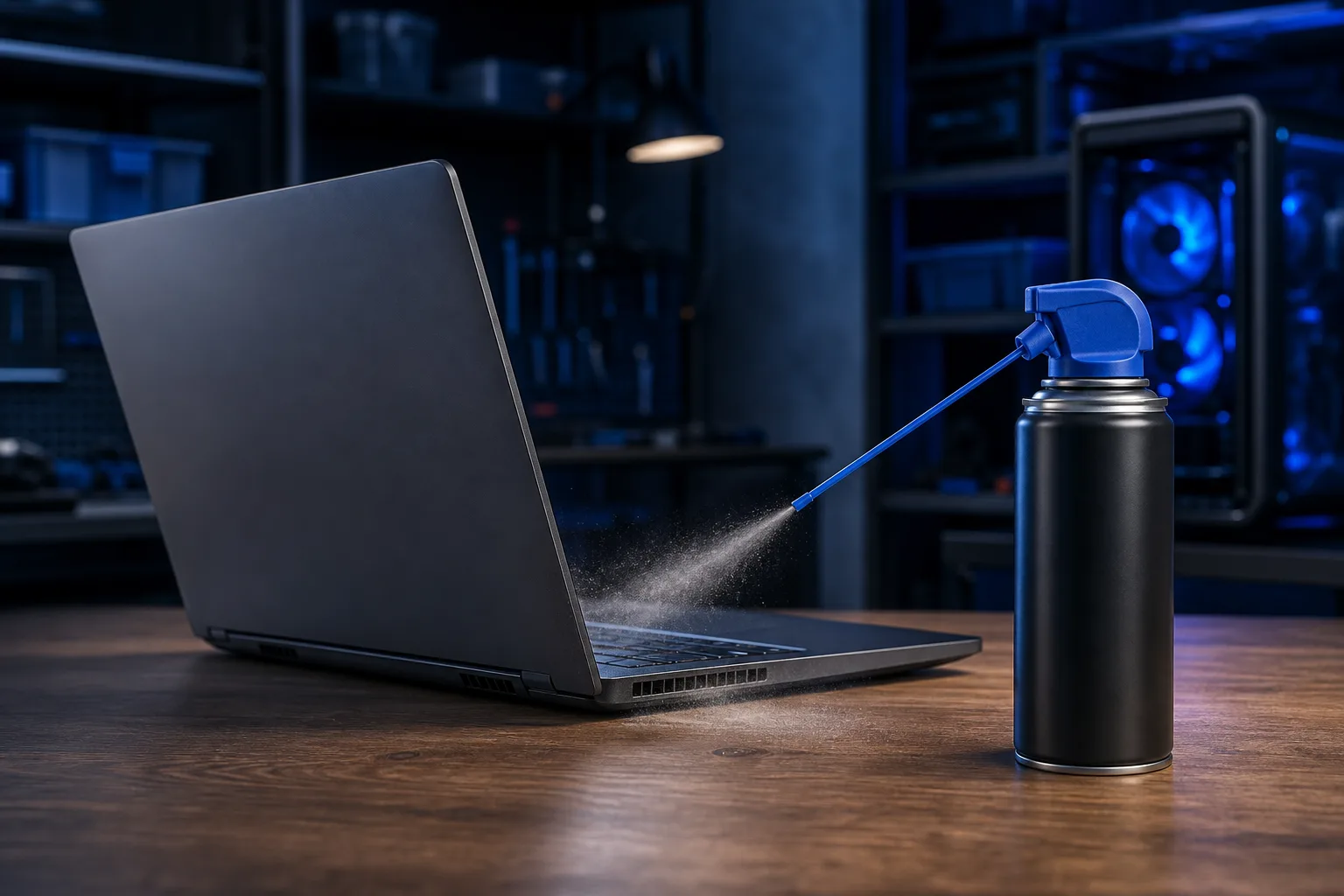
Short bursts of compressed air into the exhaust vents (usually on the sides or back). Hold the fan still with a toothpick if you can see the blades through a vent, so you do not spin it faster than it is rated. Do not blow air into the keyboard.
If visible dust puffs out, that was definitely part of your problem. Repeat every three to six months if you run AC heavily.
Step 4: Adjust power settings
Windows defaults to Balanced or High Performance on many laptops. High Performance keeps the CPU running fast even when idle, generating unnecessary heat.
Go to Settings, System, Power and Sleep, then Additional Power Settings. Switch to Balanced. If you have an Nvidia or AMD GPU, open its control panel and set the laptop to prefer power efficiency when plugged in on light tasks.
On Mac, go to System Settings, Battery, and enable Low Power Mode when you are not doing something demanding. It drops temps noticeably with minimal real-world speed impact for most tasks.
Computer acting up? Get a real diagnosis. Book a diagnostic
Step 5: Check background processes
A rogue process can peg your CPU at 90-100% constantly, generating heat for no useful reason.
On Windows: Task Manager, CPU column, sort descending. Anything over 30-40% that you do not recognize deserves a Google search before you kill it. On Mac: Activity Monitor, CPU tab, same approach.
Common culprits include Windows Update running in the background, antivirus scans, and cloud sync apps churning through a big folder. Let them finish or schedule them for off-hours.
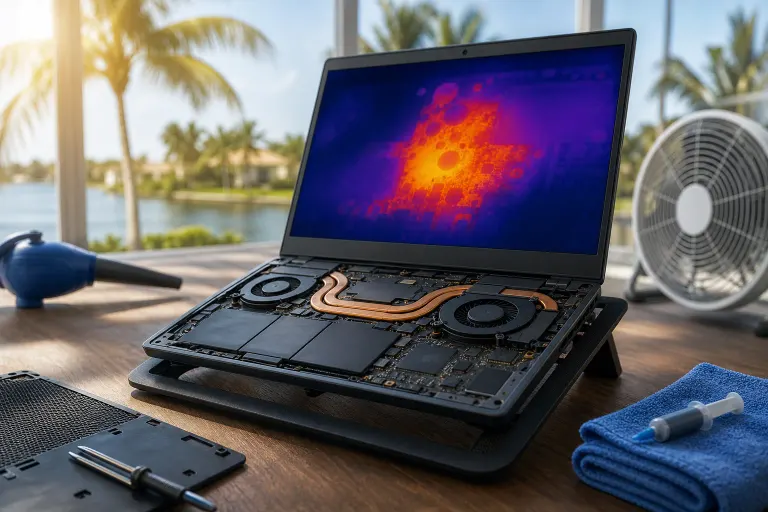
Step 6: Replace thermal paste if the machine is 3+ years old
This is the fix most people skip. Thermal paste sits between the CPU and the heatsink. It dries out over time, especially in hot climates where the machine cycles through more heat stress.
When it degrades, heat transfer drops and temps spike by 15-25°C in some cases. Replacing it is not expensive, but it does require opening the machine, which voids warranties on some models and carries a real risk if you have not done it before.
If your laptop is three or more years old and runs consistently hot even after steps one through five, thermal paste is the likely culprit. This is the point where getting it done right at a shop saves you from an expensive mistake. Book a laptop repair appointment or contact the team at Fix My PC Store on Okeechobee Boulevard if you would rather not crack the case yourself.
Step 7: Consider a cooling pad
Cooling pads are not magic, but they help. A good pad with active fans can lower temps by 5-15°C depending on the laptop's vent layout. That buffer matters in Florida where room temps are already higher.
Look for pads that match your laptop's vent location. A pad that blows air at the center of the bottom does nothing useful for a laptop that vents from the sides.
Common mistakes
- Blowing into the exhaust the wrong way. You want to blow dust out the way it came in, not pack it tighter into the heatsink.
- Freezing the laptop with an ice pack or gel pad. Condensation and electronics are a bad combination. Do not do this.
- Assuming a clean exterior means clean internals. Dust collects on the heatsink fins inside, not the lid.
- Ignoring throttling. If your laptop suddenly gets slow in the afternoon when it is hottest, that is thermal throttling, not a slow processor. The fix is cooling, not a hardware upgrade.
- Running demanding tasks while charging in a hot car. Florida car interiors hit over 130°F on summer days. Even parking briefly with the laptop running is a thermal stress test it will eventually fail.
Bottom line
Most Florida laptop overheating problems come down to four things: blocked vents, bad surface choice, outdated thermal paste, or a runaway process. Work through the steps in order and you will fix the majority of cases without spending anything.
If it still throttles or shuts down after all of that, the heatsink fan may be failing or the thermal paste job needs a professional touch. The laptop repair team at Fix My PC Store in West Palm Beach handles exactly this kind of work, and it is faster than you probably expect.
Computer acting up? Get a real diagnosis.
Fix My PC Store has repaired thousands of machines across West Palm Beach. Honest pricing, no upsell games, and a free diagnostic for new customers with our email coupon.