Laptop Overheating Fix: Clean, Paste, and Fan Diagnostics
Listen to this article
TL;DR: If your laptop is lagging, thermal throttling, or doing the dreaded random shutdown, you probably need a laptop overheating fix that starts with airflow and ends with either a deep clean or a full thermal service. We are talking dust-clogged vents, a laptop fan not spinning, or old thermal paste that has turned into crusty sadness. Let’s get your temps back under control so your FPS stays butter smooth.
Overheating is one of the biggest silent killers of laptop performance. It turns “this game runs” into “why am I getting 12 FPS and a space-heater keyboard?” and it can shorten the life of your CPU, GPU, battery, and even the motherboard. If you are in Palm Beach County (West Palm Beach, Palm Springs, Lake Worth Beach, Royal Palm Beach, Wellington, Greenacres, Riviera Beach, and nearby), this guide is your evergreen playbook for diagnosing heat issues safely at home, plus knowing when to call in the pros for laptop overheating repair.
Laptop Overheating Repair: The Symptoms That Scream “Heat Problem”
Before we start unscrewing anything, let’s confirm you are actually dealing with heat. Here are the most common signs I see when a laptop is cooking itself:
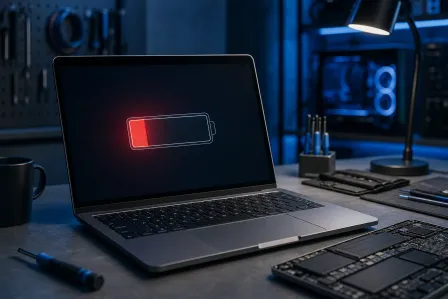
- Random shutdown laptop events, especially during gaming, Zoom calls, or charging
- CPU temperature too high warnings (or you notice the chassis is scorching hot)
- Thermal throttling: performance drops hard after a few minutes (FPS tanks, stutters, input feels delayed)
- Fans blasting like a jet engine, or the opposite: laptop fan not spinning
- Keyboard deck and palm rest getting uncomfortably hot
Why overheating nukes performance (aka the thermal throttling fix mindset)
Modern CPUs and GPUs protect themselves. When temps climb, they automatically reduce clock speeds and power. That is thermal throttling. It keeps the laptop alive, but your performance takes a massive L. For gamers, it is the difference between stable frames and “why does this feel like a slideshow?”
Laptop Overheating Fix Step 1: Check Temps and Confirm Throttling
We are not guessing. We are measuring. Your mission: confirm the temps and watch for throttling behavior.
Quick and safe ways to monitor temperatures
- Windows 10/Windows 11 Task Manager: Great for CPU usage and basic performance clues (not always full temp detail).
- OEM utilities (Dell, HP, Lenovo, ASUS, Acer tools): Often show fan modes and performance profiles.
- For Windows troubleshooting basics, Microsoft has solid baseline guidance here: Microsoft Support for Windows temperature and performance troubleshooting.
What you are looking for: temps climbing fast, performance dropping after a short load, and fans behaving weirdly. If your laptop goes from “cracked” to “crawling” mid-match, that is classic throttling.
At-home airflow test (no tools, big info)
Put your hand near the exhaust vent while the laptop is under load. You should feel a steady stream of warm air. If you feel almost nothing, airflow is blocked or the fan is not doing its job. If the air is scorching and the laptop still throttles, you might have a heatsink paste issue or a clogged fin stack.
Dust Clog Laptop Vents: When a Simple Clean Is Enough
Dust is the sneakiest villain. It builds up in intake vents, exhaust vents, and inside the heatsink fins like a fuzzy blanket that traps heat. If your laptop lives on a bed, couch, or your lap a lot, GG, dust is probably winning.
Safe vent cleaning (no disassembly)
- Power down fully and unplug the charger.
- If the laptop has a removable battery (rare in modern models), remove it.
- Use compressed air in short bursts. Do not go full send for 30 seconds straight.
- Important: If you can see the fan blades through a vent, try to prevent the fan from free-spinning wildly while blasting air. Over-spinning can stress the fan bearing.
- Clean on a hard surface (desk/table), not fabric.
How to tell if vent cleaning actually worked
After cleaning, run the same workload again. If temps drop meaningfully and performance stabilizes, congrats: you just got a real-world thermal throttling fix with minimal effort. If temps are still sky-high or shutdowns persist, it is time for deeper diagnostics.
Supporting image placement suggestion: Place heatsink-fin-dust-clog-laptop-vents.jpg after this H2 to show what “dust clog laptop vents” looks like in real life.
Heatsink Cleaning and Thermal Paste Replacement: The Real Performance Reset
If your laptop is a few years old, or it has been through heavy gaming sessions in Palm Beach heat and humidity, the internal cooling system might need a proper service. This is where the magic happens: heatsink cleaning and thermal paste replacement.
What thermal paste does (and why it matters for gaming)
Thermal paste fills microscopic gaps between the CPU (and sometimes GPU) and the heatsink. Better contact means better heat transfer. Old paste can dry out or pump out over time, which means your CPU temperature climbs faster, throttles sooner, and your FPS consistency goes straight into the trash.
When to do thermal paste replacement
- Laptop is 3+ years old and has never been serviced
- Temps spike rapidly even when fans are working
- Cleaning vents did not help much
- You see throttling during loads that used to run fine
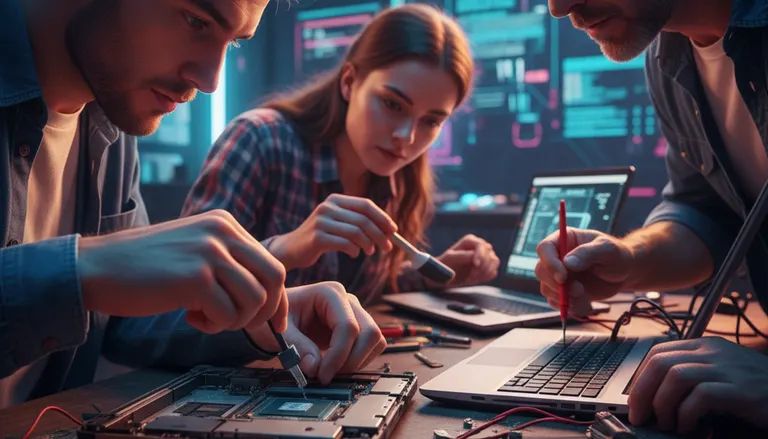
High-level steps (for confident DIYers)
Heads up: laptop internals vary wildly by model. If you are not comfortable opening your laptop, skip to the “when to go pro” section. No shame. Smart gamers protect their gear.
- Remove the bottom cover (use the correct screwdriver bit).
- Disconnect the battery if possible.
- Remove the fan and heatsink assembly carefully.
- Heatsink cleaning: clear dust from the fin stack and fan housing (a soft brush plus compressed air works great).
- Clean old paste from the CPU contact area and heatsink plate using high-percentage isopropyl alcohol and lint-free wipes.
- Apply new thermal paste (a small amount, correct coverage matters more than “more paste”).
- Reinstall heatsink with even screw pressure (follow the numbered screw order if present).
- Reassemble, then re-test temps under load.
When this service is done right, you often get lower peak temps and longer boost clocks. Translation: more consistent performance and fewer frame-time spikes. Not always a massive average FPS jump, but the smoothness gain can be absolutely clutch.
Laptop Fan Not Spinning: Fan Diagnostics That Save Your Laptop
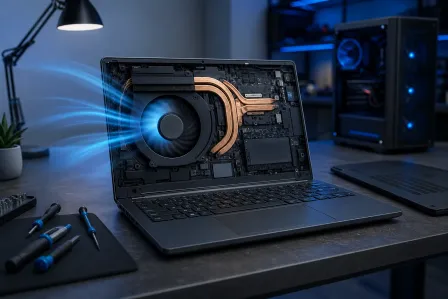
Fans are the heartbeat of laptop cooling. If a laptop fan is not spinning, you can clean vents all day and it still will not matter. Here is how to diagnose it safely.
Signs your fan is failing
- No airflow from the exhaust even under load
- Rattling, grinding, or buzzing noises (bearing wear)
- Fan ramps up and down constantly (unstable control or sensor issues)
- Random shutdown laptop behavior during gaming or charging
Quick checks before assuming the fan is dead
- Power profile: Some laptops have “Quiet” or “Battery Saver” modes that reduce fan behavior. Test on Balanced or Performance.
- BIOS/UEFI diagnostics: Many brands include basic fan tests. If your model supports it, run the built-in hardware checks.
- Physical blockage: Dust mats can jam fan blades.
If the fan still does not spin
At that point, you may be looking at a failed fan, a damaged fan connector, or a board-level issue. Replacing a laptop fan is usually straightforward for a shop, but can be tricky for DIY if the fan is integrated into a heatpipe assembly.
Supporting image placement suggestion: Place laptop-fan-diagnostics-fan-not-spinning.jpg after this H2 to visually reinforce fan RPM and connector checks.
CPU Temperature Too High and Random Shutdown Laptop: When It’s Not Just Dust
Sometimes overheating is not just “dirty vents.” Here are the bigger warning signs that mean you should stop stress testing and get help.
Red flags that require professional laptop overheating repair
- Shutdowns happen even at idle or light browsing
- Fan spins, vents are clean, but temps still slam into the danger zone fast
- Heatsink appears warped or does not sit flush (bad contact)
- Liquid damage or corrosion inside the laptop
- Battery swelling (stop using it immediately)
Also: performance issues can be software-related
Not every stutter is heat. Malware, runaway background apps, or driver issues can mimic “overheating” symptoms by pinning CPU usage at 100%. If your temps are normal but the system is still crawling, a security check is smart. Here is a trusted resource for symptoms and cleanup basics: Malwarebytes resources on malware symptoms and performance issues. If you suspect an infection, our virus removal service can help you get back to clean, stable performance.
Laptop Maintenance Checklist (Do This and Your Future Self Will Thank You)
Want your laptop to stay cool and quiet? Here is the no-drama checklist I recommend for Palm Beach County gamers and remote workers.
Weekly quick wins
- Use the laptop on a hard surface so intake vents can breathe
- Keep vents clear (no blankets, no couch cushions)
- Listen for new fan noises (early warning is huge)
Every few months
- Inspect and gently clean vents
- Check for performance drops under the same workloads (games, editing, meetings)
- Update Windows 10/11 and key drivers from your laptop manufacturer
Yearly (or as needed for heavy gamers)
- Deep clean internal heatsink fins if dust buildup is common in your environment
- Consider thermal paste replacement if temps have been climbing over time
Palm Beach Computer Repair: When to Bring Your Laptop to Fix My PC Store
If you have tried the safe steps and your laptop is still overheating, do not keep brute-forcing it. Every thermal shutdown is stress on components. If you are in West Palm Beach or anywhere in Palm Beach County, we can diagnose the root cause fast and get you back to stable performance.
- Need a full diagnostic and repair plan? Start here: computer repair services.
- Specifically a laptop issue (heat, fan, power, hinge, battery)? Book: laptop repair in West Palm Beach.
- If overheating led to crashes and you are worried about files, do not panic: data recovery services can help.
What a pro thermal service typically includes
- Temperature and load testing to confirm throttling behavior
- Fan diagnostics (RPM behavior, noise, power delivery)
- Heatsink removal, fin stack cleaning, and proper reassembly
- Thermal paste replacement (and thermal pads check where applicable)
- Post-service validation so you can game and work without random shutdowns
End goal: lower temps, stable boost clocks, and that butter smooth gameplay feeling where your laptop stops fighting you and starts carrying.
Need Expert Computer Support?
Get professional help from Palm Beach County's trusted computer repair specialists.
Get Help Today