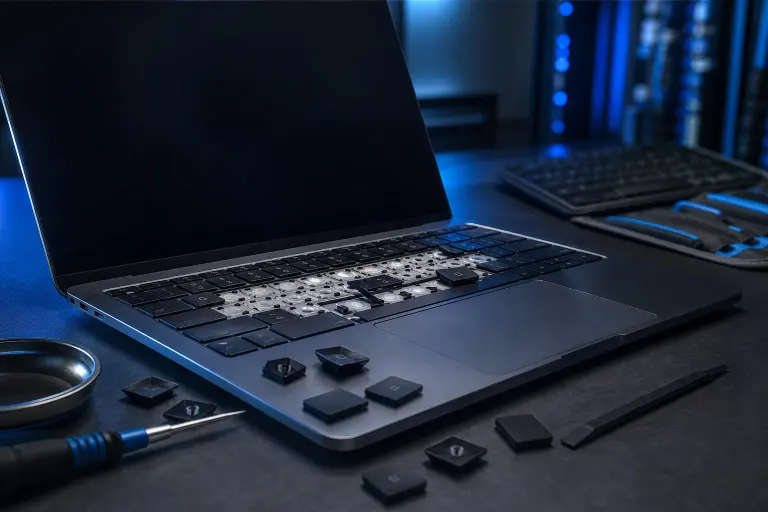
Laptop Keyboard Typing Wrong Characters: Causes and Fixes
TL;DR: Wrong characters showing up when you type almost always trace back to one of four causes: an incorrect keyboard language layout, a stuck or debris-jammed key, a corrupted keyboard driver, or physical damage to the keyboard membrane. Work through these in order, cheapest fix first, and you'll usually find the culprit in under fifteen minutes.
I've seen this ticket a hundred times, and it's almost never mysterious. People assume it's a virus or some deep Windows corruption. It's usually a setting that got flipped by an accidental key combo, or a keyboard that's been fed one too many crumbs. Let's go through it the way I'd troubleshoot it on a bench.
What you need
- Ten to fifteen minutes of uninterrupted time.
- Access to Windows Settings or macOS System Settings.
- A USB or Bluetooth external keyboard, if you have one lying around. Not required, but it speeds up diagnosis.
- Compressed air, if you suspect debris under the keys.
- Admin rights on the machine, since driver reinstalls require them.
1. Confirm it's not a language or layout issue
This is the single most common cause I run into, and it's the easiest to fix. Windows and macOS both support multiple keyboard layouts, and a stray keyboard shortcut can silently switch you from a US QWERTY layout to something else, like UK English, French AZERTY, or Dvorak. The keys are physically the same, but what they type is different. That's why your "@" becomes a quotation mark or your "Z" and "Y" swap.
On Windows:
- Click the language indicator in the taskbar (usually shows "ENG" or similar) or press
Windows key + Spaceto cycle through installed layouts. - Go to Settings > Time & Language > Language & Region and check which keyboards are installed under your language.
- Remove any layout you didn't intentionally add. If you only ever type in US English, there should be exactly one layout listed.
- Test typing in Notepad after switching back to confirm.
On macOS:
- Check the input menu in the top-right menu bar (a flag icon or language abbreviation).
- Go to System Settings > Keyboard > Input Sources and remove any layout you don't use.
- Retest in TextEdit.
The shortcut that usually causes this on Windows is Alt + Shift, which cycles input languages. On a laptop, it's disturbingly easy to hit that combo by accident while reaching for other keys. If this was your problem, you're done. If not, move to the next step.
2. Rule out Sticky Keys, Filter Keys, or Toggle Keys
Windows has built-in accessibility features that can make typing behave strangely if they get triggered accidentally. Sticky Keys can cause modifier keys (Shift, Ctrl, Alt) to stay "active" after you've released them, which means your next few keystrokes get modified when they shouldn't be. That can look exactly like wrong characters typing out.
- Go to Settings > Accessibility > Keyboard.
- Turn off Sticky Keys, Filter Keys, and Toggle Keys unless you specifically use them.
- Also check that you didn't accidentally enable an on-screen keyboard with a different layout running in the background.
On a Mac, check System Settings > Accessibility > Keyboard for Slow Keys or Sticky Keys settings that may have been toggled.
3. Test with an external keyboard
This step tells you, immediately, whether the problem is software or hardware. It's the single most useful diagnostic in this whole list.
- Plug in a USB keyboard, or pair a Bluetooth one.
- Disable the internal laptop keyboard temporarily if your device manager allows it, or simply ignore it and type only on the external one.
- Open Notepad or TextEdit and type a full sentence with numbers and symbols.
If the external keyboard types correctly: the problem is isolated to the internal keyboard or its driver, not Windows or macOS itself. Skip to step 5.
If the external keyboard also types wrong characters: the problem is software-level, likely a corrupted driver, a language pack conflict, or in rare cases malware interfering with input. Continue to step 4.
Computer acting up? Get a real diagnosis. Book a diagnostic
4. Reinstall or update the keyboard driver
A corrupted keyboard driver can cause scrambled input, dropped keystrokes, or characters that don't match what you pressed. This is more common after a Windows update than people expect, since driver packages sometimes don't reinstall cleanly.
On Windows:
- Right-click the Start button and open Device Manager.
- Expand "Keyboards."
- Right-click your keyboard entry and select "Uninstall device." Check the box to remove the driver if offered.
- Restart the laptop. Windows will automatically reinstall a generic driver on boot.
- Test typing again.
If that doesn't resolve it, check Windows Update for any pending driver updates, and check your laptop manufacturer's support page for a specific keyboard or input driver package. Generic drivers work fine most of the time, but some laptops use specialty keyboard controllers (common on gaming laptops with per-key RGB) that need a manufacturer-specific driver to function correctly.
On macOS: driver issues are rarer since Apple controls the hardware and software tightly, but a corrupted system cache can still cause odd input behavior. Try booting into Safe Mode to see if the issue persists, which rules out third-party software interference.
If you're not comfortable digging through Device Manager or don't want to risk uninstalling the wrong driver, remote support can walk through this with you live without you needing to touch anything you're unsure about.
5. Check for physical debris or damage
If the external keyboard test showed the problem is isolated to your laptop's built-in keyboard, hardware is the likely cause. A few scenarios:
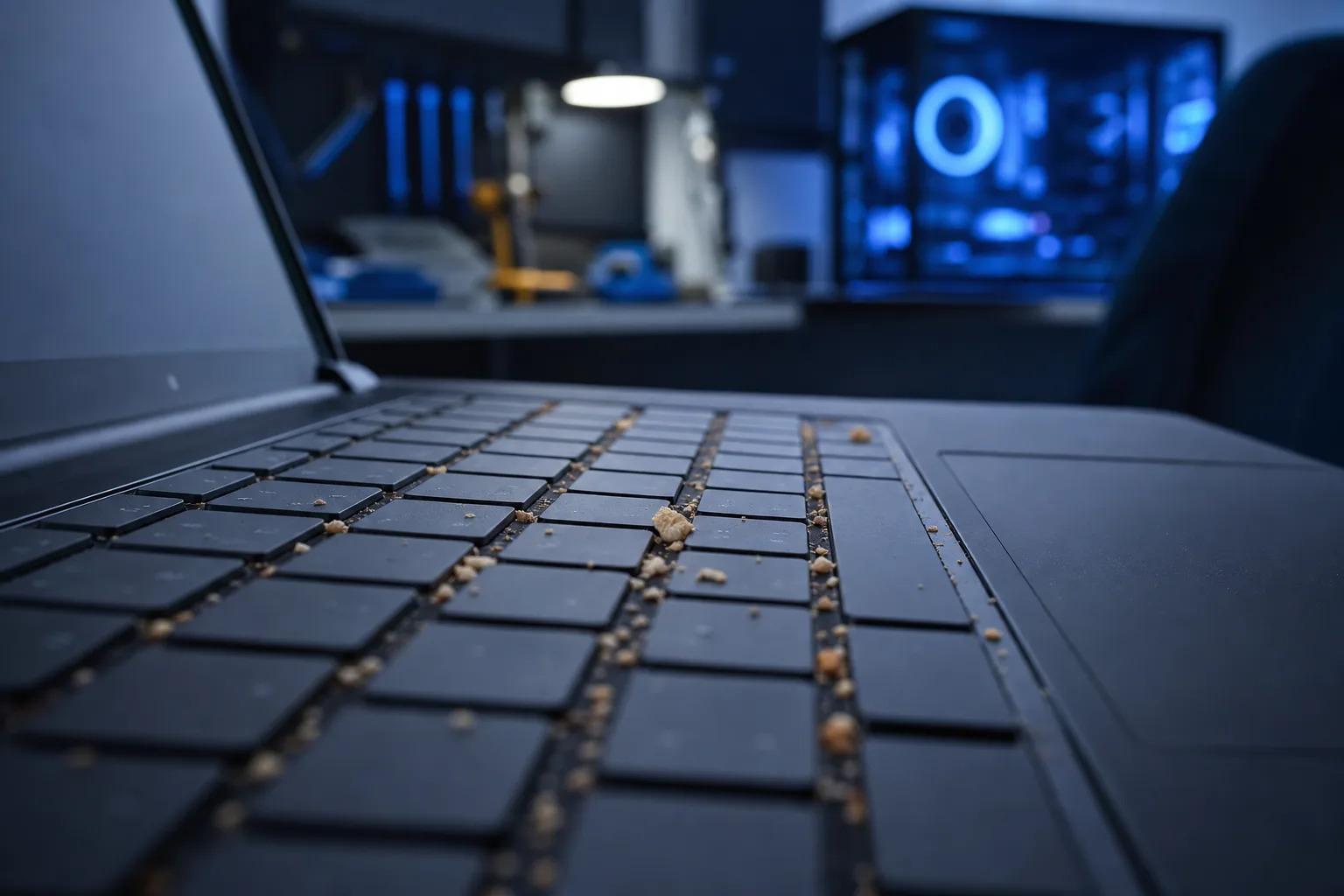
- Debris under specific keys. Crumbs, sand, or pet hair under a key can cause it to register a different key's signal if the membrane contacts are bridged incorrectly. Turn the laptop off, hold it at a 75-degree angle, and use compressed air in short bursts around the affected keys.
- Liquid residue. Even a small spill, dried and invisible, can leave a conductive residue that causes crossed signals between adjacent keys. This is common in South Florida with sweat, condensation, and humidity working their way into gaps over time, especially on laptops that live near a pool or get used outdoors.
- A failing keyboard membrane. Laptops that are a few years old can develop membrane wear where certain keys short against each other. This usually shows up as one specific key always producing a specific wrong character, consistently, rather than random behavior.
- Physical damage from a drop or flex. If the laptop was dropped, or the lid was closed on something, the keyboard ribbon cable connecting it to the motherboard can be partially dislodged.
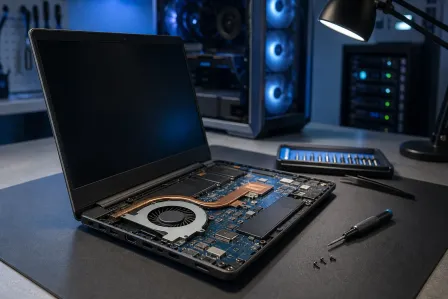
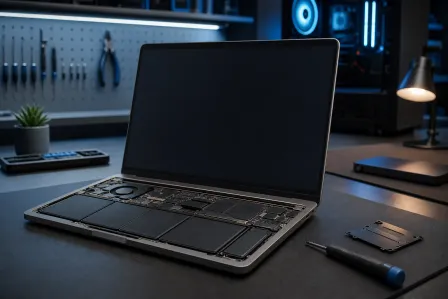
For debris, compressed air often resolves it. For residue or membrane wear, the keyboard assembly typically needs replacement, which on most laptops means swapping the entire keyboard deck, not just a key cap. This is a job better suited to a laptop repair shop than a DIY fix, since laptop keyboards are usually ribbon-connected to the motherboard and easy to damage further if you're not familiar with the disassembly.
6. Isolate the specific keys affected
If only a handful of keys are misbehaving rather than the whole keyboard, this narrows things down considerably.
- Open Notepad and press each key on the keyboard once, row by row, noting what appears versus what you expect.
- If the wrong keys are physically adjacent to each other, that points strongly to debris or liquid bridging between them.
- If the wrong keys are on completely opposite ends of the keyboard, that's more likely a software or layout issue, since hardware failures tend to cluster around where damage occurred.
- If it's a single key always producing a completely unrelated character (like "E" always producing "3"), check your Num Lock and Function Lock status first, since some laptops overlay numbers on letter keys for compact keyboards.
Common mistakes
- Assuming it's a virus before checking settings. Malware that specifically remaps keyboard input to type wrong characters is extremely rare. Language layout issues are common. Check the boring explanation first.
- Replacing the whole laptop over a fifteen-dollar fix. I've seen people buy a new laptop because of a language layout switch that took two minutes to correct.
- Cleaning with liquid cleaners instead of compressed air. Spraying cleaning solution into a keyboard to fix a sticky key often makes membrane damage worse, not better.
- Ignoring a single misbehaving key for months. A key that occasionally types wrong characters is often an early warning of membrane wear. Left alone, it tends to get worse and can spread to adjacent keys.
- Uninstalling the wrong driver in Device Manager. If you're not sure which entry is your actual keyboard versus a virtual or Bluetooth device, take a screenshot first or get help before uninstalling anything.
- Not testing with an external keyboard first. Skipping this step means you might spend an hour reinstalling drivers on a laptop that actually has a hardware problem, or vice versa.
Bottom line
Wrong characters when typing is a solvable, traceable problem in the overwhelming majority of cases. Work through it in order: language layout, accessibility settings, an external keyboard test to isolate software from hardware, then drivers, then physical inspection. Each step takes a few minutes and rules something out definitively, which is the whole point of doing it this way instead of guessing.
If you've gone through all six steps and the keyboard is still misbehaving, or if you'd rather not open up the laptop yourself, bring it in or book a repair and we'll get it diagnosed properly. And if this is happening on a work laptop where downtime actually costs you money, it might be worth talking to us about managed IT so hardware issues like this get caught and handled before they interrupt your day.
Computer acting up? Get a real diagnosis.
Fix My PC Store has repaired thousands of machines across West Palm Beach. Honest pricing, no upsell games, and a free diagnostic for new customers with our email coupon.