Laptop Gets Hot Only During Video Calls? Fix It Step by Step
Your laptop is not being dramatic. Video calls can push the processor, graphics hardware, camera, microphone processing, network connection, and browser all at once. A little warmth and fan noise are normal. A scorching case, throttling, shutdowns, or video-call lag are not.
Start with the easy checks below. If heat happens during every call after these steps, the cooling system may need hands-on attention, especially in South Florida where a warm room does your laptop zero favors.
What you need
- Your laptop and its normal charger
- A hard, flat surface such as a desk or table
- Ten to fifteen minutes with no important call in progress
- Access to Task Manager on Windows or Activity Monitor on Mac
- A can of compressed air if the vents are clearly dusty
- A current backup of important files before making larger software changes
Do not open the laptop just to poke around unless you are comfortable working with small electronics. Modern laptops often hide fans, batteries, and delicate cables under covers that do not enjoy being forced.
1. Confirm that the heat is actually abnormal
Warm air from a vent is a good sign. It means the fan is moving heat out. A fan that gets louder while you turn on video is also usually normal. Your laptop is doing more work than it does while staring at an email inbox.
The warning signs are different:
- The keyboard, palm rest, or bottom becomes painfully hot.
- The fan runs at full speed for the entire call.
- Video freezes, audio cuts out, or the computer becomes sluggish.
- The laptop dims the screen, slows down, reboots, or shuts off.
- You notice a burning smell, clicking fan noise, or a swollen battery case.
If you smell burning, see a bulging case or trackpad, or hear a fan scraping, stop using the laptop and disconnect power. A swollen battery is not a “finish this one meeting” situation. It needs service.
Also pay attention to where heat appears. Heat near a side or rear vent is expected. Heat concentrated around a battery area, especially with case swelling, is not. Macs can run warm near the upper keyboard area during demanding tasks, but the same rule applies. Extreme heat, repeated throttling, and shutdowns deserve investigation.
2. Put the laptop on a surface that can breathe
This sounds almost offensively simple. It also fixes plenty of real cases.
Beds, couches, blankets, laps, and soft ottomans can block intake vents on the bottom or sides. The laptop then recycles its own hot air. Very efficient, if the goal is to bake the internals.
Move it to a hard tabletop. Leave a few inches of open space around side and rear vents. If your laptop has bottom vents, use a simple stand that raises the rear edge slightly. You do not need an RGB hurricane machine. Better airflow is the point.
Keep the room reasonably cool, too. In West Palm Beach, a laptop running a long Teams call in a sunny room can start with a much higher ambient temperature than its designers had in mind. Avoid direct sun, a closed car, and spots near a window that turn into a tiny greenhouse.
Check the charger while you are at it. Charging creates additional heat. Use the manufacturer charger or a reputable USB-C charger with the correct wattage. A weak or questionable charger can create performance and charging weirdness, though it is not usually the main cause of video-call heat.
3. Check what is using the CPU, memory, and graphics
A video call can be demanding. A video call plus 37 browser tabs, screen sharing, virtual backgrounds, cloud sync, and an antivirus scan can turn a routine meeting into a laptop stress test.
On Windows
- Join or start a video call briefly.
- Press Ctrl + Shift + Esc to open Task Manager.
- Select Processes.
- Click the CPU column, then check Memory and GPU as well.
- Look for the meeting app, browser, background utilities, cloud-sync tools, or anything else consuming an unusually large amount of resources.
High use from Zoom, Microsoft Teams, Google Meet in a browser, or another meeting app can be normal during a call. What matters is whether another process is competing with it. A browser extension, a stuck update, a backup job, or even another open meeting tab may be the actual troublemaker.
On Mac
- Open Applications, then Utilities, then Activity Monitor.
- Select the CPU tab.
- Sort by % CPU.
- Check whether the call app, browser, or a separate process is staying unusually high.
If one app is using a large share of resources even after you end the call, quit it and reopen it. If it keeps happening, update the app or remove and reinstall it after confirming you have any required sign-in details.
For browser-based meetings, close unused tabs. Do not assume an inactive tab is harmless. Some tabs continue playing media, refreshing feeds, or running scripts in the background. Chrome, Edge, Safari, and Firefox can all get a little too enthusiastic with resources when enough tabs pile up.
4. Reduce the video-call workload
This is the fastest software fix for many laptops, particularly older thin-and-light models. Video calls use processing power for camera capture, video encoding and decoding, audio cleanup, display output, and sometimes AI effects. Fancy effects are nice. So is not cooking your laptop.
Try these changes one at a time during a test call:
- Turn off virtual backgrounds, background blur, portrait effects, avatar filters, and appearance enhancements.
- Disable HD video if the app offers that option.
- Stop using live captions, transcription, or recording unless you need them.
- Avoid sharing your whole screen at a high resolution. Share one window when possible.
- Close other video, streaming, design, gaming, or browser-heavy applications.
- Disconnect an unused external display, especially a high-resolution monitor.
- Use the installed meeting app instead of a browser, or try the browser version if the installed app is behaving badly.
Virtual backgrounds are frequent offenders because the laptop must continually separate you from your room in every frame. Your colleagues can survive seeing the real bookcase. Probably.
If you use Google Meet or another web-based service, test a different supported browser. Browser updates, extensions, and hardware acceleration settings can change how efficiently video is handled. If the heat began after installing an extension, disable extensions one by one and retest.
5. Update the meeting app, operating system, and graphics software
Outdated software can make a laptop work harder than it should. A current version may include stability fixes, camera handling changes, or better hardware acceleration support. Do not expect an update to repair a failing fan, but it is a sensible step before assuming hardware is doomed.
Update your meeting app from its official update option or official download page. Then install operating system updates.
On Windows, open Settings, then Windows Update. Install available updates and restart when prompted. Check optional driver updates carefully. Windows may offer them, but a laptop maker’s support page is often the better source for model-specific graphics, chipset, and power-management drivers.
On a Mac, open System Settings, then General, then Software Update. Install available updates, then restart.
For Windows laptops with Intel, AMD, or NVIDIA graphics, graphics drivers matter because video calls often use hardware acceleration. Get drivers from your laptop manufacturer first when possible. Generic drivers can work, but laptop-specific versions sometimes include power and thermal tuning.
If the issue began immediately after a driver update, make a note of that timing. A technician can help determine whether rolling back a driver is appropriate. Randomly installing driver-updater utilities is not the move. They tend to create more mystery than they solve.
Computer acting up? Get a real diagnosis. Book a diagnostic
6. Check power settings and hardware acceleration
Power settings can affect heat, fan behavior, and performance. The goal is balance. For a long call, you usually do not need maximum performance mode unless you are screen sharing demanding work or running specialized software.
On Windows, open Settings, then System, then Power & battery. Select a balanced or recommended power mode if you are currently using a high-performance setting. Plugging in is often best for stable video calls, but high-performance settings may create extra heat without improving call quality much.
On a Mac, check System Settings for battery or energy options. If Low Power Mode is available, it can be worth testing during a noncritical call. It may reduce heat, though it can also affect performance. Use what gives you a stable call rather than treating any single setting as magic.
Then check the meeting app and browser settings for hardware acceleration. This feature lets supported graphics hardware handle certain video tasks more efficiently. In many cases, leaving it enabled is best. If your laptop gets hot, glitches, or crashes only when hardware acceleration is on, test it off, restart the app or browser, and compare.
Do not change every setting at once. Test one change with a five-minute call. Otherwise, you will not know what actually helped.
7. Inspect and clean the vents safely
Dust restricts airflow. Pet hair does too. In humid South Florida homes, dust can cling more stubbornly than anyone wants to admit.
Shut the laptop down and unplug it. Inspect the intake and exhaust vents with a flashlight. If you can see a layer of dust, use short bursts of compressed air from outside the vent. Keep the can upright. Do not spray liquid propellant into the laptop. Do not shove objects into the openings.
Avoid using a household vacuum directly on the vents. Static electricity and excessive suction are not great companions for electronics. A soft brush around the exterior and careful compressed air are safer first steps.
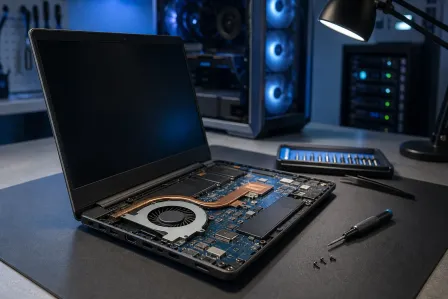
If the fans still sound rough, airflow seems weak, or the laptop remains hot after a basic external clean, the dust may be packed inside the fan and heatsink. That often needs disassembly and a proper cleaning. For help with that kind of diagnosis, see our laptop repair service. If it is an Apple laptop, our Mac repair service is the more relevant starting point.
8. Rule out network and audio issues that make calls work harder
A weak Wi-Fi connection does not directly create all laptop heat, but it can contribute. A struggling call may repeatedly adjust video quality, reconnect, or keep more processes busy. Poor audio devices can also cause odd CPU use when drivers misbehave.
Test the call near your router or on a reliable wired connection if your laptop supports one. Disconnect and reconnect Wi-Fi, then reboot the router only if other devices are also having trouble. Do not reboot the whole house mid-presentation unless you enjoy suspense.
Try a different headset or use the laptop’s built-in microphone and speakers for a short test. If heat spikes only with one USB dock, webcam, headset, or adapter connected, update that accessory’s software if applicable and test without it. Some docks and external displays add legitimate graphics workload, while others simply misbehave.
For a small office where several employees have call-quality problems, it may be time to review Wi-Fi coverage, switching, and network traffic instead of blaming each laptop. Our business networking team can help assess the wider setup.
9. Know when the problem needs professional repair
If your laptop is clean, updated, on a hard surface, and still overheats during modest video calls, hardware may be involved. Common possibilities include a failing fan, clogged heatsink, degraded thermal material, a battery issue, or a problem with the power or graphics system.
Get it checked sooner rather than later if you see repeated shutdowns, blue screens, kernel panics, extreme lag, fan grinding, battery swelling, or a burning smell. Continued overheating can shorten component life and can make a simple repair become a larger one.
A repair shop can test fan operation, internal dust buildup, temperatures under load, battery condition, charging behavior, and system errors. For local help in West Palm Beach, schedule an evaluation through our computer repair service or contact the shop. If the laptop is otherwise stable and you need help checking settings first, remote support may be enough for the software side.
Common mistakes
- Using the laptop on a bed or couch. Soft surfaces block vents. Your blanket is not a cooling pad.
- Assuming loud fans mean the laptop is broken. Fans ramping up during video is normal. Fans that grind, never spin, or accompany shutdowns are not.
- Closing the meeting app but leaving everything else running. Check cloud sync, browser tabs, game launchers, and background scans.
- Running virtual backgrounds and HD video on an older laptop. Reduce the effects first. The meeting will survive without the tropical beach.
- Installing random “PC cleaner” or driver-updater software. These tools can add background load and introduce new problems.
- Blasting vents with a vacuum or spraying compressed air carelessly. Clean gently from the outside, or have the laptop serviced internally.
- Ignoring battery swelling or a burning smell. Stop using the device and arrange service. This is not a settings problem.
- Assuming iPhones and Android phones are the only devices that get warm on calls. Laptops do it too. Bigger screen, bigger workload. The laws of heat remain stubbornly platform-neutral.
Bottom line
A laptop that gets warm during video calls is usually handling a real workload. Start by improving airflow, closing competing apps, reducing video effects, updating software, and checking power settings. Those steps often make a noticeable difference.
If it becomes painfully hot, slows down, shuts off, or makes unhealthy noises, do not keep pushing it through meetings. That points to a cooling or hardware issue worth diagnosing before your next “Can everyone see my screen?” moment turns into a full laptop outage.
Computer acting up? Get a real diagnosis.
Fix My PC Store has repaired thousands of machines across West Palm Beach. Honest pricing, no upsell games, and a free diagnostic for new customers with our email coupon.