Why Is My Laptop Freezing but the Mouse Still Moves?
TL;DR: A moving mouse means your input hardware and basic Windows or macOS processes are still alive. The freeze is almost certainly a software or resource problem, not a broken laptop. Work through a short diagnostic sequence before panicking or booking a repair.
What Happened
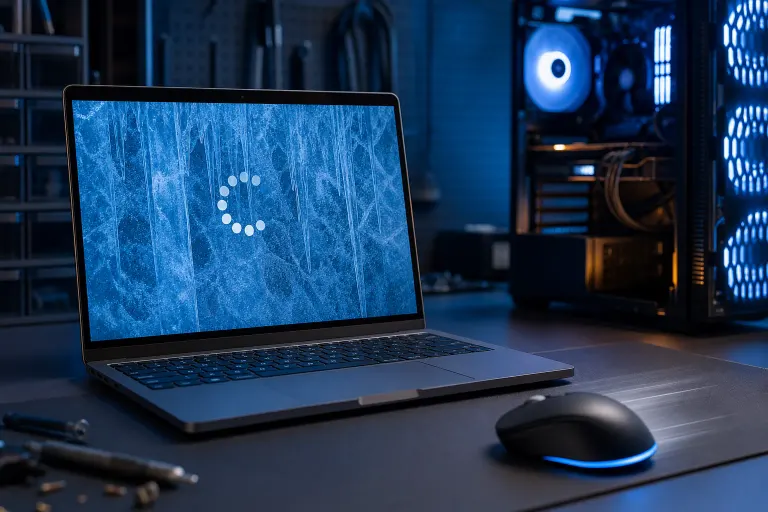
Your cursor glides across the screen, but nothing responds to clicks. Windows or apps look painted on. This is called a "soft freeze" or "partial hang," and it is different from a full system lockup where even the mouse stops.
Why the distinction matters: your CPU is still processing mouse input. That means the kernel, the core of your operating system, is alive. Something at a higher level, like a misbehaving app, an overloaded resource, or a failing driver, has locked up the interface while the low-level hardware ticks along fine.
Why It Matters
Soft freezes are one of the most misread symptoms in consumer tech. People assume the laptop is broken. Often it is not. But left undiagnosed, the underlying cause can progress into data loss, full crashes, or a genuinely failing drive.
The three most common causes, in rough order of frequency:
- A single process consuming all available RAM or CPU. When one app grabs every available resource, everything else queues up and the screen appears frozen.
- A storage bottleneck or failing drive. If Windows or macOS needs to read or write data and the drive stalls, the whole UI can hang waiting for that response. The mouse continues because it does not need disk access.
- A driver or kernel extension crash. A graphics driver or third-party kernel component can freeze rendering without killing input.
Less common but worth knowing: overheating (thermal throttling so severe the CPU slows to a crawl), a corrupted OS file, or malware consuming resources in the background.
Computer acting up? Get a real diagnosis. Book a diagnostic
What We Don't Know Yet
A soft freeze alone does not tell you which cause applies to your machine. You need a short diagnostic sequence to narrow it down.
Also worth noting: the same symptom can appear on both Windows and macOS, but the tools and next steps differ. The sequence below covers both.
What to Do About It
Step 1: Wait 60 Seconds First
Sometimes a legitimate disk operation or a large file write causes a temporary hang. Set a timer. If the system recovers on its own and you can click again, note what you were doing and watch for a pattern.
Step 2: Open the Task Manager or Activity Monitor
Windows: Press Ctrl + Shift + Esc. If Task Manager opens, click "More details" and sort by CPU or Memory. Look for any process at or near 100%. End that task and see if the system recovers.
macOS: Press Command + Space, type Activity Monitor, and open it. Sort by CPU. A spinning beach ball combined with a near-100% process is your answer.
If you cannot open Task Manager at all, the freeze is deeper. Skip to Step 4.
Step 3: Check Storage Health
A slow or partially failing SSD or hard drive is a frequent soft-freeze trigger. On Windows, download CrystalDiskInfo (free, reputable utility) and look for a status of anything other than "Good." On macOS, open Disk Utility and run First Aid.
If your drive shows warnings, caution, or reallocated sectors, back up your files immediately. A drive giving health warnings can fail without additional notice.
Step 4: Check for Overheating
Touch the bottom of the laptop. Is it hot enough that you pull your hand back? Download HWMonitor (Windows) or use a free app like iStatMenus (macOS) to check CPU temperature. Sustained temperatures above roughly 90 C under light load suggest a cooling problem, blocked vents, or dried-out thermal paste.
Cleaning the vents with compressed air is a safe first step. If temperatures stay high after that, the thermal paste likely needs to be replaced, which is a straightforward in-shop repair.
Step 5: Update or Roll Back Your Graphics Driver
If the freeze happens during video, a browser with hardware acceleration, or a game, a graphics driver is a strong suspect. On Windows, right-click the Start button, open Device Manager, expand Display adapters, right-click your GPU, and choose Update driver. If the freezes started right after a driver update, choose "Roll back driver" instead.
Diagnostic Decision Table
| Symptom Pattern | Most Likely Cause | First Action |
|---|---|---|
| Freezes during specific apps only | That app consuming RAM or CPU | End task, check for updates |
| Freezes during file saves or large copies | Storage bottleneck or failing drive | Run drive health check |
| Freezes during video or gaming | GPU driver issue | Update or roll back driver |
| Freezes after laptop gets very hot | Overheating | Clean vents, check temps |
| Random freezes with no pattern | OS file corruption or malware | Run SFC (Windows) or reinstall macOS |
When Self-Help Is Enough
If Task Manager or Activity Monitor points to one runaway process and ending it stops the freeze, you are done. Monitor for recurrence. If a driver update or rollback fixes it, same result.
When to Bring It In
Get professional help if:
- Your drive health check shows warnings
- Temperatures stay dangerously high after cleaning vents
- The freeze happens with no pattern and none of the above steps change anything
- You see any error messages mentioning memory, disk, or kernel panics
The team at Fix My PC Store offers free initial checks for most standard in-store repairs. If it turns out to be a drive issue, data recovery options can be discussed before any work begins. You can also start with remote support if you want a technician to look at your system without leaving home. The shop is at 10140 Okeechobee Blvd, Suite B, West Palm Beach, and reachable at 561-819-9999, Monday through Saturday.
If you prefer to schedule a repair online, that works too.
Computer acting up? Get a real diagnosis.
Fix My PC Store has repaired thousands of machines across West Palm Beach. Honest pricing, no upsell games, and a free diagnostic for new customers with our email coupon.