Laptop Fan Stuck on Full Speed? Here's the Real Fix
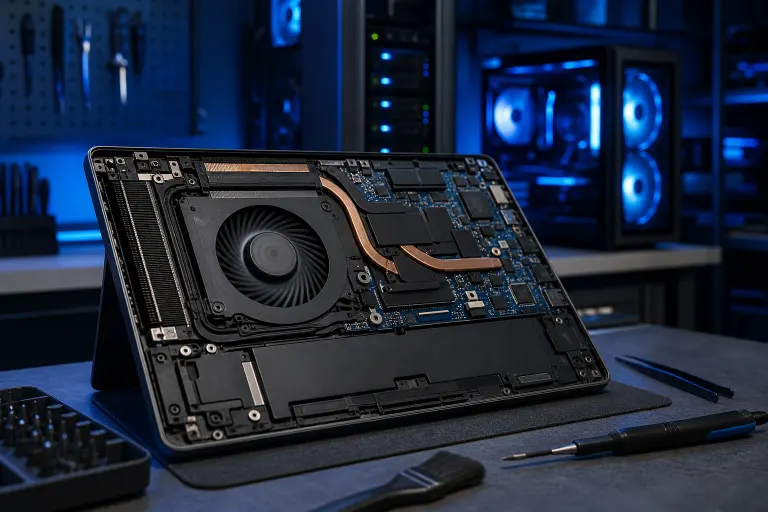
TL;DR: A laptop fan running full blast constantly almost always means your machine is fighting heat it shouldn't have to fight, usually from dust-clogged vents, dead thermal paste, a rogue background process, or a bad temp sensor. Clean it, check your Task Manager, and if it's still screaming after that, get the internals inspected before you cook a component. South Florida heat and humidity make this worse than almost anywhere else in the country.\n\n## What you need\n\n- Compressed air can (the kind with a straw nozzle)\n- Small Phillips screwdriver (if you're opening the case)\n- A microfiber cloth\n- Task Manager or Activity Monitor access\n- Optional: thermal paste and plastic spudger if you're going deeper\n- Optional: a laptop cooling pad for stopgap relief\n\nIf any of this sounds like more disassembly than you're comfortable with, that's totally fair. A loud fan is often the first sign of a bigger heat problem, and popping open a laptop wrong can crack clips or void a warranty. Laptop repair techs deal with this constantly and can get you diagnosed fast.\n\n## 1. Confirm it's actually a heat problem\n\nBefore you tear into anything, check what your laptop is actually doing. Open Task Manager (Ctrl+Shift+Esc on Windows, or Activity Monitor on a Mac) and sort by CPU usage. If something's pegged at 80-100% when you're just browsing, that's your smoking gun. Common culprits: a Windows update stuck mid-install, a browser tab farm, antivirus doing a full scan, or malware mining crypto in the background.\n\nIf CPU usage looks normal (under 20-30% at idle) but the fan is still screaming, that points toward a hardware or sensor issue instead of a software one. Either way, the fan ramping up is the system's honest reaction to what it's sensing, whether that sensing is accurate or not.\n\n## 2. Check your actual temperatures\n\nDownload a monitoring tool (HWMonitor and Core Temp are commonly used free options for Windows) to see real CPU and GPU temperatures, not guesses. Idle temps in the 40-55°C range are generally fine. Sitting at 80-90°C+ while doing nothing demanding is a red flag.\n\nHere's the South Florida wrinkle: ambient heat and humidity push everything hotter than it would run up north. A laptop that's borderline in a 68-degree office up north can be legitimately struggling in a 78-degree Florida living room with the AC compressor working overtime and moisture in the air affecting how efficiently heat sinks dissipate warmth. If your house or office runs warm, your laptop runs warmer, full stop.\n\n## 3. Clean out the vents and intake\n\nDust is public enemy number one for laptop cooling, and it's worse here because AC units constantly circulate air full of dust, pet hair, and humidity-trapped grime. Grab your compressed air can, hold the laptop at an angle, and give short bursts into every vent you can find, usually on the bottom and sides. Hold the fan blades in place with a toothpick or similar if you can see them through the vent, since compressed air can spin them fast enough to damage the bearings.\n\nDo this outside or over a trash can. You will be shocked at what comes out. If you haven't cleaned your vents in over a year, this step alone often fixes 50% of full-speed-fan complaints.\n\n## 4. Elevate it and clear the airflow path\n\nLaptops pull air in from the bottom and push hot air out the side or back. If you've been running it on a bed, couch cushion, or your lap, you're literally smothering the intake. Put it on a hard, flat surface, or better yet, a cooling pad with its own fans. This is a five-second fix that costs nothing and instantly helps if airflow was the whole problem.\n\n## 5. Open it up and repaste (if you're comfortable)\n\nThermal paste is the compound between your CPU/GPU and the heatsink that actually transfers heat. It dries out and loses effectiveness over 2-4 years, sometimes faster in hot, humid climates. If your laptop is a few years old, has been cleaned already, and is still running hot, dried paste is a very likely cause.\n\nThis means opening the case, removing the heatsink assembly, cleaning off the old paste, and applying a fresh, thin layer. It's not overly complex on many models, but some ultrabooks and MacBooks have tightly packed internals, tiny screws, and delicate ribbon cables that make this risky for a first-timer. If you crack a display cable or lose a screw into the motherboard, that's now two problems instead of one. This is exactly the kind of job laptop repair shops handle daily with the right tools and experience.\n\n## 6. Update drivers and BIOS/firmware\n\nFan curves (the logic that decides how fast the fan spins at each temperature) are controlled partly by firmware and chipset drivers. An outdated BIOS or a buggy driver update can sometimes make a fan run more aggressively than it needs to, even at normal temps. Check your laptop manufacturer's support site for the latest BIOS and chipset driver updates. Only install what's specifically listed for your exact model number, and don't interrupt a BIOS update once it starts.\n\n## 7. Rule out a failing fan or sensor\n\nIf you've cleaned it, repasted it, updated everything, and it's still running full tilt with normal temps showing in monitoring software, the sensor itself might be lying, or the fan's bearing might be wearing out and it's compensating by never throttling down properly. A fan that's grinding, rattling, or whining at high pitch (versus just a steady whoosh) is usually mechanically dying, not software-related.\n\nAt this point, replacing the fan assembly is often the fix, and that's a job worth handing off rather than gambling on a $12 part that might not even be the right one for your model.\n\n## Common mistakes\n\nSpraying compressed air without holding the fan blades still. This can spin the fan well past its rated RPM and damage the bearing, ironically causing the exact loud-fan problem you're trying to fix.\n\nAssuming more RAM or a new SSD will fix fan noise. Those upgrades help speed, not heat. If the issue is thermal, hardware swaps unrelated to cooling won't touch it.\n\nBlocking vents with laptop sleeves or stands that look nice but seal off airflow. Check that whatever setup you use doesn't cover the actual intake and exhaust points.\n\nIgnoring it because "it's always been loud." Fans don't get louder for no reason. Something changed, whether that's dust buildup over months or a background process that started running recently.\n\nOpening a laptop without watching a teardown guide for that exact model first. Ultrabooks and MacBooks especially have proprietary screws, adhesive-sealed batteries, and fragile connectors. A wrong move here can turn a $60 cleaning into a $300 screen or battery replacement.\n\nLetting it run hot for months hoping it resolves itself. Sustained high heat degrades battery life, can warp motherboards over time, and shortens the lifespan of the CPU and GPU. A loud fan today is cheaper to fix than a dead laptop next year.\n\n## Bottom line\n\nA laptop fan running full speed nonstop is your machine telling you it's under more thermal stress than it should be. Nine times out of ten it's dust, a smothered air intake, or dried-out thermal paste, all of which are fixable without replacing anything expensive. The Florida heat and humidity just make the problem show up faster and hit harder than it would elsewhere.\n\nIf you've cleaned it, checked your background processes, and it's still roaring like it's trying to take off, don't keep pushing your luck. Book a laptop repair diagnostic or reach out through our contact page and we'll get eyes on it before that constant heat turns into a fried motherboard or a dead battery.
Computer acting up? Get a real diagnosis.
Fix My PC Store has repaired thousands of machines across West Palm Beach. Honest pricing, no upsell games, and a free diagnostic for new customers with our email coupon.