Keyboard Keys Not Working: Causes and Fixes
TL;DR: Most partial keyboard failures are either a software or driver issue, a locked modifier key, or physical damage under the keycap. Full keyboard death is usually a connection problem or, on laptops, a liquid spill that got ignored. Work through the steps below before buying anything new.
Why Are Your Keyboard Keys Not Working?
Before diving into fixes, it helps to understand the most likely cause. If only some keys are dead, the problem is usually a locked accessibility setting, debris under a keycap, or a driver glitch. If the entire keyboard is unresponsive, suspect a connection issue or liquid damage. Map the failure first, then follow the matching steps below.
What You Need
- A second keyboard (USB, borrowed, whatever) to test with
- A can of compressed air
- Access to Device Manager on Windows or System Information on Mac
- Five minutes of patience (I know, I know)
You do not need to buy a new keyboard yet. Hold off on that.
Step 1: Figure Out Exactly Which Keys Are Dead
Before you touch a single setting, map the failure. Open Notepad or any text field and press every key. Write down what works and what does not.
This tells you a lot. If it is one isolated key, that is almost always physical. If it is a whole row, a whole section (like the number pad only), or keys that share a logical group, software or a stuck modifier key is usually the real culprit.
If nothing works at all, jump to Step 4. A completely dead keyboard is a different problem.
Step 2: Check the Obvious Modifier and Lock Keys
This is embarrassing to admit, but it is the most common call I get. Someone hit a key combination they did not mean to and locked half their keyboard.
Num Lock. If your number pad stopped working, Num Lock is probably off. Press it once.
Scroll Lock. Less common, but it can mess with arrow keys in certain apps, especially Excel.
Filter Keys. This is the big one on Windows. Filter Keys tells Windows to ignore brief or repeated keystrokes. It gets turned on accidentally by holding Shift for eight seconds. When it is active, lots of keys seem to just not register. Go to Settings, Accessibility, Keyboard, and make sure Filter Keys is off. (Seriously, Microsoft. Eight seconds of holding Shift? Who decided that was a good default?)
Sticky Keys. Similar deal. If Sticky Keys is on and you pressed a modifier key recently, it may be treating the next keystroke as modified. Turn it off in the same Accessibility menu.
On a Mac, check System Settings under Keyboard for similar accessibility options.
Step 3: Rule Out a Driver or Software Problem
If the modifier keys are all fine, the next suspect is your keyboard driver or a recent software change.
Plug in a USB keyboard. If the USB keyboard works perfectly where your built-in or primary keyboard is failing, the hardware is probably fine and you have a driver issue. If the USB keyboard has the same problem, that points to something deeper, like a Windows input bug or a corrupted system file.
Restart first. I am not being sarcastic. A stuck keyboard driver is a real thing, and a restart clears it. If the keys came back after a reboot, you are done.
Check Device Manager. Right-click the Start menu, open Device Manager, and expand Keyboards. If you see a yellow warning triangle on your keyboard device, that is your driver failing. Right-click it, choose Update Driver, then try Uninstall Device and restart. Windows will reinstall the driver on boot.
Roll back a recent update. If this started right after a Windows Update, that update may have broken the keyboard driver. Go to Device Manager, right-click the keyboard, Properties, Driver tab, and see if Roll Back Driver is available.
For remote help walking through driver issues, our remote support team can connect directly to your machine and handle this without you needing to touch Device Manager yourself.
Computer acting up? Get a real diagnosis. Book a diagnostic
Step 4: Check the Physical Connection
For desktop keyboards, this is simple. Unplug it and plug it back in. Try a different USB port. Avoid USB hubs if you have been using one. Hubs can drop power to peripherals and cause random key failures.
For laptops, it is more complicated. The keyboard connects internally via a ribbon cable. On most modern laptops that ribbon cable is delicate and gets dislodged by drops or rough handling. You cannot check this without opening the machine.
If you have a laptop with keys that randomly stop working and you have dropped it recently, the ribbon cable is a serious possibility. This is not a home repair unless you are comfortable with a screwdriver and have the service manual for your specific model. Our laptop repair shop handles ribbon cable replacements regularly.
Step 5: Look for Physical Damage Under the Keys
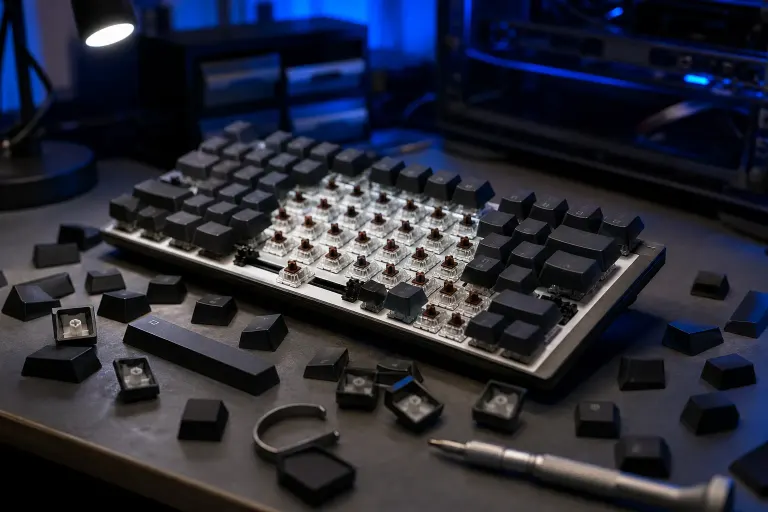
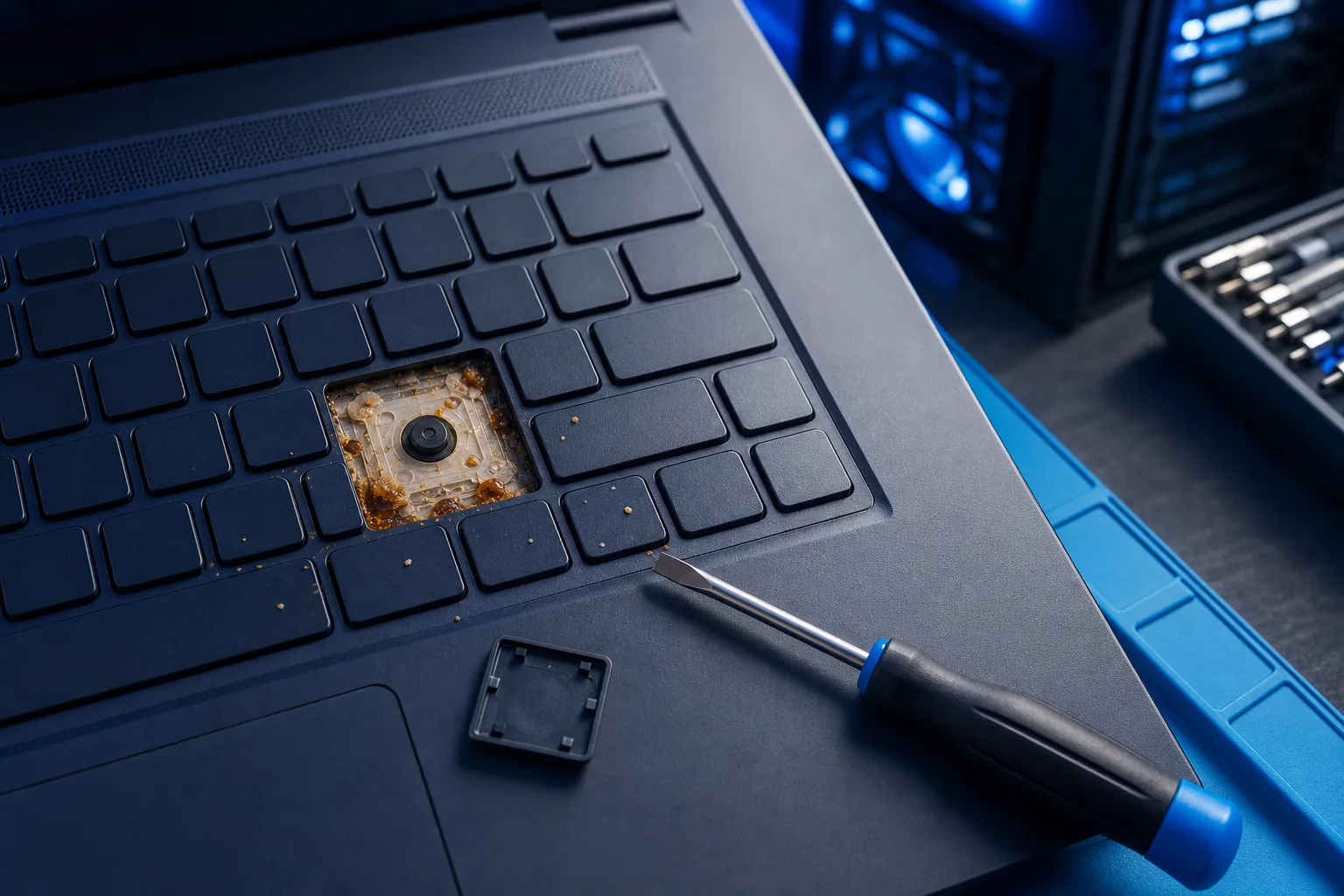
If specific keys are dead and the problem is not software, pull the keycap (on most keyboards it pops off with a flathead screwdriver, gently). Look underneath.
Debris. Crumbs, dust, hair. A piece of grit lodged under the switch can prevent it from registering. Hit it with compressed air, replace the cap, and test.
Liquid damage. This is the one people do not want to admit. A splash of coffee or soda from weeks ago dries into a sticky residue that shorts out individual switches. If you see brown or white crust under the keys, that is your culprit. On a membrane keyboard, cleaning the membrane contacts with isopropyl alcohol sometimes saves it. On a laptop, the story is uglier and usually requires professional cleaning or a keyboard replacement.
Laptop keyboard replacements are often cheaper than people expect, and much cheaper than a new laptop. If your keyboard took a liquid hit, bring it in. The longer you wait, the more the corrosion spreads.
Step 6: Test on Another Computer
If you have an external keyboard that is failing, plug it into a different computer. If it fails there too, the keyboard is dead. Replace it. USB keyboards are cheap and we are not precious about them.
If it works on the second computer, your original machine has a USB or driver issue. Dig back into Step 3.
For Mac users, also check that the keyboard is not being blocked by a privacy setting or a third-party input manager. Some apps install keyboard capture software that interferes with input. If you recently installed a new app and the keyboard went weird right after, start there. Our Mac repair team can dig into this if you are stuck.
Common Mistakes When Keyboard Keys Are Not Working
Buying a new keyboard immediately. At least 40% of the time the fix is a software toggle or a driver reinstall. Do not spend money until you have ruled out the free fixes.
Ignoring a liquid spill. If you spilled something on your keyboard three weeks ago and now keys are dying, the two things are related. The damage is progressive. Waiting makes it worse.
Blowing into the keyboard like it is a Nintendo cartridge. The moisture from your breath makes things worse. Use compressed air only.
Reinstalling Windows as a first step. I have seen people do this. It is a last resort, not a starting point. A broken keyboard driver does not require a full OS reinstall. Walk through the driver steps first.
Assuming the laptop keyboard and the machine are one price. People sometimes assume a failed laptop keyboard means buying a new laptop. On most machines the keyboard is a replaceable part. Get a quote before you write the whole thing off. You can schedule a repair to get an honest assessment.
Using a Bluetooth keyboard without checking the battery. Yes, this one is also on the list. A dying Bluetooth keyboard will drop random keys before it dies completely. Charge it or swap the batteries before troubleshooting anything else.
Bottom Line
Most keyboard failures have a boring explanation. A locked key, a dead driver, a crumb under a switch, or a cable that worked itself loose. Work through the steps in order, because skipping to "it must be broken" costs you money you probably did not need to spend.
If you have a laptop keyboard that took liquid damage, or you have gone through every software step and still have dead keys, that is when you bring it in. We do computer repair and laptop repair right here in West Palm Beach. No appointment needed, though booking one means no waiting around.
Fix the obvious stuff first. Then come see us if it still does not work.
Computer acting up? Get a real diagnosis.
Fix My PC Store has repaired thousands of machines across West Palm Beach. Honest pricing, no upsell games, and a free diagnostic for new customers with our email coupon.