Web Pages Not Loading But Internet Is Fine? Fix It Fast
TL;DR: When web pages are not loading but your internet appears fine, the connected icon only confirms a local network link. It does not prove DNS is working, that your router has a real path to the internet, or that a VPN, proxy, or browser issue is not silently blocking traffic.
Start with a fast scope check, then test DNS and the browser before resetting anything. That order finds the real bottleneck without nuking saved Wi-Fi networks or creating fresh chaos.
What you need
- The affected Windows PC or Mac
- Access to another device, such as a phone, on the same Wi-Fi network
- Router access only if every device is affected
- An Ethernet cable, if your PC has an Ethernet port and you want to separate Wi-Fi issues from internet issues
- About 15 to 30 minutes
If this is a work computer, pause before removing security software, changing proxy settings, or resetting network settings. Those controls may be intentional. For South Florida businesses, a proper business networking review is usually safer than random settings roulette.
Why web pages are not loading even though your internet is fine
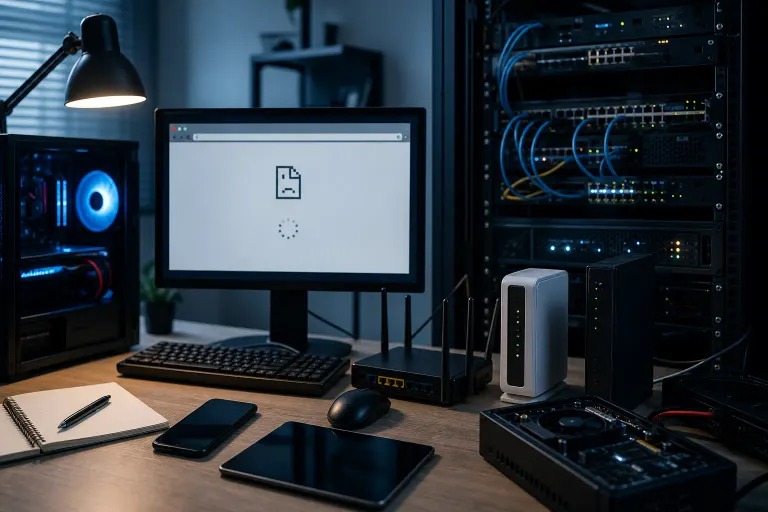
This is the most common source of confusion. Your device can show full Wi-Fi bars and still fail to open a single website. Here is why:
- DNS failure: Your PC is online but cannot translate website names into addresses. It is like having a working phone with no contact list.
- VPN or proxy blocking: A VPN session, broken proxy setting, or web filter sits between your browser and the internet and quietly drops requests.
- Browser-specific issue: A corrupted cache, rogue extension, or broken browser profile blocks pages in one app while the rest of your system is fine.
- Router has no ISP connection: Your PC is strongly linked to the router, but the router itself has lost its path outward.
- Security software malfunction: An HTTPS inspection feature in antivirus or firewall software can break secure connections for every browser at once.
Knowing which layer is responsible is the whole game. The steps below work through each one in order.
1. Confirm what "internet connected" actually means
First, do not trust the Wi-Fi bars alone. Your PC may be strongly connected to your router while the router has no usable path to the internet. Think of it like a maxed-out Ethernet link inside your gaming rig with the modem unplugged. Clean local connection, zero outside traffic.
Try opening two or three well-known sites in your browser. Then try a different browser if one is installed. For example, if Chrome fails, test Edge or Firefox. Note exactly what happens:
- Every site spins forever or times out.
- You get "DNS server not responding," "server IP address could not be found," or a similar name-resolution message.
- Only one browser fails.
- A security warning appears.
- The page loads on your phone but not the PC.
- Nothing loads on any device connected to the same Wi-Fi.
Those symptoms are your loot drops. They tell you where to aim next.
Also check whether apps with their own connections still work. Can you receive messages in a desktop chat app? Does a game launcher sign in? Do cloud files sync? If some internet-dependent apps work but browsers do not, the issue is often browser-specific, a proxy, an extension, or security filtering. If nothing online works, the fault is more likely DNS, VPN, firewall, router, or the ISP connection.
2. Test another device on the same network
Grab your phone and turn off cellular data temporarily, so it must use the same Wi-Fi as the PC. Try loading a few websites.
If the phone also cannot load websites
The PC is probably not the boss fight. Restart the modem and router correctly:
- Unplug power from the router and modem. If you have a combined gateway, it is one device.
- Wait about 60 seconds.
- Power on the modem first and wait until its normal connection lights return.
- Power on the router and allow it a few minutes to reconnect.
- Test again from the phone and PC.
Check your internet provider's outage page using cellular data if possible. If the modem shows an unusual red, amber, or blinking status light, document it for the provider.
If a wired device can browse but Wi-Fi devices cannot, focus on the router's wireless side rather than the ISP. If the whole office is down, repeated reboots can burn time fast. A monitored managed IT setup can identify whether the failure is the ISP, firewall, switch, access point, or DNS before the help desk gets swarmed.
If the phone works but the PC does not
Nice. Your internet service and router are likely fine. The problem is isolated to that PC, which makes the next checks much more targeted.
3. Rule out a browser problem
Close the browser completely, then reopen it. Do not just close a tab. On Windows, right-click the browser icon in the taskbar and choose Close all windows if necessary.
Next, open a private or incognito window and test a website. Private mode usually bypasses many extensions and uses a fresh session. If sites load there, an extension, corrupted cache, cookie issue, or browser setting is the likely culprit.
Disable extensions one at a time, especially:
- Ad blockers or script blockers
- Coupon and shopping extensions
- "Security" extensions you do not recognize
- Download helpers
- VPN browser extensions
- Extensions installed shortly before the problem began
Do not blindly clear every browser setting at the start. You may lose saved logins, preferences, and useful data while the underlying issue is still sitting in Windows. First identify whether another browser works. If it does, reset or repair only the affected browser.
If every browser fails in the same way, keep moving. That is usually not a Chrome-versus-Edge cage match. It points lower in the network stack.
4. Disconnect VPNs, check proxies, and inspect security tools
A VPN can show as connected while its remote server, login session, or routing configuration is broken. Disconnect any VPN app, then test websites again. This includes consumer VPNs, work VPNs, and browser-based VPN extensions.
If you need the VPN for work, test briefly without it only if your company policy permits. If websites work immediately after disconnecting, the VPN is the culprit or needs configuration help. Do not leave a work device outside its required security setup just because the test succeeded.
On Windows, check proxy settings:
- Open Settings.
- Go to Network & internet.
- Open Proxy.
- Review whether a manual proxy is enabled.
A proxy directs web traffic through another server. Businesses sometimes need one. Home users usually do not. If a proxy is unexpectedly enabled and you do not recognize it, turn off the manual proxy setting and test again. If it re-enables itself, stop treating this as a simple browser issue. It may be managed software, a policy, or something unwanted on the system.
Also check antivirus or web-protection software. A damaged HTTPS inspection feature can block browsers from opening secure websites. Temporarily disabling web protection for a quick test may be reasonable on a personal PC, but do not uninstall security software as a first move. If you see certificate warnings, redirects, unfamiliar proxy entries, or security tools you never installed, scan the system and consider professional computer repair help. Those clues can overlap with malware or a broken security suite.
Computer acting up? Get a real diagnosis. Book a diagnostic
5. Test whether DNS is the missing link
DNS is the internet's name lookup system. You type a name like example.com, DNS finds the numeric address behind it, and your browser connects. When DNS breaks, web pages stop loading even though your internet connection is technically fine. It is the classic "engine is running, map is missing" situation.
On Windows, open Command Prompt and run:
nslookup example.com
If the command returns an address, DNS is responding. If it times out or says it cannot find the server, DNS is a prime suspect.
You can also test direct connectivity by entering this address in your browser:
https://1.1.1.1
If that opens but normal website names do not, DNS is almost certainly the issue. Some sites may not load correctly by raw address because secure websites expect a domain name, so treat this as a clue, not a final verdict.
For a quick Windows repair attempt, open Command Prompt as Administrator and run:
ipconfig /flushdns
ipconfig /release
ipconfig /renew
Then close and reopen the browser. The first command clears cached name records. The next two request a fresh local network address from the router.
If DNS remains unreliable, you can try a reputable public DNS provider or restore your adapter to automatic DNS. Cloudflare publishes its public resolver details at its official DNS documentation. For a business PC, check with your IT provider first. Internal company apps, filtering, and security services may depend on company DNS.
6. Refresh the PC's network connection
If the issue is isolated to one PC and DNS did not settle it, refresh the adapter before reaching for a full reset.
On Windows
Turn Wi-Fi off, wait 10 seconds, then turn it back on. If you use Ethernet, unplug the cable, wait a few seconds, and reconnect it. Try a different router port or cable if available.
Then restart the PC. Yes, it is basic. It is also an effective way to clear hung network services, stuck VPN components, and half-applied updates.
You can also disable and re-enable the adapter:
- Open Settings > Network & internet > Advanced network settings.
- Find your Wi-Fi or Ethernet adapter.
- Disable it.
- Wait about 10 seconds.
- Enable it and reconnect.
If the adapter disappears, shows an error icon, or repeatedly disconnects, driver or hardware trouble may be involved. Windows Update can sometimes supply an updated driver, but for desktops and gaming PCs, the motherboard or Wi-Fi card manufacturer's support page is often the better source. Avoid third-party "driver updater" utilities. They are usually more side quest than solution.
On a Mac
Turn Wi-Fi off and back on, then restart the Mac. Check System Settings > Network and confirm no unfamiliar VPN, filter, or proxy configuration is active. If the issue survives these checks, a targeted Mac repair diagnosis can separate a macOS configuration problem from failing hardware or a damaged network profile.
7. Reset Windows networking only after targeted checks
Windows has a Network Reset option, but it is a last-mile tool, not your opening move. It removes and reinstalls network adapters and returns many network components to defaults. That can solve stubborn corruption, but it also removes saved Wi-Fi networks, VPN adapters, and custom settings.
Before using it, make sure you have:
- Your Wi-Fi password
- Any required VPN installation details
- Work IT approval if the machine is company-managed
- A record of custom DNS or proxy settings that are known to be intentional
To use it in Windows, open Settings > Network & internet > Advanced network settings > Network reset. Follow the prompts, then restart when Windows requests it.
After the reset, connect to Wi-Fi again and test websites before reinstalling extra utilities. If pages still do not load while other devices work fine, you have ruled out a lot. At that point, the likely contenders are driver damage, security software, malware, a corrupted user profile, or a deeper Windows issue.
8. Know when the issue is security-related or needs hands-on help
Some website failures are not ordinary connectivity problems. Stop and investigate if you notice:
- Browser redirects to unfamiliar search pages
- Repeated certificate or privacy warnings on multiple legitimate sites
- A proxy you did not configure
- New extensions that reappear after removal
- Security software disabled without your approval
- Login pages that look subtly wrong
- Only banking, email, Microsoft 365, or company sites fail
Do not bypass certificate warnings just to get online. That can expose passwords and business data. For companies handling customer data, email, or remote staff, this is exactly where business cybersecurity support matters. A blocked site may be a broken filter, but it can also be a sign that the device or network needs a closer look.
Remote diagnosis works well when the PC can still establish a support session, or when the issue is intermittent and someone can guide you through tests. If you are stuck in West Palm Beach, Palm Beach County, or the Treasure Coast, remote support can help interpret the results without making you rebuild your entire setup from scratch.
Common mistakes
Resetting the router before checking another device
A router restart is fine when the whole network is affected. If your phone and other devices browse normally, restarting the router will not fix one misbehaving PC. It just delays the real diagnosis.
Changing five settings at once
Do not change DNS, uninstall antivirus, reset the browser, reset Windows networking, and reboot the router in one mega-combo. If it starts working, you will not know why. Test one layer at a time. Clean troubleshooting equals clean wins.
Forgetting about VPNs and proxies
VPNs, proxies, and web filters are frequent offenders because they sit directly in the traffic path. A connected icon can still appear perfectly healthy while those tools quietly block every browser request.
Installing random cleanup or driver tools
Search results are packed with apps promising one-click network repair. Many add unwanted software, change browser settings, or make recovery harder. Use built-in Windows or macOS tools and trusted vendor downloads instead.
Ignoring security warnings
A certificate warning is not a minor graphics setting you can brute-force past for extra FPS. It means the browser cannot verify the site identity. Do not enter passwords until you understand why the warning appeared.
Resetting a work PC without documenting settings
Network resets can remove VPNs, static addresses, custom DNS, and other business settings. That can turn one browsing problem into a full "why can't I reach the office server?" incident.
Bottom line
When web pages are not loading but your internet is fine, the connection icon is only the first checkpoint. Test another device, eliminate browser trouble, disconnect VPNs and proxies, verify DNS, refresh the adapter, and reserve a full network reset for the end.
That method finds the actual choke point instead of blasting every setting like a chaotic first run through a new raid. If the symptoms point to malware, recurring redirects, security warnings, a failing adapter, or stubborn Windows damage, get it checked before the problem spreads beyond a browser tab.
Computer acting up? Get a real diagnosis.
Fix My PC Store serves customers across West Palm Beach. Honest pricing, no upsell games, and a free diagnostic for new customers with our email coupon.
Frequently Asked Questions
Why does my PC say it is connected to the internet when no websites load?
How can I tell if DNS is why websites will not load?
nslookup example.com from Command Prompt. If it times out or cannot identify a DNS server, DNS may be failing. Another clue is that a direct IP address works in the browser while normal domain names do not.