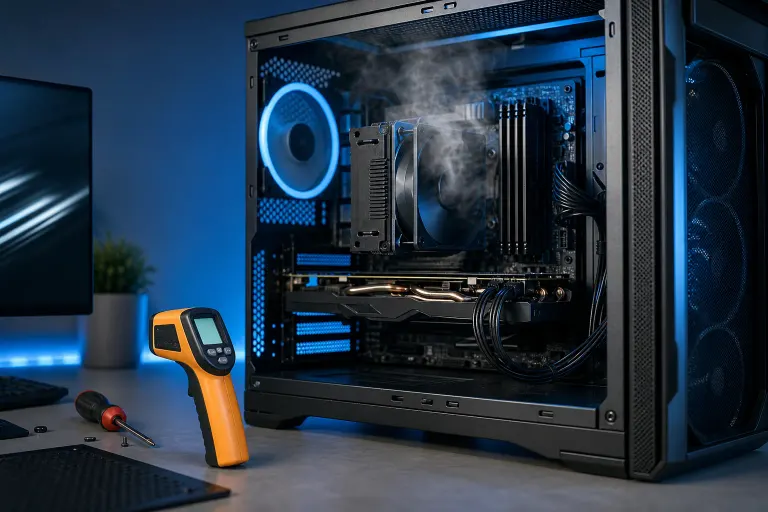
How to Tell If Your PC Is Overheating or Just Running Warm
TL;DR: Running warm is fine. Overheating means your CPU or GPU is hitting temperatures where the hardware protects itself by slowing down or shutting off. Check real temp readings with free software, compare them to safe limits, and look for throttling or shutdowns as the tell-tale signs.
What you need
- A free temperature monitoring tool. HWiNFO64 or HWMonitor are solid choices for Windows. Mac users can check Activity Monitor or install Macs Fan Control.
- About 10 minutes with your PC under a realistic workload.
- The model name of your CPU and GPU (found in Device Manager or System Information).
Step 1: Install a temperature monitor and read your baseline
Open HWiNFO64 (or your tool of choice) and let it run for two to three minutes while the PC is idle. Note the CPU and GPU temperatures. Idle temps on a desktop in a room-temperature environment typically sit somewhere between 30C and 50C. A laptop may idle a bit higher.
Those numbers alone mean almost nothing. You need load temps to make any real judgment.
Step 2: Stress the system and record peak temps
Do what you actually do with the PC. Game, render video, run a big spreadsheet, whatever pushes it hardest. Watch the temperature readout for five to ten minutes and note the peaks.
As a general reference:
| Component | Warm but fine | Getting hot | Danger zone |
|---|---|---|---|
| CPU (most modern chips) | Up to ~80C | 85-95C | 95C+ sustained |
| GPU (most modern cards) | Up to ~83C | 85-90C | 90C+ sustained |
| HDD/SSD | Up to ~45C | 50-55C | 55C+ |
These are rough guidelines. Always look up the specific thermal junction (TjMax) for your exact CPU or GPU model. AMD and Intel both publish these specs. Your chip may be rated higher or lower.
Step 3: Look for performance throttling
High temps by themselves are not always the problem. The real question is whether the hardware is throttling.
Throttling means the CPU or GPU is intentionally slowing itself down to avoid damage. Signs it is happening:
- Frame rates drop suddenly during a gaming session even though nothing changed on screen.
- Video exports that used to take 20 minutes now take 45.
- HWiNFO shows your CPU clock speed sitting well below its rated speed under full load.
- The PC feels sluggish in a way that correlates with heat, not just general slowness.
If temps are high AND you see clock speeds drop, that is overheating behavior, not just running warm.
Computer acting up? Get a real diagnosis. Book a diagnostic
Step 4: Check for thermal shutdowns and crashes
A true overheating problem will eventually cause an emergency shutdown or a hard freeze. The system cuts power instantly to protect itself. No blue screen, no warning, just off.
Check Windows Event Viewer (search it in the Start menu) under Windows Logs, then System, for critical errors around the time of a crash. You will often see kernel-power event ID 41, which flags an unexpected shutdown.
If crashes correlate with heavy workloads and high temps, overheating is the most likely cause.
Step 5: Inspect airflow and cooling hardware
Once you have confirmed the problem is real, the fix usually starts here:
- Check your fans. Open the case or listen carefully. Are all fans spinning? A dead CPU cooler fan is an emergency.
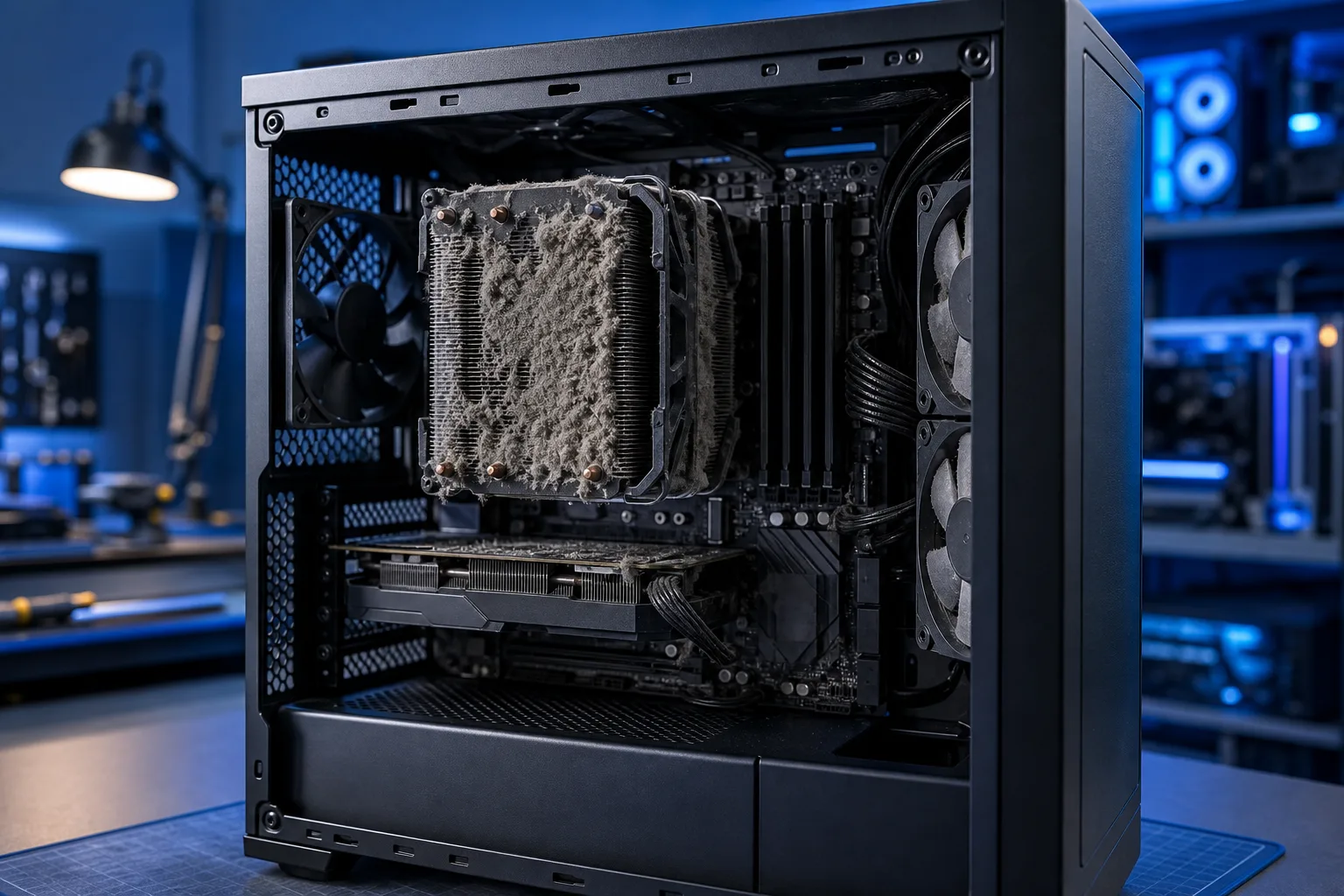
- Look for dust buildup. A clogged heatsink or blocked vents can cut cooling efficiency dramatically. Compressed air clears most of it.
- Check fan placement and cable routing. Cables draped across a heatsink or blocking intake vents are a common culprit.
- Consider thermal paste. On a system more than three to four years old, dried-out thermal paste between the CPU and cooler is a frequent cause of rising temps. Replacing it is straightforward but requires care.
- Laptop-specific check. Laptops have almost no room for airflow error. Even partial vent blockage from a soft surface causes big temperature spikes.
Common mistakes
Panicking over idle temps. A CPU sitting at 55C at idle in Florida summer heat is not alarming. South Florida ambient temperatures push PC temps up. That is just physics.
Trusting the BIOS readout alone. BIOS temps are taken at POST with almost zero load. They tell you very little about what happens under stress.
Ignoring GPU temps entirely. Most people only check the CPU. A GPU cooking at 95C during a gaming session is just as much of a problem.
Covering laptop vents. Lap desks, bed covers, couch cushions. They all block exhaust and can send a laptop into thermal shutdown within minutes.
Assuming a new PC is immune. Factory-applied thermal paste is sometimes applied unevenly. A brand-new system can still run hotter than it should.
Bottom line
Warm is normal. Throttling, unexpected shutdowns, and sustained temps above your chip's rated TjMax are not. Run the steps above in order and you will know within 15 minutes whether you have a real problem or just a PC doing exactly what it should.
If you have cleaned the dust, reseated the cooler, and the temps are still climbing, the issue may be deeper, a failing fan, poor case airflow design, or degraded thermal interface material on a laptop that is hard to reach. The team at Fix My PC Store on Okeechobee Boulevard handles exactly this kind of diagnosis. You can book a repair visit or try remote support if you want a second set of eyes on your temperature logs first.
Computer acting up? Get a real diagnosis.
Fix My PC Store has repaired thousands of machines across West Palm Beach. Honest pricing, no upsell games, and a free diagnostic for new customers with our email coupon.