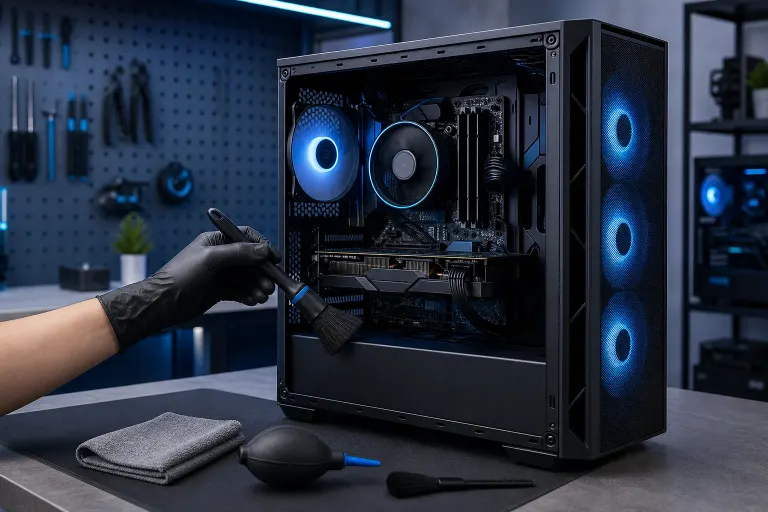
How to Safely Clean a Gaming PC Without Voiding Your Warranty
TL;DR: Use compressed air and a soft brush to clear dust from fans, vents, and heatsinks. Avoid touching components unnecessarily, never use a vacuum near electronics, and check your warranty terms before opening sealed cooling systems or repasting a CPU. Most routine cleaning is safe and will not void coverage.
What you need
- Canned compressed air (or an electric air duster, which saves money long-term)
- Soft anti-static brush, around 1-2 inches wide
- Microfiber cloths
- Phillips-head screwdriver (for panel removal)
- Anti-static wrist strap (optional but smart)
- A clean, dry, well-lit workspace away from carpet
That is genuinely the full list for a standard cleaning session. You do not need thermal paste, isopropyl alcohol, or any disassembly tools unless you are going deeper than a dust-out.
Step 1: Check your warranty terms first
Before you open the side panel, spend two minutes reading your warranty documentation. Most PC warranties, including those from manufacturers like ASUS, MSI, and Gigabyte, distinguish between opening the case (usually fine) and breaking warranty seals on specific components like sealed AIO coolers or factory-applied thermal paste stickers. The U.S. Federal Trade Commission has published guidance confirming that manufacturers cannot void a warranty solely because you opened a product or used third-party parts, though breaking physical seals on specific components may still affect coverage for those parts.
Key things to look for:
- Void stickers or seals on the CPU cooler, GPU cooler, or power supply. Breaking these almost always voids that component's warranty.
- Labor warranties from system integrators. If you bought a prebuilt from a builder, check whether opening the case yourself affects their coverage.
- Component-level warranties. RAM, SSDs, and GPUs often have separate manufacturer warranties that opening the case does not touch.
If you are unsure, photograph the inside of your PC before you touch anything. That documentation can matter later.
Step 2: Power down and discharge correctly
- Shut the PC down fully, not sleep mode.
- Switch off the PSU using its rear toggle (flip it to the O/OFF position).
- Unplug the power cable from the wall.
- Hold the power button for five seconds. This drains residual charge from the capacitors.
- If you have an anti-static wrist strap, clip it to an unpainted metal surface on the case chassis.
Skipping the discharge step is where static damage happens. The five-second button hold costs you nothing.
Step 3: Remove the side panel and assess the dust situation
Most modern cases use thumbscrews. Remove the panel, set it aside on a clean surface, and take a look before you blast air everywhere.
Use a flashlight or your phone light to spot:
- Dust mats on intake fans
- Dust bunnies on the GPU heatsink fins
- Buildup around the CPU cooler base
- Clogged exhaust fans at the rear or top
Assessing first means you can work methodically instead of blowing dust from one area onto a component you already cleaned.
Ready to build a rig that actually rips? Start your build
Step 4: Clean in order, outside to inside
Work from least-sensitive to most-sensitive areas. This sequence minimizes the chance of dislodging debris onto something critical.
- Case vents and filters. Pull out any magnetic dust filters and tap them gently outside, or rinse with water and let them dry completely before reinstalling.
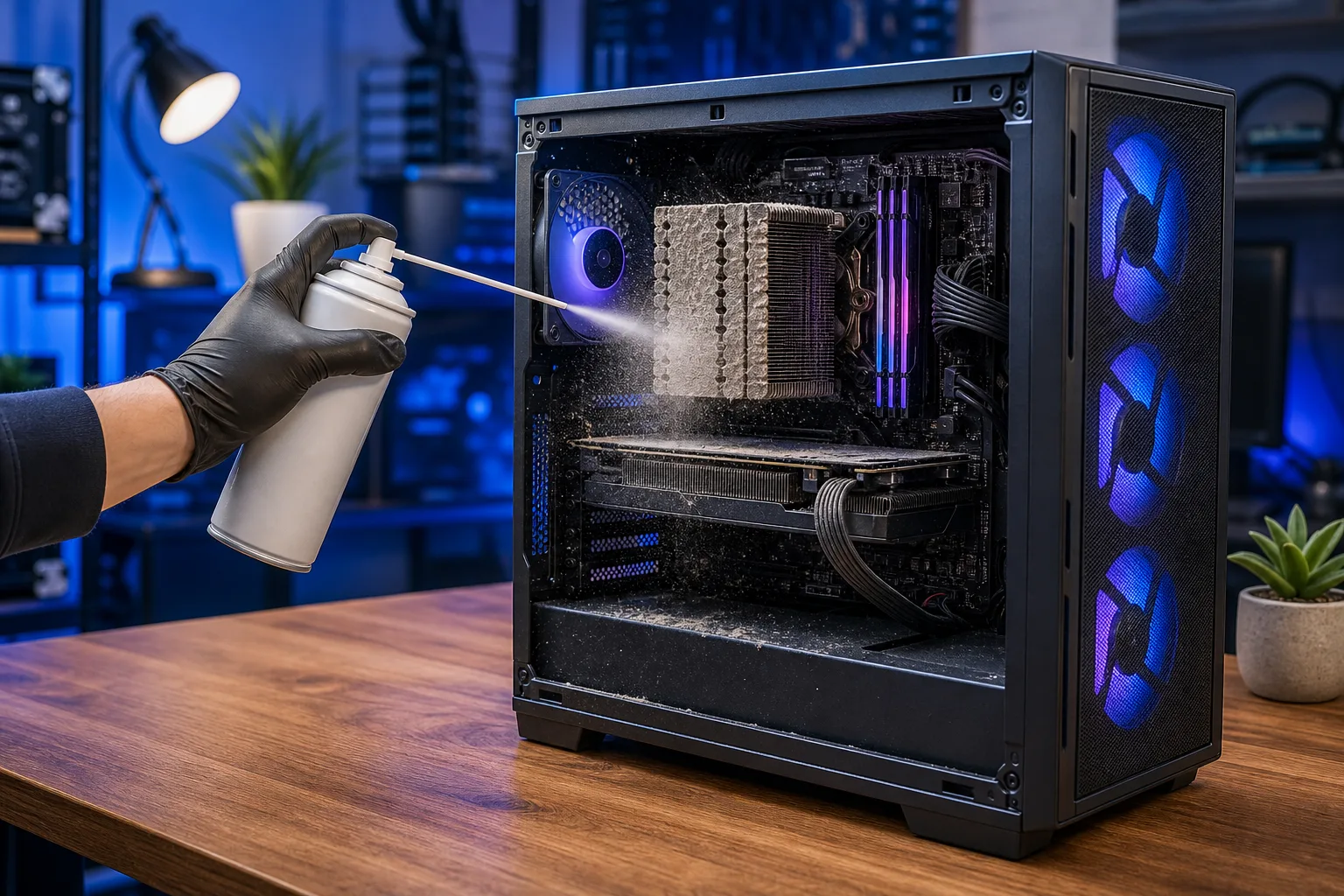
- Intake and exhaust fans. Hold each fan blade still with your finger while blasting compressed air. Letting a fan spin freely from air pressure can over-spin the bearings beyond their rated RPM and damage them over time.
- GPU heatsink fins. Short bursts of air directed through the fins. Long sustained blasts can over-spin GPU fans the same way.
- CPU cooler and heatsink. Work from the top down, pushing dust out the sides rather than further into the fins.
- Motherboard surface. Light brush strokes with the anti-static brush, followed by short air bursts to lift debris.
- RAM slots and PCIe slots. Gentle air only. Do not insert anything into these slots.
- PSU vents (exterior only). Blow air through the vents from outside. Do NOT open the PSU. There is lethal voltage stored in PSU capacitors even when unplugged, and opening one voids its warranty immediately.
Step 5: Wipe down surfaces and reassemble
- Use a dry microfiber cloth on the side panels and exterior.
- For glass panels, a lightly dampened cloth works fine, but keep moisture away from internal components.
- Reinstall the side panel, plug in power, and do a test boot.
- Open your GPU monitoring software (MSI Afterburner, HWiNFO) and check temps at idle and under a short load. If temperatures dropped noticeably, the cleaning worked.
Common mistakes
Using a household vacuum. Vacuums generate static electricity and can kill components instantly. Even on the lowest setting. Do not do it.
Blasting fans at full spin. Already covered above, but it is the most common error. Always hold the blade still.
Removing and reseating the CPU without cause. If your cleaning goal is dust removal, there is zero reason to pull the CPU. Repasting is a separate job and opens warranty questions on many coolers.
Forgetting the PSU filter. Many cases have a removable filter under the PSU shroud. It catches a surprising amount of debris and is easy to miss.
Cleaning on carpet. Static risk. Move to a hard floor or table.
Skipping the reassessment boot. Always verify temps after cleaning so you know the job actually helped and nothing was accidentally dislodged.
When to call in a pro
Routine dust removal is a safe DIY job for most people. Step in and get help when:
- Temps are still high after cleaning, which may indicate dried thermal paste on the CPU or GPU.
- You see corrosion, burn marks, or broken fan blades.
- A component is not being recognized after reassembly.
- You want a deep clean plus a thermal repaste but do not want to risk your warranty coverage.
The team at Fix My PC Store handles this regularly for West Palm Beach and South Florida gamers. You can also book a check-in if you want a pro to assess your rig's condition before you start. Initial diagnostics are free for most standard in-store visits.
If you are thinking about a full refresh or upgrade while the case is open, check the custom gaming PC builder to see what a next-level build looks like.
Bottom line
Cleaning your gaming PC is one of the highest-FPS-per-dollar maintenance moves you can make. Follow the order: check warranty terms, discharge, assess, clean outside-in, verify temps. Keep the vacuum away, hold those fan blades, and leave the PSU sealed. Do that consistently every three to six months and your thermals, and your frame rates, will thank you.
Ready to build a rig that actually rips?
Custom gaming PCs built and tuned by people who game. Tell us your budget and target frame rate.