Gaming PC Desk Setup: Cable Routing Tips That Actually Help
TL;DR
Plan your cable routes before you plug anything in. Use velcro straps, cable raceways, and your desk's built-in grommets to keep everything off the floor and out of airflow paths. Thirty minutes of smart routing now saves hours of untangling later.
What You Need
- Velcro cable ties (reusable, not zip ties you have to cut)
- Cable raceways or J-channel wire molding
- A power strip with surge protection and enough spacing for fat adapters
- Cable clips or adhesive mounts
- A short label maker or even masking tape and a marker
- Zip ties as a backup for permanent runs
1. Map Your Routes Before You Plug In Anything
Sit at your desk with everything powered OFF. Physically trace where each cable needs to go from source to destination. Monitor power, DisplayPort or HDMI, USB hub, headset, keyboard, mouse, and any RGB controllers all need a path.
The goal is ONE direction of travel per cable group. Horizontal runs stay horizontal, vertical runs stay vertical. Cables that cross each other diagonally are the enemy of clean setups.
2. Separate Power From Data Cables
This matters for two reasons. First, power cables carrying high current can introduce electrical interference on long, tightly bundled data runs. Second, power cables are stiffer and harder to bend, so mixing them with thin USB cables creates lumpy, uneven bundles.
Route your power strip cable and monitor power cables together along one side of the desk. Data cables, DisplayPort, HDMI, USB, headset, go along the opposite side or through a separate raceway. Keep them parallel but not touching if you can manage it.
3. Use Your Desk's Grommets and Cable Trays
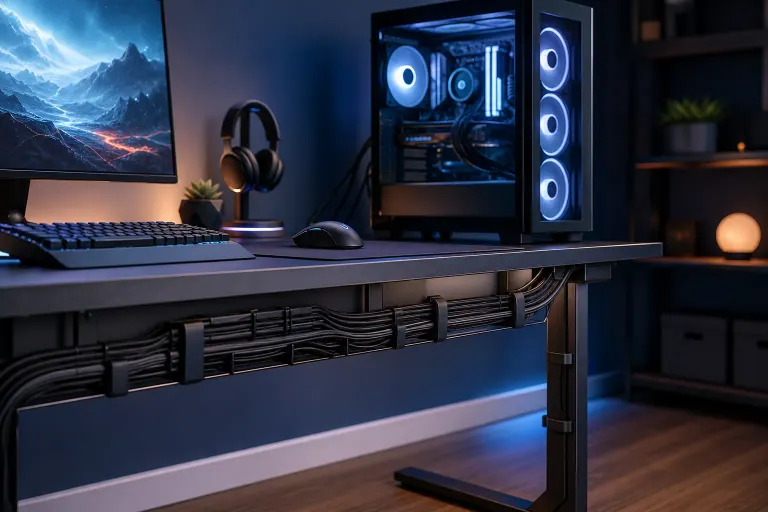
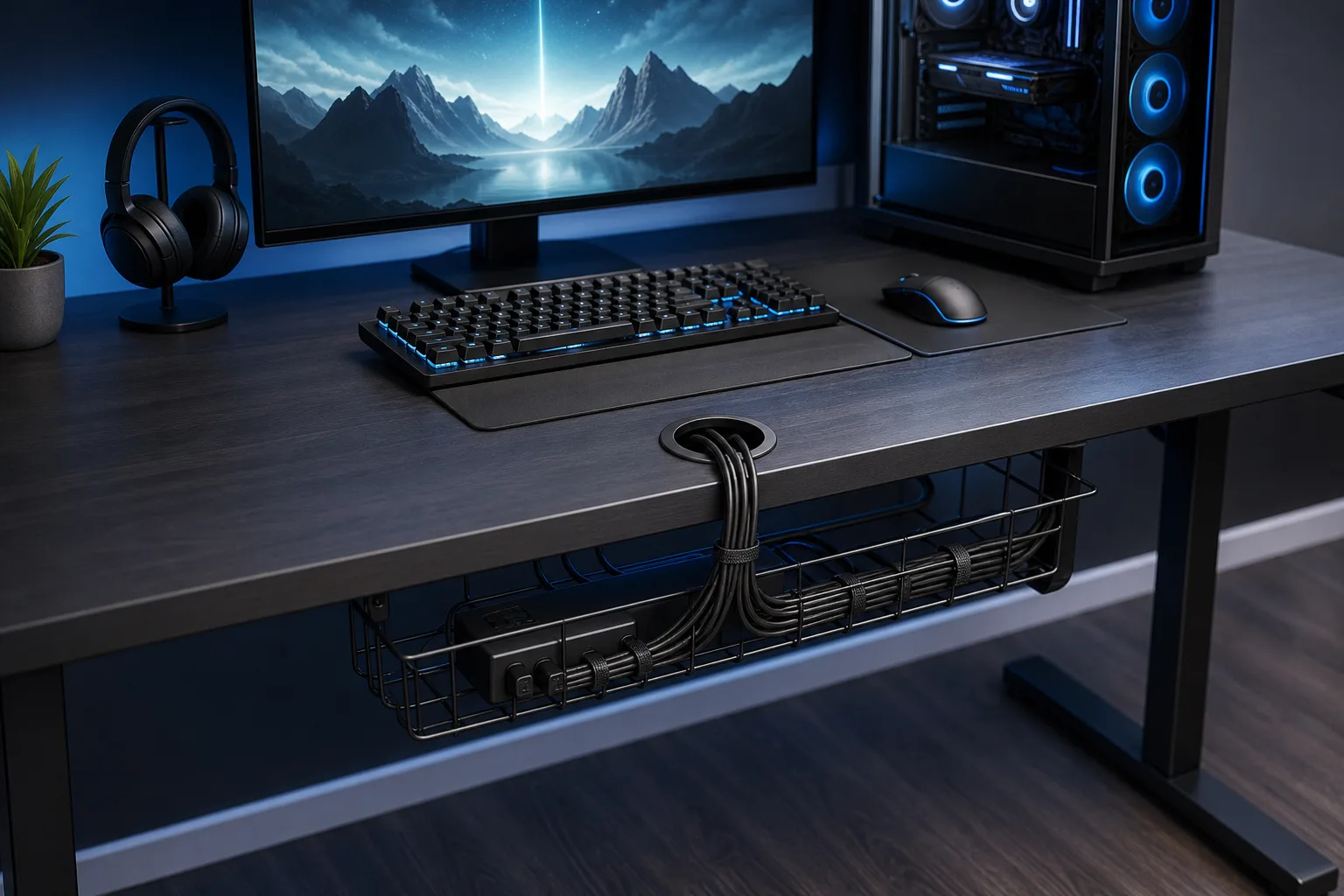
Most gaming desks ship with rubber grommets in the desktop surface. USE THEM. Feed cables through grommets so they drop cleanly to the cable tray or channel underneath rather than draping over the desk edge.
If your desk has an under-desk cable tray, that is where your power strip lives. Mounting the power strip underneath frees up floor space and removes one of the biggest sources of visible cable chaos. Velcro the tray cables into bundles before fastening them.
Ready to build a rig that actually rips? Start your build
4. Bundle Cables Going to the Same Destination
Your monitor probably takes a DisplayPort or HDMI cable plus a power cable and maybe a USB-C. Those three cables all travel the same path, so bundle them together with velcro ties every six to eight inches. One clean bundle looks infinitely better than three separate cables and is easier to route through grommets.
Do the same for your PC tower. All the cables leaving the back of the case, USB hub cable, audio, maybe an ethernet run, bundle them at the point they leave the case and route them together to where they split off to their destinations.
5. Manage Length, Not Just Routing
Extra cable length is the real enemy. A cable that is two feet too long will always look messy no matter how well you route it. Options:
- Buy shorter cables. A 3-foot DisplayPort cable instead of a 6-foot one eliminates half the slack problem.
- Use a cable shortener or coil the excess tightly and secure it behind the desk with a velcro mount.
- For permanent runs like ethernet, measure first and cut to length using a keystone jack kit.
Do NOT just stuff excess cable behind your PC tower. That blocks airflow and creates heat buildup.
6. Label Everything
You will thank yourself six months from now. Stick a small label or a piece of tape at both ends of every cable that is not obviously identifiable by its plug shape. When you need to swap a monitor or add a peripheral, you will find the right cable in under ten seconds instead of tracing a tangle for ten minutes.
7. Leave Slack for Moving Parts
Your chair rolls. Your monitor arm pivots. Your headset gets picked up and put down constantly. Any cable attached to something that moves needs extra slack built into the run, otherwise you will pull connectors loose or stress the cable jacket at the bend point.
For monitor arms specifically, route the cables through the arm's built-in channel if it has one, and leave a loop of slack at the joint where the arm pivots.
Common Mistakes
- Zip-tying everything permanently on day one. Use velcro ties until you are certain the layout is final. You will always want to move something.
- Routing cables behind the PC tower. Blocking rear case fans is a real way to cook your components. Keep that space clear.
- Ignoring the floor. Even with perfect desk routing, a cable dropping to the floor and running to a wall outlet ruins the look and is a trip hazard. Use a floor cable cover or route through a cable raceway mounted to the baseboard.
- Mixing AC power cables with thin signal cables in one tight bundle. Electrical interference is a real concern, especially for audio cables near power bricks.
- Skipping the label step. Future you will be annoyed at present you.
Bottom Line
Clean cable routing is mostly about planning and having the right cheap tools before you start. Map your routes, separate power from data, bundle cables going the same direction, and buy shorter cables where you can. Your desk looks better, your airflow improves, and upgrades stop being a two-hour untangling session.
If you are building a new rig from scratch and want the cable management inside the case sorted out too, check out our custom gaming PC builder to see what a clean build looks like from the start. And if something in your current setup is throwing errors or running hot after a rearrange, our team can take a look at the shop on Okeechobee Blvd, Monday through Saturday.
Ready to build a rig that actually rips?
Custom gaming PCs built and tuned by people who game. Tell us your budget and target frame rate.