How to Read Your PC's Temperatures and Know When Too High
TL;DR: Download a free monitoring tool, check your CPU and GPU temps under load, and compare them to the safe ranges listed below. Anything consistently above 90°C on a CPU or GPU is a problem worth fixing before it becomes an expensive problem to fix.
What You Need
- A Windows PC (this guide focuses on Windows, though Mac users have options too)
- HWiNFO64 (free, no install required, genuinely the best tool for this job)
- GPU-Z if you want more detail on your graphics card
- MSI Afterburner if you want temps overlaid while gaming
- About 15 minutes and a willingness to actually look at what your machine is doing
All of those tools are free. None of them require you to sign up for anything. (If a "temp monitoring" site asks for your email, close the tab.)
Step 1: Download and Open HWiNFO64
Go to hwinfo.com and grab the portable version. No install needed. Run it as administrator for the most accurate readings.
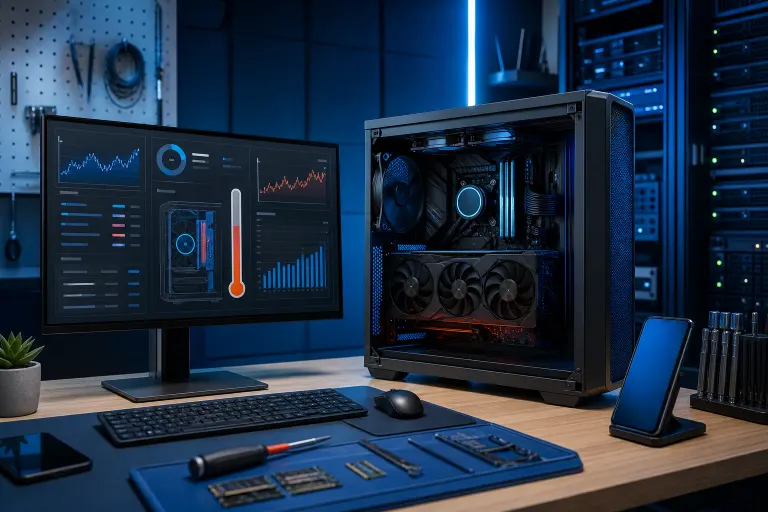
When it opens, click Sensors at the bottom. You will see a long, scrollable list. Yes, it looks like a cockpit. No, you do not need to understand all of it.
Look for sections labeled:
- CPU [#0] or your specific processor name
- GPU or your graphics card name
- Motherboard (for system temps)
- Drive temperatures (yes, your hard drives and SSDs have temps too)
HWiNFO shows current, minimum, and maximum readings. The maximum column is the one that tells you the truth.
Step 2: Know What Numbers Actually Mean Something
Here are the ranges you should have in your head. These are general guidelines. Exact thermal limits vary by chip, but these hold up for most consumer hardware.
CPU Temperatures
- Idle (doing nothing): 30-50°C is normal
- Under load (gaming, video export, etc.): 70-85°C is acceptable
- 85-95°C under load: getting hot, worth investigating
- 95°C and above: your CPU is thermal throttling or about to. Stop what you are doing.
- Above 100°C: some chips will shut the system down. That is a feature, not a bug. The bug is getting there.
GPU Temperatures
- Idle: 30-50°C is fine
- Under gaming load: 70-85°C is normal for most cards
- 85-95°C sustained: too hot, especially for older cards
- 95°C and above: your GPU is cooking itself
Note: some modern GPUs (certain NVIDIA 3000 and 4000 series cards) are designed to run a bit hotter by default, up to around 83-84°C under load. Check your specific card's spec sheet if you are unsure.
Drive Temperatures
- HDDs: 30-45°C is the sweet spot. Above 55°C is asking for trouble.
- SSDs (SATA and NVMe): 40-70°C under load is typical. NVMe drives in poorly ventilated cases can thermal throttle above 70°C.
Step 3: Put Your PC Under Load, Then Read Temps
Idle temps tell you almost nothing useful. You need to stress the machine.
For a quick real-world test, open a demanding game or run a YouTube video at 4K while also opening a bunch of browser tabs. Not scientific, but it gives you a ballpark.
For a proper stress test, use Prime95 (for CPU) or FurMark (for GPU). Run them for 10-15 minutes while watching your temps in HWiNFO. Keep both windows visible side by side.
Write down your maximum temps. That is your baseline. If those numbers are already in the danger zone, you have your answer without needing to dig further.
(If your machine shuts itself off during a stress test, that is not a coincidence. That is a confession.)
Computer acting up? Get a real diagnosis. Book a diagnostic
Step 4: Understand Why Temps Get High
Before you panic or start buying parts, understand what causes high temps. Most of the time it is one of a short list of culprits.
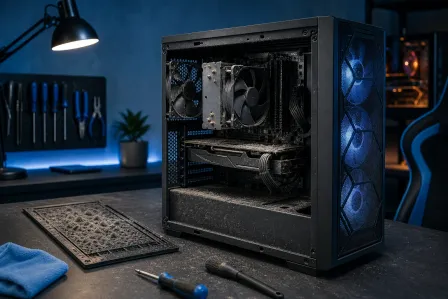
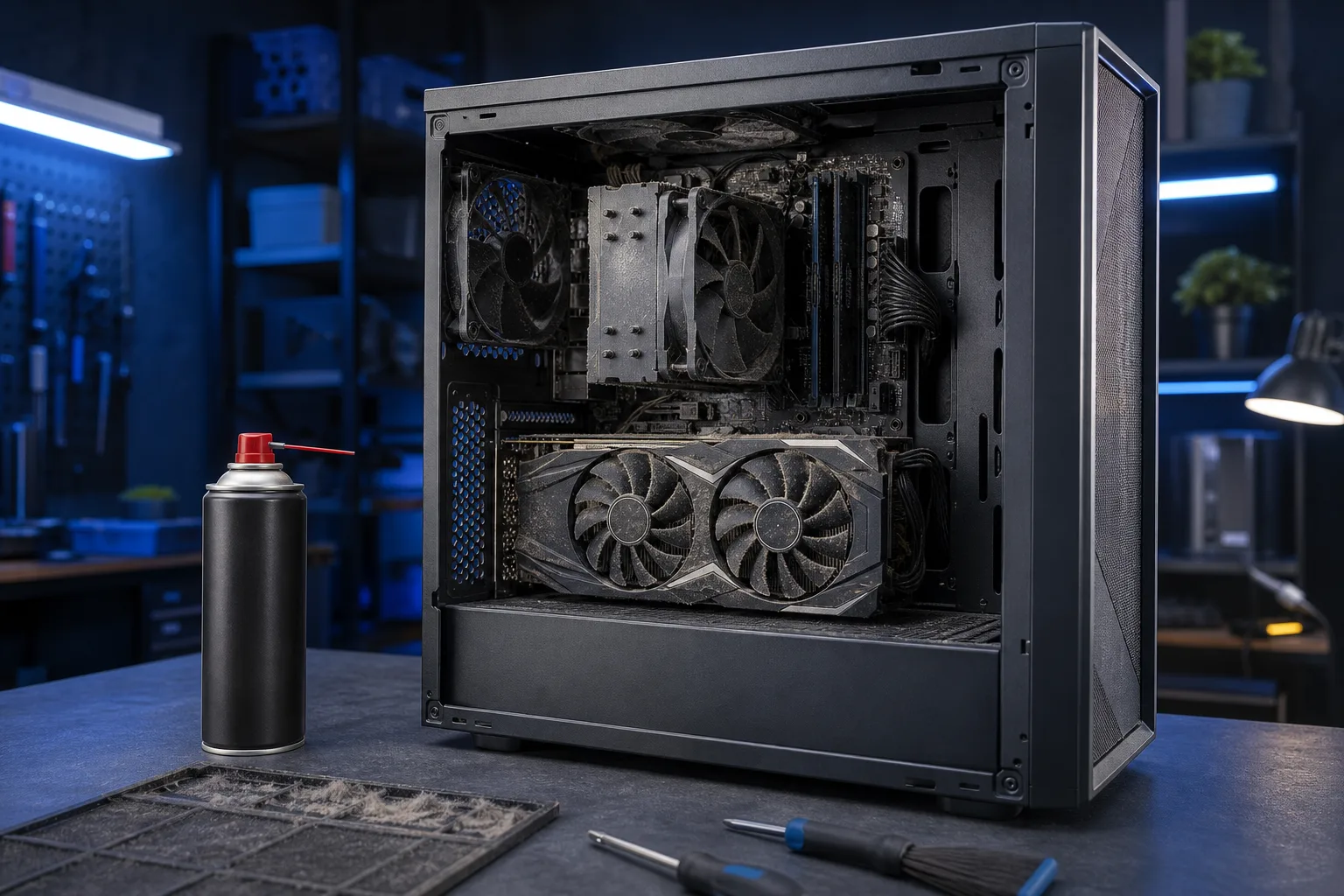
Dust buildup. The single most common reason. A laptop or desktop that has never been cleaned is running its fans through felt. Dust insulates heat instead of letting it escape. Clean your machine every 6-12 months if you actually use it.
Dried-out thermal paste. The paste between your CPU and its cooler dries out over time, usually after 3-5 years. When it does, heat transfer tanks. Reapplying thermal paste is a legitimate fix, not a gimmick. If your machine is older and suddenly running hot, this is a strong candidate.
Inadequate cooling. Some pre-built desktops and budget laptops ship with coolers that are barely adequate for the chips they are attached to. They work fine in a 68°F room and struggle in a Florida summer. (Yes, ambient temperature matters. You live in South Florida. Your office or garage is not 68°F in July.)
Blocked airflow. A desktop pushed against a wall, a laptop used on a blanket, or a case with every cable stuffed in front of the intake fans. All of these kill airflow and raise temps.
Failing fans. Listen. If your fans sound like a box of gravel or one of them sounds noticeably different from the others, it may not be spinning at full speed. HWiNFO shows fan RPMs too. A fan at zero RPM on a loaded system is a dead fan.
Step 5: Decide If This Is a DIY Fix or a Shop Job
Some of this you can handle yourself.
- Blowing dust out with compressed air: yes, do it.
- Cleaning laptop vents with a soft brush: yes.
- Replacing thermal paste on a desktop: yes, if you are comfortable opening hardware.
- Reseating or upgrading a CPU cooler on a desktop: doable with some research.
Some of this you probably should not do yourself, especially if you own a laptop.
Laptop disassembly to replace thermal paste or a fan requires removing a lot of small screws and ribbon cables. One wrong move and you are buying a new screen cable. If your laptop is running dangerously hot, bring it in. It is not worth the risk for most people.
Same goes for a gaming rig that is throttling during every session. If you have put real money into a custom build, do not let it cook itself. We see this regularly at the shop, machines that were fine and then got moved to a hot room or had a fan fail silently.
If you are not local, we offer remote support and can at least help you interpret your readings and figure out the next step.
Common Mistakes
Checking temps once at idle and calling it good. Idle temps are nearly meaningless. A machine can be 40°C sitting still and hit 100°C the moment you open a game. Check under load.
Believing the BIOS readout is the whole story. Your BIOS shows temps when almost nothing is running. It is a best-case number. HWiNFO under load is the honest number.
Buying a "cooling pad" as the fix for a laptop. Cooling pads help a little. They are not a substitute for cleaning the vents and replacing the thermal paste. Do not spend $40 on a pad when $0 worth of compressed air would have done more.
Ignoring throttling because the PC still works. Thermal throttling means your CPU or GPU is deliberately slowing itself down to avoid damage. Your machine is slower than it should be, and the underlying problem is still getting worse. "It still runs" is not the same as "it is fine."
Assuming a new machine does not have heat problems. Brand-new pre-builts sometimes have poor thermal paste application right out of the box. If your new PC is already running hotter than the numbers above, it is not normal. Check it.
If you have a business with multiple machines and nobody is monitoring temps, that is worth a conversation. Unmonitored hardware failures are exactly what managed IT services are designed to catch before they become a crisis.
For anyone building or planning to build a custom rig, cooling decisions matter more than most people realize. If you want help speccing something that will not cook itself, use our custom gaming PC builder to start the conversation.
Bottom Line
Reading your PC's temperatures is not complicated. Download HWiNFO64, stress your machine, and compare what you see to the ranges in this guide. Idle temps are a vanity metric. Max temps under load are what matter.
If your numbers are bad, start with the free fixes: dust removal, airflow improvement, and checking fan speeds. If those do not move the needle, it is thermal paste, a failing fan, or a cooler that was never adequate.
And if your machine is shutting itself down, throttling constantly, or you are seeing temps above 95°C on the regular, do not wait for it to fix itself. It will not. Stop by Fix My PC Store and let us take a look before you are shopping for a replacement.
Heat is patient. It will wait you out if you let it.
Computer acting up? Get a real diagnosis.
Fix My PC Store has repaired thousands of machines across West Palm Beach. Honest pricing, no upsell games, and a free diagnostic for new customers with our email coupon.