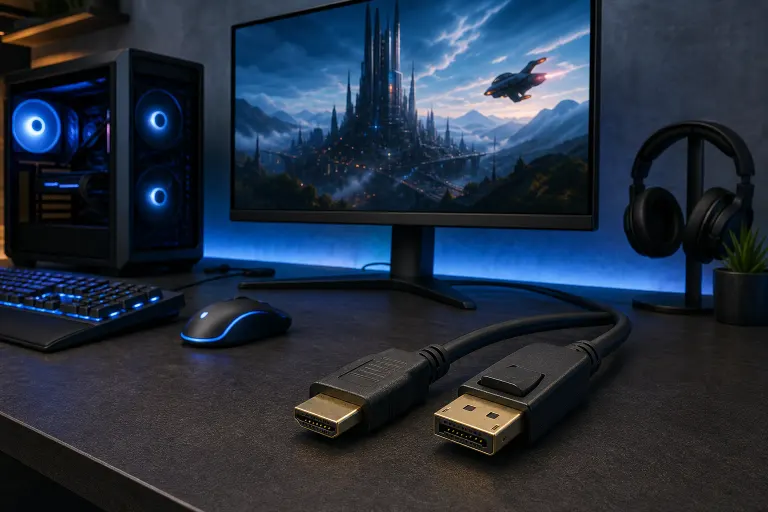
HDMI vs DisplayPort for a Gaming Monitor: Which Should You Use?
TL;DR: For most PC gamers, DisplayPort 1.4 or 2.1 edges out HDMI because it supports higher refresh rates at 1440p and 4K without compromises. HDMI 2.1 is a legitimate alternative, especially at 4K 120 Hz or for console-plus-PC setups. Check what ports your GPU and monitor actually have before buying a cable.
At a Glance
| Spec | HDMI 2.0 | HDMI 2.1 | DisplayPort 1.4 | DisplayPort 2.1 |
|---|---|---|---|---|
| Max bandwidth | 18 Gbps | 48 Gbps | 32.4 Gbps | 80 Gbps |
| 1080p 240 Hz | Yes | Yes | Yes | Yes |
| 1440p 144 Hz | Yes | Yes | Yes | Yes |
| 1440p 240 Hz | No | Yes | Yes | Yes |
| 4K 120 Hz | No | Yes | Yes (with DSC) | Yes |
| 4K 144 Hz+ | No | Yes | Compressed only | Yes |
| Variable refresh (VRR) | Limited | Yes (HDMI VRR) | Yes (G-Sync/FreeSync) | Yes |
| Daisy-chaining monitors | No | No | Yes | Yes |
DSC = Display Stream Compression, a visually lossless codec most users won't notice in practice.
Why DisplayPort Has Been the Default Pick for PC Gamers
For the past several years, DisplayPort 1.4 has been the go-to on discrete GPUs. The reason is simple: it shipped on nearly every mid-range and high-end NVIDIA and AMD card before HDMI 2.1 became common. At 1440p and 165 Hz or 240 Hz, a single DisplayPort 1.4 cable handles the job cleanly, often without needing DSC at all.
DisplayPort also supports AMD FreeSync and NVIDIA G-Sync natively over the same cable. No adapter gymnastics. Variable refresh rate just works.
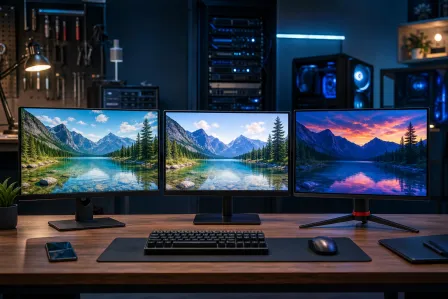
One underrated perk: DisplayPort can daisy-chain multiple monitors from a single GPU output using MST (Multi-Stream Transport). If you ever want a dual or triple-monitor desk, that matters.
Where HDMI 2.1 Actually Competes
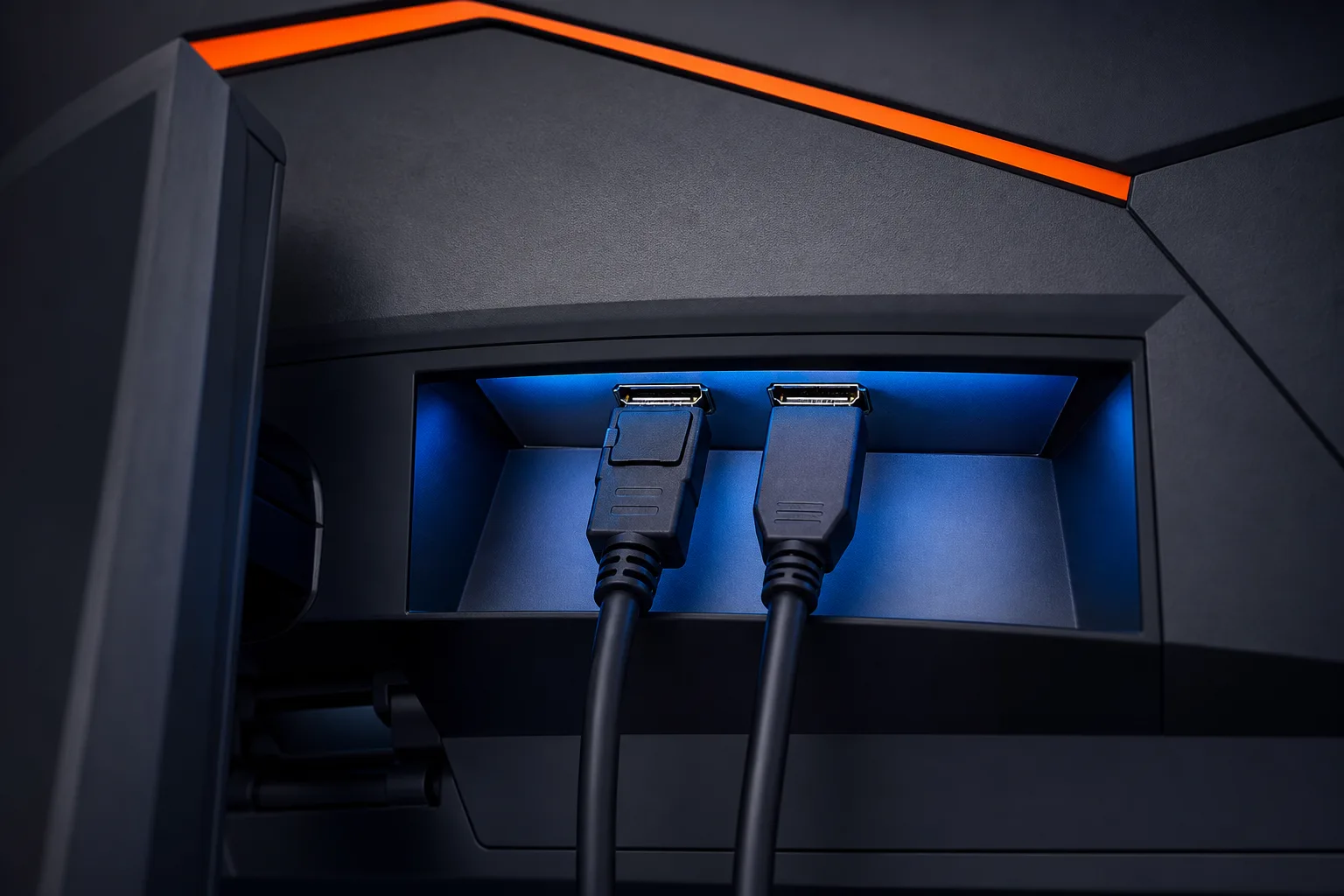
HDMI 2.1 flipped the script when it became standard on RTX 30-series and RX 6000-series cards. At 48 Gbps of bandwidth, it matches or beats DisplayPort 1.4 at every resolution up to 4K 120 Hz, uncompressed.
If you play on both a PlayStation 5 or Xbox Series X AND a gaming PC, HDMI 2.1 lets you use one cable type for both. Consoles don't output DisplayPort natively, so a monitor with HDMI 2.1 and DisplayPort 1.4 gives you the best of both worlds.
HDMI 2.1 also supports HDMI VRR, which works with consoles. AMD FreeSync supports HDMI broadly, including HDMI 1.4 and 2.0 on many monitors, while NVIDIA G-Sync Compatible also works over HDMI 2.1 on supported monitors. DisplayPort remains the most universally compatible path for VRR on PC.
Ready to build a rig that actually rips? Start your build
The Older Versions Are Where Trouble Hides
Here is where a lot of gamers get burned. The cable version and the port version both matter. A cheap "HDMI cable" bought off a shelf might only be rated for HDMI 1.4 (10.2 Gbps), which tops out at 4K 30 Hz or 1080p 120 Hz. Same issue with generic DisplayPort cables that claim DP 1.4 but aren't certified.
Always check:
- The port version on your GPU (check the spec sheet, not just the port shape).
- The port version on your monitor.
- The cable's certified rating, not just the label on the packaging.
The limiting factor is always the weakest link in the chain. A DisplayPort 2.1 GPU connected to a DisplayPort 1.2 monitor over a DP 1.4 cable runs at DP 1.2 speeds.
How to Decide: A Simple Decision Flow
- Check your GPU ports. RTX 40-series cards typically have DisplayPort 1.4a and HDMI 2.1. RX 7000-series has DisplayPort 2.1 and HDMI 2.1. Older cards may only have HDMI 2.0.
- Check your monitor ports. Most 1440p 144-165 Hz monitors have both HDMI 2.0 and DisplayPort 1.4. Budget 4K monitors sometimes only include HDMI 2.0, which limits you to 60 Hz.
- Match the version. Use the highest version both devices share. If both support DisplayPort 1.4, use that. If both have HDMI 2.1, either cable type works well.
- Playing at 1080p or 1440p up to 165 Hz? Any modern cable, HDMI or DisplayPort, handles this fine. Spend your energy elsewhere.
- Targeting 4K 120 Hz or above? You need HDMI 2.1 or DisplayPort 1.4 with DSC (or DP 2.1 for uncompressed headroom).
Refresh Rate Payoff: What the Cable Actually Unlocks
This is where it gets real. Running a 240 Hz monitor at 60 Hz because you're using an HDMI 2.0 cable is like buying an RTX 4080 and running it at stock with a CPU bottleneck. You paid for the hardware. Get the frames.
At 1440p 240 Hz, HDMI 2.0 cannot carry the signal uncompressed, its 18 Gbps of bandwidth is insufficient at standard color depth without compression. Whether DSC can enable 1440p 240 Hz over HDMI 2.0 depends on the specific monitor and device implementation, and support is not universal. DisplayPort 1.4 handles it cleanly without that uncertainty. At 4K 144 Hz, you want DisplayPort 2.1 or HDMI 2.1 for uncompressed output. The monitors that support those refresh rates at 4K almost always include both ports.
If you're not sure whether your current cable is the bottleneck, check your monitor's OSD (on-screen display) settings. It will usually show the active resolution and refresh rate. If it's reporting lower than your monitor's max, start with the cable and port version before blaming the GPU.
Verdict
For a dedicated gaming PC at 1440p or lower, DisplayPort 1.4 remains the reliable default because it ships on virtually every discrete GPU made in the last five years and handles high refresh rates without fuss.
At 4K or if you're splitting the monitor between a PC and a current-gen console, HDMI 2.1 is a legitimate equal or better choice depending on your monitor's port lineup.
Either way, the spec on the cable and the port on the device matter more than the connector shape. Check both before spending money on a premium cable.
If you're building a new gaming rig and want to make sure your GPU, monitor, and cable are all matched properly from the start, the custom gaming PC wizard at Fix My PC Store can help you put together a build that doesn't leave frames on the table. If an existing setup is behaving oddly, like resolution or refresh rate not hitting its rated max, remote support can often diagnose it without you leaving your desk.
Ready to build a rig that actually rips?
Custom gaming PCs built and tuned by people who game. Tell us your budget and target frame rate.