Gaming PC Stutters but Framerate Looks Fine: What Causes It
TL;DR: Your FPS counter shows 60 or 144 fps, but the game still feels choppy. That's because FPS averages hide frame time spikes, and frame time is what your eyes actually feel. The fixes range from enabling frame time monitoring to adjusting VRAM usage, driver settings, or background processes.
What you need
- A frame time monitoring tool: MSI Afterburner with RivaTuner Statistics Server (RTSS), or CapFrameX (free)
- GPU driver DDU (Display Driver Uninstaller) if you suspect a driver issue
- Windows Task Manager or HWiNFO64 for background process and memory monitoring
- About 30-60 minutes to test and isolate
Step 1: Stop trusting FPS, start reading frame time
Average FPS is the most misleading number in PC gaming. A game delivering 60 fps on average could be hitting 90 fps for half a second, then dropping to 5 fps for a frame, then bouncing back. Your eye catches that 5 fps frame as a hitch. The average still shows 60.
Frame time is the milliseconds it takes to render each individual frame. Smooth 60 fps = every frame takes ~16.7 ms. A stutter = one frame taking 80 ms while the next few take 10 ms.
Enable frame time in MSI Afterburner/RTSS:
- Open RivaTuner Statistics Server.
- Click the monitoring tab, find "Frametime" and enable it in the OSD.
- Play for 10 minutes in the area where stutters happen.
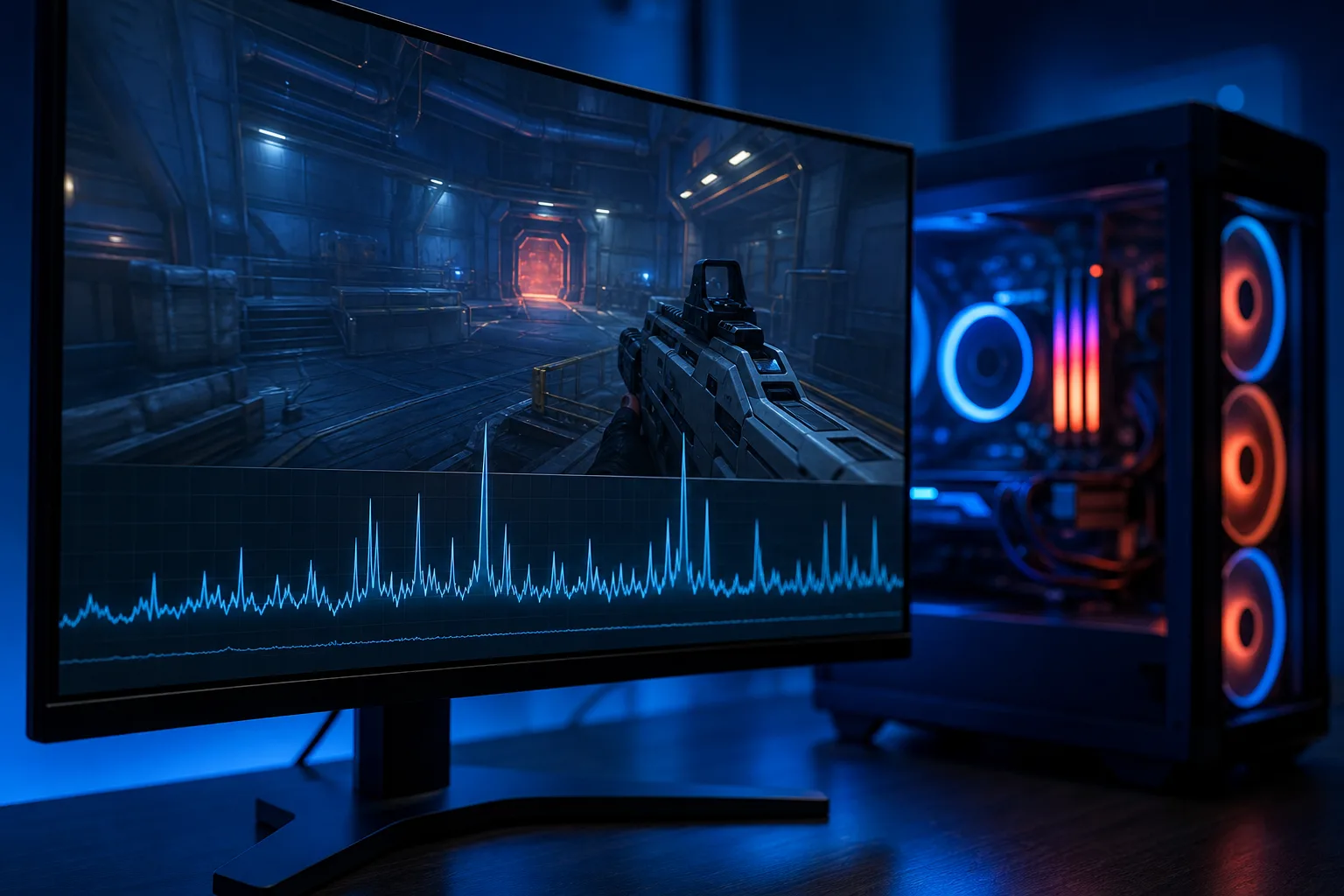
- Look for tall spikes in the graph. Consistent spikes = repeatable problem. Random spikes = driver or background process issue.
CapFrameX gives you a full run breakdown including 1% and 0.1% lows, which tell you stutter severity far better than average FPS ever could.
Step 2: Check VRAM usage
This is the most common cause of "FPS looks fine, game feels terrible" in 2024 and beyond. When your GPU runs out of VRAM, it starts pulling textures from system RAM across the PCIe bus. That transfer causes irregular, jarring hitches, not a steady FPS drop.
In MSI Afterburner, add the "GPU Memory Usage" overlay. If it's hitting 95-100% of your card's VRAM during the stutter, VRAM overflow is your culprit.
Decision table: VRAM fixes by scenario
| Situation | Fix |
|---|---|
| VRAM maxed, in-game texture setting on Ultra | Lower texture quality one step |
| VRAM maxed, running multiple monitors | Disable secondary monitor while gaming |
| VRAM maxed at only medium settings | GPU is likely undersized for the game |
| VRAM under 80% during stutter | VRAM is not the issue, move to Step 3 |
Step 3: Rule out CPU bottlenecks and "shader compilation stutter"
Open HWiNFO64 or Task Manager during gameplay. Watch per-core CPU usage. If one or two cores are pegged at 100% while others sit idle, you've got a single-threaded CPU bottleneck. Games that lean hard on one core will stutter on older quad-core chips even when the GPU has headroom.
Shader compilation stutter is a different beast and worth naming separately. It happens when a game compiles shaders on the fly the first time you visit an area. It's usually one-and-done per area. If stutters happen ONLY in new zones and disappear on revisit, this is likely the cause. Not much you can do except let the game compile shaders in the background before you play, or check if the game has a shader pre-compilation option in its settings.
Ready to build a rig that actually rips? Start your build
Step 4: Check background processes and RAM
Windows loves to schedule Windows Update downloads, antivirus scans, and cloud backup syncs during the exact moment you're pushing into a raid boss. Any of these can spike CPU or disk I/O and cause a frame time hike.
- Open Task Manager, sort by CPU and Disk usage.
- Play for 10 minutes, then Alt-Tab and check which processes spiked.
- Disable Windows Update active hours to prevent mid-session downloads.
- Pause cloud backup tools (OneDrive, Google Drive, Dropbox) while gaming.
Also check RAM: if you're running dual-channel RAM in the wrong slots, you may be losing 10-20% of memory bandwidth. Check your motherboard manual. Most boards want RAM in slots 2 and 4, not 1 and 2.
Step 5: Clean, reinstall, or roll back GPU drivers
Driver bugs are a legit cause of stuttering, especially after a recent driver update. Nvidia and AMD both ship drivers that introduce frame time regressions sometimes.
- Note your current driver version.
- Check forums (Reddit r/nvidia or r/Amd) for recent stutter reports on that driver version.
- If reports match your issue, use DDU in Safe Mode to fully strip the driver, then install the last known-good version.
- If you're on an older driver, try updating first before stripping.
Also check these GPU control panel settings that commonly cause stutters:
- Nvidia: Make sure "Low Latency Mode" isn't set to Ultra if you're already using a frame limiter. Conflicts between the two cause hitching.
- AMD: Anti-Lag can sometimes cause stutter in certain DX11 titles. Toggle it off and test.
Step 6: Check for storage I/O spikes
Games loading assets from an HDD, or even a slow/dying SSD, can produce hitches when the game streams new geometry or audio. Watch HWiNFO's disk read/write graph during play. Spikes that align with your stutters = storage bottleneck.
If your game is on an HDD, moving it to an SSD is often the single biggest quality-of-life upgrade for open-world games. If it's already on an SSD and you still see spikes, check the drive's health with CrystalDiskInfo.
Common mistakes
- Blaming the GPU first. VRAM, CPU threads, and background processes cause more stutter than raw GPU performance.
- Ignoring frame time graphs. If you're still diagnosing by feel alone, you're guessing.
- Overclocking without stability testing. A slightly unstable overclock can pass all benchmarks and still cause random frame time spikes under game load. Test with OCCT or Furmark if you're overclocked. Watch our overclocking breakdown for more context.
- Mixing RAM speeds on a Ryzen system. Ryzen is especially sensitive to RAM configuration. Wrong slots or mismatched sticks can visibly hurt frame pacing.
- Reinstalling the game before checking drivers or background processes. Reinstall is almost never the fix for stutter.
Bottom line
Stutter with a decent FPS number almost always comes down to frame time, not average framerate. Start by reading frame time data, check VRAM usage, then work through CPU load, background processes, drivers, and storage in that order. Most stutter issues are diagnosable and fixable in under an hour with the right tools.
If you've run through all of this and the hitching is still there, or if you're seeing hardware warnings in HWiNFO, it may be time to get hands-on diagnostics done. The team at Fix My PC Store on Okeechobee Boulevard in West Palm Beach can dig into the hardware side, or you can start with remote support if you want someone to walk through it with you on-screen. If you're thinking the whole rig needs a refresh, check out the custom gaming PC builder to spec something that won't leave frame time on the table.
Ready to build a rig that actually rips?
Custom gaming PCs built and tuned by people who game. Tell us your budget and target frame rate.