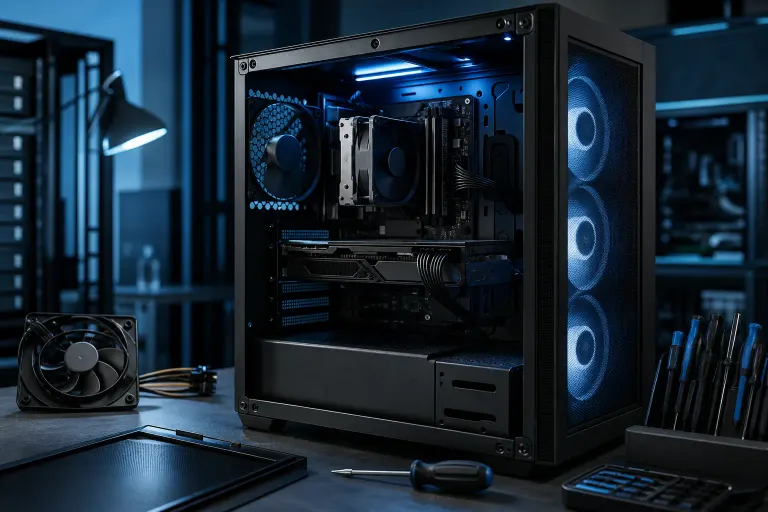
Gaming PC Keeps Shutting Off Mid-Game: What to Check First
TL;DR: Random shutdowns mid-game are almost always one of three things: your PSU tapping out, your CPU or GPU overheating and triggering a thermal shutdown, or a driver/Windows setting panicking under load. Work through the checks below in order and you'll usually nail it without throwing money at random parts.
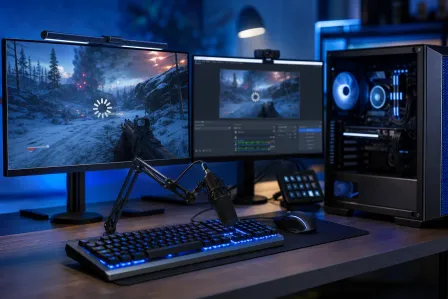
There's nothing worse than clutching a ranked match, framerate's buttery, you're about to pop off, and then... black screen. Instant desktop shutdown. No BSOD, no warning, just gone. That's not a normal crash. That's your rig protecting itself (or failing to) and it's telling you something specific. The key distinction: if you're getting a BSOD with an error code, that's a software or memory problem. If the machine just dies instantly like someone yanked the plug, that's almost always thermal or power-related. Let's find out what.
What you need
- A Phillips screwdriver and a can of compressed air
- A free monitoring tool like HWiNFO64 or MSI Afterburner (both free, both legit)
- Your PSU's wattage rating (check the sticker on the side of the unit)
- 15-20 minutes and a game that reliably triggers the crash
- Optional but clutch: a spare PSU or a friend's rig to swap-test parts
If you built this thing yourself and don't remember the PSU wattage, now's a good time to actually open the case and look. Seriously, go check. I'll wait.
One more thing before you dive in: try to identify when the crash happens. Is it always in the same game? Always on the same map or scene? Always after exactly 20 minutes? That pattern is data. A crash that only happens in one specific game is different from a crash that happens in every GPU-heavy workload. Keep notes.
1. Rule out overheating first (it's the most common culprit)
Heat is the number one reason gaming PCs slam off without warning. Modern CPUs and GPUs have thermal cutoffs built in. Hit that ceiling and the system doesn't crash gracefully, it just kills power instantly to save the silicon. That's a feature, not a bug, but it means your cooling is failing somewhere.
Fire up HWiNFO64 and let it run in the background while you game. Watch CPU package temp and GPU hotspot temp specifically. GPU core temp and GPU hotspot temp are different numbers , hotspot is always higher and is the one that actually triggers throttling and shutdown. If either one is spiking into the mid-90s Celsius before the shutdown hits, you found your problem. For most modern GPUs, 83–87°C on the hotspot is normal under load. Once you're pushing 95°C+ consistently, the card is protecting itself.
For CPUs, anything above 95°C under sustained gaming load on a modern Intel or AMD chip is a red flag. Some CPUs will throttle before they shut down, which you'll see as sudden framerate drops right before the crash. That's the chip begging for mercy before it pulls the kill switch.
Common causes:
- Dust-caked heatsink fins choking airflow (blow it out with compressed air, do this every 6 months minimum , if you've never done it and your PC is 3 years old, you're overdue)
- Dried-out thermal paste on a CPU that's a few years old. Thermal paste degrades over time, especially cheap compound. On a 4–5 year old machine, reapplying fresh paste , something like Thermal Grizzly Kryonaut or even the included paste on a new cooler , can drop temps by 10–15°C
- Case fans not actually spinning (check visually with a flashlight while the PC is running, fan controllers and headers die silently)
- A cooler that was never mounted correctly in the first place. This is shockingly common on self-builds. If your cooler is an aftermarket tower and it rocks or wobbles, it's not making full contact with the IHS
- Laptop-style cooling in an SFF build that just isn't rated for your component tier
If you're overclocked, this is also the first place to look. An unstable overclock under sustained load will absolutely cook itself into a shutdown. Dial it back to stock and see if the crashes stop. That's your answer right there. Even a "stable" OC that passed an hour of Prime95 can fail under specific game workloads that stress the chip in different patterns.
Computer acting up? Get a real diagnosis. Book a diagnostic
2. Check your power supply, because it's probably the real villain
Here's the thing gamers underestimate: your PSU doesn't just power your rig, it protects it. When a GPU pulls a hard transient spike , a split-second power draw way higher than its average , a weak or aging PSU's protection circuitry can panic and shut everything down instantly. No warning, no error, just off. It genuinely thinks something's wrong even when it's just your 4070 flexing for a single demanding frame.
This is especially pronounced with modern high-end GPUs. The RTX 4090, for example, is documented to hit transient spikes well above its rated average draw in fractions of a second. Nvidia's own recommended PSU rating accounts for exactly this. If your PSU's OCP (over-current protection) trips on that spike, it cuts power to protect itself. Result: instant shutdown that looks identical to a thermal event.
Red flags your PSU is the problem:
- The crash happens at a predictable moment , alt-tabbing, loading a new area, a graphically intense explosion or particle effect, or the moment you enter a busy multiplayer lobby
- Your PSU is more than 5–6 years old, even if it's a quality unit. Capacitors age out and the unit delivers less clean power over time than its rated wattage suggests
- You upgraded your GPU recently but kept the same PSU. A PSU that was fine with a GTX 1080 may absolutely fall over with an RTX 4070 Ti, even if the rated wattage looks like it should be enough
- The PSU is a budget or no-name unit without 80+ Bronze certification or better. Units from brands with no reputation are often rated optimistically , a "600W" unit from an unknown brand may realistically deliver significantly less under load and at temperature
- You're running on a single 12VHPWR connector to a GPU that pulls over 300W, and the cable runs are long or kinked
Do the math: Add up your CPU TDP, GPU TDP, and give yourself a 30% headroom buffer for transient spikes. A system with a Ryzen 7 7800X3D (120W TDP) and an RTX 4080 (320W TDP) is drawing 440W at steady load, meaning you want at least a 750W PSU from a reputable brand , and honestly 850W is a more comfortable place to sit. A lot of builders run PSUs that were specced for a previous build and just barely cover the rated TDP with no headroom for spikes, and then wonder why the new GPU causes crashes.
Reputable PSU brands to trust: Seasonic, EVGA (older stock), Corsair RM/RMx series, be quiet! Straight Power, Super Flower. These are units where the rating means something.
If you suspect the PSU, the best test is a swap. Borrow a known-good unit from a friend or buy one from a retailer with a good return policy, drop it in, and run the same workload. If the crashes stop, you have your answer and you can return the test unit or keep it.
3. Check drivers and Windows power settings before you blame hardware
Before you spend any money, rule out the software layer , because it causes a surprising number of what look like hardware failures.
GPU drivers are the first thing to check. A bad driver update can cause instant shutdowns under load that mimic a hardware failure almost perfectly. This is more common than you'd think; there have been multiple documented cases of Nvidia and AMD driver releases that caused widespread shutdown or BSOD issues within weeks of release, followed by hotfix patches. Check the driver release notes and forums before assuming your hardware is dying.
To rule it out: use DDU (Display Driver Uninstaller) in Safe Mode to completely wipe your current GPU drivers, then install either the latest version or a known-stable previous version. Don't just roll back through Device Manager , DDU gets the stuff Device Manager leaves behind.
Windows power settings are sneakier. If your power plan is set to Balanced instead of High Performance, Windows will actively throttle your CPU and GPU under certain conditions. This can interact badly with games in ways that cause instability. Go to Power Options → choose High Performance or, on newer Windows 11 builds, Ultimate Performance. It's a five-second change and it's eliminated crashes for more people than you'd expect.
Fast Startup in Windows is another quiet culprit. It's not a true shutdown , it's a hybrid sleep state that can leave your GPU in a bad state between sessions. Disable it in Power Options → Choose what the power buttons do → uncheck Turn on fast startup.
Finally, check Event Viewer (search it in the Start menu) after a crash. Go to Windows Logs → System and look for Critical events timestamped at or just before the shutdown. Kernel-Power Event ID 41 means an unexpected loss of power to the system , that points to PSU or thermal. Other event IDs can point toward driver faults or memory errors and help narrow things down before you start pulling hardware.
Still crashing? Try these additional checks
- RAM stability: Run MemTest86 overnight. Faulty RAM under the specific memory pressure of a game load can cause instant shutdowns. It's less common than heat or power, but it happens.
- Check your GPU power connectors: Make sure PCIe power cables are fully seated. A partially connected 8-pin or 12VHPWR connector can cause exactly this kind of random shutdown under load. Unplug and firmly reseat them.
- Reseat the GPU itself: Pull it from the slot, clean the contacts gently with a dry cloth, and reseat it. Intermittent contact in the PCIe slot can cause shutdowns that look like power or thermal events.
- Try a different PCIe slot if your motherboard has one. A failing PCIe slot is rare but not unheard of.
Work through the list methodically. Change one thing, test under the workload that triggers the crash, document the result. The temptation is to change three things at once and then not know what actually fixed it , resist that. You're debugging, not guessing.
Computer acting up? Get a real diagnosis.
Fix My PC Store has repaired thousands of machines across West Palm Beach. Honest pricing, no upsell games, and a free diagnostic for new customers with our email coupon.