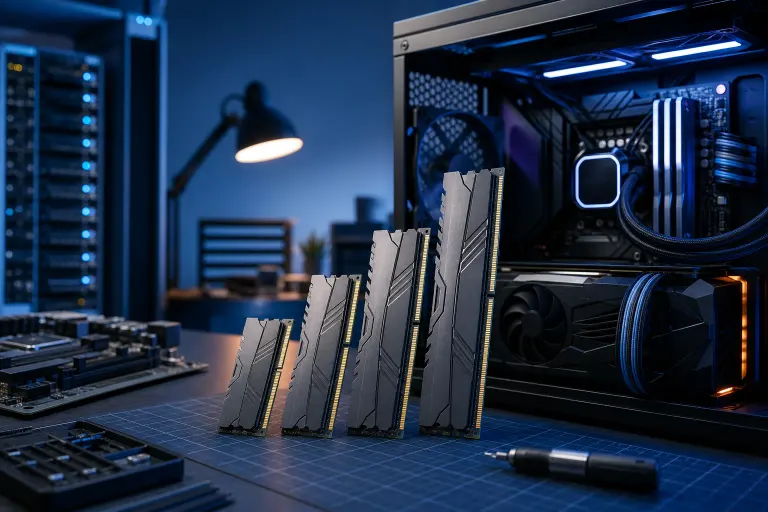
Gaming PC RAM: How Much Do You Actually Need?
TL;DR: For gaming in 2024, 16GB is the floor, 32GB is the sweet spot if you stream or multitask, and 64GB is overkill unless you're doing serious content creation on the side. Speed and dual-channel setup matter almost as much as capacity, so don't just chase the biggest number on the box.
Let's settle this once and for all, because I see it in my shop every single week. Someone drops big money on a killer GPU, then slaps in a single stick of RAM and wonders why their frame times are choppy. RAM isn't the flashiest part of a build (no RGB, no benchmark bragging rights), but skimp on it and your beastly graphics card is basically running with one leg tied behind its back. I had a customer last month running a brand-new RTX 4070 Ti paired with a single 16GB stick. His 1% lows in Cyberpunk 2077 were embarrassing. We popped in a matching stick, enabled dual-channel, and his frame time graph went from a seismograph during an earthquake to something actually smooth, no other changes, same driver version, same settings. That's how much it matters.
The reason is simple: modern CPUs access RAM across two channels simultaneously, effectively doubling the available memory bandwidth. For integrated graphics that share system RAM, the difference can be 40–50% in raw performance. For discrete GPUs it's less dramatic but still very real, especially in CPU-limited scenarios where your processor is feeding draw calls and game logic as fast as it can. Starve it of bandwidth and the GPU sits around waiting.
What RAM capacity actually does for gaming
RAM capacity determines how much data your system can hold in fast, immediately accessible storage before it has to start swapping to your SSD or, worst case, your HDD. Modern games are genuinely hungry. The base install of Microsoft Flight Simulator can load several gigabytes of terrain and texture data into system RAM at once. According to testing reported by hardware outlets, Call of Duty: Warzone has been documented using over 12GB of system RAM during a match, and that's before you factor in Windows itself, your game launcher, Discord, and a browser tab you forgot to close.
8GB was viable in 2019. In 2024 it is not. Running 8GB means Windows is constantly shuffling data to your pagefile, which introduces stutters that no GPU upgrade will fix. If you're on 8GB right now, upgrading RAM will likely be the single biggest performance improvement available to you, dollar for dollar.
16GB is the current minimum for a reasonable gaming experience. You can run most titles comfortably, keep Discord open, and have a browser with a handful of tabs without constantly hitting the ceiling. It starts to feel tight the moment you add streaming software like OBS, which can easily consume 1–2GB on its own, or if you're playing a memory-hungry open-world game and alt-tabbing frequently.
32GB is where most enthusiast gamers should land in 2024. It gives you genuine headroom. You can run OBS with multiple sources, have a YouTube video open on a second monitor, keep Spotify running, and still not see your game choke. It's also future-proofing at a reasonable price, a 2x16GB DDR5-6000 kit has dropped to prices that would have seemed absurd two years ago. If you're a content creator who renders video, edits in Premiere, or runs virtual machines alongside gaming sessions, 32GB stops feeling luxurious and starts feeling necessary.
64GB and above is the territory of workstation tasks. If you're rendering 4K video in DaVinci Resolve, working with large sample libraries in a DAW, or running multiple virtual machines, you'll use it. As a pure gaming setup, you won't. Even the most RAM-hungry games in 2024 don't come close to filling 64GB. You'd essentially be paying for capacity that sits idle 99% of the time.
What you need
Before you add anything to cart, here's your checklist:
- Your current RAM specs. Open Task Manager, hit the Performance tab, click Memory. Note the total, the speed, and whether it says single-channel or dual-channel. If it says single-channel and you have an empty slot, your first priority is a matching stick, not a full replacement kit.
- Your motherboard's max supported speed and slots. Check the manual or the manufacturer's site. Some boards cap out lower than the RAM you're eyeing. An older B450 board, for example, might officially support DDR4-3200 but struggle to POST reliably with DDR4-4000 without a BIOS update, or at all. Intel's 12th and 13th gen boards on Z690/Z790 chipsets officially support DDR5 but often have a sweet spot around DDR5-6000 before you hit diminishing returns or stability issues.
- Matching RAM kits, not single sticks. Buy a 2x8GB or 2x16GB kit, never one stick, so you actually get dual-channel performance. If you already have a single 16GB stick and want to upgrade cheaply, try to find the exact same model and batch code, mismatched sticks can technically work in dual-channel but may refuse to run at the faster stick's rated XMP speed, defaulting to the slowest common denominator.
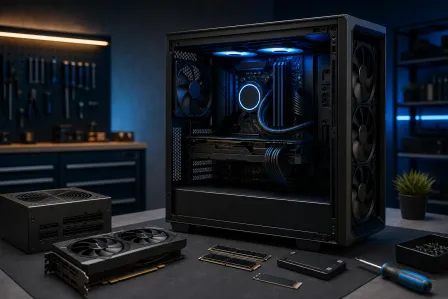
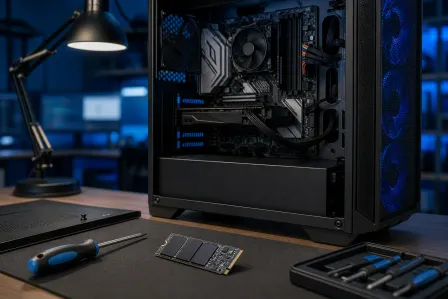
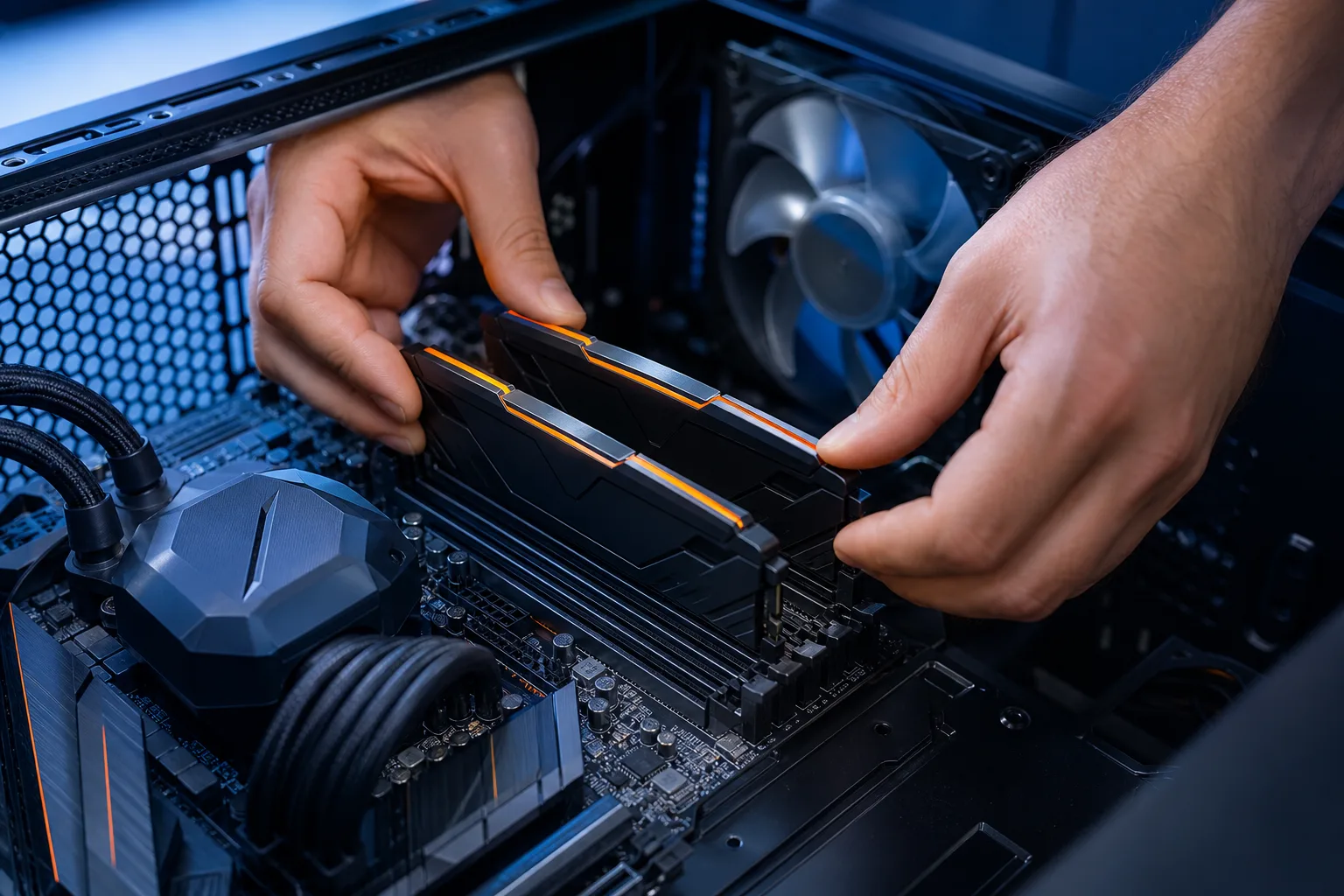
- A screwdriver and some patience. Installing RAM is one of the easiest upgrades there is, but static discipline still matters. Touch a metal part of your case before handling sticks, don't grab the gold contacts, and make sure you seat them in the correct slots for dual-channel, on most boards that's slots 2 and 4, not 1 and 2. Check your manual; getting this wrong means single-channel performance even with two sticks installed.
- Your game and app list. What you actually run determines what you actually need, not what some forum post says is optimal. A player who exclusively runs CS2 and Discord on a clean Windows install has genuinely different requirements than someone who streams Hogwarts Legacy while a capture card records raw footage to a network drive. Be honest about your real workflow.
Computer acting up? Get a real diagnosis. Book a diagnostic
Speed and timings: the other half of the equation
Capacity gets all the attention, but RAM speed, measured in MHz or MT/s, and latency timings are significant performance levers, particularly on AMD Ryzen platforms where the CPU's Infinity Fabric interconnect runs in sync with RAM speed up to a point. On Ryzen 7000 series, for instance, DDR5-6000 is widely considered the sweet spot because it allows a 1:1 ratio between the memory controller and the Infinity Fabric, maximizing bandwidth without the latency penalty of pushing higher speeds. For more detail on memory standards and specifications, see the JEDEC memory standards overview.
Timings are expressed as something like CL30-38-38-96. The first number, the CAS latency, is the one most people focus on. Lower is better, but it has to be interpreted alongside the actual clock speed. DDR5-6000 CL30 is meaningfully faster in real-world scenarios than DDR5-4800 CL40, even though the raw CAS number is lower on the latter. There are free tools like AIDA64 and HWiNFO64 that will benchmark your memory latency and bandwidth so you can see exactly where you stand.
For DDR4 builds that are still very much competitive in 2024, DDR4-3600 CL16 or CL18 represents the performance sweet spot for Ryzen, while Intel's Alder Lake and Raptor Lake platforms respond well to DDR4-3200 through DDR4-4000. Going beyond DDR4-4000 on Intel typically requires binned memory and careful manual subtiming work that most users won't want to bother with.
XMP and EXPO profiles are your friend here. These are pre-configured overclock profiles stored on the RAM stick itself. Enabling XMP (Intel) or EXPO (AMD) in your BIOS takes thirty seconds and is the single easiest performance gain available on a new build. Without it, your 6000MHz DDR5 kit is running at 4800MHz. Always enable it.
Practical upgrade scenarios
To make this concrete, here's how I'd approach a few common situations:
You're on 8GB single-channel: This is urgent. Buy a matched 2x8GB or 2x16GB kit immediately. Don't buy a single 8GB stick to match your existing one unless you can confirm it's identical, the risk of compatibility issues isn't worth the small cost savings.
You're on 16GB single-channel: Add a matching stick first. If your kit is old and you can find the exact same model, great. If not, a new 2x8GB kit is cheap enough that starting fresh often makes more sense than hunting for a match.
You're on 16GB dual-channel but gaming and streaming: Upgrade to 32GB. A 2x16GB DDR4-3600 kit is affordable, and the headroom it provides will noticeably reduce stutters when OBS is encoding in the background.
You're on 32GB dual-channel: Unless you're doing content creation work that's visibly suffering, you're done. Spend your upgrade budget elsewhere.
The bottom line
RAM is the part of a PC build where the return on investment is front-loaded and then drops off a cliff. Going from 8GB to 16GB is transformative. Going from 16GB single-channel to 16GB dual-channel can feel nearly as significant. Going from 16GB to 32GB dual-channel is a meaningful quality-of-life improvement for anyone who multitasks. Beyond that, for pure gaming, the law of diminishing returns has fully kicked in. Get the capacity and configuration right first, enable XMP or EXPO, and then, only then, start thinking about whether faster kits are worth the premium for your specific platform and use case.
Computer acting up? Get a real diagnosis.
Fix My PC Store has repaired thousands of machines across West Palm Beach. Honest pricing, no upsell games, and a free diagnostic for new customers with our email coupon.