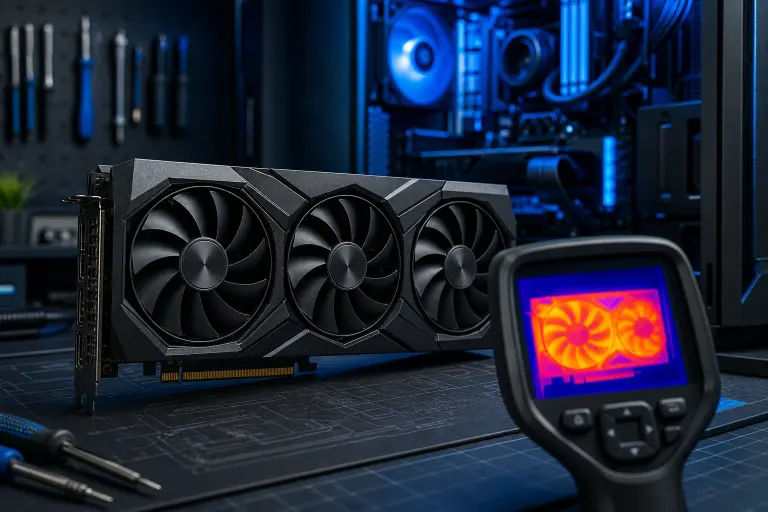
Gaming PC GPU Temps: What Is Too Hot and What Is Normal?
TL;DR
A GPU running 70-85°C under full gaming load is normal for most modern cards. Sustained temps above 90°C are worth investigating, and anything consistently hitting the card's thermal throttle point (often 83-110°C depending on the model) is actively hurting your frame rates and potentially your hardware. Read your temps, identify the cause, and fix it before it becomes a dead GPU.
What You Need
- A free GPU monitoring tool: GPU-Z or MSI Afterburner (both widely used and reputable)
- Your GPU model name (check Device Manager or the box)
- A can of compressed air if dust is suspected
- A Phillips-head screwdriver if you plan to open the case
- Thermal paste (only if reseating the cooler, which is an advanced step)
Step 1: Find Your GPU's Actual Temperature Right Now
Open MSI Afterburner or GPU-Z and run your game for at least 15 minutes. Check these readings:
- GPU Temperature (the main die temp)
- GPU Hotspot Temperature (shown on RDNA and some NVIDIA cards, runs 10-20°C above the main temp, that is normal)
- Memory Junction Temperature (AMD cards especially, should stay under 110°C per AMD's GDDR6 TMJUNCTION specification , consult your card's spec sheet for the exact limit)
- Fan Speed % (if fans are barely spinning at 80°C+, that is a problem)
Write down your peak numbers. You need real data before you can fix anything.
Step 2: Compare Against the Normal Range Table
Use this as your reference. Ranges are general guidelines; check your specific GPU's datasheet for exact throttle and shutdown limits.
| Temp Range | What It Means |
|---|---|
| Below 40°C idle | Excellent, great airflow or undervolted |
| 40-60°C idle | Normal |
| 60-75°C under gaming load | Excellent |
| 75-85°C under gaming load | Normal and expected for most mid-to-high-end cards |
| 85-90°C under gaming load | Warm but usually within spec; monitor it |
| 90-100°C under load | Too hot, performance throttling likely starting |
| 100°C+ or hitting TJ Max | Card is protecting itself, frames are dropping, fix this now |
NVIDIA RTX 40-series cards typically have a default GPU temperature target of around 83°C , meaning the card will manage its boost clocks to stay near that point by default , but the hard thermal limit (TjMax/shutdown threshold) is generally around 127°C, not 90°C. Always check your specific card's datasheet for the exact throttle and shutdown limits. AMD RX 7000-series cards run hotter by design and can show hotspot temps of 95-105°C while the GPU die is only at 75°C. Know your card.
Step 3: Check Your Case Airflow First
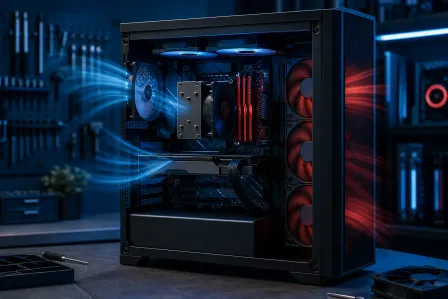
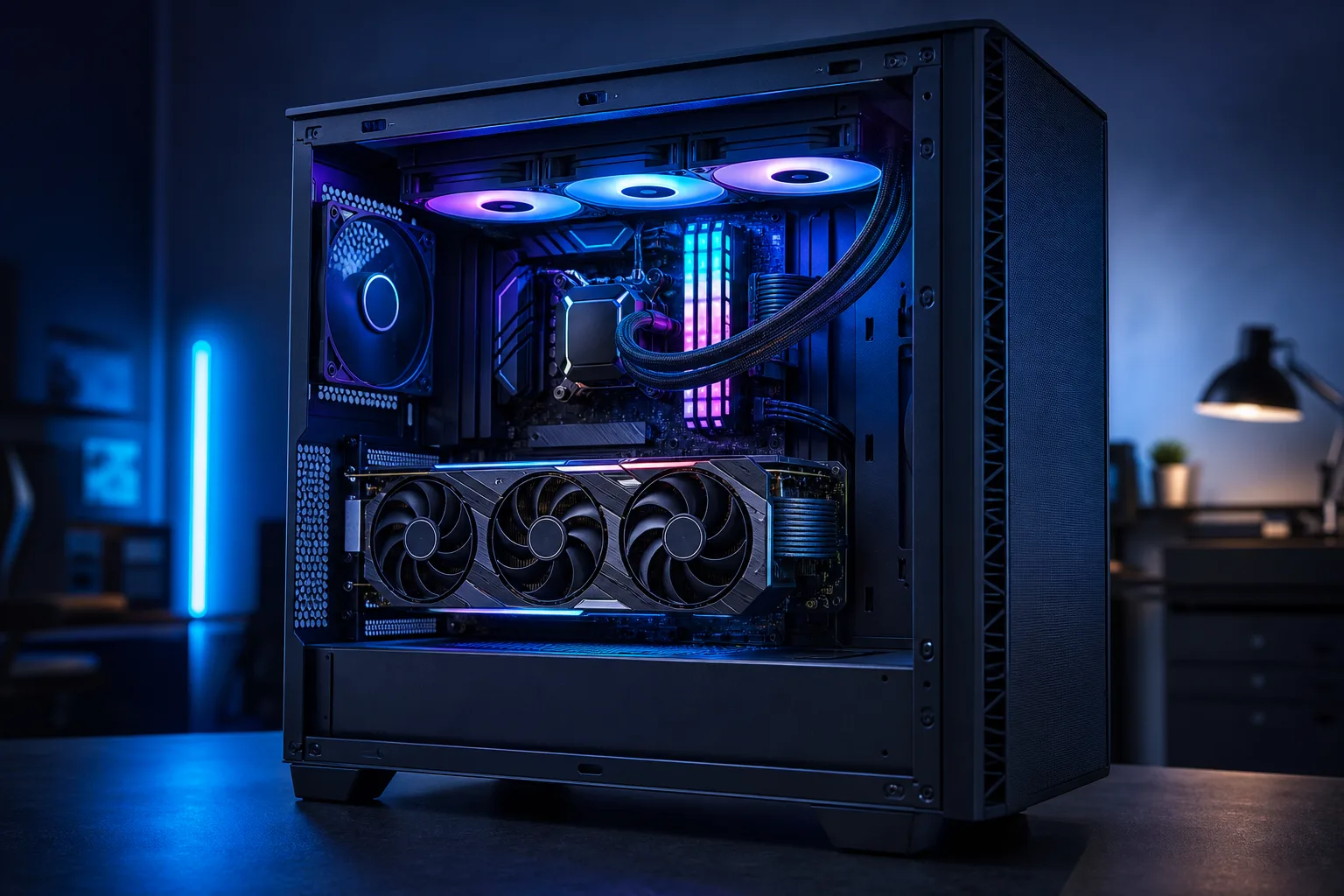
Before blaming the GPU, look at your airflow setup. Poor case airflow is the number one reason for high GPU temps that have nothing to do with the card itself.
- Are intake fans pulling cool air in from the front or bottom?
- Are exhaust fans pushing hot air out the back or top?
- Are cables blocking airflow paths inside the case?
- Is there a massive dust filter caked with lint?
A positive-pressure setup (more intake than exhaust) or a balanced setup both work. What does NOT work is a case with fans fighting each other or no defined airflow direction at all.
Ready to build a rig that actually rips? Start your build
Step 4: Clean the GPU and Case
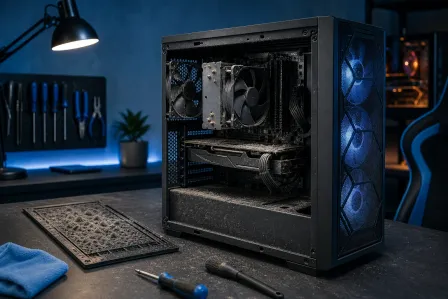
Dust is the silent FPS killer. A GPU heatsink packed with dust can raise temps by 15-20°C easily.
- Power off and unplug the system completely.
- Open the side panel.
- Use compressed air in short bursts to blow dust off the GPU heatsink fins, case fans, and filters. Do this outside or over a trash can.
- Do NOT use a household vacuum directly on components, static discharge is a real risk.
- Reassemble and retest temps.
If temps dropped significantly after cleaning, dust was your culprit. Done.
Step 5: Check Fan Curve Settings
Many GPUs ship with conservative fan curves that keep noise down at the cost of running hotter. If your GPU fans are barely spinning at 80°C, adjust the curve.
In MSI Afterburner:
- Click the fan icon or go to Settings > Fan
- Enable user-defined software automatic fan control
- Set the curve so fans ramp up more aggressively above 70°C
Yes, it will be louder. But 10-15°C cooler under load is absolutely worth it. More headroom, more stable boost clocks, better frames.
Step 6: Check Thermal Paste and Thermal Pads (Advanced)
If the card is more than 3-4 years old and temps have crept up over time despite clean fans and good airflow, the thermal paste between the GPU die and the heatsink may have dried out.
Replacing thermal paste on a GPU means:
- Removing the GPU from the case
- Disassembling the cooler (screws vary by model, look up yours specifically)
- Cleaning off old paste with isopropyl alcohol (90%+ concentration)
- Applying a pea-sized amount of quality thermal paste
- Reassembling carefully
Some cards also have thermal pads on the VRAM chips. If those are hardened or crumbling, replace them with correct-thickness pads. Getting pad thickness wrong can cause worse contact, so look up your specific GPU model's pad specs before ordering.
This is a legitimate DIY job for patient builders, but if you are not confident, a professional can do it. Fix My PC Store handles in-store diagnostics and can advise on GPU thermal work.
Step 7: Consider Undervolting
Undervolting a GPU means feeding it less voltage while keeping the same or near-same clock speeds. The result: less heat, often the same performance, and sometimes better sustained boost clocks because the card stays cooler.
This is NOT the same as underclocking (reducing speed). Done right, undervolting can drop temps by 5-15°C with zero frame rate penalty.
Use MSI Afterburner's voltage/frequency curve editor. Search for your specific GPU model and a voltage-frequency guide, the process varies enough between architectures that a card-specific guide is worth reading.
Curious about custom builds optimized for thermals from day one? Check out the custom gaming PC builder.
Common Mistakes
- Panicking at hotspot temps. AMD RDNA hotspot readings of 90-100°C with a die temp of 75°C are normal. Read both numbers.
- Ignoring idle temps. A GPU at 70°C at idle almost always means a fan stopped spinning or airflow is completely blocked.
- Reapplying paste without cleaning the old stuff off. Layering paste traps air and makes temps worse.
- Cranking fan speed to 100% all the time. Unnecessary wear on fan bearings. Use a smart curve instead.
- Assuming a hot GPU means a dying GPU. Heat and damage are different. Most overheating is fixable without replacing anything.
Bottom Line
70-85°C under gaming load is your green zone. Above 90°C sustained, start working through the steps above, airflow first, then cleaning, then fan curve, then thermal paste. Most of the time it is dust or a bad fan curve, not a failing GPU.
If you have cleaned everything, adjusted settings, and temps are still dangerously high, or if the card is artifacting and crashing, bring it in. Fix My PC Store is at 10140 Okeechobee Blvd, Suite B, West Palm Beach. Initial checks are free for most standard repairs, and the scope and cost are explained before any work begins. Call 561-819-9999 or book a time online.
Ready to build a rig that actually rips?
Custom gaming PCs built and tuned by people who game. Tell us your budget and target frame rate.