Why Is My Gaming PC Freezing Only When I Stream and Play at Once?
TL;DR: Streaming while gaming stacks CPU, RAM, GPU, and network demands simultaneously. A freeze that only happens during both tasks points to a resource ceiling being hit. Work through the diagnostic sequence below to find which ceiling you're hitting.
What You Need
- A system monitoring tool. HWiNFO64 or MSI Afterburner with RivaTuner are free and show real-time CPU, GPU, RAM, and temperature data overlaid on screen.
- A network speed test. Use fast.com or speedtest.net to confirm your actual upload speed before assuming your connection is fine.
- Your streaming software open. OBS Studio or Streamlabs OBS, whichever you use.
- Windows Task Manager (Ctrl + Shift + Esc) as a quick backup check.
- At least 30 minutes to reproduce the freeze and read the logs.
Step 1: Identify Which Resource Is Maxing Out
Launch HWiNFO64 or enable the MSI Afterburner overlay BEFORE you start your game and stream. Run both together until the freeze happens, then check what was at or near 100% right before it locked up.
Decision table: what your numbers mean
| What's maxed | Likely cause | Skip to |
|---|---|---|
| CPU at 95-100% | Encoder overload or too many background tasks | Step 2 |
| RAM at 95-100% or page file spiking | Not enough system RAM for game plus encoder | Step 3 |
| GPU at 100% with CPU also high | GPU encoding offload not configured | Step 4 |
| CPU temp above 90°C / GPU above 85°C | Thermal throttling | Step 5 |
| None of the above maxed | Network upload saturation | Step 6 |
Write down the numbers. Guessing skips this step and wastes your afternoon.
Step 2: Fix CPU Overload From the Encoder
Streaming software encodes video in real time. x264 (software encoding) is brutally CPU-hungry. If your CPU is the bottleneck, try these changes in order:
- In OBS, go to Settings, Output, Encoding. Switch from x264 to NVENC (Nvidia) or AMF (AMD). This moves encoding to the GPU and drops CPU load significantly.
- Lower your x264 preset from "medium" to "fast" or "veryfast" if you must stay on software encoding.
- Drop stream output resolution from 1080p to 900p or your bitrate from 6000 kbps to 4500 kbps. Less data to encode means less CPU work.
- Close Chrome, Discord video, and any background apps before launching. Each browser tab eats CPU headroom you need.
If your CPU is older (a quad-core from 2017 or earlier), NVENC or AMF offloading is not optional, it's mandatory.
Step 3: Check and Expand RAM Headroom
Modern games alone can use 12-16 GB of RAM. Add OBS at 1-2 GB, a browser for chat, and Discord, and a 16 GB system is already close to the edge.
- Open Task Manager during your freeze repro. Check the Memory tab for "In Use" vs. total and watch for page file (committed memory) spikes.
- If committed memory regularly exceeds physical RAM, Windows is paging to disk. On an HDD this causes stutters. On an NVMe SSD it's better but still a symptom.
- Short-term fix: Close the browser, use a phone for chat monitoring, or use OBS's built-in chat dock instead of a browser.
- Real fix: Upgrade to 32 GB if you're on 16 GB and streaming. DDR4 or DDR5 kits are reasonably priced now and this is one of the highest-FPS-per-dollar upgrades for streaming setups.
If you want a system sized correctly from the start, check out the custom gaming PC builder to configure a streaming-ready rig.
Ready to build a rig that actually rips? Start your build
Step 4: Use GPU Encoding Correctly
NVENC (Nvidia) and AMF (AMD) offload encoding to dedicated silicon on your GPU, freeing the CPU. But there's a catch: if your GPU is already running at 100% load rendering the game, adding encoding work can make the GPU the new bottleneck.
- Check GPU usage in your overlay during the freeze. If it's sitting at 99-100%, cap your in-game frame rate.
- Use RTSS (RivaTuner Statistics Server) or the in-game frame limiter to cap frames at your monitor's refresh rate or below. Rendering 300 FPS when your monitor shows 144 Hz wastes GPU headroom that NVENC needs.
- In OBS NVENC settings, try "Quality" preset at medium or lower rather than maximum quality. This reduces how hard NVENC pushes the GPU.
Capping frames and freeing GPU overhead is one of the fastest ways to stop freezes without spending anything.
Step 5: Rule Out Thermal Throttling
A CPU or GPU that overheats will deliberately slow itself down to avoid damage. This shows up as a sudden FPS drop or a full freeze right as temps spike. The freeze only happens under combined load because that's when heat builds fastest.
- In HWiNFO64, look at CPU "Package Power" and "Core Temp" and GPU "Hot Spot" temp during the freeze repro.
- If CPU core temps exceed 90°C or GPU hot spot exceeds 85°C, throttling is happening.
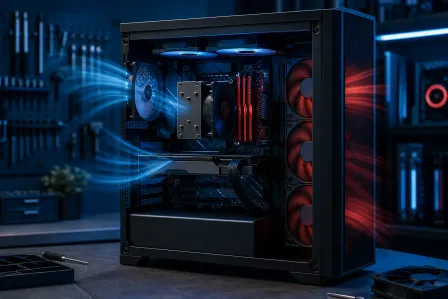
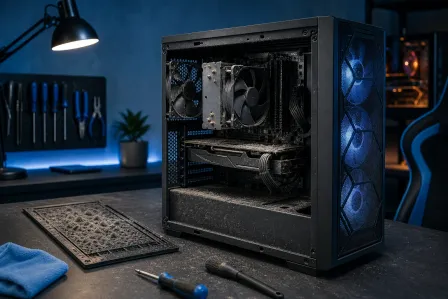
- Quick checks: Is the case getting good airflow? Are intake and exhaust fans all spinning? Is there a thick layer of dust on the heatsink or radiator?
- Reseating the CPU cooler with fresh thermal paste can drop temps 10-20°C on older builds. This is a straightforward repair but requires careful handling of the CPU.
If you're in West Palm Beach or South Florida and want a professional to handle thermal paste replacement or deep-clean the system, Fix My PC Store offers free initial checks for most in-store repairs. Reach them at 561-819-9999 or stop by 10140 Okeechobee Blvd, Suite B.
Step 6: Check Your Upload Bandwidth
If hardware all looks fine, the network is the last major culprit. Streaming at 6000 kbps requires about 6 Mbps of sustained upload. If your connection fluctuates or tops out near that ceiling, the stream encoder stalls and the whole system can lock up waiting.
- Run a speed test specifically on upload speed. A 10 Mbps upload with a 6000 kbps stream bitrate leaves almost no margin for game data, Discord voice, or any household traffic.
- Lower your OBS bitrate to 50-60% of your measured upload speed to leave headroom.
- If you're on Wi-Fi, switch to a wired Ethernet connection. Wireless interference causes micro-drops that trigger OBS buffer overflows.
- Check your router's QoS (Quality of Service) settings. You can prioritize your PC's traffic so roommates or smart TVs don't eat your upload mid-stream.
Common Mistakes
- Blaming the GPU first. CPU encoding is the most common freeze cause. Check CPU load before assuming you need a new graphics card.
- Ignoring background processes. Windows Update, antivirus scans, and cloud backups all pick terrible times to run. Schedule them for off hours.
- Running uncapped frame rates while streaming. Letting the GPU render 500 FPS starves NVENC of resources. Always cap your frame rate.
- Setting stream bitrate too high for your connection. Higher bitrate does not always mean better quality if your upload speed can't sustain it. Use the OBS recommended settings guide as a reference.
- Skipping monitoring tools. Diagnosing a freeze without live data is guesswork. Install HWiNFO64 before you start, not after you give up.
Bottom Line
Your PC freezes during simultaneous streaming and gaming because stacking both tasks pushes one specific resource past its limit. CPU overload from software encoding is the most common cause and switching to NVENC or AMF is usually the fastest fix. After that, check RAM headroom, GPU load with an uncapped frame rate, temps, and upload bandwidth in that order.
If you've worked through every step and the system still freezes, or if temps are dangerously high and you want a pro to look inside, bring it by Fix My PC Store or book remote support if you want a second set of eyes without leaving home. Shop hours are Monday through Friday 9 a.m. to 6 p.m. and Saturday 9 a.m. to 5 p.m.
Ready to build a rig that actually rips?
Custom gaming PCs built and tuned by people who game. Tell us your budget and target frame rate.