Why Does My Gaming PC Freeze but the Audio Keeps Playing?
TL;DR: A freeze-with-audio-still-playing almost always points to the GPU, VRAM, or a driver crash rather than a full system hang. The CPU and audio stack are still running, so your hardware is partially functional. Work through the checklist below from most likely to least likely, and you will narrow it down fast.
What You Need
- A free GPU monitoring tool such as GPU-Z or MSI Afterburner
- HWiNFO64 for system-wide temperature and sensor logs
- Windows Event Viewer (built in, no install needed)
- At least 30 minutes and a notepad to log what you observe
- A spare GPU if you have one, or access to integrated graphics for isolation testing
Step 1: Check Temperatures While Gaming
Launch MSI Afterburner or HWiNFO64 and leave it running on a second monitor or phone while you game. You are looking for GPU core temps above 85-90C or VRAM temps above 95C. Modern GPUs throttle and then crash at those levels.
CPU temps above 95C under sustained load can also cause hangs, so log both.
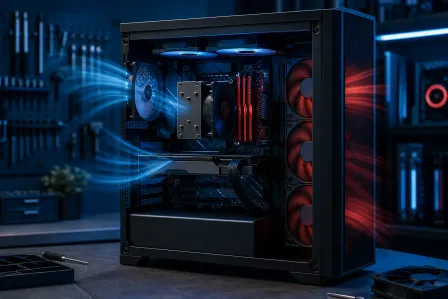
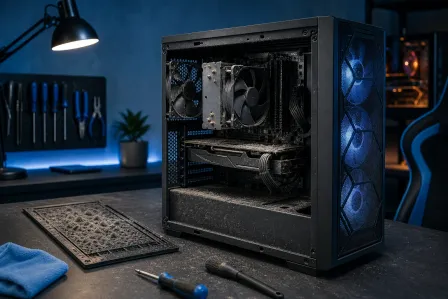
If you see a temperature spike right before the freeze, heat is likely your primary issue. Clean the GPU heatsink and case fans, reseat thermal pads if you are comfortable doing so, or improve airflow before anything else.
Step 2: Read the Windows Event Log
After a freeze, force a reboot and open Event Viewer. Go to Windows Logs, then System. Look for critical or error events logged right before the hang. Common entries to spot:
- Event ID 4101: Display driver stopped responding and recovered (or failed to recover)
- Event ID 1001: BugCheck, which means a full BSOD that you may not have seen because the screen was already frozen
- LiveKernelEvent entries tied to the GPU or a specific driver
Screenshot or write down the exact error text. That string will tell you whether the OS blamed the GPU driver, a kernel component, or something else entirely.
Step 3: Rule Out the GPU Driver
Bad or corrupted GPU drivers are the single most common cause of this exact symptom. The display pipeline dies but the audio driver, which lives in a separate kernel thread, keeps chugging along.
- Download the latest driver for your GPU from NVIDIA or AMD directly.
- Use Display Driver Uninstaller (DDU) in Windows Safe Mode to fully wipe the existing driver. Do not just run a standard update over the top.
- Install the fresh driver and retest.
If the freeze frequency drops or stops, the driver was the problem. If it continues, move on.
Step 4: Stress-Test the GPU in Isolation
Run FurMark or 3DMark for 15-20 minutes while monitoring temps and frame output. If the system freezes during a pure GPU stress test but not during a CPU-only workload, the GPU itself or its VRAM is the fault.
Next, test your integrated graphics if your CPU has them. Plug the monitor into the motherboard output, disable the discrete GPU in Device Manager, and run the same game at low settings. If freezes stop entirely, your discrete GPU is the suspect.
Ready to build a rig that actually rips? Start your build
Step 5: Check VRAM and System RAM
VRAM errors show up as corrupted textures, black screens, or hard freezes because the GPU cannot read its own frame buffer. You cannot directly test VRAM with standard tools the way you can test system RAM, but GPU-Z will show you if VRAM usage is maxing out right before the crash.
For system RAM, run Windows Memory Diagnostic or MemTest86 overnight. A single bad stick can cause GPU command buffer issues that look exactly like a GPU problem.
Step 6: Inspect Power Delivery
A GPU that is not getting enough power will freeze the display while the rest of the system stays alive. Check:
- Are you using the correct number of PCIe power connectors? Some high-end cards need two 8-pin connectors and will behave erratically with only one.
- Is the PSU wattage adequate? Add up TDP for your CPU plus GPU plus drives and leave a 20% headroom buffer.
- Are the PCIe cables fully seated at both ends? A loose connector is surprisingly common after a build or a cable management session.
If your PSU is several years old and you recently upgraded your GPU, the PSU may simply be undersized or degraded.
Step 7: Check for Overclocking Instability
Any active overclock on the GPU core, VRAM, or CPU is a prime suspect. Freezes that only happen under sustained load are a classic sign of an overclock that passes a quick benchmark but cannot hold up for an extended gaming session.
Reset everything to stock speeds in your BIOS and GPU software and retest for at least a full gaming session. If the freezes disappear, dial back your overclock incrementally and stress-test at each step.
Common Mistakes
- Reinstalling Windows first. That almost never fixes a freeze-with-audio issue and wastes hours. Isolate hardware before you touch the OS.
- Updating the GPU driver without DDU. Layering a new driver over a corrupt one leaves remnants that cause the same crash.
- Blaming the game. One game crashing can be a game bug, but if it happens across multiple titles the fault is almost certainly hardware or drivers.
- Ignoring PSU age. A five-year-old PSU running near its rated wattage is a common cause of intermittent display freezes that are easy to overlook.
- Skipping the Event Log. Windows usually names the culprit driver or component. That one step can cut your diagnosis time in half.
Bottom Line
Audio-continues freezes almost always mean the GPU, its driver, or its power supply choked while the CPU and audio stack stayed alive. Work the steps in order: temps first, then driver, then isolation testing, then power. Most cases are solved by step three or four.
If you have worked through all of this and the freezes are still happening, or if you suspect a failing GPU or PSU that needs hands-on testing, bring it into Fix My PC Store at 10140 Okeechobee Blvd, Suite B in West Palm Beach. Initial checks are free for most in-store repairs. You can also book a remote support session if you want a second set of eyes on your logs and Event Viewer before making any hardware decisions. Got a build you want done right from the start? Check out the custom gaming PC builder.
Ready to build a rig that actually rips?
Custom gaming PCs built and tuned by people who game. Tell us your budget and target frame rate.