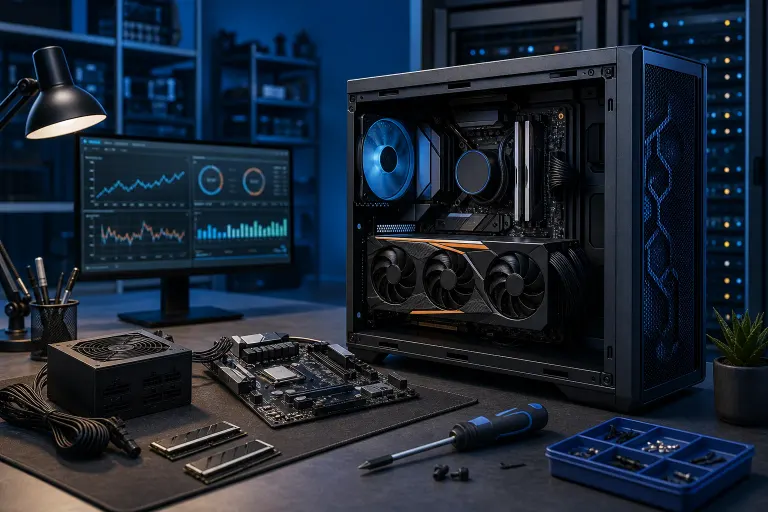
Gaming PC Bottlenecks: How to Find and Fix Yours
TL;DR: A bottleneck happens when one component can't keep up with another, leaving expensive hardware sitting idle. You can diagnose yours using free monitoring tools. Most bottlenecks are fixable without buying a whole new system.
What You Need
- A Windows PC (these steps apply to Windows 10 and 11)
- MSI Afterburner with RivaTuner Statistics Server (free, bundled together)
- Task Manager or HWiNFO64 for deeper CPU and RAM stats
- The game you think is running poorly, actually running
- About 30 minutes and a willingness to stare at graphs
Step 1: Understand What a Bottleneck Actually Is
Your GPU renders frames. Your CPU feeds it data. Your RAM holds the assets both need. When any one of those steps is slower than the others, the faster parts end up waiting. That wait time is your bottleneck.
The classic example: a flagship GPU paired with a five-year-old quad-core CPU. The GPU finishes rendering a frame and just... sits there, waiting for the CPU to send the next chunk of game data. Your frame counter tanks. Your GPU usage sits at 70%. You paid for a sports car and bolted it to a go-kart chassis.
Bottlenecks are not always about old hardware either. A brand-new GPU paired with too little RAM, or RAM running at the wrong speed, can strangle performance just as badly.
Step 2: Set Up Your Monitoring Overlay
You cannot fix what you cannot see. This is the most important step.
Install MSI Afterburner and RivaTuner. Open Afterburner, go to Settings, then the Monitoring tab. Enable these stats for your on-screen display (OSD):
- GPU Usage (%)
- GPU Temperature
- CPU Usage (per-core or total)
- RAM Usage
- Framerate (FPS)
- VRAM Usage
Hit OK, launch your game, and play for 10 to 15 minutes in a demanding scene. Heavy combat, open-world traversal, anything that makes your fans spin up. Watch the numbers.
Step 3: Read the GPU Usage Number First
This single number tells you the most.
GPU usage sitting at 95 to 99%? Great news, actually. That means your GPU is working flat out, which is exactly what you want. Your system is GPU-limited, which is the normal and healthy state for gaming. The GPU sets your performance ceiling. Want more FPS? You need a stronger GPU or lower settings.
GPU usage stuck at 60 to 80%? Something upstream is throttling it. Your CPU, RAM speed, or even the game engine itself is preventing the GPU from running wide open. This is a real bottleneck and it costs you frames.
GPU usage bouncing wildly, never stabilizing? Could be a driver issue, background software stealing CPU time, or a thermal throttle. Check your GPU temperature. Above 85 to 90 degrees Celsius under load is worth investigating. Check out our video on is overclocking worth it for context on how thermals and clocks relate.
Step 4: Check CPU Usage Per Core
Total CPU usage lying at 40% does not mean your CPU is fine. Modern games often hammer one or two cores hard while barely touching the rest.
In MSI Afterburner or HWiNFO64, look at per-core usage. If one core is pegged at 95 to 100% while your GPU is coasting below 80%, you have a CPU bottleneck. The GPU is waiting on that one overloaded core to finish its calculations before it can render the next frame.
This is extremely common with older dual-core and quad-core CPUs paired with newer GPUs. It is also common in games that are notoriously poor at using multiple cores.
Fixes for a CPU bottleneck:
- Raise your in-game resolution. Higher resolution shifts more work to the GPU, reducing CPU demand per frame.
- Lower CPU-heavy settings like draw distance, NPC density, and physics simulation.
- Close background apps. Discord, Chrome, streaming software. They eat cores.
- If the CPU is genuinely old, an upgrade may be the only real fix.
Ready to build a rig that actually rips? Start your build
Step 5: Test Your RAM Speed and Capacity
RAM is the sneaky bottleneck that people miss.
First, check capacity. Open Task Manager, go to Performance, then Memory. If your RAM usage is above 85 to 90% while gaming, you are running out. The system starts using your much-slower SSD as virtual memory, and FPS tanks.
16GB is the floor for modern gaming. 32GB is comfortable for most titles in 2024 and beyond.
Second, check RAM speed. Open HWiNFO64 or look in your BIOS. DDR4 RAM installed at 2133 MHz when your motherboard supports 3200 MHz means you may have XMP or EXPO disabled. XMP (Intel) and EXPO (AMD) are profiles baked into your RAM sticks that tell the motherboard to run at the advertised speed instead of a safe default.
Enabling XMP in your BIOS takes two minutes and can add meaningful FPS in CPU-bound scenarios. It is free performance you are probably leaving on the table right now.
How to enable XMP: Restart your PC, enter the BIOS (usually Delete or F2 during boot), find the XMP or memory profile setting, enable it, save, and exit.
Step 6: Check VRAM Usage
Modern games at high settings with high-resolution textures can push VRAM usage hard. If your overlay shows VRAM usage at or above your card's limit, the GPU starts borrowing from system RAM, and performance gets ugly.
Common VRAM limits: 8GB cards can struggle at 4K with ultra textures. 12GB is a safer floor if you game at 1440p and like cranking settings.
Fix: Lower texture quality or resolution. This is not a hardware bottleneck in the traditional sense, it is a VRAM capacity limit. Upgrading to a card with more VRAM is the permanent solution.
If you want to see what a well-balanced build actually looks like, our custom gaming PC builds show how we spec hardware so no single component holds another back.
Step 7: Rule Out Software and Driver Issues
Before spending money on hardware, eliminate the cheap explanations.
- Update your GPU drivers. Use DDU (Display Driver Uninstaller) to do a clean wipe first, then install fresh drivers from Nvidia or AMD directly.
- Check Windows power plan. It should be set to High Performance or Balanced, not Power Saver.
- Disable hardware-accelerated GPU scheduling if you are on older hardware. It helps on newer systems but can cause stutters on older ones.
- Turn off any overlays you are not using. Xbox Game Bar, Discord overlay, and GeForce Experience overlay can all steal frame time.
- Check if your game is capped. Many games have a built-in FPS cap in settings that people forget is on.
If after all of this your PC still seems sluggish, stutters, or crashes during gaming, there may be a hardware fault rather than a bottleneck. Our computer repair team in West Palm Beach can run diagnostics and figure out what is actually going on.
You can also get help fast with our remote support if you want a tech to look at your software setup without leaving the house.
Common Mistakes
Using online bottleneck calculators as gospel. Those tools guess based on component names. They do not know your actual workload, resolution, or game titles. Measure your own system with real tools.
Assuming the GPU is always the problem. Low GPU usage is a symptom of a CPU or RAM bottleneck. Do not buy a new GPU when your CPU is the one choking.
Ignoring background processes. A game running alongside Windows Update, a virus scan, and a browser with 40 tabs open is not a fair test of your hardware.
Disabling XMP and forgetting about it. This is one of the most common and easily fixed performance losses we see. Check it right now.
Overclocking without watching temperatures. Pushing your CPU or GPU clock speeds higher can recover bottlenecked headroom, but thermal throttling at high temps will undo all of it and then some. Watch the temps before chasing clocks. Our video on overclocking and whether it is worth it breaks this down further.
Not testing at the right resolution. A bottleneck at 1080p can disappear at 1440p or 4K because the GPU gets busier. Always test at your actual gaming resolution.
Bottom Line
Bottlenecks are not a sign your whole PC is junk. They are a sign that one part of your system is out of step with the others. Most of the time, the fix is free, whether that is enabling XMP, cleaning up background processes, or adjusting settings to shift load to the component that has headroom.
When hardware really is the limiting factor, knowing WHICH component is the culprit means you spend money on the right upgrade instead of guessing. A new GPU will not help a CPU bottleneck. A RAM upgrade will not save a VRAM-starved build.
If you are in West Palm Beach or anywhere in South Florida and want someone to look at your build, bench it properly, and give you an honest upgrade path, book a time with us or check out our gaming PC wizard to see what a balanced build looks like from the ground up. We have also done some wild custom builds, including a Times Square gaming PC and a Ryzen 9 RGB monster, if you want to see what properly balanced hardware looks like in action.
More FPS is out there. Go get it.
Ready to build a rig that actually rips?
Custom gaming PCs built and tuned by people who game. Tell us your budget and target frame rate.