How to Tell If Your Gaming PC Needs More Airflow or a Better Cooler
TL;DR: Check your temperatures with free software, then look at where the heat is building up. Whole-system temps rising together usually means airflow. One component running hot while others stay cool usually means the cooler on that part is the problem. Fix the right one and you'll see real FPS gains, not just lower numbers on a graph.
What You Need
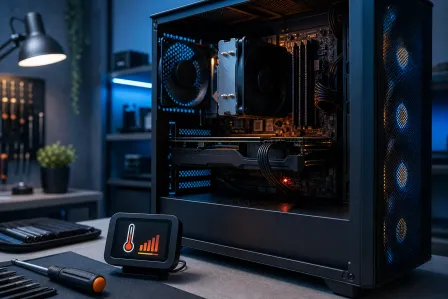
- HWiNFO64 (free) or MSI Afterburner for real-time temp monitoring
- A can of compressed air and a flashlight
- Screwdriver to open the side panel
- Thermal paste if you suspect a dried-out CPU cooler (more on that below)
- About 20-30 minutes
Step 1: Log Your Temperatures Under Load
Open HWiNFO64 and hit "Sensors Only." Fire up your most demanding game or run a stress tool like Cinebench R23 (CPU) and FurMark (GPU) for 10-15 minutes. Write down the peak readings for:
- CPU core temps
- GPU core temp
- Motherboard/chipset temp
- NVMe SSD temp if you have one
General alert thresholds to watch (check your specific chip's specs, as limits vary):
| Component | Worth investigating above |
|---|---|
| CPU (most modern) | ~85-90 °C |
| GPU (most modern) | ~85-90 °C |
| NVMe SSD | ~70 °C |
| Motherboard VRMs | ~90 °C |
These are rough guides. AMD and Intel publish their own max temps (Tjmax) for each chip. Always check the official spec for your exact CPU.
Step 2: Read the Pattern, Not Just the Number
This is where you actually diagnose the problem. Look at WHICH components are hot.
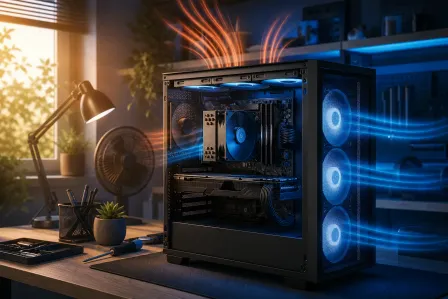
Everything is running hotter than it should: The whole system is starved of cool air. That points to a case airflow problem. Hot air is recycling instead of escaping.
Only your CPU is spiking: The CPU cooler can't shed heat fast enough. Could be a dying cooler, dried thermal paste, or a cooler that's undersized for your processor.
Only your GPU is spiking: The GPU cooler or its thermal pads may be the issue, especially on cards 3-4 years old. Airflow can also choke a GPU if it's exhausting heat straight into a dead zone.
GPU hot AND case ambient high: Could be both. Tackle airflow first since it's cheaper.
Step 3: Physically Inspect the Case
Pop the side panel and shine a flashlight in. You're checking:
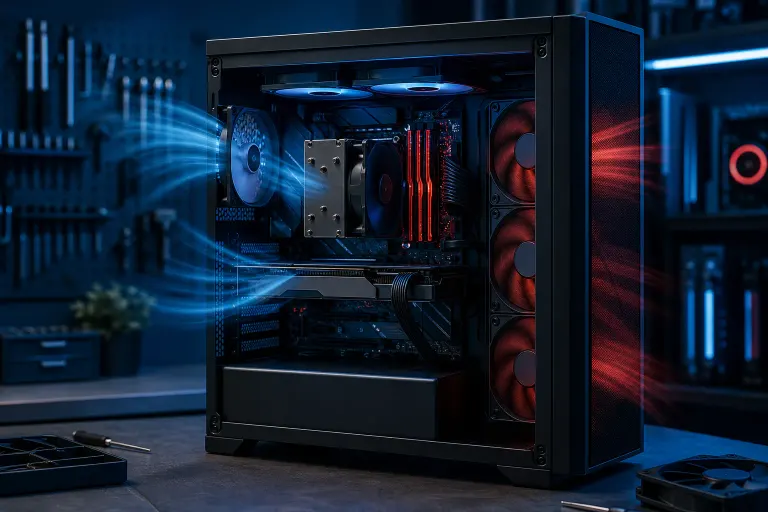
- Fan count and direction. Are there intake fans in front/bottom pulling cool air IN, and exhaust fans at the rear/top pushing hot air OUT? Positive or neutral pressure is the target. All fans blowing in or all blowing out is a configuration problem, not a hardware problem.
- Cable management. Cables bundled across the front intake are literally blocking airflow. Tuck them to the back panel.
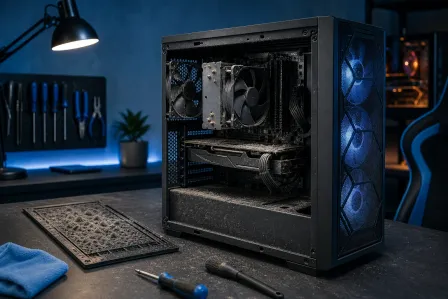
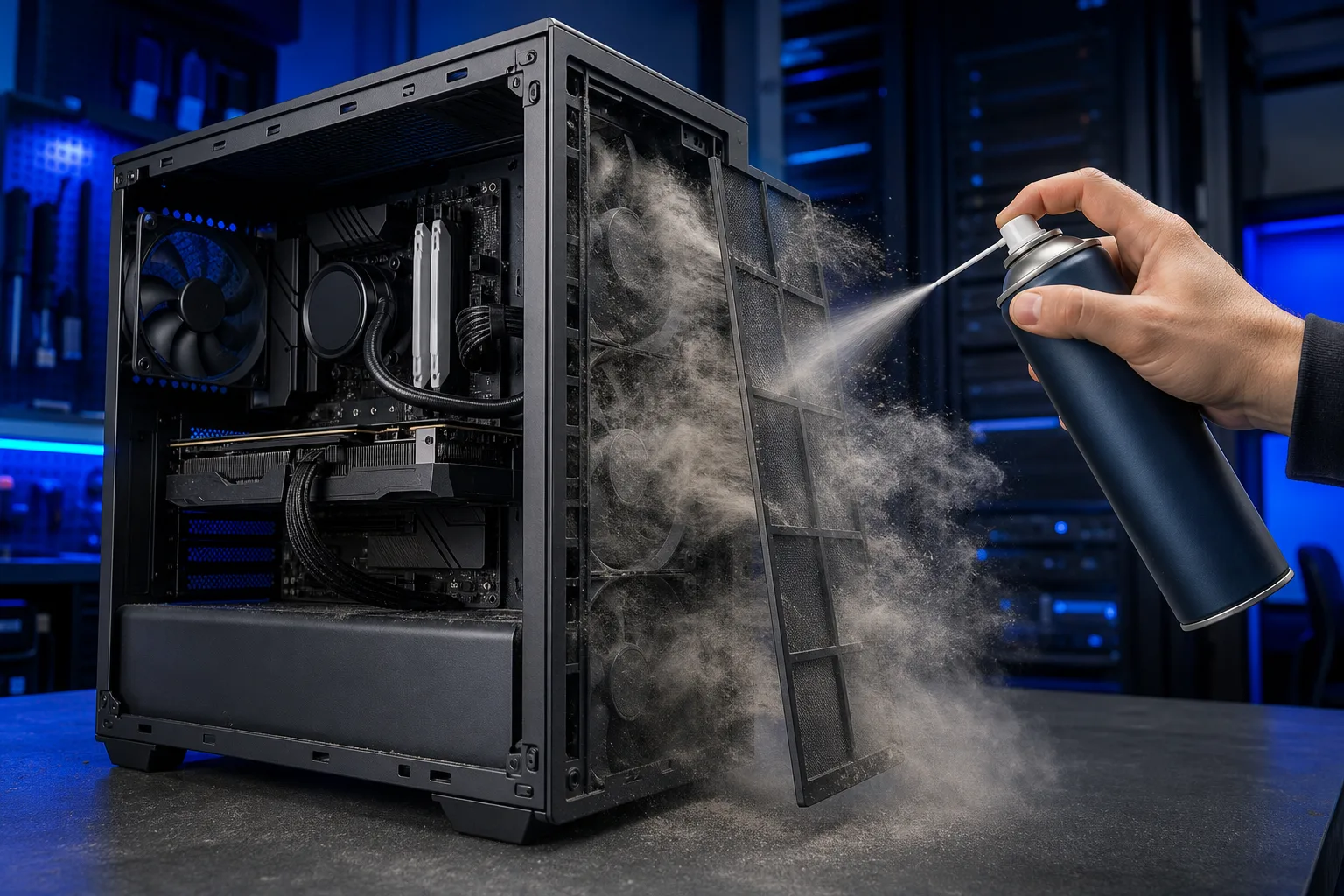
- Dust buildup. A clogged front filter or radiator fins choke intake like a pillow over a face. Blow it out with compressed air.
- Cooler mounting. CPU cooler screws should be snug. A loose mount causes terrible contact and sky-high temps.
Ready to build a rig that actually rips? Start your build
Step 4: Apply the Airflow vs Cooler Decision Checklist
Work through this in order:
- Dust cleaned? If not, clean first and re-test. Dust alone can cause 10-15 °C spikes.
- Fan configuration correct? Front/bottom = intake, rear/top = exhaust. Fix direction before buying anything.
- All components hot together? Add intake or exhaust fans, or switch to a case with better ventilation.
- Only CPU hot? Check cooler mounting pressure and thermal paste age. Paste older than 3-4 years on a hot chip should be replaced. If cooler contact is fine and paste is fresh, the cooler is undersized.
- Only GPU hot? Reseat the card, check the GPU cooler fans are spinning, and consider aftermarket GPU thermal pads on older cards.
- Liquid cooler (AIO) involved? Check that the pump is running (HWiNFO shows pump RPM) and the radiator is mounted as exhaust, not recirculating hot air back into the case.
Step 5: Match the Fix to the Diagnosis
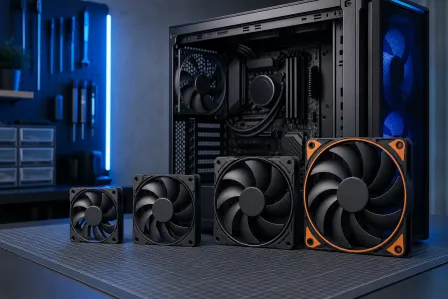
Airflow fix: Add fans before buying a new cooler. A $15-25 case fan often does more than a $60 cooler upgrade if the problem is hot ambient air bathing every component. Prioritize front intake, then top exhaust.
CPU cooler upgrade: If you're on a stock Intel or AMD cooler and pushing a 65W+ CPU hard, aftermarket air coolers like the Noctua NH-D15 or be quiet! Dark Rock Pro 4 are massive steps up. AIO liquid coolers help in cramped cases where a tower cooler won't fit.
Thermal paste replacement: Takes 20 minutes, costs under $10, and can drop CPU temps 10-20 °C if the original paste has dried out. WORTH IT before buying new hardware.
GPU cooler repair: Harder DIY territory. GPU thermal pads and repasting require disassembly of the cooler shroud. If your card is still under warranty, check that first.
Want to see what a properly cooled custom build looks like? Check out the Fix My PC Store build gallery for real-world examples, or spec your own rig with the custom gaming PC builder.
Common Mistakes
Buying a bigger cooler when airflow is the real problem. A 360mm AIO in a case with no intake fans will still cook your system. Cool air has to come from somewhere.
Running too much positive pressure. A little positive pressure (more intake than exhaust) is fine and reduces dust. Extreme positive pressure with no exhaust path traps heat.
Ignoring GPU thermal pads. GPU repasting gets attention but the thermal pads on VRAM and VRMs also degrade. On a 3-4 year old high-end card, this is often the hidden culprit.
Applying too much or too little thermal paste. Pea-sized dot in the center of the IHS. That's it. More is not better.
Blaming the cooler when the mount is loose. Check contact pressure before assuming the cooler is undersized.
Bottom Line
High gaming temps almost always trace back to either bad airflow through the case or a cooler that can't handle the heat load of your specific chip. The diagnostic is free: install HWiNFO64, stress the system, and look at the pattern. If everything is hot, fix airflow first. If one component is the outlier, target that cooler specifically. Clean, configure, then upgrade. In that order.
If you've run through this checklist and temps are still wild, or if you're dealing with thermal shutdowns mid-session, bring it into Fix My PC Store at 10140 Okeechobee Blvd, West Palm Beach. Initial checks are free for most standard in-store repairs, and we'll tell you exactly what needs fixing before any work starts. Call us at 561-819-9999 or book online.
Ready to build a rig that actually rips?
Custom gaming PCs built and tuned by people who game. Tell us your budget and target frame rate.