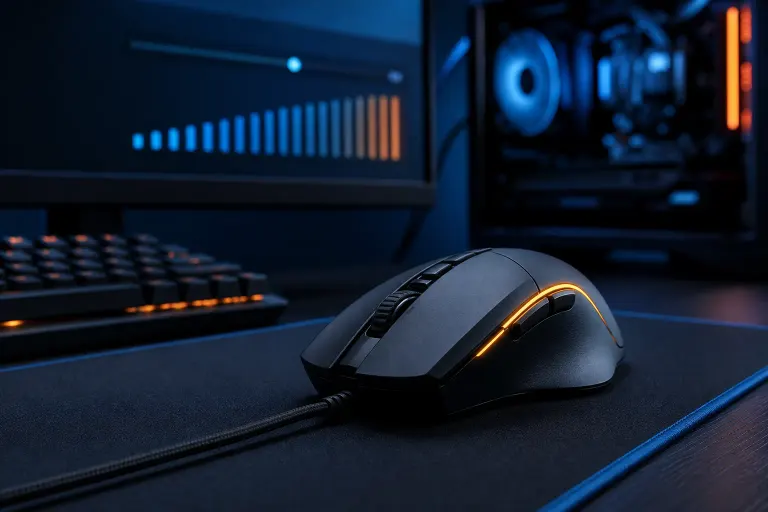
Gaming Mouse DPI Settings: What They Mean and How to Set Yours
TL;DR: DPI (dots per inch) measures how sensitive your mouse is to physical movement. Higher is not always better. Find your ideal DPI by matching your game type, monitor resolution, and personal aim style, then lock it in through your mouse software or onboard buttons.
What You Need
- A gaming mouse with adjustable DPI (most modern ones qualify)
- Mouse software if your mouse has it: Razer Synapse, Logitech G HUB, SteelSeries GG, Corsair iCUE, etc.
- Your in-game sensitivity slider (every game has one)
- About 15 minutes to test and tune
Step 1: Understand What DPI Actually Does
DPI stands for dots per inch. At 800 DPI, moving the mouse one physical inch moves the cursor 800 pixels. At 3200 DPI, that same inch moves 3200 pixels.
Higher DPI = faster cursor travel for the same hand movement. That sounds great until you realize fast cursor travel makes fine aiming harder, not easier. Your hand trembles slightly with every movement, and at extreme DPI those micro-tremors show up as big cursor wobble.
Here is what DPI does NOT change on its own: it does not improve your hardware's tracking accuracy, reduce input lag, or add polling rate speed. Those are separate specs.
Common confusion: In-game sensitivity and DPI multiply together. 3200 DPI at sensitivity 1.0 moves the same distance as 800 DPI at sensitivity 4.0. The difference is that 800 DPI + high in-game sensitivity adds software interpolation, which feels slightly mushy. 800 DPI + moderate in-game sensitivity is the cleaner signal.
Step 2: Know the DPI Ranges That Actually Get Used
Forget the 25,600 DPI spec on the box. Here is what competitive and casual players actually run.
| DPI Range | Who Uses It | Why |
|---|---|---|
| 400-800 | FPS/tactical shooters (CS2, Valorant, warzone) | Precise flick aim, low sensitivity feel |
| 800-1600 | General gaming, MOBAs, RPGs | Balanced speed and control |
| 1600-3200 | RTS, desktop navigation, fast-paced action games | Quick cursor coverage on large monitors |
| 3200+ | Rarely gaming, mostly accessibility or huge displays | Hard to aim precisely at this range |
Pro FPS players almost universally sit in the 400-800 range. That is not a trend, it is physics. Slower hand movement equals finer muscle control.
Step 3: Pick a Starting DPI for Your Game Type
Start here, then tune from there.
FPS / Battle Royale (Valorant, CS2, Apex, Warzone): Start at 800 DPI. Set in-game sensitivity so a 180-degree turn requires roughly 20-30 cm of mouse movement. Most pros land between 400x1.0 and 800x0.8 effective sensitivity.
MOBA / Strategy (League, Dota 2, StarCraft): Start at 1200-1600 DPI. You need quick clicks across large maps. Precision aiming is less critical.
Action RPG / Third-Person (Elden Ring, Cyberpunk, God of War): 800-1200 DPI works well. Camera control matters more than micro-aiming.
Desktop + Productivity (if you game on the same PC): Use a DPI button or profile to snap to 1600+ for desktop use, then drop back to your gaming DPI when you launch a game.
Ready to build a rig that actually rips? Start your build
Step 4: Set Your DPI
Two ways to do this, depending on your mouse.
Option A: Mouse Software (Most Accurate)
- Download your mouse's companion app (Razer Synapse, Logitech G HUB, SteelSeries GG, Corsair iCUE, etc.).
- Open the DPI or sensitivity settings panel.
- Create a profile for your main game.
- Set one or two DPI stages, your primary gaming DPI and a desktop DPI if you want both.
- Save to onboard memory if your mouse supports it. That setting travels with the mouse to any PC.
Option B: Onboard DPI Button (No Software)
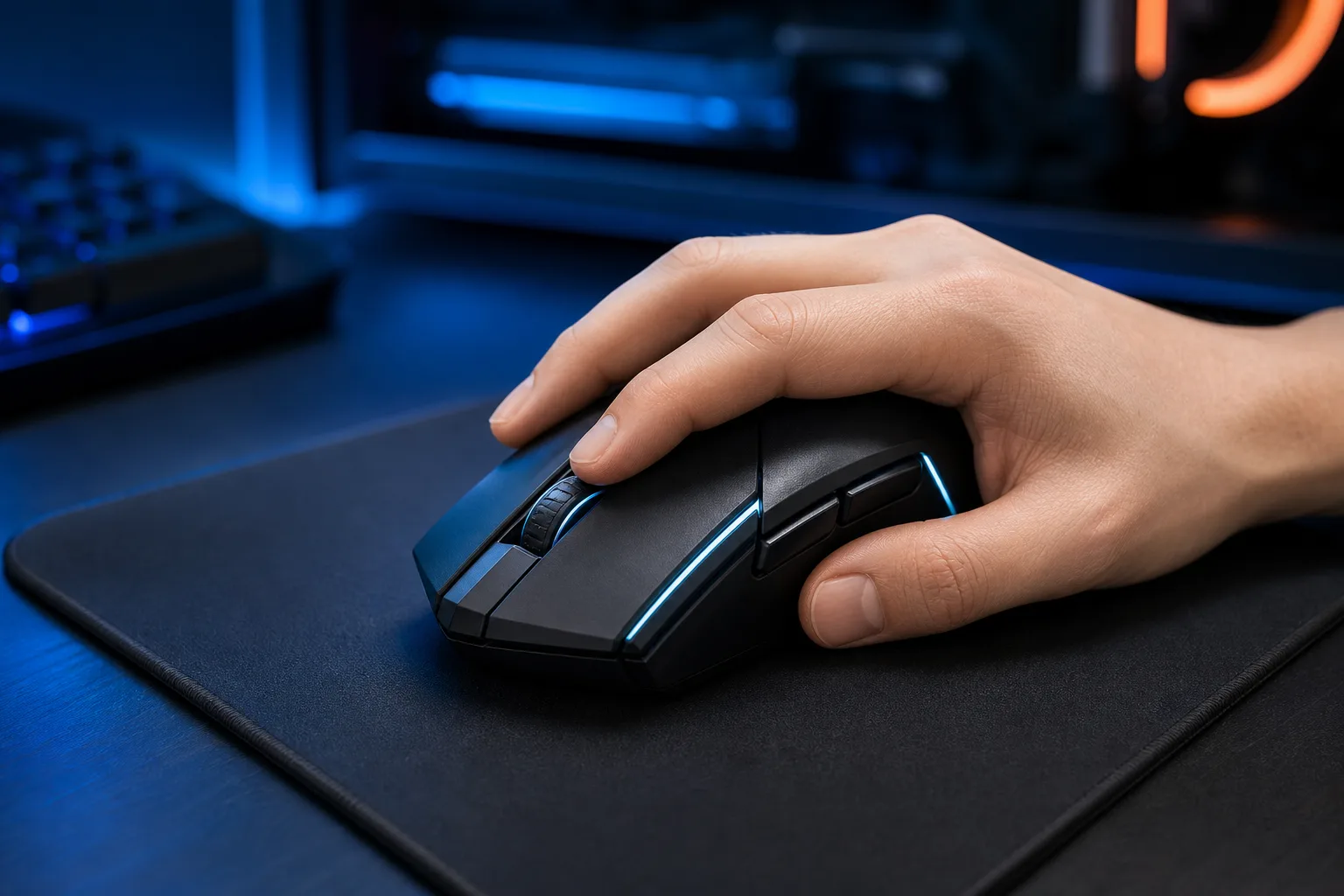
Most gaming mice have a DPI cycle button on top. Each press steps through preset DPI stages (often 400, 800, 1600, 3200 or similar). Check your mouse manual for the exact stages. Some mice let you customize those presets without software by holding the DPI button during startup. Check your specific mouse model's documentation.
Step 5: Calibrate In-Game Sensitivity to Match
Once DPI is set, open your game and adjust the in-game sensitivity slider until a 180-degree turn feels controlled but not sluggish.
A repeatable test: put a piece of tape at the left edge of your mousepad. Swipe right until you have made exactly a 180-degree turn in game. Mark where your mouse lands. Practice until that distance feels natural. If the turn completes before you reach the right edge of your pad, drop DPI or in-game sensitivity. If you run out of pad before completing the turn, raise one of them.
Use 3D Aim Trainer or Aim Lab (both free) to stress-test your settings in a controlled environment before taking them into ranked.
Step 6: Match DPI to Your Monitor Resolution
Higher resolution monitors benefit from slightly higher DPI because there are more pixels to cover. A rough guide:
- 1080p: 400-800 DPI works great
- 1440p: 600-1200 DPI is a comfortable range
- 4K: 800-1600 DPI helps offset the larger pixel canvas
This is not a hard rule. It is a starting point. Your arm/wrist preference and game type still override resolution math.
Common Mistakes
Chasing the highest DPI number. Marketing hype. Nobody competes at 16,000 DPI. Lower DPI with good technique beats jittery high DPI every time.
Mixing high DPI with high in-game sensitivity. Double-stacking sensitivity multiplies every tiny hand tremor. Pick one lever to tune, keep the other moderate.
Never calibrating after changing your mousepad. A larger or different-surface pad changes how far you physically move the mouse. Recalibrate when you switch surfaces.
Ignoring polling rate. DPI and polling rate work together. Most gaming mice default to 1000 Hz (one position report per millisecond). Some newer mice offer 4000-8000 Hz. If your mouse software lets you raise it, 1000 Hz is fine for almost everyone. 500 Hz or lower can introduce lag you will notice.
Changing settings constantly. Muscle memory takes days to weeks to build. Pick settings, commit to them for at least a week of play before judging them.
Bottom Line
DPI is just a sensitivity multiplier. The best DPI is the one that lets your hand move naturally and put crosshairs exactly where you intend. For most FPS players that is 400-800 DPI with moderate in-game sensitivity. For faster-paced or strategy games, 1200-1600 is a solid zone. Set it in your mouse software, calibrate in-game, and give it real playtime before tweaking again.
If you are building or upgrading the rig those settings will run on, check out our custom gaming PC builder to spec out a machine that keeps up with every frame you earn.
Ready to build a rig that actually rips?
Custom gaming PCs built and tuned by people who game. Tell us your budget and target frame rate.