Desktop Won't Wake From Sleep? Here's the Real Fix
TL;DR: A desktop that won't wake from sleep is usually caused by a power setting conflict, an outdated driver, a peripheral that's confusing the wake signal, or a power supply that's starting to fail. Work through the steps below in order and you'll almost always find the culprit without opening the case.
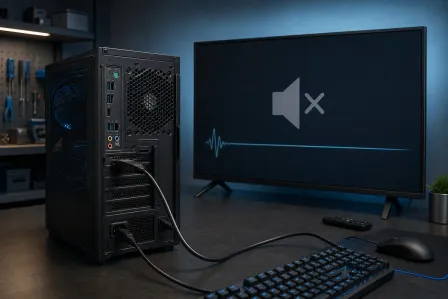
You hit a key, you jiggle the mouse, and nothing happens. Screen's black. Fans might be spinning, might not be. It's frustrating because the PC isn't really "off," it's just stuck somewhere between asleep and awake, and that in-between state is exactly why it's tricky to diagnose. The sleep state your PC enters is called S3 in ACPI terminology, and it's designed to preserve your session while cutting power to most components. When the wake signal gets lost or confused somewhere along that chain, you end up exactly where you are right now: staring at a dark screen and wondering if you should just hold the power button and hope for the best. Good news? This is one of the most fixable problems in desktop computing. Let's walk through it together.
What you need
- A few minutes and the ability to hold down your power button
- Access to Windows Settings (or a way to boot into Safe Mode if things are really stuck)
- Your monitor's power cable and video cable, just to double check connections
- Optional but helpful: a USB mouse and keyboard you know work, for testing
- Patience. We're doing this step by step, no guessing
If at any point this feels like more troubleshooting than you want to do solo, our team handles this exact issue all the time at our computer repair shop, and we also offer remote support if you'd rather have someone walk through it with you live.
Step 1: Confirm it's actually a wake problem, not a power problem
First thing, let's rule out the simple stuff. Press and hold the power button for about 10 seconds to force a shutdown, then press it again to turn the PC back on normally. Does it boot up fine?
If yes, great, that tells us the PC itself is healthy and this is specifically a sleep/wake issue, not a dead power supply or failed motherboard. Pay attention to what you see during that boot: if it reaches your desktop normally, loads your apps, and everything looks right, you've confirmed the hardware is intact. The problem lives in software or settings, which means it's very likely fixable without spending a dime. If the PC won't even power on normally, that's a different problem entirely, and it might be worth reading up on laptop repair style diagnostics or just calling us, since a PC that won't boot at all points to hardware.
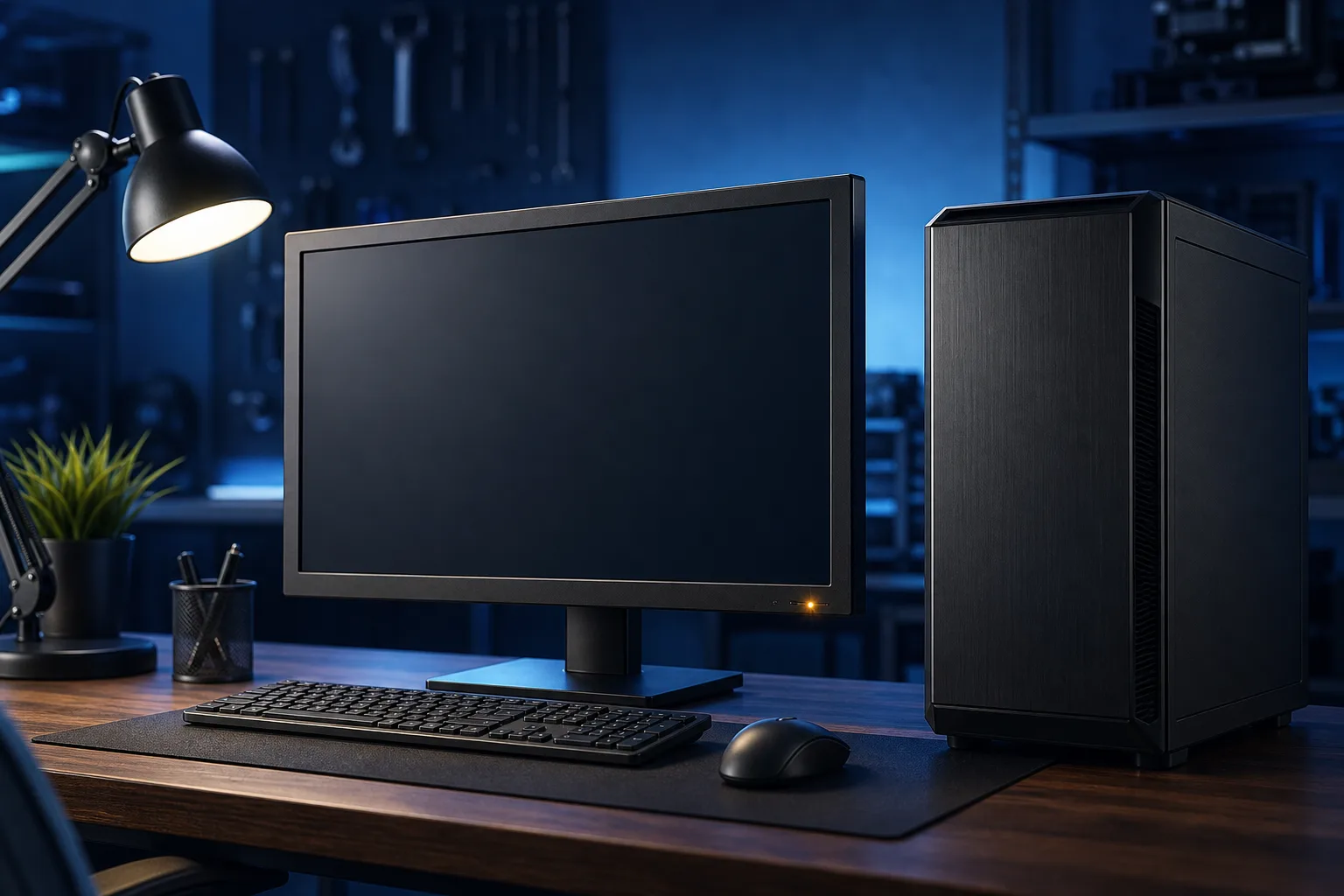
Also check your monitor before you go any further. Sometimes the PC wakes up just fine, but the monitor doesn't follow. This happens more often than people expect, especially with monitors that have their own aggressive power-saving modes. Look for a light on the monitor bezel. If it's amber or blinking instead of solid white or blue, the monitor is asleep independently and just needs its own power cycle. Unplug it from the wall, wait ten seconds, plug it back in, and press its physical power button. If the monitor springs back to life and shows your desktop, you didn't have a PC problem at all. You had a monitor problem, and it's already solved.
One more thing to check here: make sure the video cable between the PC and monitor is fully seated. DisplayPort cables in particular have a reputation for working themselves slightly loose over time, especially if the cable has any tension on it from being routed around furniture. A half-connected DisplayPort cable can produce exactly the symptoms you're describing, because the monitor handshake fails and the display stays dark even though the PC is running perfectly.
Step 2: Check your power plan settings
Windows has a setting that controls exactly how sleep and wake behave, and it's the single most common cause of this issue. The default power plans in Windows 10 and 11 are generally fine, but they can get changed by app installations, driver updates, or Windows updates themselves, sometimes without any obvious notification. Here's how to check it.
- Click Start and type power plan into the search bar, then click Choose a power plan.
- Look at which plan is currently selected. If you see Power saver highlighted, that's your likely culprit. Power saver mode aggressively cuts power to devices during sleep, and some hardware, especially older USB controllers and certain graphics cards, doesn't handle that gracefully when it's time to wake up.
- Switch to Balanced or High performance and click Change plan settings next to whichever one you choose.
- Set Turn off the display to something reasonable, like 15 or 30 minutes.
- Set Put the computer to sleep to Never temporarily, just while you're testing. You can set it back once you've confirmed the problem is resolved.
- Click Save changes.
Now let the PC sit idle for 20 minutes and see if it wakes normally when you return. If it does, the power plan was the issue. You can experiment with re-enabling sleep at longer intervals to find a setting that works reliably on your specific hardware.
While you're in power settings, there's one more option worth checking: Allow hybrid sleep. Hybrid sleep is a combination of sleep and hibernate that writes your session to disk as a backup. On some desktops, particularly those with older chipsets, hybrid sleep causes wake failures because the system can't decide whether to resume from RAM or from disk. To turn it off, click Change advanced power settings inside your plan, expand Sleep, and set Allow hybrid sleep to Off.
Computer acting up? Get a real diagnosis. Book a diagnostic
Step 3: Check which devices are allowed to wake the PC
Windows lets specific devices send a wake signal to pull the PC out of sleep. This is useful when it works correctly, but it becomes a problem when the wrong device, or a misbehaving device, sends phantom signals that either wake the PC at the wrong time or confuse the wake process entirely. A USB hub that loses power during sleep can cause the PC to start waking and then stall midway, which leaves you with exactly the black-screen-and-spinning-fans situation.
Here's how to audit your wake devices:
- Right-click the Start button and choose Device Manager.
- Expand the Network adapters section. Right-click your ethernet adapter and choose Properties, then go to the Power Management tab.
- You'll likely see a checkbox that says Allow this device to wake the computer. For most desktop users, this should be unchecked unless you specifically use Wake-on-LAN for remote access.
- Do the same for anything listed under Keyboards, Mice and other pointing devices, and Universal Serial Bus controllers. Look for any item with the Power Management tab available and uncheck the wake permission.
- Leave your primary keyboard and mouse with wake permissions enabled, since you need something to actually trigger the wake event.
The USB controllers category deserves extra attention. A USB 3.0 root hub that's set to allow wake can cause problems if a connected device, like an external hard drive or a USB hub, glitches during the low-power state. If you have a lot of USB peripherals, try unplugging everything except your keyboard and mouse, then test sleep and wake again. If it works with a clean USB setup, add devices back one at a time until the problem returns. That last device you added is your culprit.
Step 4: Update or roll back your graphics driver
Graphics drivers are the second most common cause of wake failures, and the reason is straightforward: waking from sleep requires the GPU to reinitialize and re-establish the connection with the monitor. If the driver is buggy, outdated, or was recently updated to a version with a known issue, that handshake fails and you get a black screen.
For NVIDIA users, open GeForce Experience and check for updates under the Drivers tab. For AMD users, open AMD Software: Adrenalin Edition and do the same. Install any pending updates and restart the PC.
If the wake problem started after a recent driver update, rolling back is often the faster fix. Go to Device Manager, expand Display adapters, right-click your GPU, and choose Properties. Under the Driver tab, click Roll Back Driver if that option is available. This restores the previous version, which often resolves the issue immediately.
One specific scenario worth mentioning: if you're using a DisplayPort connection and your GPU went to sleep without the monitor connected or powered, some NVIDIA and AMD cards fail to detect the display on wake. Switching to HDMI temporarily, or simply making sure the monitor is on before the PC tries to wake, can confirm whether this is what's happening.
Step 5: Run the Windows Power Troubleshooter and check event logs
Windows has a built-in troubleshooter for power issues that catches a surprising number of problems automatically. To run it, go to Settings > System > Troubleshoot > Other troubleshooters and click Run next to Power. Let it complete and apply any fixes it suggests.
For a deeper look, open Event Viewer by typing it into the Start search. Navigate to Windows Logs > System and look for errors or warnings around the times the wake failure occurred. Filter for the source Power-Troubleshooter or look for Event ID 1 which logs the wake source. If you see entries blaming a specific device or driver, that's your next target.
You can also run this command in an elevated Command Prompt to generate a full power diagnostic report:
powercfg /energy
Windows will analyze your system for 60 seconds and output an HTML report, usually saved to C:\Windows\System32\energy-report.html. Open it in a browser and look for anything flagged as an error, especially under the USB and sleep sections.
Step 6: Consider hardware causes if nothing above worked
If you've been through every software step and the problem persists, the issue may be physical. Power supplies that are beginning to fail often still have enough output to run the PC normally but struggle to deliver the brief surge of power needed to wake from sleep. This is especially common in systems that are three or more years old and have never had the PSU replaced. If you have access to a known-good power supply, swapping it in as a test is the cleanest way to rule this out.
A failing CMOS battery can also cause sleep and wake problems, because it's responsible for storing BIOS settings including power state configurations. If the battery is weak, those settings can reset or behave inconsistently. Replacing the CMOS battery is a simple fix that costs about five dollars and takes ten minutes.
Finally, check inside the case for dust. A GPU or CPU that overheats during normal use will sometimes enter a self-protective state that looks identical to a sleep problem. Compressed air through the vents takes two minutes and occasionally solves the whole thing.
If you've made it this far and still can't pin it down, we're happy to help. Bring it into our computer repair shop and we'll run a full hardware diagnostic, or book a remote support session and we'll work through the remaining possibilities with you in real time.
Computer acting up? Get a real diagnosis.
Fix My PC Store has repaired thousands of machines across West Palm Beach. Honest pricing, no upsell games, and a free diagnostic for new customers with our email coupon.