Why Does My Desktop PC Keep Losing the Date and Time?
TL;DR: A desktop that keeps losing the date and time almost always has a dead or dying CMOS battery, the little coin cell on your motherboard that keeps the clock running when the PC is unplugged. Swap it for about five bucks and the problem usually disappears for good. If it doesn't, you're looking at motherboard or software issues that go a little deeper.
What you need
Before you crack the case open, grab these:
- A new CR2032 battery (the flat, round watch-style battery, sold at any drugstore, hardware store, or big-box retailer)
- A Phillips screwdriver
- A grounding strap or just a habit of touching bare metal before you touch anything inside
- Five minutes of patience and zero static electricity in your socks
That's it. This is one of the cheapest, easiest fixes in PC repair, which is exactly why it's so annoying when people pay someone $150 to do it. The CR2032 is an almost universal standard, the same battery powers key fobs, small remotes, and bathroom scale displays, so you'll find it basically everywhere. If you want to be extra prepared, buy two. They're often sold in multi-packs for under $10, and having a spare means you won't be making another run to the drugstore in three or four years when the fresh one eventually dies too.
1. Confirm it's actually the CMOS battery
Here's the quick test. Does your PC's clock reset every single time you unplug it or the power goes out, but stays correct as long as it's been running or plugged in? That's the battery. The classic symptom is unmistakable: you power the PC on after a weekend away, and the date reads something like January 1, 2002, or whatever arbitrary default your motherboard manufacturer hard-coded in from the factory. Some boards reset to the date they were manufactured. Others just go back to the Unix epoch or another placeholder. Either way, the screen greets you with a date that's clearly wrong before Windows even finishes booting.
A secondary symptom people often overlook is BIOS settings reverting unexpectedly. The CMOS battery doesn't just keep the clock, it also maintains a small amount of memory that stores your BIOS configuration. So if you've ever noticed that your custom boot order keeps scrambling, your overclocking settings keep disappearing, or your PC suddenly forgets that it should boot from the SSD instead of trying the optical drive first, a dying CMOS battery is frequently the culprit behind that too.
If the time only drifts slowly, like it's a few minutes off after a week of normal use, that's a different problem entirely. Windows is supposed to sync automatically with an internet time server called time.windows.com at regular intervals. If your clock is consistently running fast or slow by small amounts, the fix is usually as simple as right-clicking the clock in the taskbar, selecting "Adjust date/time," and making sure "Set time automatically" and "Sync now" are both doing their jobs. A firewall rule or a corporate network policy occasionally blocks the NTP sync traffic, which causes this slower drift without any hardware fault at all.
One more diagnostic clue: go into your BIOS/UEFI settings (usually by pressing Delete, F2, or F10 right as the PC boots, the exact key is typically shown briefly on the splash screen) and check the time displayed there. If it's wrong even in the BIOS itself, before Windows has had any chance to load, that conclusively confirms it's a hardware issue rather than a software one. The operating system has no ability to influence the BIOS clock while the OS isn't running. If BIOS shows the wrong date, the battery is the culprit with near certainty.
2. Open the case and find the battery
Power down completely, flip the switch on the back of your power supply to the off position if it has one, and unplug the PC from the wall. Then hold the power button for about five seconds to discharge any residual electricity stored in the capacitors on the board. This step takes five seconds and can prevent a static discharge from damaging a component that costs far more than a CR2032.
Open the side panel, most modern mid-tower cases use thumbscrews, a push-button latch, or a sliding mechanism rather than traditional screws. If yours does use screws, a Phillips head handles them in almost every case. Lay the tower on its side so the motherboard is facing up, which makes it much easier to see everything without craning your neck.
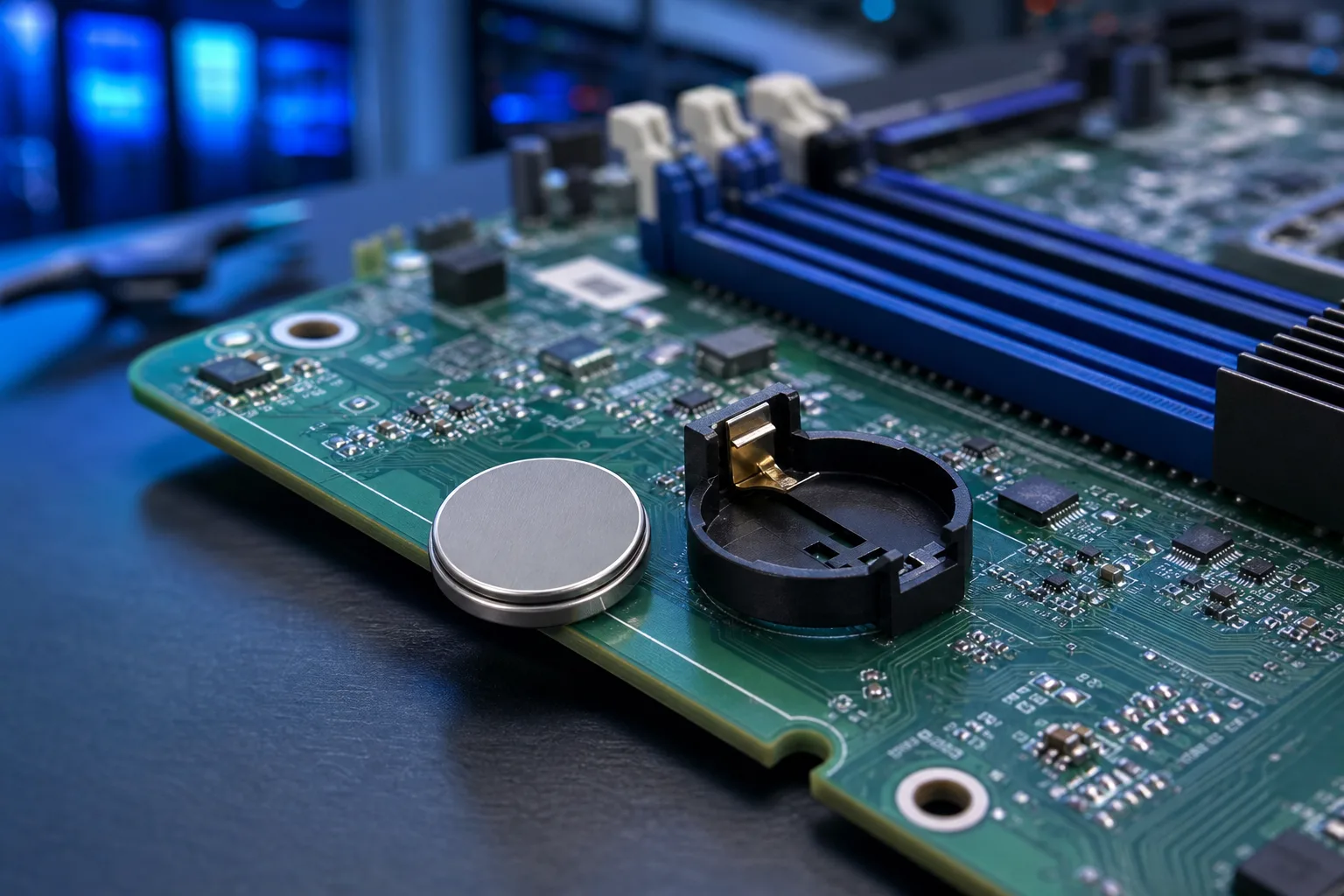
Look for a small, round, silver battery about the size of a nickel or a large shirt button, usually positioned near the RAM slots or along the lower portion of the motherboard. It sits flush in a simple spring-loaded metal clip with a small tab on one side. On a standard ATX board, it tends to live somewhere in the lower-right quadrant of the motherboard, though smaller micro-ATX and mini-ITX boards place it wherever there's available real estate. You genuinely cannot miss it once you know what you're looking for, it's the only coin-shaped object on the entire board.
If you're not comfortable opening a desktop tower, or you're worried about voiding a warranty on a recent prebuilt system from a manufacturer like Dell, HP, or Lenovo, this is a fair spot to hand it off. Computer repair shops deal with this constantly, and it's a fast, low-cost fix when someone else does the crawling around inside your case. Many manufacturers also publish official service manuals online that walk through the process for their specific models, which can be reassuring if you want to follow an official diagram rather than general instructions.
Computer acting up? Get a real diagnosis. Book a diagnostic
3. Note the orientation, then pop it out
Before you touch anything, take a close look at which side of the battery faces up. On a CR2032, the positive side is the flat face printed with the battery model number, and it almost universally faces upward, away from the board, in standard motherboard clips. But confirming this before you remove the old battery saves you the guesswork of trying to remember the orientation when you go to install the new one.
To release the battery, use a fingernail, a small flathead screwdriver, or a non-conductive spudger to gently press down on the metal retaining tab on the side of the clip. The battery will pop upward slightly and slide right out. Don't force it and don't pry from underneath, the clip is designed so that pressing the tab releases the battery cleanly without bending anything.
Take the old battery to the store with you if you want to double-check the model number before buying, though virtually every standard desktop motherboard made in the last 25 years uses the same CR2032. The diameter is 20mm and the thickness is 3.2mm, that's where the number comes from. Slip the new battery into the clip with the positive side facing up, press it down gently until you feel it seat against the spring, and you're done with the hardware portion.
4. Boot up and set the time
Plug everything back in, power the PC on, and go straight into the BIOS before Windows loads. Set the correct date and time manually there first. This is important because Windows will read the hardware clock on boot, and if you let Windows load before setting the BIOS time, you may get a cascade of timestamp errors or activation warnings that sort themselves out anyway but are mildly alarming in the moment.
Save and exit the BIOS, let Windows boot normally, then right-click the taskbar clock and select "Adjust date/time." Make sure "Set time automatically" is turned on and hit "Sync now" to pull the correct time from the internet time server. From that point forward, Windows will keep the BIOS clock updated on its own during normal operation.
If replacing the battery doesn't fix it
In a small number of cases, swapping the battery solves nothing. Here's what might be going on instead:
The battery holder is damaged. If the metal clip on the motherboard is bent, corroded, or making poor contact, it won't hold a charge to the battery properly even if the battery itself is brand new. You can sometimes bend the clip tab back into shape carefully, but if the contact points are corroded, a motherboard replacement or professional repair is the more reliable path.
A software or driver conflict is resetting the clock. Certain virtualization tools, dual-boot Linux configurations, and some aggressive power management drivers have been known to interfere with the system clock in ways that look like hardware failure but aren't. If you run a dual-boot system, Linux stores time in UTC by default while Windows stores it in local time, which causes them to fight over the hardware clock every time you switch between them. The fix is to configure Linux to use local time instead, which is a one-line terminal command.
The motherboard itself has a fault. If the RTC (real-time clock) circuit on the motherboard is damaged, sometimes caused by power surges, liquid damage, or just age, no battery in the world will keep reliable time. This is uncommon but not unheard of, particularly on older boards or systems that have lived through a lightning strike on an unprotected outlet. At that point the economics of repair versus replacement start to shift, and it's worth getting a professional opinion on whether the board is worth fixing.
For the overwhelming majority of people reading this, though, the answer is a five-dollar battery and ten minutes of their afternoon. Buy the CR2032, swap it out, and enjoy a PC that finally knows what year it is.
Computer acting up? Get a real diagnosis.
Fix My PC Store has repaired thousands of machines across West Palm Beach. Honest pricing, no upsell games, and a free diagnostic for new customers with our email coupon.