Cloud Storage vs. Local Backup: Which Actually Protects You?
TL;DR: Cloud storage (Dropbox, Google Drive, OneDrive) is not a backup. It is a sync service. Local backup to an external drive or NAS gives you fast, reliable recovery. A real protection strategy uses both, structured deliberately. If you only have one, you are already exposed.
At a Glance
| Factor | Cloud Storage | Local Backup |
|---|---|---|
| Speed to restore | Slow (depends on internet) | Fast (direct drive access) |
| Protects against ransomware | Partially, with caveats | Yes, if drive is disconnected |
| Protects against hardware failure | Yes | Yes |
| Protects against accidental deletion | Limited retention windows | Yes, with versioning |
| Ongoing cost | Monthly subscription | Upfront hardware cost |
| Works without internet | No | Yes |
| Off-site protection | Yes | Only if stored elsewhere |
| Setup complexity | Low | Low to moderate |
Neither column wins cleanly. That is the honest answer, and it shapes everything below.
What Cloud Storage Actually Does
Services like Google Drive, Dropbox, and Microsoft OneDrive are designed for access and collaboration, not recovery. When you save a file to a synced folder, that file is pushed to the cloud and mirrored across your devices. Convenient, yes. But that is also the problem.
Syncing works in both directions. If you accidentally delete a folder, that deletion syncs everywhere, including to the cloud. If ransomware encrypts your files, the encrypted versions sync up almost immediately. Most cloud providers offer version history or a trash recovery window, but those retention periods are limited. Typically 30 days on free tiers, sometimes 180 days on paid plans. After that window closes, the data is gone.
This is not a flaw in cloud storage. It is doing exactly what it was built to do. The mistake is calling it a backup when it is really a mirror.
That said, cloud storage does solve a real problem: off-site redundancy. If your house floods or a fire takes out your desk, your files are still accessible from anywhere. For individual documents, photos, and working files, that is genuinely useful protection.
If your business relies on Microsoft 365, note that Microsoft does not guarantee long-term backup of your mailboxes or SharePoint data. A third-party backup layer is worth considering.
What Local Backup Actually Does
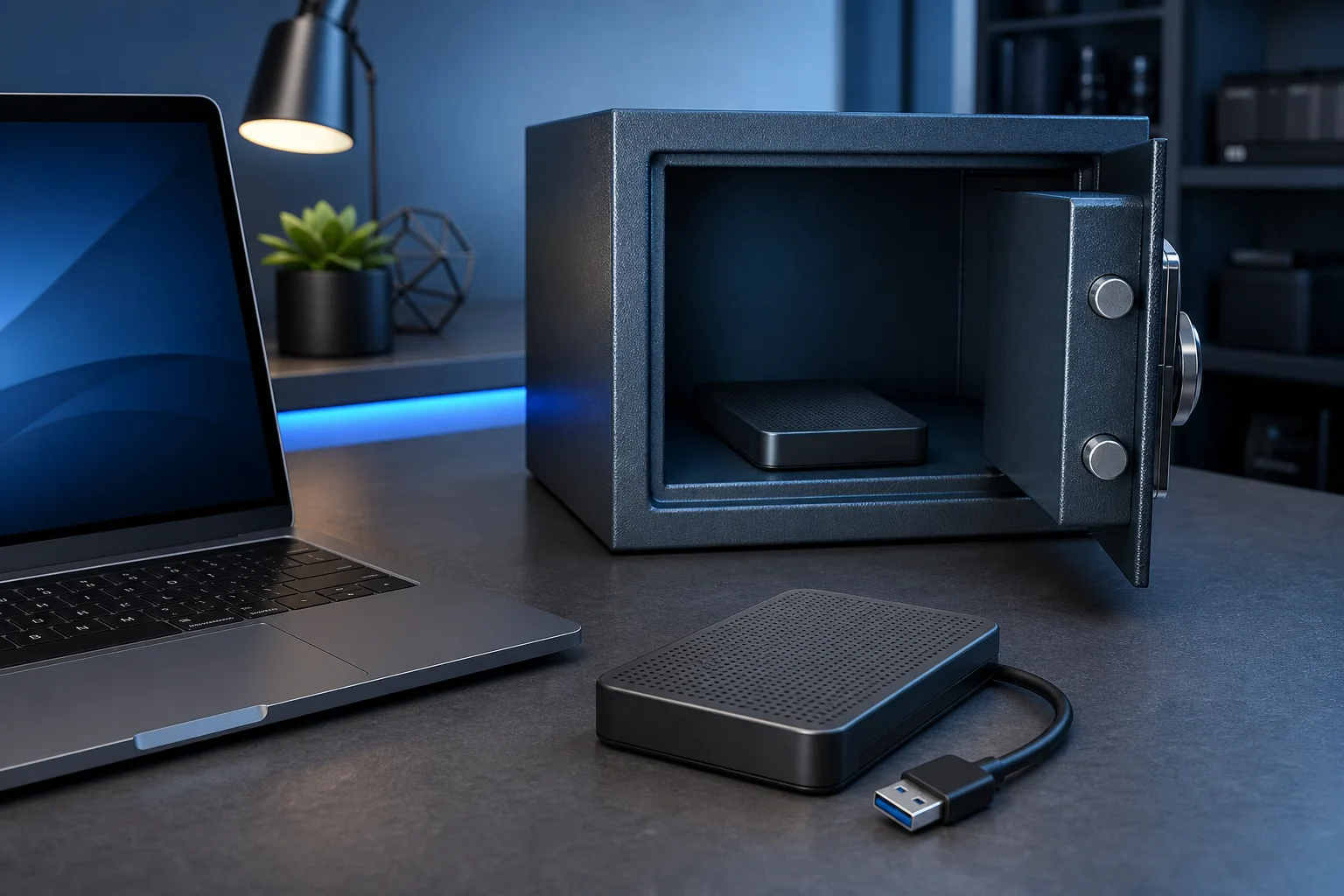
Local backup means copying your data to a separate physical device, typically an external hard drive, a NAS (network-attached storage), or both. The key distinction is that the backup process is scheduled and deliberate, not a real-time sync.
A proper local backup tool (Windows Backup, macOS Time Machine, or dedicated software like Macrium Reflect) takes snapshots of your data at set intervals and retains multiple versions. You can roll back to yesterday, last week, or last month depending on how you configured it.
Restoration speed is where local backup dominates. Pulling 200 GB from an external drive over USB takes minutes. Pulling 200 GB from the cloud over a typical home internet connection can take hours, sometimes a full day. For a small business trying to recover from a ransomware attack or a failed drive, that time difference is significant.
The vulnerability of local backup is physical proximity. If the backup drive sits next to your computer and both are destroyed in the same event, you have nothing. And if the external drive is always connected to your machine, ransomware can encrypt it too. A disconnected or rotated backup solves both problems.
For businesses managing multiple machines, this is where managed IT services become worth the conversation. Tracking backup health across a team is not a one-person job.
Tired of IT that breaks at the worst time? Talk to our business IT team
The Ransomware Problem
Ransomware deserves its own section because it exposes the limits of both approaches simultaneously.
Ransomware encrypts your files and demands payment for the decryption key. It moves fast, often encrypting thousands of files in minutes. Here is how each backup type holds up:
Cloud storage: If your cloud folder is synced, encrypted files start uploading immediately. By the time you realize something is wrong, the cloud copy may already reflect the encrypted versions. Depending on your version history window and how quickly you catch it, recovery may be possible or it may not.
Local backup (connected): Same problem. If your external drive is mounted when ransomware runs, it is a target.
Local backup (disconnected or air-gapped): This is what actually works. A backup drive that is not connected to your machine when the attack occurs cannot be encrypted. Rotate your drives, store one off-site, and you have a real recovery path.
This is the core logic behind what the security industry calls the 3-2-1 rule: three copies of your data, on two different media types, with one copy off-site. It is not complicated, but most people do not follow it.
For businesses, the stakes are higher. A proper backup and disaster recovery plan should document exactly what gets backed up, how often, where it goes, and how long a recovery would realistically take. That last number, called the Recovery Time Objective, is the one most businesses have never thought about until they need it.
You can read more about ransomware defense strategies from CISA's ransomware guidance, which is practical and free.
Cost and Complexity: The Honest Comparison
Cloud storage costs nothing to start and scales with usage. Most people already have Google Drive, iCloud, or OneDrive bundled into something they pay for. The setup cost is essentially zero. The ongoing subscription cost is manageable, usually a few dollars a month for expanded storage.
Local backup requires upfront hardware. A reliable external drive runs roughly $60 to $150 depending on capacity. A NAS with redundant drives runs higher, but for a home user or small office it can protect years of data without recurring costs.
Complexity is similar for both at the basic level. Where local backup gets more involved is when you want automation, offsite rotation, and monitoring. That is where most people set it up once and then forget to check whether it is actually running. A backup that stopped working six months ago is not a backup.
If you are not sure whether your current backups are healthy, our remote support team can connect to your machine and audit what is actually running.
Specific Scenarios: Which One Saves You
Scenario 1: Your hard drive fails. Both options help, assuming your cloud data is current and your local backup is recent. Local backup wins on speed of recovery.
Scenario 2: You accidentally delete a project folder. Cloud storage with version history may save you if you catch it quickly. Local backup saves you regardless, as long as the last snapshot predates the deletion.
Scenario 3: Ransomware hits. A disconnected local backup is your best option. Cloud storage is unreliable here unless you catch the attack before sync propagates.
Scenario 4: Your office floods or burns. Cloud storage saves you. An off-site local backup saves you. A drive sitting in the same room as your computer does not.
Scenario 5: Your internet goes down for three days. Local backup lets you restore and keep working. Cloud-only leaves you waiting.
Notice that no single scenario favors one option exclusively. The combination wins every time.
For businesses managing this across multiple users or locations, the business IT and cybersecurity side of this problem connects directly to your overall risk posture, not just your storage choices.
Verdict
Cloud storage and local backup solve different problems. Treating them as interchangeable is the mistake most people make, and it leaves them exposed in exactly the situations that matter most.
The right answer is structured: use cloud storage for accessibility and off-site redundancy. Use local backup, with versioning and a rotation schedule, for fast and reliable recovery. Follow the 3-2-1 rule. Know your recovery time objective before you need it.
If you are a home user, start with an external drive and Time Machine or Windows Backup today. If you are running a business, that conversation belongs in a broader managed IT and disaster recovery plan, not a checklist you revisit once a year.
Data loss is almost always a preventable outcome. The structure that prevents it is not complicated. It just has to actually be in place before the problem happens.
Questions about your current setup? Book a quick consult and we will tell you honestly what you have and what you are missing.
Tired of IT that breaks at the worst time?
We run managed IT, backups, and security for South Florida businesses so you can stop thinking about it.