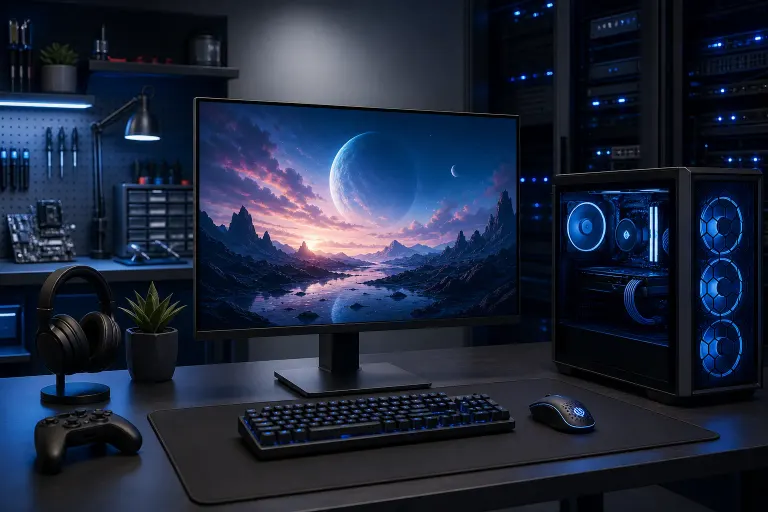
How to Choose the Right Monitor for a Custom Gaming PC
TL;DR: Buy the monitor around the games you play and the GPU you own, not around the biggest number on the box. For most custom gaming PCs, 27-inch 1440p with a high refresh rate is the sweet spot. Competitive players may want 1080p or 1440p at even higher refresh rates, while 4K makes sense when the graphics card can genuinely push it.
A monitor is not an afterthought. It is the finish line for every frame your custom PC renders. Get the pairing right and your rig feels ridiculously smooth. Get it wrong and you can leave serious FPS, clarity, or desktop comfort on the bench.
At a glance
| Monitor type | Best for | Main upside | Main tradeoff |
|---|---|---|---|
| 24-25 inch, 1080p, high refresh | Esports and competitive shooters | Easy for many PCs to drive at very high FPS | Less detail and workspace than 1440p or 4K |
| 27 inch, 1440p, high refresh | Most PC gamers | Excellent balance of sharpness, speed, and GPU demand | Needs a reasonably capable GPU for high settings |
| 28-32 inch, 4K, high refresh | Visual-first single-player gaming and creator use | Big detail jump, excellent desktop space | Much harder on the GPU, often costs more |
| Ultrawide 3440 x 1440 | Sim racing, flight sims, RPGs, immersive games | Wider field of view and cinematic immersion | More pixels to render, some games handle ultrawide poorly |
| OLED gaming monitor | Deep blacks, motion clarity, premium image quality | Incredible contrast and fast pixel response | Higher cost and potential image-retention considerations |
Before comparing models, answer three questions: What games dominate your library? What GPU is going into the build? How far will you sit from the screen? Those answers narrow the field fast.
Start with the GPU and your realistic frame rate
Your graphics card renders the frames. The monitor determines how many of those frames you can see and how sharp they look. That is why a monitor choice should come after, or alongside, the GPU choice.
A 360Hz monitor can refresh up to 360 times per second, but it cannot magically make a game run at 360 FPS. If your system runs a demanding game at 90 FPS, the higher-refresh display can still feel responsive, especially with adaptive sync, but you are not getting the full high-Hz payoff.
Likewise, 4K has roughly four times as many pixels as 1080p. That visual upgrade is real. So is the GPU workload. A card that crushes a game at 1080p may need lower settings, upscaling, or frame-generation features to stay smooth at 4K. Those tools can be useful, but do not buy a monitor based only on an idealized benchmark result.
Be honest about your usual games:
- Competitive titles such as Valorant, Counter-Strike, Fortnite, Rocket League, and Overwatch reward low latency and very high frame rates.
- AAA single-player games reward resolution, contrast, HDR quality, and a refresh rate high enough to keep motion smooth.
- Simulation, strategy, and RPG games benefit from larger screens, sharper text, and ultrawide space.
- Mixed libraries usually land in 1440p high refresh territory. This is the all-rounder build, the reliable main character.
If you are planning the whole rig, use our custom gaming PC builder to match the display target with the rest of the hardware. Chasing 4K at high settings calls for a very different parts list than crushing esports titles at 1080p.
Resolution: 1080p vs. 1440p vs. 4K
Resolution is the number of pixels on the panel. More pixels can mean finer detail, cleaner text, and a sharper image, but only if screen size, viewing distance, and GPU performance are in the mix.
1080p: maximum speed on a friendlier budget
Full HD, or 1920 x 1080, remains a smart choice for players who want high FPS without requiring top-tier graphics hardware. It is particularly effective on a 24- or 25-inch monitor, where pixel density remains decent at a normal desk distance.
This is the classic competitive setup. You can prioritize 144Hz, 240Hz, or higher refresh options and put more of the budget into a faster GPU, CPU, or mouse. For twitch shooters, that can be the right call.
The downside is desktop space and image detail. On a 27-inch screen, 1080p can look softer because those pixels are stretched over a larger area. It is playable, obviously, but 27-inch 1440p generally looks noticeably cleaner for web browsing, work, and story-driven games.
1440p: the custom gaming PC sweet spot
At 2560 x 1440, 1440p gives you a strong upgrade in sharpness over 1080p without the massive GPU demand of 4K. On a 27-inch monitor, it is the goldilocks zone. Text is crisp, games look detailed, and modern midrange-to-high-end gaming PCs can often deliver excellent frame rates with sensible settings.
A 1440p monitor with a 144Hz, 165Hz, 180Hz, or higher refresh rate makes sense for a huge range of builds. You get the smooth mouse movement and motion handling gamers love, plus enough pixel density to make a desktop setup feel premium.
If you only want one answer for most players in West Palm Beach, this is it: a 27-inch 1440p high-refresh monitor with adaptive sync. Pair it with a balanced custom build and you are cooking.
4K: detail monster, GPU hungry
At 3840 x 2160, 4K looks outstanding in detailed games, open worlds, racing titles, and cinematic experiences. It also provides lots of room for streaming tools, timelines, spreadsheets, and productivity windows.
But 4K is not a free visual buff. The GPU has to feed all those pixels. A high-refresh 4K monitor is best paired with a powerful graphics card, especially if you want high settings in newer games. You may still use upscaling or tune a few graphics settings, and that is normal. Smart settings are not surrender. They are optimization.
For 4K, 27 to 32 inches is common. A 27-inch 4K panel is extremely sharp. A 32-inch 4K panel offers a bigger, more immersive image while maintaining solid pixel density. Measure your desk first. A giant panel too close to your face is not immersion. It is neck DPS.
Refresh rate and response time: where smoothness lives
Refresh rate, measured in hertz or Hz, tells you how frequently the monitor can update the image. Higher refresh rates can make motion look smoother and reduce the time between a newly rendered frame and its appearance on screen.
The practical tiers look like this:
- 60Hz to 75Hz: Fine for office work and casual use, but not ideal for a new gaming build unless the budget is extremely tight.
- 120Hz to 180Hz: A huge smoothness upgrade and a great range for mainstream gaming.
- 240Hz and above: Best suited to competitive players who can consistently produce high frame rates in their chosen games.
Do not buy based on refresh rate alone. A 240Hz monitor is not automatically better than a well-built 165Hz monitor. Panel quality, resolution, motion handling, adaptive sync, brightness, and connectivity all matter.
Response time is another spec that gets abused in marketing. It refers to how quickly pixels change from one color state to another. Slow transitions can create smearing or ghosting behind moving objects. Manufacturers may advertise a very low number measured under aggressive overdrive settings that can introduce inverse ghosting, visible as bright halos or overshoot.
The move: read hands-on reviews that show actual response behavior at several refresh rates. Then use the monitor’s overdrive setting that looks clean in your games, not necessarily the one labeled “Extreme,” “Turbo,” or some other boss-fight nonsense.
Ready to build a rig that actually rips? Start your build
Panel type: IPS, VA, TN, and OLED compared
Panel technology shapes the screen’s colors, viewing angles, contrast, speed, and price. There is no universal winner. There is a best fit for your play style.
IPS: versatile, colorful, and easy to recommend
IPS panels are common in gaming monitors because they usually offer strong color reproduction and wide viewing angles. They work well for mixed gaming, media, school, work, and content creation use.
Their traditional weak point is contrast. In a dark room, blacks may look more gray than they would on OLED or many VA displays. Still, a good IPS monitor is a strong choice for most gamers, especially in a bright South Florida room where daylight is part of the setup.
VA: strong contrast with potential motion tradeoffs
VA panels can deliver deeper blacks and higher contrast than typical IPS displays. That makes them appealing for dark games, movies, and immersive single-player experiences.
However, some VA panels can show dark-level smearing in fast motion. It varies substantially by model. Do not assume every VA monitor behaves the same. Check reviews for black smearing and motion performance before buying, especially if you play fast shooters.
TN: speed-focused but less common for general gaming
TN panels were once the default choice for competitive high-refresh gaming because they could be very fast. Their color and viewing-angle limitations make them less attractive for a modern all-purpose setup, though speed-focused options still exist.
If you are building strictly for competitive play and value motion performance above image quality, TN can still be worth considering. For most custom builds, IPS or OLED is easier to live with every day.
OLED: absurd contrast, premium considerations
OLED pixels can turn off individually, producing true blacks and exceptional contrast. Motion clarity can also be excellent because pixel transitions are extremely fast. In the right game, especially a dark cinematic title, OLED can look absolutely cracked.
There are tradeoffs. OLED monitors typically cost more, and static interface elements may require care because image retention or burn-in risk can be a consideration over long-term use. Use screen protection features, avoid leaving static images up for long stretches, and understand the warranty before purchasing. Bright-room performance also varies by model and panel finish.
For players who want elite image quality and understand the care involved, OLED is a serious endgame option. For a work-heavy PC with static windows displayed all day, a quality IPS display may be the calmer choice.
Screen size, aspect ratio, and your desk setup
Screen size is not just about going bigger. It is about matching resolution, desk depth, and how you actually use the PC.
A 24- to 25-inch display suits 1080p and competitive gaming well. The entire screen remains easy to track without excessive eye movement. A 27-inch monitor is the natural home for 1440p. It is large enough to feel immersive without taking over a typical desk.
At 32 inches, 4K becomes especially compelling. You get a bigger canvas for games and multitasking, but you need enough desk depth to sit comfortably. Consider a monitor arm if the stand steals too much space or puts the screen too close.
Ultrawide monitors add horizontal resolution, commonly around 3440 x 1440. They are fantastic for racing sims, flight sims, open-world games, and multitasking. The extra peripheral view can be wild. Just confirm your favorite games support ultrawide correctly. Some titles add black bars, crop menus awkwardly, or restrict aspect ratios in competitive modes.
Curved ultrawides can improve immersion, but curve is personal preference. Sit in front of one before committing if possible. A curve that feels awesome for a single centered user may be less convenient if you often show content to someone beside you.
Adaptive sync, HDR, and the specs that need a closer look
Adaptive sync reduces tearing and stutter
Adaptive sync allows the monitor to vary its refresh timing to better match the game’s frame rate. This helps reduce screen tearing and can make uneven frame rates feel smoother.
Compatibility depends on the monitor and graphics card, so check the manufacturer specifications and current driver support. NVIDIA’s G-SYNC Compatible monitor information and AMD’s FreeSync information are useful starting points, but always confirm the exact model you are considering.
Adaptive sync is one of those features you may barely notice when it is working, then immediately miss when it is gone. For most gaming monitor purchases, it should be on the checklist.
HDR labels are not all equal
High dynamic range can improve highlights, shadow detail, and color range. A great HDR monitor can make sunlight, neon, fire, and dark scenes look far more convincing. RGB fans know the vibe. Proper HDR can make your whole setup pop.
But HDR quality varies wildly. A monitor may accept an HDR signal without delivering the brightness, contrast control, or local dimming needed for a dramatic HDR experience. Do not purchase solely because the box says HDR.
Look for independent testing on sustained brightness, local dimming behavior, contrast, and tone mapping. OLED often has a major contrast advantage, while some high-end LCD monitors use local dimming systems to improve HDR. A basic monitor with limited HDR capability may still look good in standard dynamic range, and there is nothing wrong with that.
Ports matter more than people think
Check which ports your GPU and monitor have before ordering. DisplayPort is widely used on gaming PCs, while HDMI is also common and may be necessary for consoles or other devices. The exact port version and monitor implementation can affect which resolution, refresh-rate, color, and HDR combinations are available.
Do not assume every HDMI or DisplayPort connection provides identical bandwidth. Read the monitor manual and GPU specifications for the exact mode you want to use. If you plan to run two displays, make sure the GPU has enough outputs and your desk has a cable plan that does not look like a spaghetti-speedrun category.
A USB hub, USB-C connection, KVM switch, or adjustable stand can also be useful. These are quality-of-life features, not FPS features, but they can make a daily setup far better.
A practical buying path for South Florida gamers
Here is a clean way to avoid analysis paralysis.
First, identify your target games and expected FPS. If you mainly play esports, prioritize refresh rate and motion clarity. If you play detailed single-player games, prioritize 1440p or 4K, contrast, and HDR performance.
Second, match resolution to GPU horsepower. Do not force 4K onto a build that will mostly struggle there. A smooth 1440p experience is often more satisfying than 4K with inconsistent performance.
Third, choose the physical format. For most desks, 27-inch 1440p is an easy win. Choose 24-25 inches for competitive 1080p. Move to 32-inch 4K or ultrawide only if the desk depth and use case support it.
Fourth, shortlist models with adaptive sync, the ports you need, and reliable reviews of response time and HDR behavior. A clean spec sheet is not the whole story.
Finally, spend budget where you will feel it. A display can outlive several graphics card upgrades, so it is reasonable to buy well. But do not drain the GPU budget for a monitor your current build cannot drive. Frames first, then flex.
Already have a monitor that flickers, drops signal, or refuses to run at its advertised refresh rate? Our computer repair team can help troubleshoot the PC side, cables, ports, drivers, and hardware. If you want a custom build and display plan built around your games, contact Fix My PC Store in West Palm Beach.
Verdict
For most custom gaming PCs, choose a 27-inch 1440p IPS monitor with a high refresh rate and adaptive sync. It is the strongest balance of image quality, smoothness, desk comfort, and GPU demand. It gives a capable gaming PC room to stretch its legs without requiring a no-compromises 4K graphics setup.
Choose 1080p at very high refresh rates if competitive shooters are your main mission and you want every possible FPS advantage. Choose 4K if you have the GPU power, value image detail, and play more cinematic or visually demanding games. Choose ultrawide when immersion and simulation games are the priority. Choose OLED when premium contrast and motion quality matter most and you are comfortable with the care considerations.
The best monitor is not the one with the loudest spec list. It is the one your GPU can feed, your desk can fit, and your favorite games can fully exploit. Match the panel to the build, dial in the refresh rate, and let those frames fly.
Ready to build a rig that actually rips?
Custom gaming PCs built and tuned by people who game. Tell us your budget and target frame rate.