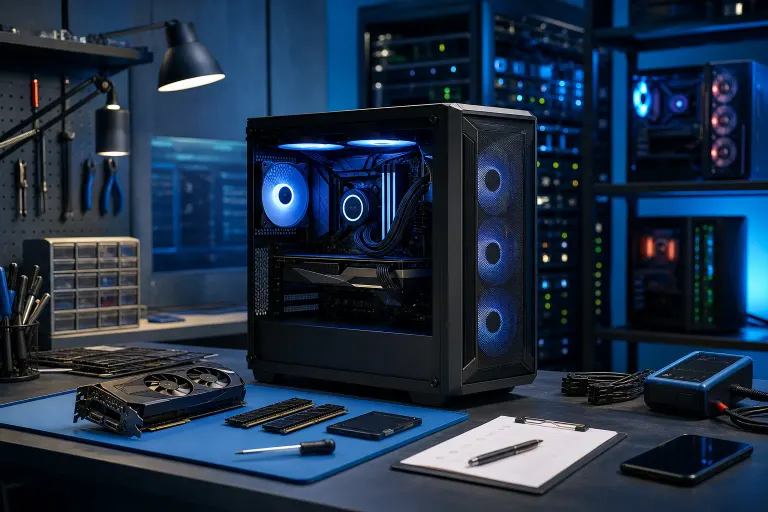
How to Buy a Used Gaming PC Without Hidden Problems
TL;DR: A used gaming PC is only a deal when you can verify the exact parts, see it run under load, inspect its condition, and price it against current alternatives. Meet locally, test before paying, avoid sellers who cannot provide specs, and budget for a clean Windows install plus any needed maintenance.
Buying used can score you serious frames-per-dollar. It can also land you a dusty, overheating mystery box with a tired power supply and a GPU that spent two years mining at full blast. No panic. A smart inspection process separates a legit sleeper build from someone else’s rage-quit project.
1. Start With a Realistic Target Build
Before scrolling listings, decide what you need the PC to do. “Gaming PC” is not a specification. A system built for Fortnite at 1080p is a totally different animal than one meant for high-refresh 1440p, ray tracing, VR, streaming, or editing video between matches.
Write down four things:
- The games you play and the resolution you use.
- Your monitor refresh rate, such as 60Hz, 144Hz, or higher.
- Whether you need Wi-Fi, Bluetooth, lots of storage, or streaming capability.
- Your total budget, including a possible repair, upgrade, keyboard, mouse, or monitor.
Then compare the used listing to current component generations, not just the seller’s original purchase price. A PC that cost a lot five years ago may still be useful, but it is not automatically worth a premium now. Parts age at different speeds. A capable graphics card can retain gaming value, while an old hard drive, low-capacity SSD, or weak CPU may hold the whole build back.
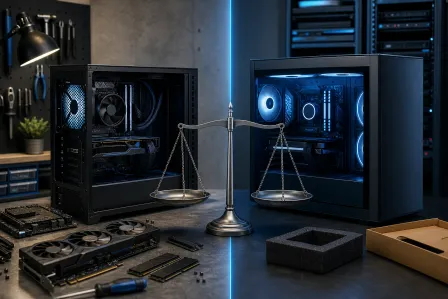
If you keep finding listings with odd compromises, like a powerful GPU paired with an ancient processor and 8GB of RAM, consider what a properly balanced new system would cost. Our custom gaming PC builder is also a useful reference point for comparing a used deal against a build designed around your games and budget.
2. Get the Full Parts List Before You Leave Home
Never buy a used gaming PC from a listing that says only “fast,” “high-end,” or “runs everything.” Those are vibes, not specs. Ask for the exact make and model of every major component.
At minimum, request:
- CPU model, not just “Intel i7” or “Ryzen 7.”
- GPU model and video memory.
- Motherboard model.
- RAM capacity, speed, and number of sticks if known.
- Storage type and capacity for every drive.
- Power supply brand, model, and wattage.
- CPU cooler and case model.
- Windows version and whether it is activated.
The power supply question matters big time. A quality PSU can run reliably for years. A no-name unit with vague wattage claims is a red flag, especially in a PC with a power-hungry graphics card. It is the component that feeds every other component. Do not let a shiny RGB fan setup distract you from a questionable power supply hiding in the basement of the case.
Ask for screenshots from Windows System Information, Task Manager, or a hardware-monitoring utility. Photos of the actual interior help too. If the seller refuses, does not know the specs, or says they are “too busy” for basic verification, move on. South Florida has plenty of listings. You do not need to gamble your cash on a mystery rig.
3. Watch for Parts That Are Misrepresented or Mismatched
Some listings are intentionally misleading. Others come from sellers who genuinely do not understand what they own. Either way, the result is the same if you pay for hardware that is not there.
Pay close attention to naming. For example, an i7 name tells you very little without its generation and model number. A newer midrange CPU can outperform an old i7 in games, while an older model may limit a newer graphics card. The same goes for “RTX” and “GTX” labels. The exact model matters.
Look for these common gotchas:
- A “gaming drive” that is actually an old mechanical hard drive.
- One 16GB RAM stick instead of two 8GB sticks. It works, but it may reduce memory bandwidth and leave performance on the table.
- A powerful graphics card installed in a system with a low-end or very old CPU.
- A GPU listed by a broad family name rather than the exact card.
- A huge claimed storage number that includes slow or failing drives.
- A case full of RGB, but a bargain-bin motherboard, PSU, and cooler.
Also ask whether any parts were replaced, repaired, or bought used before the current seller owned them. There is nothing automatically wrong with repaired or secondhand components. You just need the truth so you can judge the risk and price accordingly.
4. Inspect the Case Before You Power It On
Once you meet, start with a visual inspection. Do not rush because the seller says another buyer is on the way. Maybe there is. Maybe it is pressure. Either way, you are buying hardware, not speed-running a loot drop.
Check the outside for dents, bent ports, missing screws, cracked panels, loose USB connectors, and signs that the machine was stored somewhere damp or dirty. In West Palm Beach and across the Treasure Coast, humidity and garage storage are not exactly a dream combo for electronics.
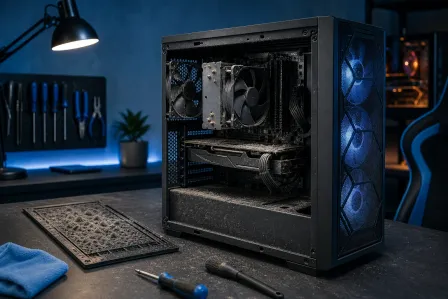
With the PC unplugged, remove the side panel if the seller agrees. Look for:
- Heavy dust buildup on fans, heatsinks, and GPU fins.
- Rust, corrosion, or moisture marks.
- Loose cables or improvised wiring.
- Burn marks, melted connectors, or a burnt-electronics smell.
- Fans that look damaged or do not spin freely.
- Excessive sag on a heavy graphics card.
- Missing motherboard screws or components that appear poorly mounted.
Some dust is normal. A PC is supposed to move air. But thick dust mats, sticky grime, corrosion, or signs of leaks are clues that maintenance may have been ignored. A filthy system can often be cleaned, but dirty hardware plus unstable temperatures is not a casual fix.
5. Confirm It Boots Cleanly and Matches the Listing
Power it on from a cold start. Watch and listen. The PC should boot normally without repeated restarts, error messages, strange beeps, or a long hang before Windows appears.
Once in Windows, confirm the basics yourself. Open Task Manager and check the CPU, memory, storage, and graphics card. Verify that the installed hardware matches what was advertised. Check the available storage, too. A “1TB gaming PC” may have a 1TB drive with very little free space left, or it may be counting multiple drives in a way that was not clear.
Open Device Manager and look for warning icons. One warning does not always mean disaster, but it can point to missing drivers, a disconnected device, or a problem the seller hopes you will not notice.
Check Windows activation under Settings. An activated installation is preferable, but do not treat it as a permanent guarantee. Your first move after purchase should still be a clean Windows installation and a fresh setup with your own accounts. Never inherit the seller’s passwords, browser sessions, saved payment details, cloud accounts, or mystery downloads.
If the system has a weird version of Windows, questionable activation tools, or obvious pirated software, factor that into the risk. A clean reinstall removes a lot of nonsense. If you need help getting the PC cleaned up and properly configured after purchase, remote support can be a practical option.
Ready to build a rig that actually rips? Start your build
6. Test Gaming Stability, Temperatures, and Noise Under Load
This is the boss fight. A PC that reaches the desktop is not necessarily a healthy gaming PC. You need to see it perform under load.
Ask the seller to run a demanding game, a benchmark, or a stress test while you watch. Ideally, the system should run for at least 15 to 30 minutes. A quick two-minute boot test can miss the exact problems that appear after the GPU and CPU heat up.
During the test, watch for:
- Sudden shutdowns, restarts, freezes, or blue screens.
- Screen flickering, colored blocks, sparkles, black screens, or other GPU artifacts.
- Stutters far beyond what the hardware should produce.
- Fans that instantly roar at maximum speed and never settle.
- Temperatures that climb rapidly or remain abnormally high.
- A burning smell, electrical buzzing, or clicking from drives.
No PC needs to be whisper-quiet during a heavy game. Fans spinning up is normal. What matters is whether the machine remains stable and the cooling sounds controlled rather than desperate. If it is a jet engine just sitting at the desktop, expect a cooling, fan, dust, thermal paste, or background-process issue.
For a quick reality check, compare the observed performance with reputable benchmark coverage for the same CPU and GPU. The GPU manufacturer’s own driver tools can also help confirm the card is recognized correctly. NVIDIA’s support resources and AMD’s support page are good places to verify official driver availability for a particular card.
Do not accept “it only crashes sometimes” or “it just needs drivers” as a casual explanation. Maybe it does. Maybe it has a failing GPU, unstable memory, overheating issue, or weak power supply. Those are wildly different repair paths.
7. Check the Storage Drives and Memory Health
Storage trouble can turn a cheap PC into an irritating mess. Slow boot times, corrupted games, random lockups, and failed updates can all trace back to a drive that is nearing retirement.
Ask to see the drive health through a reputable SMART-reporting utility. You are looking for warning conditions, uncorrectable errors, or a drive reporting poor health. An SSD can fail without much warning, and older hard drives are especially worth inspecting because they contain moving parts.
Also run a memory check if time allows. Bad RAM can create random crashes that look like a GPU or Windows problem. If the seller says the PC is perfectly stable but refuses any basic testing, that is useful information. Not good information. But useful.
Storage is one of the easier upgrades, so a small but healthy SSD is not necessarily a dealbreaker. A drive throwing warnings is different. Treat it as a replacement expense immediately, and do not trust it with your files.
8. Ask the Questions That Reveal the PC’s History
A straight answer from a seller can tell you more than polished photos ever will. Ask why they are selling. Upgrading is normal. Moving, switching to a console, or losing interest in gaming can be normal too. Vague answers combined with a no-testing policy are where the side-eye begins.
Ask these directly:
- How long have you owned it?
- Was it built by you, a shop, or a major manufacturer?
- Has it ever been repaired, overclocked, or water damaged?
- Was the GPU used for mining, rendering, or long sessions at high load?
- Has it crashed, overheated, shut down, or shown display issues?
- Are there receipts, original boxes, or transferable warranties?
- What has been upgraded, and when?
Overclocking is not automatically bad. A careful, stable overclock with proper cooling can be fine. But an aggressive overclock paired with poor cooling, unstable settings, or unknown voltage changes deserves caution. The same applies to mining. Mining does not guarantee a dead GPU, but it means the card may have seen sustained load and deserves extra testing.
Receipts and original boxes are nice bonuses, not requirements. They can help verify the components and suggest the seller cared for the system. Still, the PC’s current condition is what you are buying.
9. Price the Whole Package, Not the Seller’s Story
A used PC should be priced based on current market value, condition, performance, and risk. It is not priced based on what the seller paid during a parts shortage, how much they love it, or how many RGB strips are attached to the case.
Price each major component separately. Focus first on the GPU, CPU, motherboard, RAM, storage, power supply, and case. Then subtract value for known issues: an aging drive, a cheap PSU, missing Wi-Fi, poor airflow, cracked glass, or a need for a Windows reinstall.
Do not forget the value of time. A system that needs a deep clean, replacement fans, fresh thermal paste, a new drive, and troubleshooting can still be worth buying. But only at a price that leaves room for that work.
If the deal is close to the cost of a fresh custom build with known parts and a warranty path, buying used may not be the FPS-per-dollar win it first appeared to be. A clean, balanced build also makes future upgrades much easier.
10. Pay Safely and Protect Yourself After the Sale
Meet in a safe public place when possible, ideally somewhere you can test the system with power and a display. For higher-dollar rigs, meeting at a computer shop for inspection can be a smart move. Bring a friend if you are uncomfortable, and do not carry more cash than necessary.
Use a payment method with a clear record. Get a simple written bill of sale that includes the date, amount, seller name, and the listed major components. Photograph the PC, serial numbers where accessible, and any accessories included before you leave.
After purchase, do this before installing your game library:
- Back up anything you truly need from the existing system, if applicable.
- Perform a clean Windows installation.
- Install current motherboard, GPU, and peripheral drivers from official sources.
- Run updates, security scans, and hardware tests again.
- Change passwords for accounts you accessed during setup.
- Monitor temperatures and stability over your first few gaming sessions.
A clean install is the move. It clears out old accounts, abandoned launchers, unknown background software, and potential malware. If the PC starts acting strange after the sale, do not keep guessing until a small issue becomes a full tilt situation. Our local computer repair team can inspect instability, overheating, storage problems, and hardware faults.
Bottom line
The best used gaming PC is not the one with the loudest RGB or the biggest claim in the listing. It is the one with verified components, stable performance under load, healthy storage, reasonable temperatures, and a price that leaves no hidden repair bill waiting in the shadows.
Take your time, test the rig, and walk away from anything that feels sketchy. There will always be another listing. And if you want a second opinion on a used PC before you buy, or need a newly purchased rig checked out in West Palm Beach, contact Fix My PC Store. Better to spend a little time verifying the build than spend your weekend troubleshooting someone else’s problems.
Ready to build a rig that actually rips?
Custom gaming PCs built and tuned by people who game. Tell us your budget and target frame rate.