Why Your Office Printer Jams Constantly and How to Stop It
TL;DR: Most chronic paper jams trace back to three things: wrong paper, worn rollers, or a stuffed tray. Clear the jam properly, identify which cause fits your printer, then apply the matching fix. If jams keep happening after that, a hardware fault is likely and a tech should take a look.
What You Need
- Access to the printer (front panel, rear door, and tray area)
- The printer model number (usually on a label on top or back)
- Manufacturer's manual or support page pulled up
- Fresh, dry paper stock (80 gsm standard copy paper is your baseline)
- A clean, lint-free cloth
- Optional: compressed air can
Step 1: Clear the Current Jam Correctly
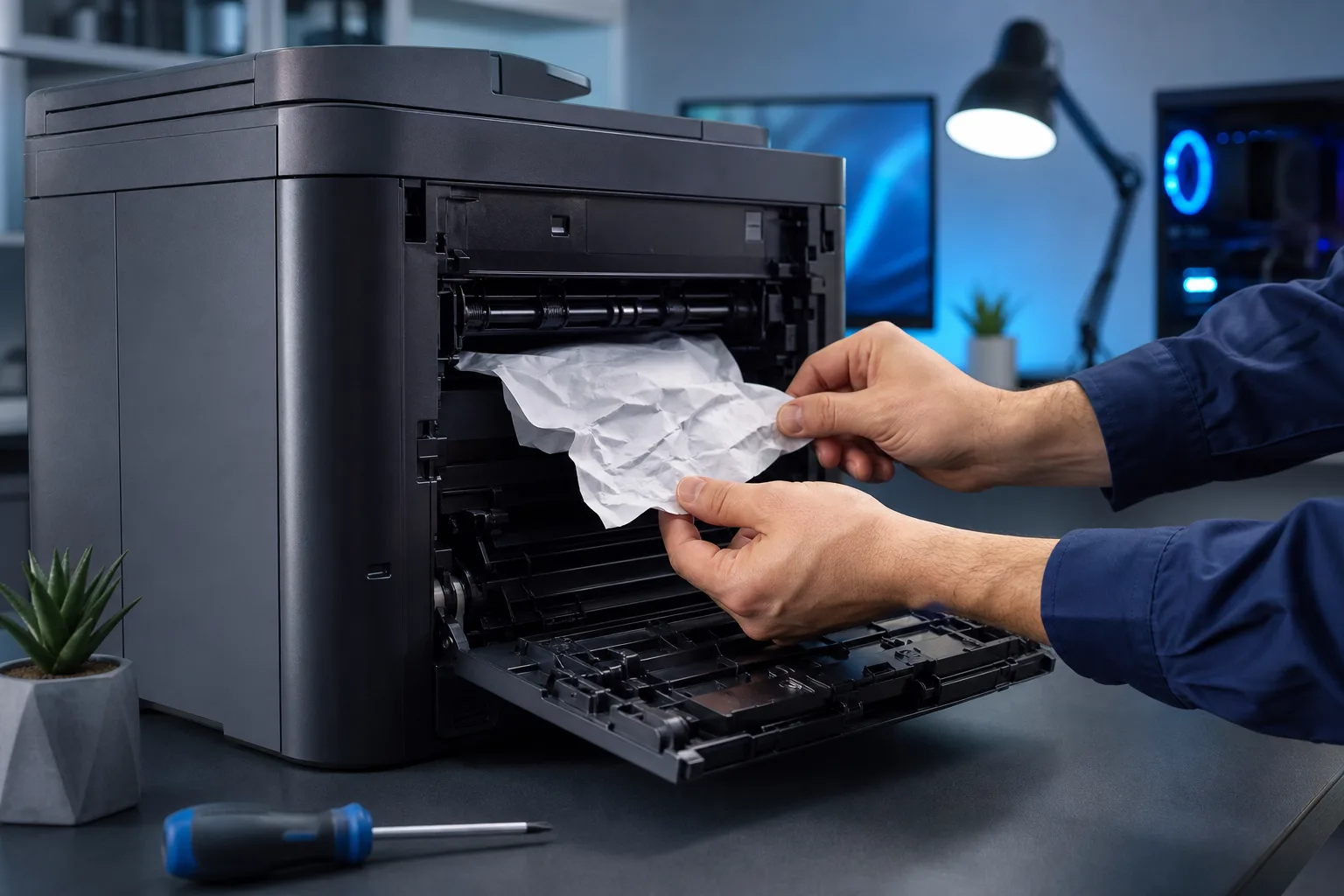
Pull paper in the direction of the paper path, not against it. Yanking paper backward tears it and leaves micro-shreds inside the rollers, which cause the next jam.
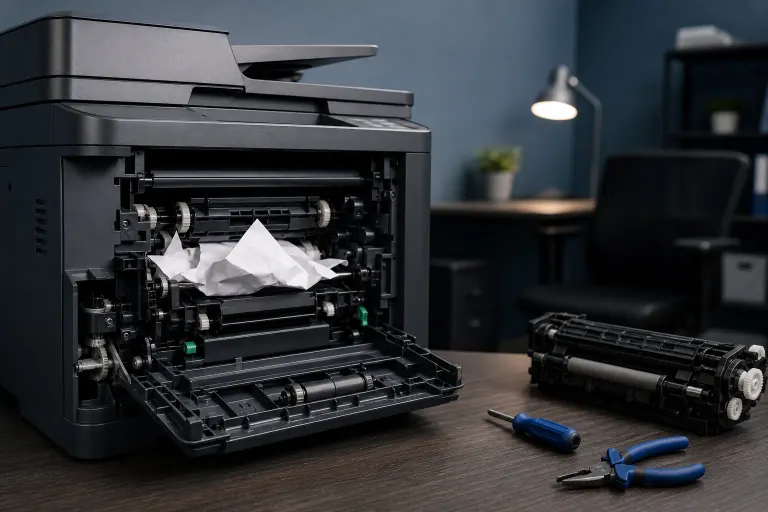
Open every access door the printer has, including the rear. Small torn bits hide in corners and the fuser area. Use a flashlight. Remove every scrap before closing anything up.
Never use sharp tools inside the paper path. Scratched rollers grab paper unevenly from that point forward.
Step 2: Check Your Paper
This is the single most overlooked cause. Paper absorbs moisture from humid air, and South Florida humidity is no joke. Damp paper curls slightly, and curled sheets misfeed almost every time.
Paper checklist:
- Store reams in a sealed bag or closed cabinet, not stacked open on a shelf
- Use paper rated for your printer type (laser vs. inkjet stock matters)
- Fan the stack before loading to separate sheets that have stuck together
- Do not mix paper weights in the same tray
- Replace any paper that has been sitting in an open tray for more than a few days
If you are in a high-humidity office, this step alone can eliminate 40-60% of jam events.
Step 3: Load the Tray Correctly
Overfilling is a classic cause. The max-fill line on the tray is not a suggestion. Exceeding it puts too many sheets against the pickup roller and the roller grabs multiples at once.
Also check the paper guides. Guides that are too loose let paper skew sideways. Guides that are too tight bow the stack. Set them snug against the paper with a hair of clearance.
Tray loading rules:
- Fill to the max line or slightly below
- Adjust guides to fit the actual paper size loaded
- Keep one paper size per tray; mixing sizes causes misfeeds
- Load paper print-side down in most laser trays (check your manual)
Step 4: Inspect and Clean the Pickup Rollers
Pickup rollers are rubber and they wear smooth over time. A smooth roller cannot grip paper reliably. Most office printers have rollers that are user-replaceable, and replacement kits are available from the manufacturer for $10-$40 depending on the model.
Before replacing, try cleaning. Power the printer off and unplug it. Dampen a lint-free cloth with water (not solvent). Wipe each roller, rotating it by hand to clean the full surface. Let it dry completely before powering back on.
If the rubber looks glazed, cracked, or visibly flattened on one side, cleaning will not help. Replace the rollers.
Roller replacement interval: Most manufacturers recommend replacing pickup and separation rollers every 100,000-150,000 pages or every 2-3 years in a busy office, whichever comes first. Check your printer's maintenance page count via the control panel or web interface.
Tired of IT that breaks at the worst time? Talk to our business IT team
Step 5: Check for Obstructions and Worn Separation Pads
The separation pad sits opposite the pickup roller. Its job is to stop multiple sheets from feeding at once. When it wears out, you get multi-feeds, which jam further down the paper path.
Separation pads are cheap and are usually replaced at the same time as pickup rollers. If you are ordering rollers, add the pad to the same order.
Also run a hand along the paper path and feel for debris, torn paper edges, or any foreign object. Staples and paperclip fragments are common culprits in office environments.
Step 6: Update Printer Firmware and Drivers
This sounds unrelated, but firmware bugs have caused feeding timing issues on several popular office printer models. Check the manufacturer's support page for your model number and see if there are firmware updates available.
Outdated print drivers on the connected PCs can also cause print jobs to be formatted incorrectly, which occasionally triggers sensor errors that look like jams. Update drivers from the manufacturer's site, not from Windows Update alone.
Common Mistakes
- Pulling paper out backward. Always pull with the paper path direction.
- Refilling the tray on top of old paper. Old paper at the bottom may already be curled. Start fresh.
- Ignoring the rear door. Torn scraps left inside cause the next jam within minutes.
- Using generic rollers from no-name suppliers. Fit and rubber hardness vary. Stick to OEM or a reputable compatible brand.
- Running the printer immediately after cleaning rollers. Residual moisture causes slipping. Give it 10-15 minutes.
- Blaming the printer when the paper is the problem. Always eliminate paper and tray causes before assuming hardware failure.
Printer Jam Cause vs. Fix at a Glance
| Symptom | Most Likely Cause | Fix |
|---|---|---|
| Jams at tray pickup | Worn or dirty rollers | Clean or replace rollers |
| Multiple sheets feed at once | Worn separation pad | Replace separation pad |
| Paper skews sideways | Loose paper guides | Adjust guides to paper width |
| Jams vary by humidity or season | Damp paper | Reseal paper storage, refresh tray stock |
| Jams only on certain paper sizes | Guides set for wrong size | Reconfigure tray guides and settings |
| Jams deep inside near fuser | Torn paper scrap or fuser wear | Full internal inspection, possibly fuser service |
Bottom Line
Chronically jamming printers are almost never just bad luck. There is a root cause, and it is almost always paper quality, roller wear, or tray misuse. Work through the steps above in order, because clearing the jam without fixing the cause just resets the clock to the next jam.
If you have cleaned the rollers, replaced the separation pad, fixed your paper storage, and jams are still happening on every other job, the issue is likely internal: a fuser problem, a damaged paper path guide, or a sensor fault. At that point it is worth getting a professional eye on it.
For businesses in West Palm Beach dealing with IT headaches beyond the printer, Fix My PC Store's managed IT services cover network devices, workstations, and the full office setup. You can also reach out via our contact page to ask whether a service call makes sense for your situation.
Tired of IT that breaks at the worst time?
We run managed IT, backups, and security for South Florida businesses so you can stop thinking about it.