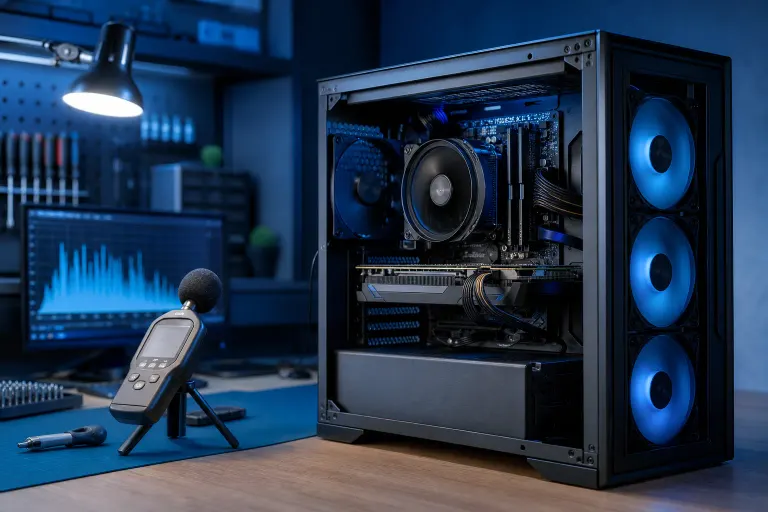
Why Is My PC Loud Only Under Load? How to Find the Source
TL;DR: Load noise usually comes from fans spinning faster to dump heat, but it can also signal a failing bearing, inadequate cooling, or coil whine from your GPU or power supply. Work through the sources one at a time. Most cases are fixable with a cleaning or a fan curve tweak.
What you need
- A free temp-monitoring tool such as HWiNFO64 or MSI Afterburner
- A free decibel meter app on your phone (optional but useful)
- A can of compressed air or a small electric blower
- A flashlight
- About 20 minutes
Step 1: Confirm the noise type
Listen carefully while the PC is under load. Ask yourself:
- Is it a whoosh (airflow, normal fan spin-up)?
- Is it a rattle or grinding (bearing wear, loose object, vibration)?
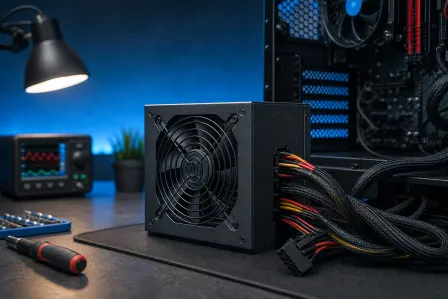
- Is it a high-pitched whine or buzz (coil whine from GPU or PSU)?
Each sound points to a different part of the machine. Whoosh is usually fine. Grinding means a bearing is going. Whine usually points to electrical components under electrical load.
Step 2: Check your temperatures under load
Open HWiNFO64 and run a real workload, a game, a video export, or a benchmark like Cinebench.
Watch these readings:
| Component | Generally OK | Worth investigating |
|---|---|---|
| CPU | Under 85°C | 90°C or above |
| GPU | Under 85°C | 90°C or above |
| Case airflow | Warm exhaust | Hot or stagnant |
If temperatures are high and fans are loud, the cooling system is working hard because heat is actually building up. That's a real problem to solve, not just a noise issue. If temperatures stay reasonable and fans still roar, the fan curve may simply be aggressive by default.
Step 3: Isolate which fan is making the noise
Do this safely with the side panel open and the PC on a non-conductive surface.
- Run the stressful task again.
- Hold a flashlight at each fan: CPU cooler, GPU fans, case intake and exhaust, and PSU fan.
- Look for wobble, a fan blade touching a wire, or one fan visibly spinning slower or faster than expected.
- Briefly place a finger near (not on) each fan's frame to feel for vibration. You should never need to touch a spinning blade.
A rattling case fan often just has a wire caught in the path. A wobbling CPU fan may have a worn bearing or a loose mounting clip.
Computer acting up? Get a real diagnosis. Book a diagnostic
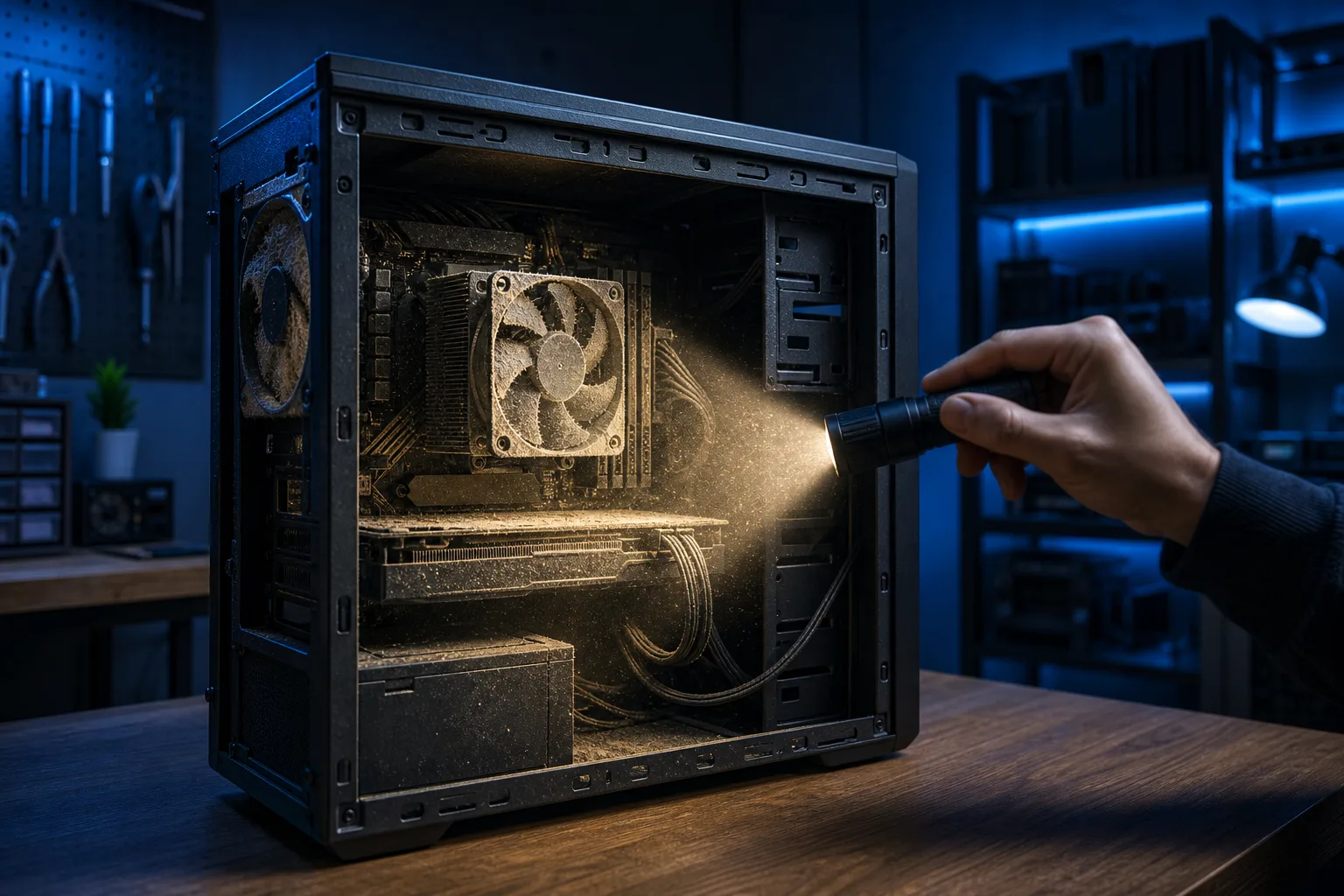
Step 4: Check for dust buildup
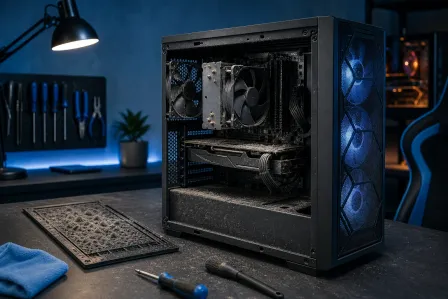
Dust is the most common reason cooling systems get loud. It insulates components so they run hotter, which forces fans to spin faster.
- Power off and unplug.
- Use compressed air in short bursts, holding fans still so they don't over-spin.
- Focus on the CPU heatsink fins, GPU heatsink, and case intake filters.
- Reassemble and retest temperatures.
If temps drop noticeably after cleaning, dust was the culprit.
Step 5: Check and adjust the fan curve
If temperatures are fine but fans are still aggressive, the fan curve may be the issue. Most motherboards let you tune this in BIOS or with a tool like Fan Xpert (ASUS) or the MSI Command Center.
- A steeper curve means fans ramp hard as soon as temps rise slightly.
- A flatter curve keeps things quieter at moderate temps.
- Find the balance where temps stay safe and noise is tolerable.
Do not flatten the curve so much that temps climb into dangerous territory. Safe temperatures come first.
Step 6: Isolate coil whine
Coil whine is a high-pitched electrical buzz or squeal that only appears under GPU or CPU load. It comes from inductors vibrating at frequencies driven by the electrical load.
To confirm it:
- Note whether the pitch changes as the load changes (it usually does).
- The sound often comes from the GPU or PSU area specifically.
Coil whine is generally harmless but can be annoying. Some cases improve over time. Swapping to a higher-quality PSU sometimes reduces it, but it is not always fixable without replacing the component.
Common mistakes
Blaming the loudest fan when it is just doing its job. A fan that ramps up fast is not necessarily the problem. High temps are the problem.
Skipping the dust clean before anything else. Dust cleaning is free and fixes a large percentage of loud-under-load complaints.
Over-tightening fan screws. This can crack fan mounts and actually increase vibration noise.
Flattening the fan curve too aggressively. Quieter fans that let components cook will cost you more in the long run.
Assuming coil whine means failure. It is usually cosmetic but worth monitoring.
Bottom line
A PC getting loud under load is almost always protecting itself from heat. Start with temperatures, then find the fan making the noise, then clean the dust. If temperatures are actually fine and the fan curve is just aggressive, a BIOS adjustment can fix it in minutes.
If grinding persists after cleaning, a fan bearing is likely failing and that fan should be replaced before it seizes. If your system is running dangerously hot even after cleaning, the thermal paste on the CPU may need replacing or the cooler may be undersized.
Need a hand tracking it down? The team at Fix My PC Store on Okeechobee Boulevard handles exactly this kind of diagnosis for West Palm Beach and surrounding areas. You can book a repair visit or start with remote support if you want a quick look first.
Computer acting up? Get a real diagnosis.
Fix My PC Store has repaired thousands of machines across West Palm Beach. Honest pricing, no upsell games, and a free diagnostic for new customers with our email coupon.