Why Does My Gaming PC Download Games So Slowly? How to Actually Fix It
TL;DR: Slow downloads on a gaming PC are rarely a hardware problem. Check your launcher bandwidth settings first, then your network connection quality, then background apps eating bandwidth. Storage is the last culprit, but it matters on older drives.
What You Need
- Access to your game launcher (Steam, Epic, Battle.net, etc.)
- A speed test at fast.com or speedtest.net
- Task Manager (Win+Shift+Esc)
- About 10 minutes
Step 1: Run a Real Speed Test First
Before touching anything, test your actual internet speed. Open fast.com on the gaming PC itself, not your phone.
If the speed test result is already low compared to your ISP plan, the problem is network-side. If it is close to your plan speed but downloads are still slow, the bottleneck is somewhere between your browser and the game client.
Quick math: A 100 Mbps connection maxes out at roughly 12 MB/s download. Internet speed is measured in megabits, game downloads in megabytes. Divide your Mbps by 8 to get your realistic MB/s ceiling.
Step 2: Check Launcher Bandwidth Limits
This is the most common fix and the one most people miss. Steam throttles download speed by default in some configurations.
Steam: Settings, Downloads, uncheck "Limit bandwidth to" or set it to No Limit. Also switch your download region to one geographically close to you.
Epic Games Launcher: Settings (gear icon at bottom left), scroll down, uncheck "Throttle Downloads."
Battle.net: Click the Blizzard logo, Settings, Downloads, set Download Throttle to zero.
Change these settings, restart the launcher, and recheck your speed before moving on.
Step 3: Kill Background Bandwidth Hogs
Open Task Manager (Win+Shift+Esc) and click the Network column to sort by usage. Anything consuming network resources while you download is stealing from your game.
Common offenders:
- Windows Update running silently in the background
- OneDrive or Google Drive syncing large files
- Antivirus doing a cloud scan
- Another game launcher updating a different title
- Discord video calls or streaming
Pause or close them while your game downloads. If Windows Update is the culprit, you can pause updates temporarily in Settings, Windows Update, Pause Updates.
Ready to build a rig that actually rips? Start your build
Step 4: Switch From Wi-Fi to Ethernet
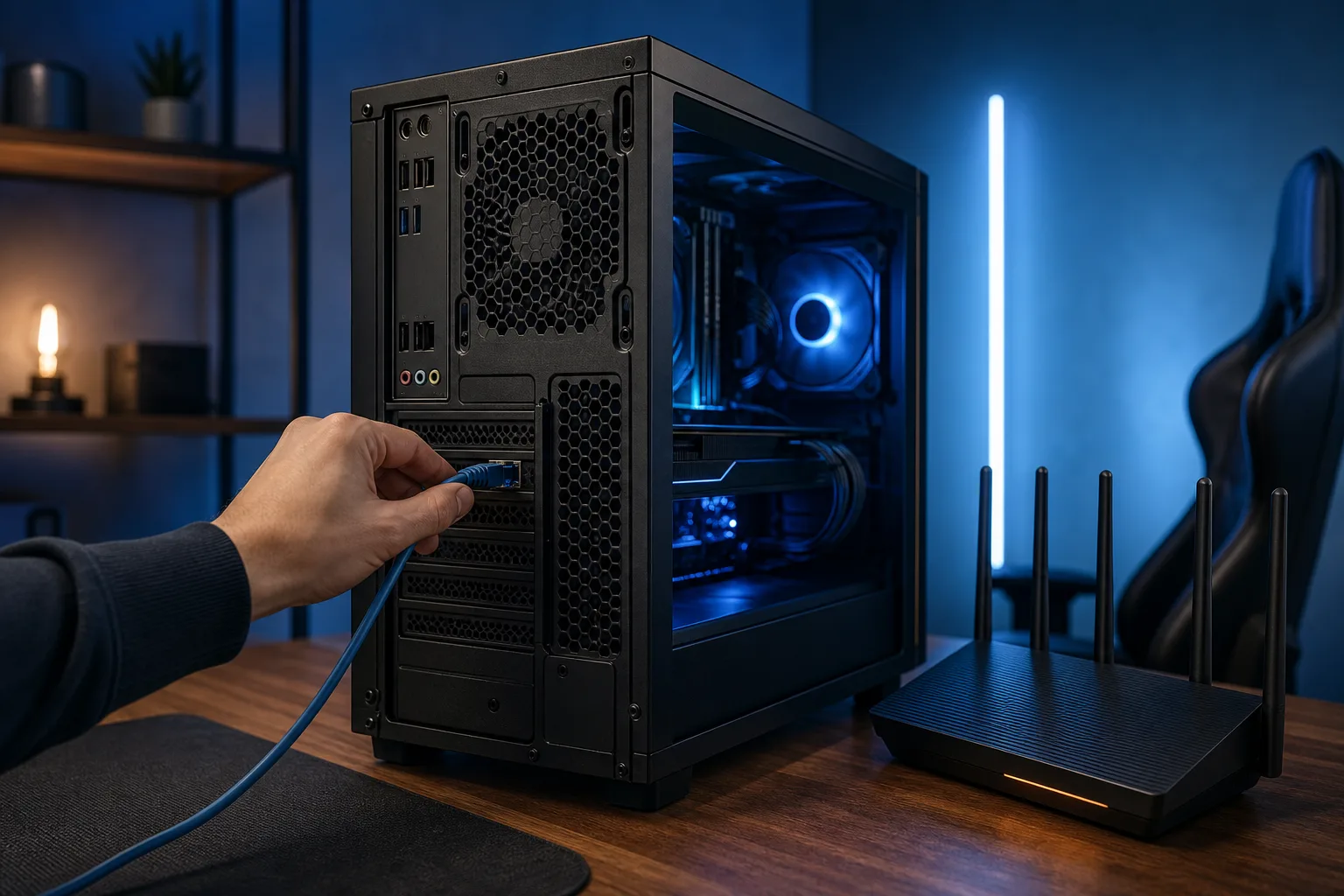
Wi-Fi introduces latency spikes and packet loss that throttle sustained download speeds, even on a fast router. A 600 Mbps Wi-Fi connection can drop to 50 Mbps effective throughput with interference from neighboring networks or walls.
If your rig is not wired in, run a Cat6 cable or try powerline adapters as a middle ground. The FPS gains from a stable connection are real: fewer download interruptions, faster patching before game nights.
If Ethernet is already in use and speed is still poor, reboot your router and modem. Modems especially drift over weeks of uptime and recover with a full power cycle.
Step 5: Check Your Storage Drive Write Speed
This step only matters when your internet speed is genuinely fast, like 500 Mbps or higher, and downloads still stall.
Open Task Manager during a download and click the Performance tab, then Disk. If disk write speed is maxed out, your drive is the bottleneck.
| Drive Type | Typical Write Speed | Bottleneck Risk |
|---|---|---|
| SATA SSD | ~400-500 MB/s | Low at most speeds |
| NVMe SSD | ~2000-7000 MB/s | Very low |
| HDD | ~80-160 MB/s | High on fast connections |
If you are downloading to an HDD on a gigabit connection, the drive is almost certainly your ceiling. Moving game installs to an SSD will fix this and drop load times dramatically.
Step 6: Check Your DNS Settings
Slow DNS resolution can cause downloads to stall at the start of each file segment. It is subtle but real on large game installs with thousands of small files.
Switch your DNS to Cloudflare (1.1.1.1) or Google (8.8.8.8):
- Open Network Settings, Change Adapter Options
- Right-click your active adapter, Properties
- Select Internet Protocol Version 4, Properties
- Set Preferred DNS to 1.1.1.1, Alternate to 1.0.0.1
- Click OK, then flush DNS in Command Prompt:
ipconfig /flushdns
Common Mistakes
Blaming the PC hardware. Your CPU and GPU have zero impact on download speed. If a friend says "upgrade your RAM to download faster," that is not how this works.
Only running the speed test on a phone. Your phone might be on a different network band or connecting to a mesh node with a stronger signal than your PC gets. Always test on the machine itself.
Ignoring VPN impact. A VPN routes all traffic through a remote server, which almost always slows downloads. Disconnect the VPN while downloading games.
Changing download region repeatedly. Steam's CDN servers are regional. Switching to a distant region hunting for "faster servers" usually makes things worse, not better. Pick the closest city.
Bottom Line
Slow game downloads on a gaming PC almost always come down to a throttled launcher setting, Wi-Fi instability, or background apps hogging bandwidth. Run through these steps in order and you will find the culprit fast.
If your network feels sluggish across the board and the router reboot does not help, that points to something deeper in your home network setup. If you want a custom rig wired up right from the start, check out the custom gaming PC builder to see build options that include proper connectivity planning.
For any PC issues that go beyond the download settings, the team at Fix My PC Store is on Okeechobee Boulevard in West Palm Beach and also offers remote support if you want eyes on the problem without leaving your desk.
Ready to build a rig that actually rips?
Custom gaming PCs built and tuned by people who game. Tell us your budget and target frame rate.