How to Know When Your Office Switch Needs an Upgrade
TL;DR: Your office switch likely needs an upgrade if you see persistent link drops, speeds stuck well below your internet plan, missing management features your team needs, or hardware that is past end-of-life with no security patches. A switch that is merely old but stable may be fine to keep. A switch causing daily friction is costing you more than a replacement would.
What You Need
- Access to your switch's management interface (web GUI or CLI) or at least your router's admin panel
- A free speed-test tool such as Speedtest by Ookla run from a wired device
- Your switch's model number (usually on the underside label)
- The vendor's product page or a quick search for "[model number] end of life"
Step 1: Check for Persistent Link-Drop Events
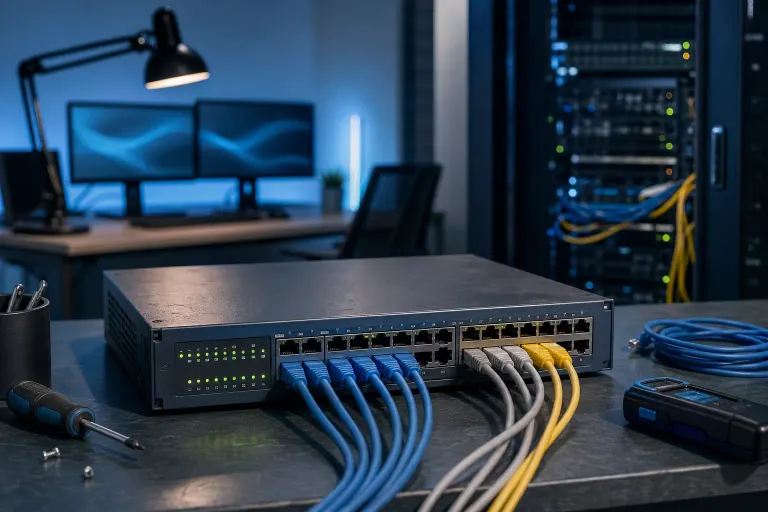
Log into your switch's management interface and look for the port error counters or event log. Most managed switches show CRC errors, input errors, and link-state changes per port.
A healthy port should show near-zero CRC or input errors over days of traffic. If any port shows thousands of errors or repeated link-up/link-down events, that port is degraded. If it is happening across multiple ports, the switch hardware itself may be failing.
Unmanaged switches do not expose these logs. If you are running unmanaged hardware and you have more than a handful of users, that alone is a reason to consider a managed replacement.
Step 2: Run a Wired Speed Test and Compare to Your Plan
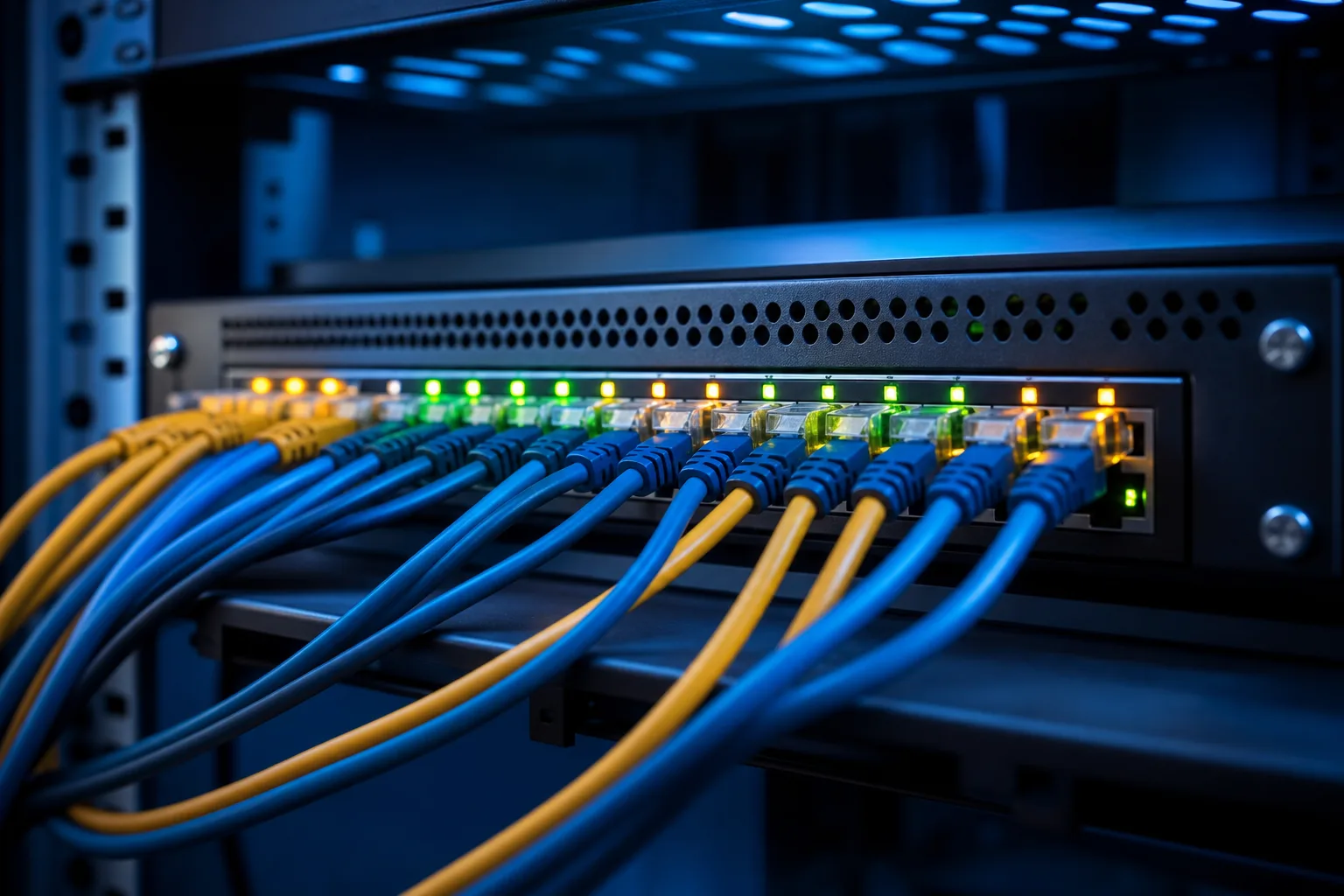
Connect a laptop directly to the switch with a known-good Cat5e or Cat6 cable. Run a speed test to a nearby server.
Compare the result to what you pay your ISP for. A gap of 20-30% is normal overhead. A gap larger than 50% on a wired connection, especially when few people are active, points to a bottleneck. The switch is one possible culprit, but this test rules out Wi-Fi as the cause.
If wired speeds are fine but wireless users suffer, the switch is probably not the problem. Look at your access points instead.
Step 3: Check Your Switch's End-of-Life Status
Search the vendor's site for your model number plus "end of life" or "end of support." Cisco, HP/Aruba, Netgear, and Ubiquiti all publish these dates publicly.
End-of-life means no more firmware updates. No firmware updates means no security patches. For a device that touches every packet on your network, that is a real exposure, not a theoretical one. If your switch reached end-of-life more than a year ago, an upgrade is worth scheduling even if it seems to be working.
This is especially relevant if your business handles payment card data, health records, or client PII. Compliance frameworks like PCI-DSS and HIPAA expect network devices to receive security updates.
Tired of IT that breaks at the worst time? Talk to our business IT team
Step 4: Inventory the Features You Actually Need Now
Older unmanaged or lightly managed switches often lack features that modern offices depend on. Work through this checklist.
Upgrade pressure rises if you need any of the following and your current switch cannot provide them:
- VLANs to segment staff, guest Wi-Fi, and IoT devices onto separate networks
- PoE or PoE+ to power IP phones, cameras, or access points without separate power bricks
- Link aggregation (LACP) to bond uplinks for a server or NAS
- SNMP or syslog export so your monitoring tool can see what the switch is doing
- Port-based access control (802.1X) for tighter network security
- Multicast snooping if you use IP video or voice conferencing at scale
If your current switch handles your real workload well and none of these features are missing, you may not need to upgrade yet.
Step 5: Evaluate Port Count and Speed
Count your active ports. If you are using 90% or more of available ports, you are one device away from needing an unplanned workaround.
Also check whether your uplinks match your current bandwidth. A gigabit uplink feeding a 2.5 Gbps internet connection is a hard ceiling. Many modern switches now offer multi-gigabit (2.5G or 5G) uplink ports for exactly this reason.
A decision table:
| Situation | Likely Action |
|---|---|
| Port errors on multiple ports, switch is old | Replace soon |
| End-of-life, no patches available | Plan replacement |
| Missing VLAN or PoE features you need today | Upgrade now |
| Ports nearly full | Add a switch or upgrade capacity |
| Running fine, all features present, in-support | Keep and monitor |
| Wired speeds slow but switch is new | Check cabling and ISP first |
Common Mistakes
Blaming the switch for everything slow. A congested Wi-Fi access point, a failing NIC in one PC, or a saturated internet uplink all look the same from a user's perspective. Isolate with a wired speed test before pulling the switch.
Buying a bigger switch when you need a smarter one. Adding a 48-port unmanaged switch to replace a 24-port unmanaged switch gives you more ports but none of the visibility or segmentation a growing office needs.
Ignoring end-of-life dates. A switch that works but receives no patches is a quiet risk. It does not announce itself as a problem until something goes wrong.
Swapping the switch during business hours. Even a fast swap causes a brief outage for everyone on that segment. Schedule it for off-hours or a maintenance window.
Skipping documentation. Before you swap anything, document which device is on which port. Re-mapping 30 cables in a hurry is how things stay broken longer.
Bottom Line
A switch upgrade is justified when you see hardware-level errors across ports, the device is past end-of-life and unpatched, or you genuinely need features the current switch cannot provide. A switch that is old but stable and in-support is worth keeping until one of those conditions changes.
If you are in West Palm Beach or South Florida and want a second opinion on your office network, Fix My PC Store's business networking team can assess what you have and recommend only what you actually need. For broader network and security questions, the managed IT service includes proactive monitoring so you know about problems before users start complaining.
Tired of IT that breaks at the worst time?
We run managed IT, backups, and security for South Florida businesses so you can stop thinking about it.