Phone Won't Connect to 5G Even in a Strong Signal Area: Why
TL;DR: A strong signal bar does not guarantee 5G access. Your phone may be locked to LTE in settings, running old firmware, overheating, or connected to a 5G band your plan does not actually support. Work through the checklist below before calling your carrier.
What you need
- Your phone (Android or iPhone)
- Your carrier account credentials
- About five to ten minutes
- Optionally: a second phone on the same carrier to confirm the tower is the problem
1. Check whether 5G is actually enabled on the device
This sounds stupid, but it is the most common cause. Software updates, factory resets, and even some carrier profile pushes quietly flip the network mode back to LTE or "auto" without telling you.
iPhone: Settings, Cellular, Cellular Data Options, Voice and Data. Set it to "5G On" or "5G Auto." ("5G Auto" saves battery by dropping to LTE when 5G offers no real benefit. Either setting will connect when 5G is available.)
Android (varies by manufacturer): Settings, Connections or Network, Mobile Networks, Network Mode. Look for an option that includes "5G" and select it. If you only see LTE or 3G options, your SIM, plan, or device may not support 5G on that carrier.
2. Confirm your plan actually includes 5G
Carriers sell 5G-compatible phones on plans that do not include 5G access. (Yes, that is exactly as annoying as it sounds.) Log into your carrier account and look at your current plan details. If 5G is not listed, no amount of toggling will fix it.
Same goes for international roaming. Most carriers throttle or block 5G when roaming even if your home plan includes it.
3. Force a network re-registration with a reboot or airplane mode cycle
Your phone negotiates with the tower when it first connects. If that handshake went sideways, it may sit on LTE indefinitely even when 5G is available.
- Toggle airplane mode on, wait ten seconds, toggle it off.
- If that does not work, power the phone completely off, wait thirty seconds, power it back on.
- Watch the signal indicator for fifteen to thirty seconds after reconnecting. Some phones take a moment to land on 5G.
4. Check for a carrier settings or firmware update
Carrier settings updates patch the way your phone talks to the network. Missing one can absolutely prevent 5G from working even when the hardware supports it.
iPhone: Settings, General, About. If a carrier settings update is available, a prompt appears immediately. For iOS itself: Settings, General, Software Update.
Android: Settings, About Phone, Software Update. Also check Settings, Connections, Mobile Networks for a "Carrier Settings" or "Update Profile" option depending on your manufacturer.
Install whatever is pending, reboot, recheck.
Cracked screen or a phone that won't hold a charge? Get a repair quote
5. Reseat or replace the SIM
A slightly unseated SIM or a worn SIM that has been in the slot for years can cause erratic network behavior, including failure to negotiate 5G. (SIMs do wear out. Nobody talks about this.)
- Power off the phone.
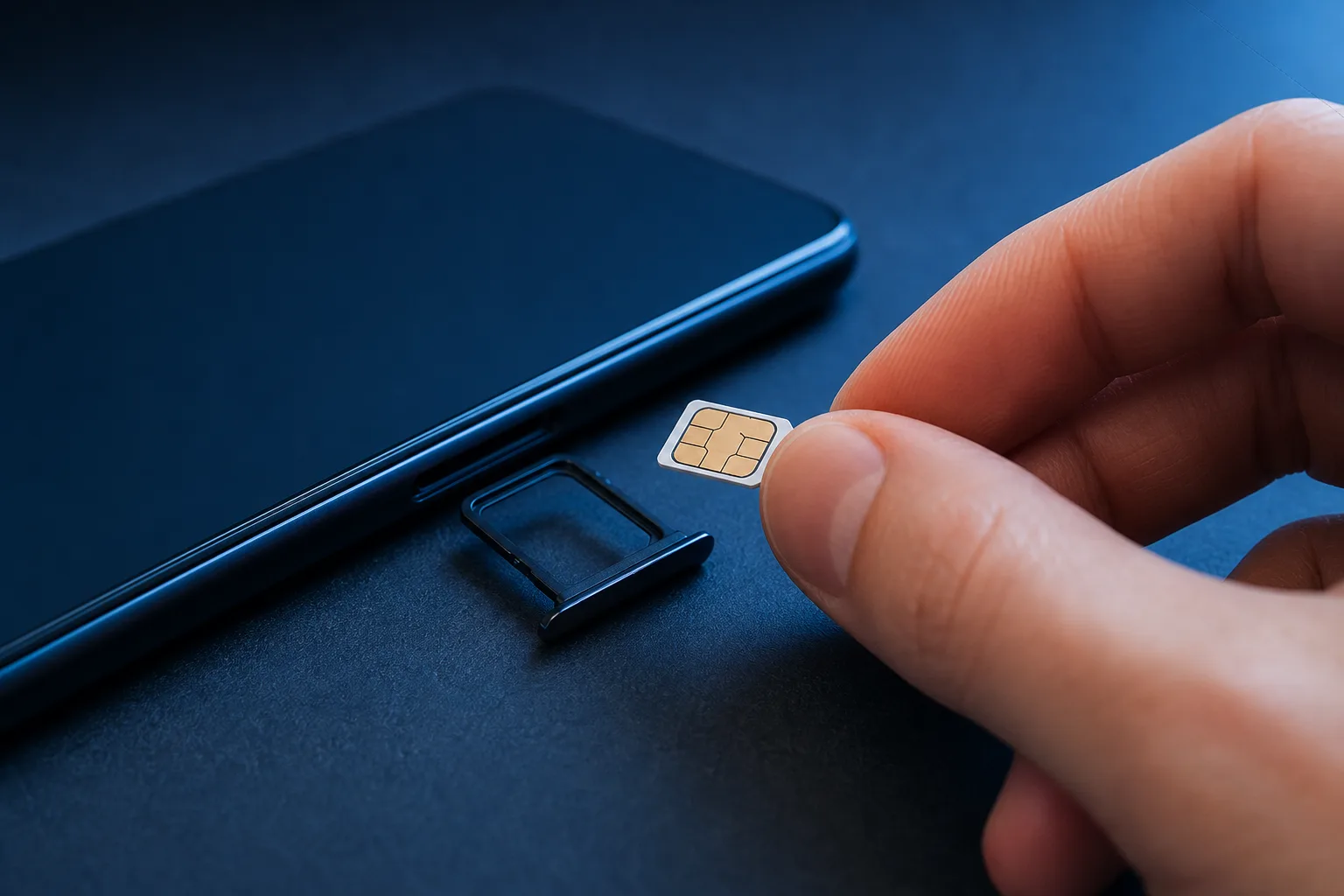
- Eject the SIM tray, remove the SIM, blow out the tray, reseat the SIM firmly.
- Power back on and recheck.
If you are on an eSIM, try removing and re-downloading the eSIM profile through your carrier app.
6. Rule out overheating
5G radios draw more power than LTE. When a phone gets warm, it backs off to less demanding radio modes to protect itself. If your phone has been in the sun or running hot from a game or GPS, let it cool for ten minutes and check again.
7. Understand 5G band mismatches
This is where it gets annoying. There are multiple types of 5G:
| Band type | Range | Speed |
|---|---|---|
| mmWave (high-band) | Very short, blocks easily | Extremely fast |
| Sub-6 GHz (mid-band, C-band) | Good range and penetration | Solid real-world speeds |
| Low-band (600/700 MHz) | Wide coverage | Often barely faster than LTE |
Your phone may support only some of these bands. Your carrier may only deploy certain bands in your area. The signal icon on your phone usually cannot tell the difference between a strong low-band 5G signal and a strong LTE signal. Check your carrier's coverage map for your specific address to see which 5G type is actually deployed there. (Check your own carrier's map, not a competitor's.)
If you are in an area that only has low-band 5G and your phone is not connecting to it, the band mismatch or plan issue is the likely culprit.
8. Reset network settings as a last device-side step
This wipes saved Wi-Fi passwords and Bluetooth pairings, so do it last. It does not touch your photos or apps.
iPhone: Settings, General, Transfer or Reset iPhone, Reset, Reset Network Settings.
Android: Settings, General Management (or System), Reset, Reset Network Settings.
After the reset, reconnect to Wi-Fi, recheck 5G.
Common mistakes
Assuming full bars means 5G is available. Bar strength measures signal quality, not the network type. You can have five bars of solid LTE with no 5G on that specific tower.
Cycling through carrier stores. If you have confirmed your plan includes 5G and your phone supports the right bands, the carrier store rep cannot do much more than you already have. They will run the same checklist.
Blaming the phone immediately. A 5G-capable phone that will not connect to 5G is usually a settings, plan, or firmware problem. Hardware failure is possible but uncommon for the radio specifically.
Expecting mmWave indoors. High-band 5G does not pass through walls. If you are standing in a building and wondering why the blazing fast 5G from the street does not follow you inside, now you know.
Bottom line
Work through the checklist in order: network mode setting, plan confirmation, reboot, firmware updates, SIM reseat, heat check, band mismatch check, network settings reset. Most people find the answer in the first three steps.
If you have done all of this and the phone still refuses to connect to 5G on a plan and in an area where it should, the SIM slot or the radio hardware itself may be the problem. That is a hands-on repair job. You can bring it into Fix My PC Store at 10140 Okeechobee Blvd, Suite B, West Palm Beach, or schedule a repair online. Initial checks are free for most standard in-store repairs.
Cracked screen or a phone that won't hold a charge?
Bring it in. Most phone and tablet repairs are same-day, with parts that actually last.