Phone Screen Repaired but Touch Still Acts Weird: What Went Wrong
TL;DR: Touch weirdness after a screen repair almost always comes down to one of three things: a digitizer that wasn't seated properly, a connector that's not fully clicked in, or a software glitch that a restart or recalibration can clear. Walk through the steps below to narrow it down before assuming the worst.
What You Need
- Your phone, fully charged (at least 40%)
- A soft lint-free cloth
- A few minutes and a willingness to restart things
- Access to your phone's developer or calibration settings (varies by Android vs iOS)
No tools required yet. Most of the early steps are pure software.
Step 1: Do the Obvious Thing First
Restart the phone. Completely power it off, wait 10 seconds, turn it back on.
Yes, really. A fresh screen digitizer sometimes needs the OS to recognize it properly on a clean boot. This fixes a surprising number of post-repair ghost touches and dead zones. If you skipped this after picking up your phone from the shop, do it now.
Step 2: Check the Symptoms Carefully
Not all touch problems are the same. Match yours to the list below, because the cause differs.
| Symptom | Most Likely Cause |
|---|---|
| Ghost touches (screen taps itself) | Loose digitizer connector or faulty digitizer |
| Dead zone in one area | Digitizer not fully seated, or screen defect |
| Touch works but is off-center | Software calibration needed, or wrong screen model |
| Touch stops working after phone warms up | Bad solder point or incompatible replacement part |
| Works fine, then fails randomly | Connector not fully clicked in |
This table is your diagnostic shortcut. Identify your symptom, then focus the next steps there.
Step 3: Clean the Screen Edges
Small amounts of adhesive residue, dust, or oils can creep under the screen edge and interfere with the digitizer's capacitive sensing. Wipe the entire screen, including the very edges, with a dry lint-free cloth.
Also remove your case and screen protector if you have one. A thick case pressing unevenly on the frame can flex the screen just enough to disrupt touch. A poorly cut screen protector can create a dead edge.
Step 4: Test in Safe Mode or After a Cache Wipe
Sometimes it's not the hardware at all. An app or corrupted system cache can produce erratic touch behavior that looks like a digitizer problem.
Android: Boot into safe mode (hold the power button, long-press "Power off" until the safe mode prompt appears on most devices). If touch works normally in safe mode, an app is your culprit. Clear the system cache partition from recovery mode as a next step.
iOS: There's no safe mode, but a force restart (the button combo varies by model, check Apple's support site) clears most transient software weirdness. If touch is still off after that, it's almost certainly hardware.
Cracked screen or a phone that won't hold a charge? Get a repair quote
Step 5: Consider Whether the Right Part Was Used
This is the uncomfortable one. Not all replacement screens are equal.
OEM (original equipment manufacturer) screens include a digitizer matched to your phone's firmware. Aftermarket screens vary widely. Some are fine. Some are technically compatible but have digitizers that are slightly less sensitive, have narrower touch sampling rates, or simply don't play well with your specific phone model's software.
If you had the repair done somewhere and got a noticeably cheaper quote, there's a real chance a lower-grade digitizer is involved. That's not always bad, but it's a common source of post-repair touch drift or reduced sensitivity.
Step 6: Inspect the Connector
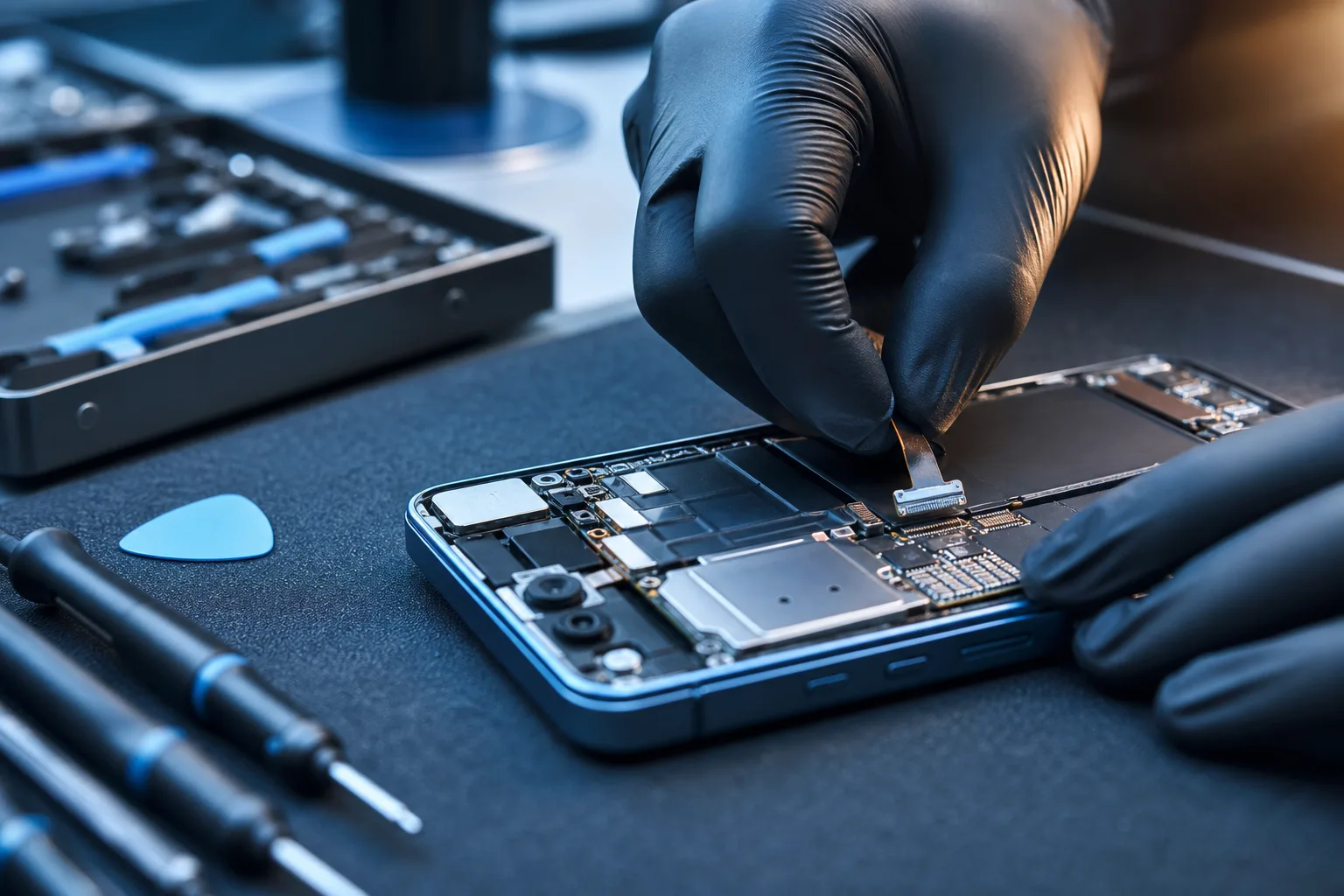
If you're comfortable opening the phone yourself, or if you're going back to a repair shop, ask specifically about the digitizer flex cable connector. On most modern smartphones, the digitizer and display share a ribbon cable that clicks onto the motherboard. If that connector isn't fully seated, or if the bracket screws holding it down weren't reinstalled, you get intermittent touch failures.
This is one of the most common causes of "works fine for a day then goes weird" behavior after a screen swap. It's also a quick fix, usually a few minutes on the bench.
Step 7: Rule Out Motherboard or Software Damage
If every step above checks out and touch is still broken, the problem may not be the new screen at all. Original impact damage sometimes affects the touch IC (integrated circuit) on the motherboard, which sits between the digitizer connector and the processor. A cracked screen can damage surrounding components on impact.
At this point, self-diagnosis has done its job. You need hands-on inspection.
Common Mistakes
- Assuming the new screen is defective immediately. Run through the software steps first. Many shops will charge a diagnostic fee if you return a perfectly functional screen.
- Putting a thick case back on right away. Some cases exert pressure that affects touch near the edges. Test without the case first.
- Skipping the restart. It sounds too simple. It isn't.
- Using a screen protector that overhangs the edge. This creates a physical dead zone at the border of the screen. Trim it or replace it.
- Assuming Android and iOS behave identically. iOS handles touch calibration differently. What works for Android troubleshooting may not apply.
Bottom Line
Touch problems after a screen repair are usually fixable, and often caused by something small: a connector not fully seated, a missed restart, or a case pressing in the wrong spot. Start with software, move to hardware inspection, and only escalate if symptoms point to a deeper motherboard issue.
If you're in West Palm Beach or South Florida and the problem isn't resolving, Fix My PC Store handles iPhone and iPad repairs and can inspect the digitizer connection and verify the replacement part. You can also book a repair appointment if you'd rather have someone look at it in person than keep troubleshooting.
Cracked screen or a phone that won't hold a charge?
Bring it in. Most phone and tablet repairs are same-day, with parts that actually last.