Phone Microphone Stopped Working? Find the Cause
TL;DR: Start by finding out where the microphone fails. Test a normal phone call, speakerphone, a voice recording, and one app. That pattern tells you whether you are dealing with an app permission, Bluetooth routing, a software problem, or likely hardware damage.
Do not rush to reset your phone or poke at microphone openings. A few careful tests can save your settings, your data, and a lot of frustration!
What you need
You only need a few things to diagnose a phone microphone problem:
- Your phone, with at least some battery charge
- A quiet room
- A trusted person you can call, or another phone for a test call
- Your phone's built-in voice recording app, if available
- A soft, dry brush such as a clean small paintbrush or soft toothbrush
- A charging cable, in case a software update is waiting
If the phone was recently dropped, exposed to rain, splashed at the beach, or used around pool water, make a note of that now. Those details matter. Do not connect a wet phone to power or try to dry its ports with heat.
1. Notice exactly when people cannot hear you
The phrase “my microphone stopped working” can describe several different symptoms. Your phone may have more than one microphone. One can be used for regular calls, another for speakerphone, video, noise reduction, or recording.
First, ask a simple question: Where does the problem happen?
Try to identify which of these sounds most like your situation:
- Nobody hears you during any phone call.
- People cannot hear you only on speakerphone.
- Calls work, but video recordings have no sound.
- The microphone fails only in one app, such as WhatsApp, FaceTime, Instagram, Teams, or a banking app with voice features.
- Your voice sounds muffled, distant, crackly, or cuts in and out.
- The phone works normally until Bluetooth earbuds, a car system, or a headset connects.
This is not nitpicking. It narrows the search fast.
For example, if normal calls work but one messaging app cannot record a voice note, the phone's main microphone is probably fine. Focus on that app's permission and settings. If no app can record clear sound and calls fail too, hardware or system-wide software is more likely.
2. Remove Bluetooth and wired audio from the equation
A phone can silently send your voice to a connected device instead of its own microphone. This happens often with Bluetooth earbuds, vehicle systems, smartwatches, speakerphones, USB-C accessories, and older wired headsets.
Turn Bluetooth off temporarily. On iPhone, open Settings, then Bluetooth, and switch it off. On Android, swipe down for Quick Settings or open Settings, then Connected devices or Bluetooth, depending on the phone.
Now make a quick call and record a short voice note. Say something easy to recognize, such as: “This is a microphone test at home.” Play it back through the phone speaker.
If the microphone suddenly works, reconnect devices one at a time. An earbud, headset, adapter, or car connection may have a bad microphone, a loose connection, or an audio-routing issue.
Also unplug any wired accessory, charging adapter, USB-C hub, or external microphone. Even a damaged adapter can confuse audio routing. Check the bottom port for packed lint, but do not insert pins, paper clips, or sharp tools. They can damage the port contacts.
If you depend on your phone for work calls and need help sorting out device and audio issues remotely, our remote support team can help with settings and software checks when the phone is still usable.
3. Run three quick microphone tests
Now test the phone in a way that separates call problems from recording problems. Keep the phone case on for the first pass if you normally use one. Then repeat without the case if the sound is muffled.
Test A: Make a regular call
Call a trusted person. Speak normally with the phone held near your ear. Ask these specific questions:
- Can you hear me clearly?
- Does my voice sound low, muffled, robotic, or broken up?
- Does it improve if I move the phone?
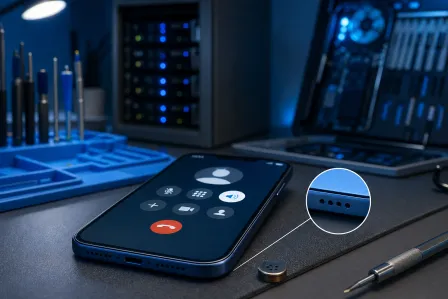
Then switch speakerphone on and repeat. Do not cover the tiny openings along the bottom edge or near the camera area while holding the phone.
If regular calls fail but speakerphone works, or the reverse is true, make a note. Different microphones may be involved.
Test B: Record your voice
Use Voice Memos on an iPhone, or the Recorder, Voice Recorder, or similar app on Android. Record for 10 to 15 seconds. Speak near the bottom of the phone first, then record another short clip while speaking toward the top or rear area, depending on your model.
Play both recordings back. If playback is silent, make sure the phone volume is up before assuming the recording failed. If the sound is clear, your microphone hardware is likely working, and the problem may be limited to calling, Bluetooth, or an individual app.
Test C: Record a short video
Open the Camera app and make a short video using the rear camera. Then make another with the front camera. Play both back.
Clear sound in one video but not the other is useful evidence. It can point to a particular microphone, obstruction, or camera-related audio path rather than a complete microphone failure.
Write down the results. A simple note such as “normal calls bad, speakerphone good, voice memo good, rear video muffled” is more helpful than “mic is broken.”
4. Check whether a case, screen protector, or debris is blocking it
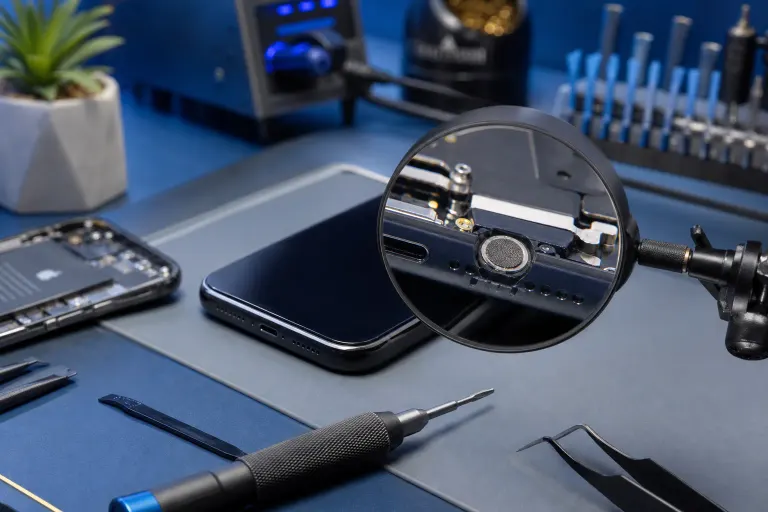
Modern phones have tiny microphone openings. Depending on the model, they may be on the bottom edge, top edge, near the rear camera, or close to the charging port. A rugged case, misaligned screen protector, dried residue, pocket lint, makeup, sand, or a sticky spill can block or distort audio.
Remove the case and any clip-on accessory. Test again. Pay special attention if the issue started after installing a new case or after a repair.
Use a soft, dry brush to lightly sweep around visible openings. Hold the phone with the openings facing down so loose debris can fall away. A hand-squeezed air blower can be safer than blasting canned air directly into a hole.
Avoid these common “quick fixes”:
- Needles, SIM tools, toothpicks, and paper clips
- Liquids, alcohol poured into openings, or cleaning sprays
- Compressed air held close to the phone
- Hair dryers, ovens, radiators, or direct hot sunlight
If your phone has been exposed to moisture, do not assume it is fine because it initially powered on. Corrosion and audio trouble can appear later. Power it down if there is visible moisture, remove the case, and let it dry in a ventilated indoor area. If the problem persists, professional inspection is the safer next move.
For iPhones and iPads with physical damage, charging trouble, or suspected liquid-related issues, you can arrange an assessment through our iPhone and iPad repair service.
Cracked screen or a phone that won't hold a charge? Get a repair quote
5. Check microphone permission for the app that fails
If the microphone fails in only one app, check permissions before doing anything more dramatic. Apps need explicit access to the microphone. A privacy setting, app update, parental control, or work-device policy can turn that access off.
On iPhone
Open Settings, then Privacy & Security, then Microphone. Find the affected app and make sure its toggle is on.
You can also open Settings, scroll to the specific app, and check whether Microphone access is enabled. If the option is missing, the app may need an update or reinstall.
On Android
Open Settings, then Apps, select the affected app, and choose Permissions. Set Microphone to Allow while using the app, if that matches how you use it.
Android menus differ by manufacturer, so you may also find this under Privacy, Permission manager, or App permissions. Google provides an overview of Android permissions in its Android Help documentation.
After changing permission, fully close the app and reopen it. Then test with a voice note, call, or video inside that app.
If permission was already allowed, check for an in-app mute button. Video meeting apps often show a microphone icon that can be muted even when phone-level permission is correct.
6. Restart, update, and isolate software problems
A restart is simple, but it matters. It closes stuck background processes, refreshes audio services, and may clear a temporary conflict after an app or Bluetooth connection misbehaves.
Restart the phone normally. After it turns back on, test the built-in voice recorder before opening a dozen apps. If the recorder works immediately after restart but fails later, notice which app or accessory you connected before it failed again.
Next, check for updates:
- Update the phone's operating system through Settings.
- Update the app where the problem occurs.
- Restart once more after major updates.
- Test again with Bluetooth off and no wired accessories attached.
Avoid installing random “microphone repair” or cleaner apps. They cannot repair a damaged microphone. Some add unnecessary permissions, ads, or privacy concerns.
If the microphone problem began right after a specific app installation, delete that app temporarily and retest. If it began after a system update, check whether the manufacturer has released a follow-up update. Apple's iPhone user guide can help you locate current settings for your version of iOS.
Do not factory-reset your phone yet. A reset erases information and is rarely the first smart test. Consider it only after backing up your data, confirming the issue affects multiple apps and recordings, and exhausting the less destructive steps above.
7. Consider call-specific causes, including your carrier
Sometimes the microphone is working, but a call path is not. If voice recordings and videos sound normal while phone calls fail, test a few variables.
Try calling a different person. Call over cellular service, then over Wi-Fi calling if your phone and carrier support it. Move to another location with a stronger signal. Turn airplane mode on for about 10 seconds, turn it off, and try again.
If only one contact cannot hear you, the problem may be on their phone, their connection, or the app you are both using. If every call is affected but recordings remain clear, contact your carrier to ask whether there is an account, SIM, eSIM, calling-feature, or local network issue.
For business phones, the cause may also be a managed calling app, mobile-device policy, VPN, headset setup, or conferencing platform. South Florida businesses that need help tracking down recurring calling and device issues can explore our business IT support. The goal is not to guess. It is to document the pattern and test the right layer.
8. Know when the evidence points to hardware repair
After the tests above, hardware becomes more likely when:
- Voice recordings are silent or severely distorted across multiple apps.
- The problem remains after restarting, updating, removing accessories, and checking permissions.
- Audio changed immediately after a drop, impact, water exposure, or repair.
- One call mode or camera mode consistently fails while another works.
- The microphone cuts out when the phone flexes, warms up, or is moved.
- The phone also has charging, speaker, camera, or connectivity issues.
At this point, stop repeatedly force-restarting or factory-resetting. Back up the phone if you can. If touch still works, save important photos, contacts, authentication codes, and messaging data according to your phone's backup method.
A technician can inspect for physical obstruction, damaged microphones, charging-port assembly trouble, liquid damage, loose connections, or a fault related to a previous repair. Bring your written test results. They help narrow the diagnosis and reduce wasted time.
If you are in West Palm Beach, Palm Beach County, or the Treasure Coast, you can contact Fix My PC Store to discuss the symptoms and arrange the right next step.
Common mistakes
The biggest mistake is treating every microphone issue as the same problem. A phone call, a video recording, Bluetooth audio, and a messaging app may use different paths. Test them separately.
Another mistake is cleaning aggressively. Microphone openings are small and delicate. Sharp tools can push debris deeper or puncture a protective mesh. Heat can damage seals, batteries, screens, and internal components.
Do not factory-reset first. You may lose photos, messages, and authenticator access without fixing a physical microphone fault. Always back up first, and use the test pattern to decide whether a reset is even justified.
Finally, do not overlook a case or accessory. A new case, a cheap USB-C adapter, earbuds, or a car Bluetooth connection can cause a problem that looks exactly like a failed phone microphone.
Bottom line
The fastest way to find the cause is to test, not guess. Check calls, speakerphone, voice recordings, front and rear videos, Bluetooth, and the one app that may be failing. The results usually point clearly toward permissions, audio routing, software, a carrier issue, or hardware.
If recordings are silent across the board, the phone was dropped or wet, or the problem survives these checks, back up your data and get it inspected. You have already done the useful detective work, and that makes the repair conversation much easier!
Cracked screen or a phone that won't hold a charge?
Bring it in. Most phone and tablet repairs are same-day, with parts that actually last.