Phone Keeps Restarting on Its Own: What Is Causing It
TL;DR: Random reboots usually trace back to a bad battery, a misbehaving app, corrupted software, or a hardware fault. Run the diagnostic steps below in order. Most cases are fixable at home. If the phone still restarts after Safe Mode and a factory reset, the hardware needs a professional look.
What you need
- Your phone, charged to at least 20 percent
- A few minutes to observe restart patterns
- Access to Settings (both iOS and Android work fine here, for once)
- Your charging cable and a known-good charger
Step 1: Notice the pattern
Random restarts are not random. Pay attention to when they happen.
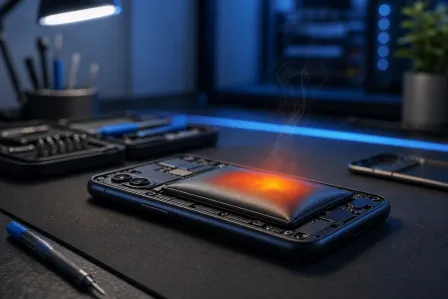
- Restarts only while charging: points to a bad battery or faulty charging port.
- Restarts under load (camera, games, video): points to overheating or a failing battery that can't handle the current draw.
- Restarts at a specific battery percentage, say 30 or 15 percent: almost always a worn-out battery with inaccurate capacity readings.
- Restarts at any time with no pattern: software or hardware fault.
Write down what you notice. It shortens every step that follows.
Step 2: Check the battery health
iPhone: Go to Settings > Battery > Battery Health and Charging. Anything below 80 percent is genuinely degraded and will cause erratic behavior including surprise shutdowns and reboots.
Android: Battery health reporting varies by manufacturer. Samsung has it under Settings > Battery and device care > Diagnostics. Google Pixel users can dial *#*#4636#*#* to see battery info. Other brands may require a third-party app like AccuBattery, or a technician's diagnostic tool.
A battery that reads fine but is more than three years old is still a suspect. Lithium cells degrade even when the software says otherwise.
Step 3: Boot into Safe Mode
Safe Mode loads only the operating system, no third-party apps. If the restarts stop, an app you installed is the cause.
Android Safe Mode:
- Press and hold the power button.
- Long-press the "Power off" option on screen until "Reboot to Safe Mode" appears.
- Tap OK and use the phone normally for an hour.
iPhone equivalent: iOS doesn't have a true Safe Mode, but you can approximate it by disabling Background App Refresh (Settings > General > Background App Refresh > Off) and turning off all third-party notifications temporarily.
If Android Safe Mode stops the restarts, uninstall apps one at a time, starting with the most recently installed. The restart will come back after you reinstall the guilty app. That's your culprit.
Cracked screen or a phone that won't hold a charge? Get a repair quote
Step 4: Update everything
Outdated OS builds sometimes contain bugs that cause reboot loops. Check for a system update before doing anything more drastic.
- iPhone: Settings > General > Software Update
- Android: Settings > System > System Update (path varies slightly by brand)
Also update all installed apps. A single poorly coded app can destabilize the whole system.
Step 5: Clear the cache partition (Android only)
Over time, Android's cache partition can accumulate corrupted temporary files that trigger crashes. Clearing it doesn't delete your personal data.
- Power off the phone completely.
- Boot into Recovery Mode (usually Power + Volume Up, but combinations vary widely by brand and model , look up the exact method for your device before proceeding).
- Use volume buttons to highlight "Wipe cache partition."
- Press Power to confirm, then reboot.
iPhone users: skip this step, iOS handles cache differently.
Step 6: Factory reset as a last software option
If Safe Mode, updates, and cache clearing didn't fix it, the software is deeply corrupted. A factory reset will tell you whether this is a software or hardware problem.
Back up everything first. This step erases all data.
- iPhone: Settings > General > Transfer or Reset iPhone > Erase All Content and Settings
- Android: Settings > System > Reset options > Erase all data
Set the phone up fresh without restoring from a backup initially. Use it bare for a day. If restarts continue on a clean install, the problem is hardware, not software.
Common mistakes
- Blaming the newest app immediately. Sometimes an update to an existing app, not a new install, is the trigger. Check your app update history.
- Skipping Safe Mode and going straight to factory reset. That's a lot of hassle when one app uninstall might fix it.
- Ignoring the charging pattern. A phone that only restarts while plugged in almost certainly has a battery or port issue, not a software problem.
- Assuming a warranty battery reading means the battery is fine. Software estimates. Electrochemistry doesn't lie as nicely.
- Factory resetting and then immediately restoring a full backup. If the backup contains the corrupt file or the bad app, you just re-broke the phone.
Bottom line
Work through the steps in order: pattern, battery health, Safe Mode, update, cache clear, reset. Each step either fixes the problem or rules out a cause. If you get through a clean factory reset and the phone still reboots randomly, you're dealing with a hardware fault, most likely the battery, but possibly the motherboard.
At that point, bring it in. Fix My PC Store handles phone and tablet repairs at 10140 Okeechobee Blvd, West Palm Beach, Monday through Friday 9 a.m. to 6 p.m. and Saturday 9 a.m. to 5 p.m. Initial checks are free for most standard in-store repairs. Call 561-819-9999 or schedule a repair online.
Cracked screen or a phone that won't hold a charge?
Bring it in. Most phone and tablet repairs are same-day, with parts that actually last.