Phone Home Button Unresponsive or Stiff? What It Means and How to Fix It
TL;DR: A home button that feels stiff or stops responding is almost always caused by debris under the button, a worn mechanical dome switch, or a software issue. Work through the diagnostic steps below to narrow it down. Hardware problems usually need a technician; software problems you can often fix yourself.
What You Need
- Your phone, charged to at least 20%
- A soft toothbrush or compressed air can (for cleaning attempts)
- Isopropyl alcohol, 70% or higher, and a cotton swab (optional)
- Five to ten minutes of focused attention
Step 1: Rule Out Software First
Before assuming anything is physically broken, restart your phone completely. A full power cycle clears temporary states that can make the home button feel frozen or laggy.
On iPhone: Hold the side button and a volume button, slide to power off, wait 30 seconds, restart.
On Android: Hold the power button, tap Restart.
After restarting, press the home button several times. Did it respond? If yes, you likely had a temporary software hang, not a hardware fault. Monitor it over the next day.
Step 2: Check for Debris and Grime
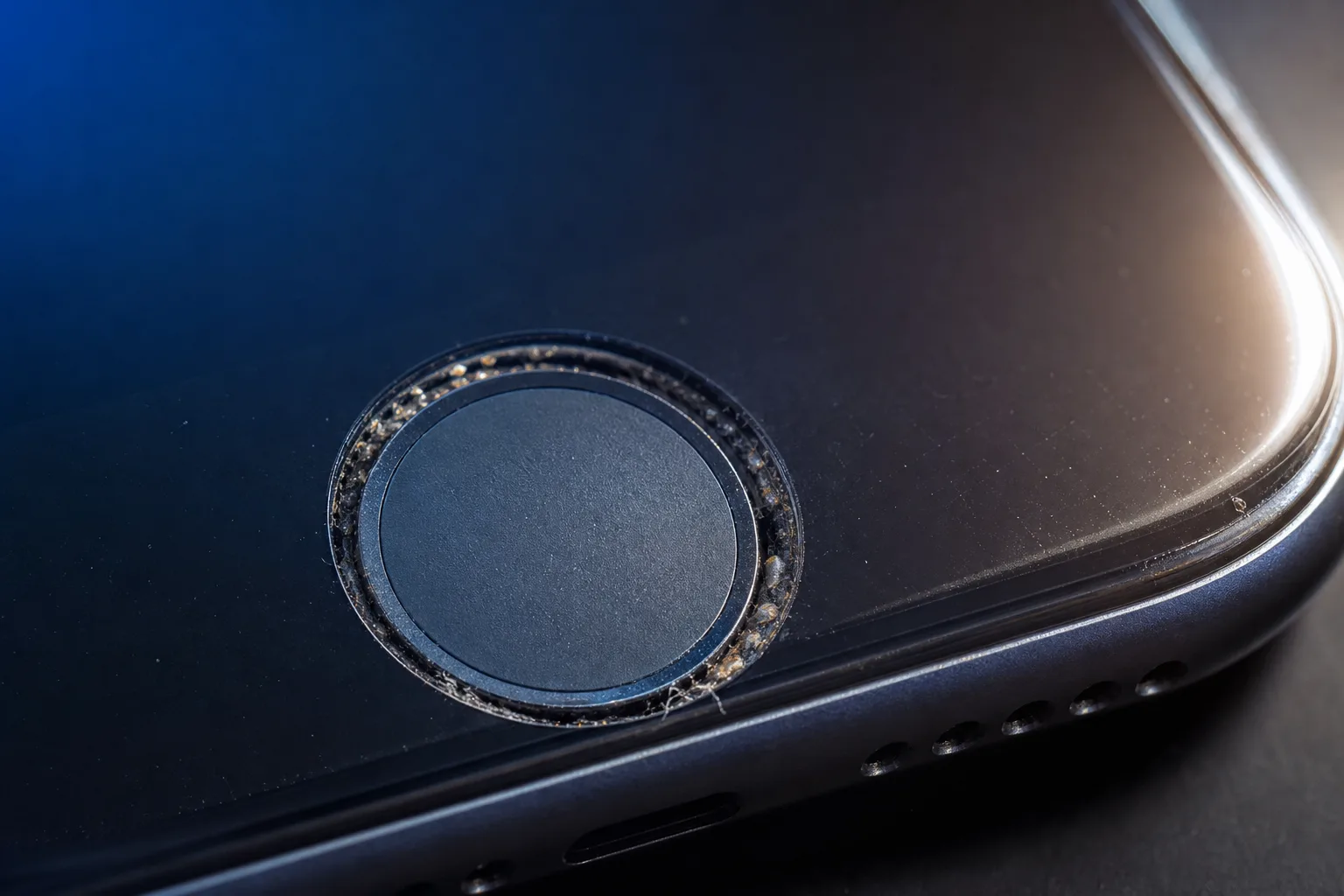
This is the most common cause of a stiff or sluggish home button, especially on older phones. Skin oils, pocket lint, and fine dust pack into the gap around the button over months of use.
What to try:
- Power the phone off.
- Hold it at an angle under a bright light. Look at the seam around the button for visible buildup.
- Use a soft toothbrush to gently brush around the button edge in circular motions.
- Follow with a very brief burst of compressed air, held at least six inches away. Do not tilt the can, which can release liquid propellant.
- Dampen a cotton swab with isopropyl alcohol and run it around the button edge. Let it dry fully before powering on.
Press the button again. Improved? Debris was likely the culprit.
Step 3: Test Software-Level Button Health (iPhone Only)
Apple includes a home button calibration trick that can sometimes restore responsiveness without any hardware work.
- Open any pre-installed app (Clock, Notes, etc.).
- Hold the power button until "Slide to power off" appears.
- Release the power button, then hold the home button for about six seconds.
- The app will close and return you to the home screen. This triggers a reset of that app's memory state and can recalibrate the button's touch response.
If the button responds during this process but feels inconsistent at other times, the physical switch may be starting to wear out.
Cracked screen or a phone that won't hold a charge? Get a repair quote
Step 4: Use AssistiveTouch as a Stopgap
If the button is partially or fully unresponsive, enable AssistiveTouch (iPhone) or the accessibility shortcut equivalent (Android) to keep using your phone while you figure out the repair path.
iPhone: Settings > Accessibility > Touch > AssistiveTouch > On. A floating on-screen button appears that replicates the home button.
Android: Settings > Accessibility > Interaction and dexterity > varies by manufacturer. Many Android phones with a physical home button offer a similar virtual navigation option.
This is not a fix. It is a functional workaround while you decide on repair.
Step 5: Identify the Likely Hardware Cause
Use this decision table to figure out what you are probably dealing with.
| Symptom | Most Likely Cause | Repair Complexity |
|---|---|---|
| Button feels physically sunken or stuck down | Debris or liquid under button | Low to medium |
| Button clicks but phone does not respond | Worn dome switch or ribbon cable fault | Medium to high |
| Button responds sometimes, not others | Dirty or partially failing dome switch | Medium |
| Button works but Touch ID fails | Sensor issue, possibly from prior repair | High, Apple-specific |
| Button cracked or visibly damaged | Physical impact damage | Medium to high |
On iPhones, Touch ID is paired to the logic board at the factory. Replacing the home button yourself will permanently disable Touch ID unless the repair is done by Apple or a shop with access to Apple's pairing tools.
Common Mistakes
Using too much liquid. Isopropyl alcohol used around a home button can seep inside and corrode the ribbon cable or sensor. A lightly dampened swab, not a soaked one, is the rule.
Forcing the button. If it feels stiff, pressing harder does not clear debris. It bends or breaks the internal dome switch faster.
Attempting a DIY home button swap on iPhone. The Touch ID pairing means even a technically successful swap results in a non-functional fingerprint sensor. This is not fixable at home without Apple's proprietary tools.
Ignoring intermittent problems. A home button that works 80% of the time is telling you the dome switch is wearing out. It rarely gets better on its own, and a full failure is more disruptive than a planned repair.
Bottom Line
Start with the software steps. They cost nothing and fix the problem more often than you might expect. If cleaning the button edge does not help and the issue is clearly mechanical, this is a repair best handled by a technician, especially on iPhones where home button replacement involves Touch ID pairing.
Fix My PC Store handles phone and tablet repairs from its Okeechobee Boulevard location in West Palm Beach, serving Royal Palm Beach and Wellington as well. If you have worked through these steps and the button is still giving you trouble, book a repair appointment or reach out to the team to get a straight answer on what the fix looks like for your specific phone.
Cracked screen or a phone that won't hold a charge?
Bring it in. Most phone and tablet repairs are same-day, with parts that actually last.